
Setup Wizard is designed to collect essential data in order to get the system up and running. After the setup wizard has finished, the system should be fully licensed, fully operational and ready for use.
In order to login to the setup wizard, please point your browser to: [https://IPADDRESS:81/](https://IPADDRESS:81/](https://IPADDRESS:81/](https://IPADDRESS:81/) (For example:https://192.168.1.2:81/)
.
IMPORTANT:
The setup wizard requires username and password to prevent unauthorized access.
The default values are: username: root and password: pbxware
The setup wizard will ask for the password to be changed in one of the setup steps. After it is changed, it is very important to remember this password since it is the system root and the setup wizard password.
.
EULA
The EULA (end user license agreement) is the first setup wizard step.
Please read the EULA and type ‘”I agree”‘ to proceed.
.
NOTE: If you do not agree with the EULA, please remove the installation media and system software and return the license issued.
.
Administrator Details
Provide the details of the user who will administer the system. These values are used when logging into PBXware
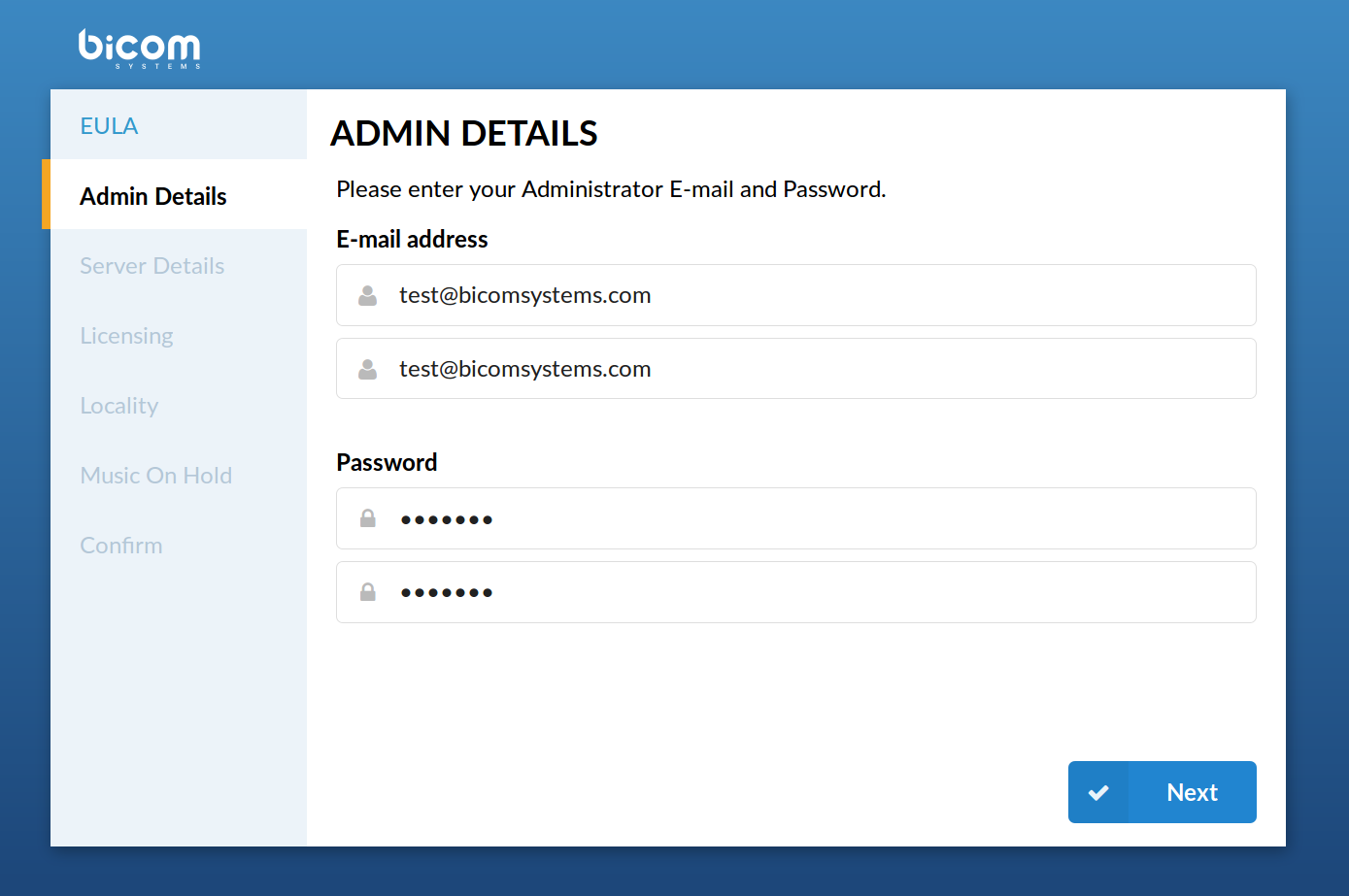
- E-mail/Confirm E-mail
Provided email address is used as a username for logging in
- Password/Confirm Password
Provided password is used for logging in
.
Server Details (CD ROM and USB version)
These are system and network fields necessary for proper system operation.
- Root Password
PBXware prompts for this password during the system/ssh login and when accessing system services through the interface.
- Confirm Password
Re-type the Root Password entered in the field above
- Time zone
Select the time zone, in which PBXware is located.
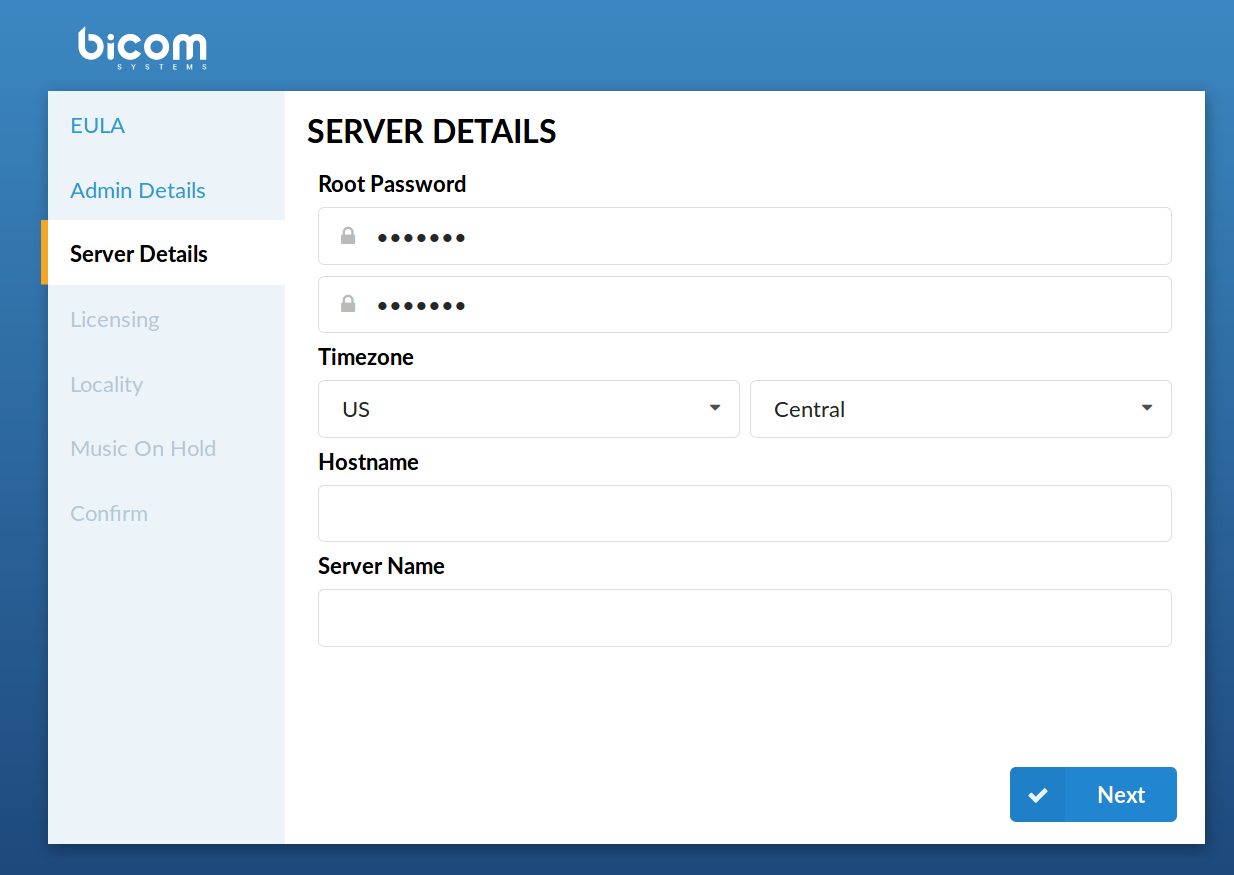
- Hostname
The name given to the machine which will identify the system on the network (E.g. “myhost”)
- Interface
The PBXware interface uses (LAN/WAN). If the PBXware is in the LAN interface, select it here. In some cases where PBXware is installed on appliances in WAN mode, select WAN here.
- Use DHCP
Whether PBXware is using DHCP or the static IP address. It is recommended to always set PBXware on a static IP address, in that case this option should be set to ‘No’.
- IP Address
If PBXware is in the LAN, provide its static IP address here.
- Netmask
This field is calculated automaticaly and contains your IP address Netmask.
- Gateway
If PBXware is located in LAN, set the gateway IP address here.
(E.g. 192.168.1.1)
- DNS server
If PBXware is located in LAN, set the preferred DNS server IP address here
(E.g.192.168.1.1)
- DHCP Server
If there is no DHCP server on LAN, PBXware can start its own and provide UADs/Phones with this service. If you already have DHCP server on your network, choose ‘No’.
.
Server Details (Vserver version)
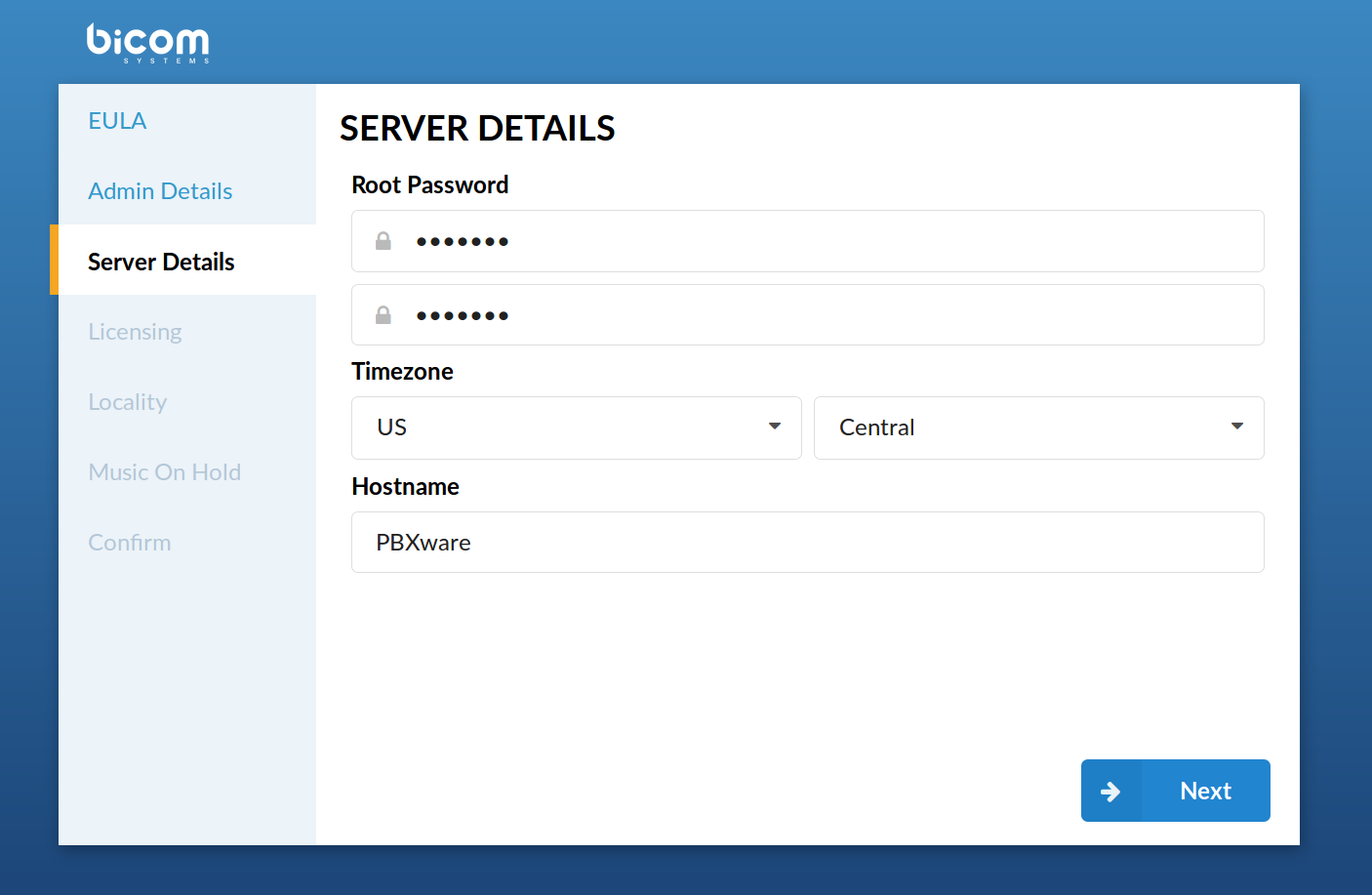
These are system and network fields necessary for proper system operation
- Root Password
PBXware prompts for this password during the system/ssh login and when accessing system services through the interface.
(E.g. do34ffjk)
- Confirm Password
Re-type the Root Password entered in the field above.
(E.g. do34ffjk)
- Time zone
Select the the time zone, in which PBXware is located, E.g. USA/East-coast.
(USA/East-coast)
- Hostname
The name given to the machine which will identify the system on the network, E.g. myhost.
(E.g. myhost)
- Server name
Virtually the same as the ‘Hostname’ field, only this name will appear during system notifications, sent emails, etc.
(i.e. domain.com)
.
Licensing
Licensing allows you to enter a valid non-active license and displays the MAC address with which the license will be valid. If the system has more than one network adapter, all found MACs will be shown for selection.
NOTE: PBXware licensing in version 6.0 have been slightly changed and PBXware license now must have matching PBXware version number assigned. In case license does not have matching version assigned you will still be able to apply the license on this step but PBXware will not be able to start. Once you log in to GUI you will see the warning message informing you that license is not valid. In case this happens please contact your account manager.
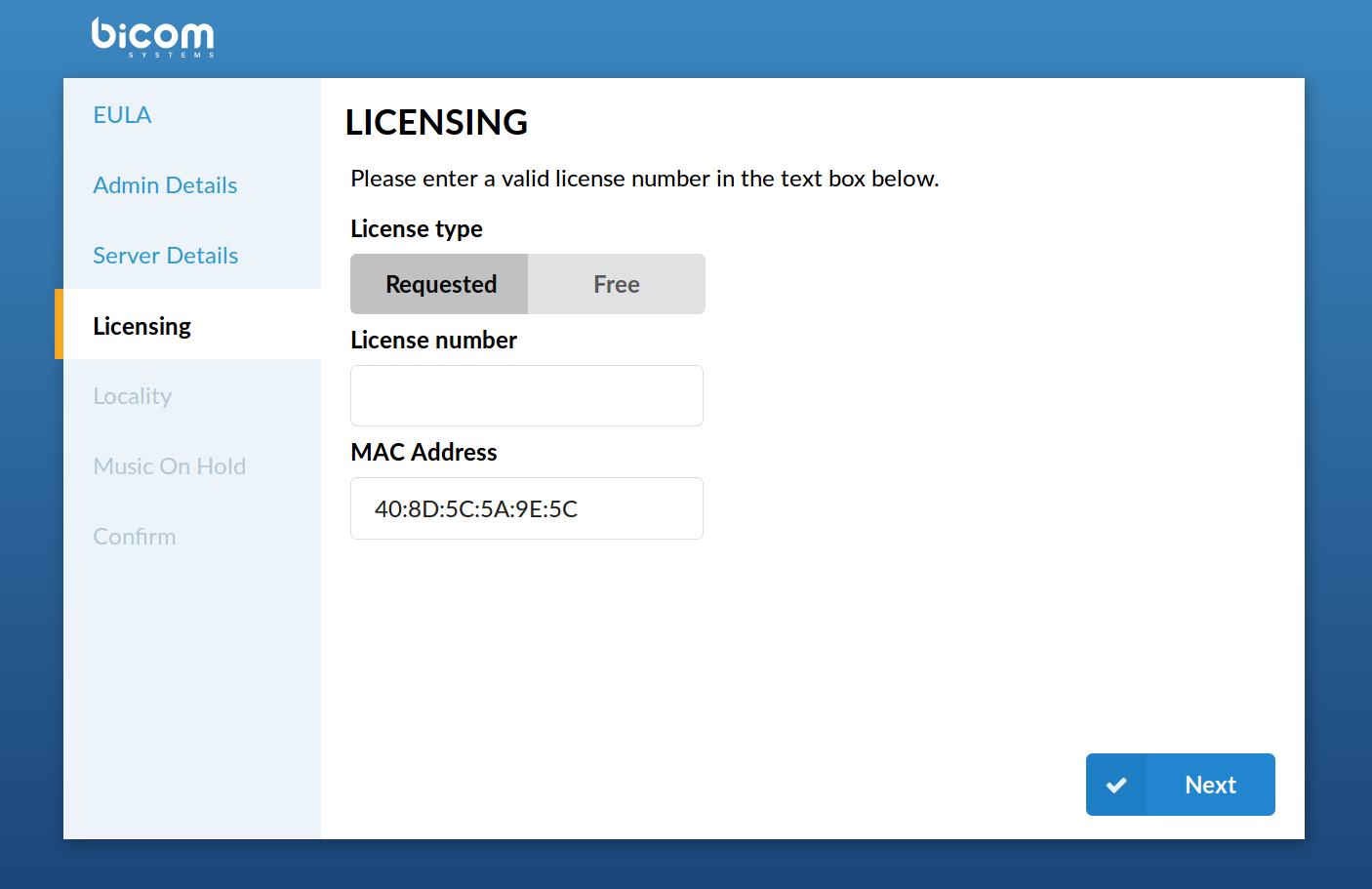
- License Type
Select a system license type. The system comes with two license types: FREE license and ‘Requested License’
- License Number
Enter the PBXware license number, select the MAC address if more than one is present and click ‘Next’ to register the PBXware
NOTE: PBXware 6.0 is also allowing you to relicense your PBXware from terminal.
To do that, use ssh to log in to your PBXware and execute these commands:
cd /opt/pbxware sh/license_refreshThis will take your current license and check licensing server for any changes that might be made to the license since it was applied.
In case you need to relicense your server with new license number use these commands:
cd /opt/pbxware sh/license_refresh
ABCD1234
Make sure to replace ABCD1234 with correct license number you would like to apply to the system.
- MAC
The MAC address associated with the PBXware.
NOTE: The system must have access to a fully operational Internet connection in order to license the system. If more than one MAC address is present, select the one you wish to associate with PBXware and click ‘Next’.
.
Locality
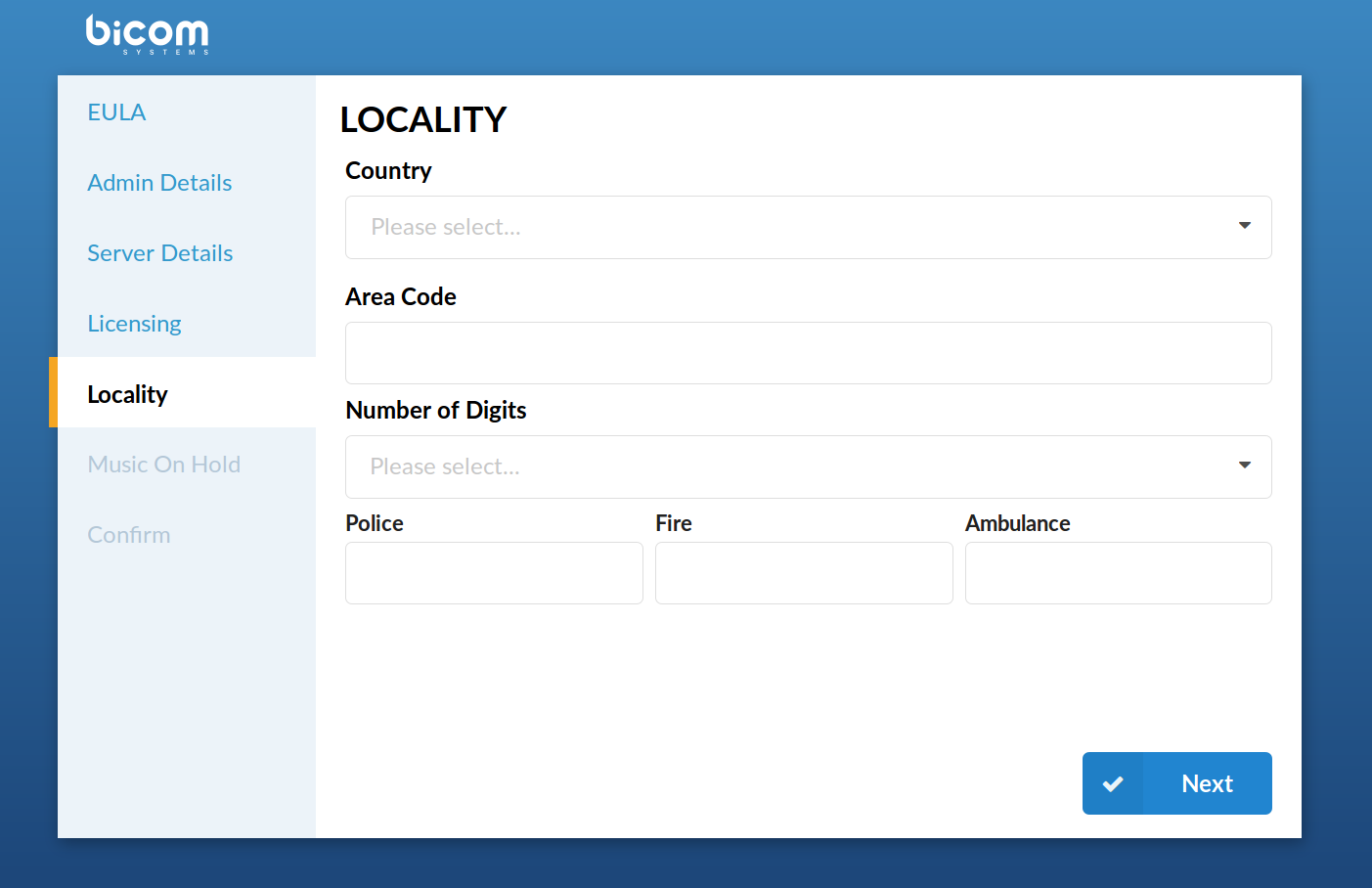
Locality allows for ‘local’ system values to be entered in order to setup all the necessary values for normal system operation.
- Country
Select the country in which PBXware is located, E.g. United Kingdom.
- Indications
Typical telephony sounds PBXware will use. A different signal is heard when the handset is picked up in different countries. This field will be set automatically. If your country is not on the list, select ‘Other’.
- Area Code
The area code of the city where PBXware is located, for example, if your PBXware is in New York, you would set ‘212’ here.
- Number Of Digits
The number of digits PBXware will associate with local extensions. If this field is set to ‘4’, all local extensions will have a range from 1000-9999.
Minimum number of digits is 2 and maximum is 16 digits.
WARNING: After you create first extension, queue or an agent on your system, you will not be able to change this setting anymore.
- Police/Fire/Ambulance
The number of Emergency Services in the area where PBXware is located. PBXware has an option to dial these emergency services through certain trunks. If all trunk channels are busy, an active call will get dropped in order to dial these numbers.
(If in the USA, for example, set these fields to ‘911’)
.
Music On Hold
The system comes with a default ‘silence’ music on hold sound file, or royalty free music on hold file which can be changed later on.
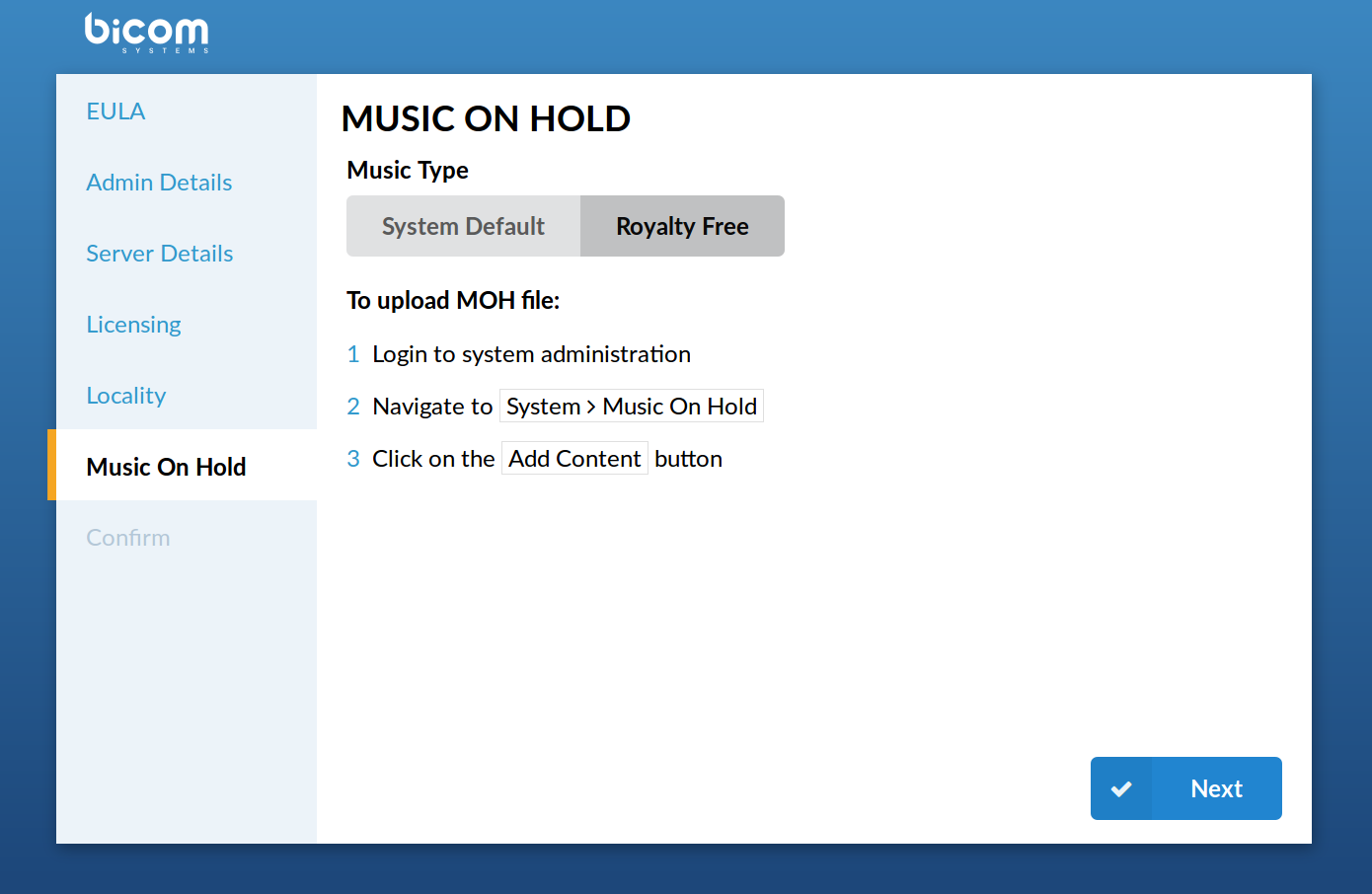
This field is available for: Virtual Server, CD, and Appliance PBXware packages
- Royalty Free Music On Hold
This will upload royalty free music which can be used as default music on hold but it can be changed later on.
.
Confirm
Finally, the confirmation step allows for all values to be revised and to either finish the wizard or start all over from the beginning. If ‘Confirm and finalize’ is clicked, the setup wizard will finish and the browser will be redirected to the system login screen.
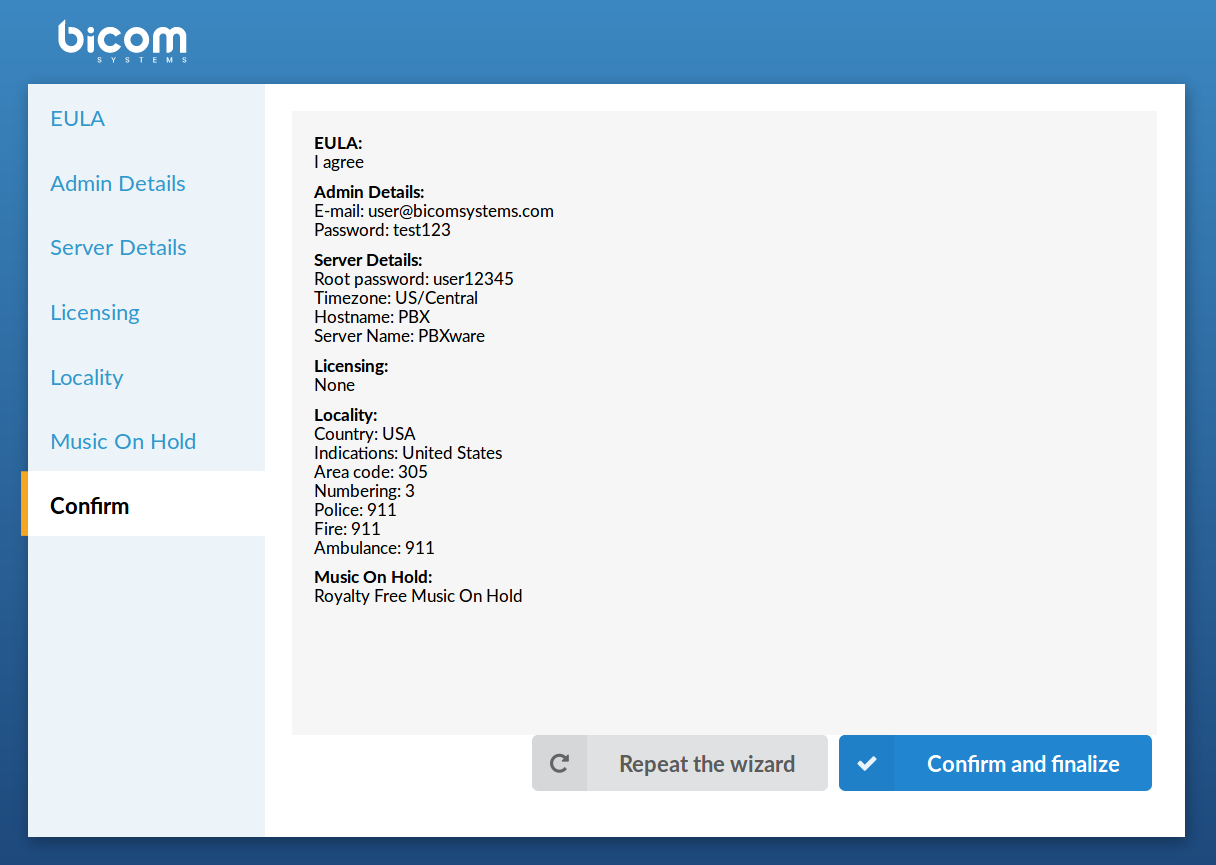
Confirm
- Repeat the wizard
If you click this button all of the provided details will be reset and started again from step one.
(Command button)
- Confirm and finalize
Click this button to confirm the data provided in the setup wizard and finalize the installation. All provided details will be applied and the setup wizard will redirect you to the PBXware login screen.
.
Logging into the system
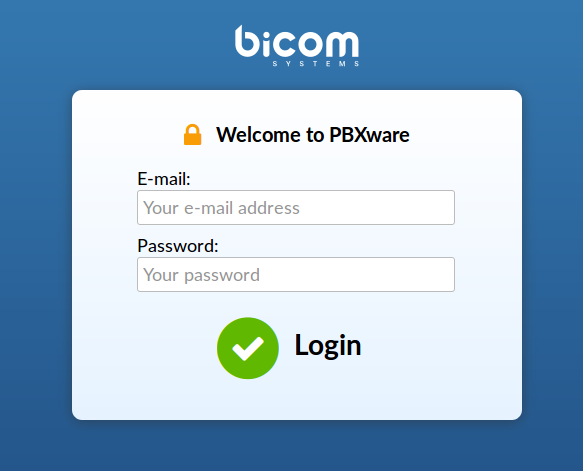
Login screen
In order to login to the system, point your browser to: http://$IPADDRESS/ (for example:http://192.168.1.2/)
This is the administrator’s e-mail address, the one you have set in the initial setup wizard.
([a-z] [0-9] [@_.-])
- Password/PIN
This is the administrator’s password, the one you have set in the initial setup wizard.
.
Updates
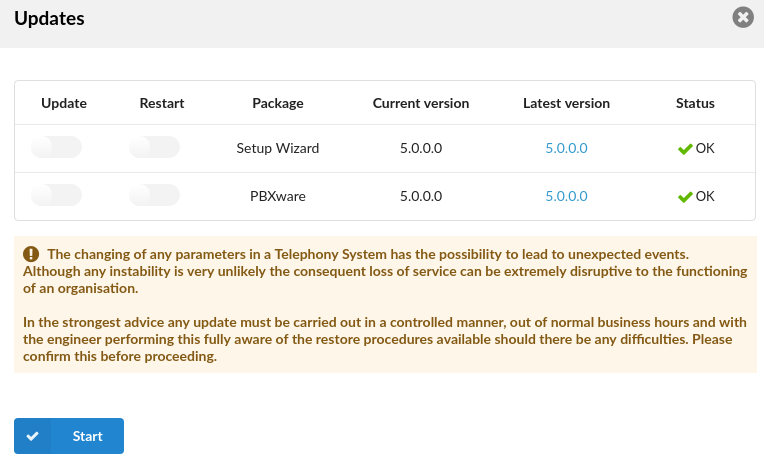
Updates
In order to update PBXware to the latest version follow these steps:
- Login to the PBXware web interface
- Navigate to ‘Admin Settings: Updates’ and click on the ‘Updates’ button
- Enter the system password
- Click on ‘Start’ and wait until the system shows the interface again
.
License Updates
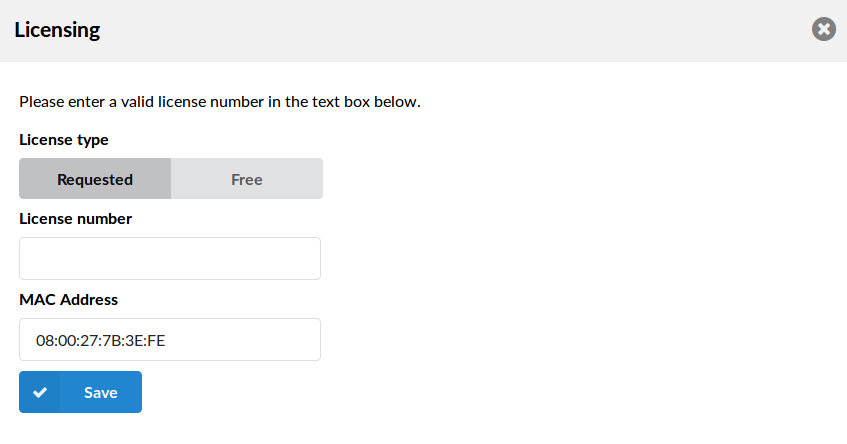
License Updates
To upgrade your PBXware license, do as follows:
- Login to the PBXware web interface
- Navigate to ‘Admin Settings: ‘Licensing’
- Enter the system password
- Enter the license number in the ‘License Number’ field (e.g. 0A9DS8F7)
- Click on the ‘Save’ button