
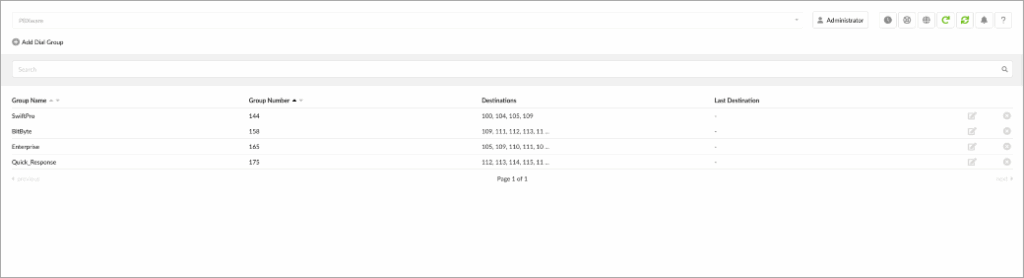
Dial Groups are used to group a number of UADs/Phones into one network Destination. Each Dial Group is assigned a network number that rings all Extensions assigned to the group once dialed.
- Group Name
Dial the group Extension number.
(E.g., Accounts)
(Display)
- Group Number
Dial the group Extension number.
Once a user dials this number, all destinations assigned to the Dial group will ring.
(E.g., 1111)
(Display)
- Destinations
Extension Numbers that are assigned to a Dial group.
Once a Dial group number is dialed, all Destinations set here will ring simultaneously.
(E.g., 1001, 1002, 1003)
(Display)
- Last Destination
The last destination is to be called if none of the Destination Extensions answer the call.
(E.g., 1010)
(Display)
 Edit
Edit
Edit the Dial group configuration.
(Button)
 Delete
Delete a Dial group from the system.
(Button)
Add/Edit Dial Group
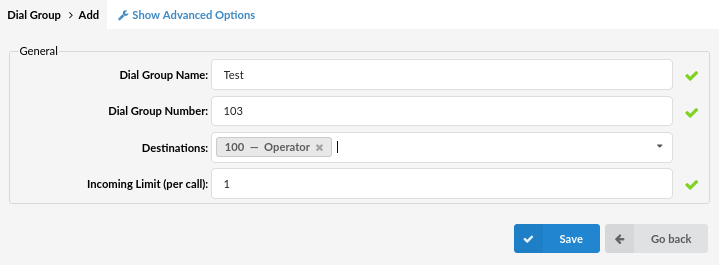
Clicking on the ‘Add Dial Group’ or ‘Edit’ button will open the following Dial group options:
- Dial Group Name
Set a Dial group name.
(E.g., Set ‘Accounts’ here to create the same Dial group.)
([a-z][0-9])
- Dial Group Number
Set a number associated with the Dial group.
(E.g., When this number is dialed, all Extensions associated with it will ring simultaneously.)
([0-9])
- Destinations
Extension numbers of Rxtensions that you want to be associated with the Dial group.
(E.g., Provide an extension list separated by commas here (E.g., 1001,1002,1003). When a Dial group ‘Extension’ number is dialed, all extensions set here will ring simultaneously.)
([0-9])
NOTE: If all destinations fail after ‘timeout’, ‘Last Destination’ will be called.
- Incoming Limit (per call)
Suppose you have a scenario where a call is sent from the current Dial group to the second one, and the second one returns the same call to the first group. In that case, it will allow only this many loops.
(E.g., If this is set to 1 as it is by default, and the current Dial group sends the call to the next group (or any other object on the system), returning the same call from that object will not be permitted as the same call can enter this group only once.)
NOTICE: System comprehensive limitation for these ‘loops’ is 10.
Advanced Options
These options fine-tune Dial group settings with additional options.
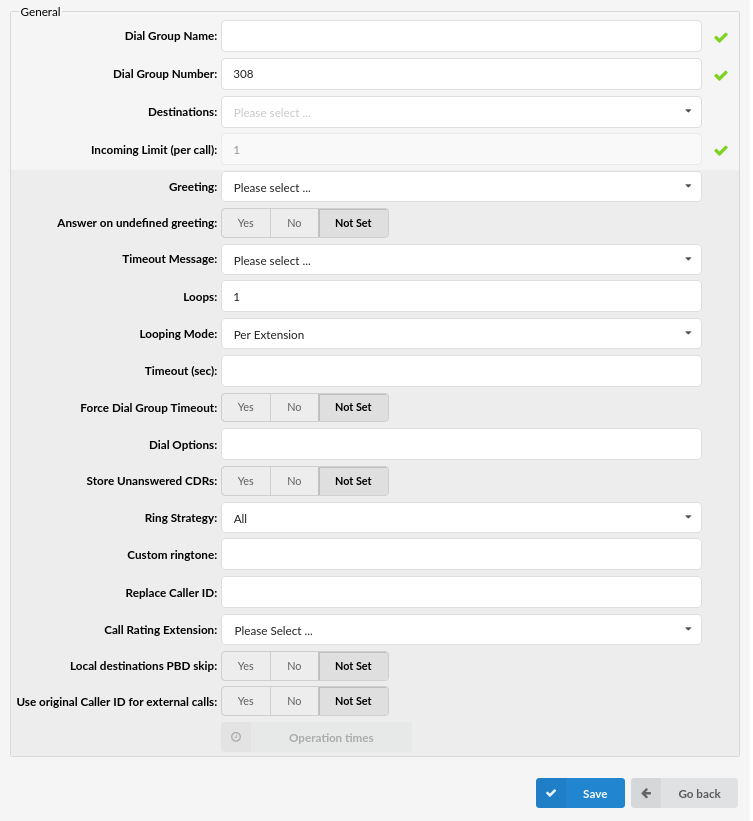
General
- Greeting
Greeting sound file played to callers when the Dial group is dialed.
(E.g., By selecting ‘greeting-default-attendant,’ any user that calls this Dial group will hear this sound file before all Dial group extensions are dialed.)
(Select box)
- Answer on undefined greeting
If this option is turned on, the Dial group will not answer until the proper greeting is selected.
(E.g., Yes, No, Not Set)
(Option button)
- Timeout Message
A sound file is played to the caller if any Dial group extensions don’t answer their call.
NOTE: Sound file must have ‘announce-‘ name prefix (e.g. ‘announce-unavailable’)
(E.g., John dials a Dial group 1000, but nobody answers his call. The sound file selected here will be played to John, and then his call will be transferred to the ‘Last Destination’ extension.)
(Select box)
- Loops
How many times to redial all extensions if nobody answers.
(E.g., John dials a Dial group 1000, but nobody answers his call. If this option is set to ‘2’, all extensions will be dialed one more time before transferring his call to ‘Last Destination’)
([0-9])
- Looping Mode
Define the looping mode for Dial groups by selecting one of the following options:
- Per Extension: an Extension rings multiple times before the next one starts ringing
- Circular: an Extension rings one time before the next one starts ringing
(Select box)
(E.g., The Dial group 1000 has three Extensions (101, 102, and 103).
a) First case scenario:
- Loops: set to 3
- Looping mode: set to ‘Per Extension’
- Timeout (sec): set to ‘7’
- Ring Strategy: set to ‘Round’
In this scenario, the Dial group will ring extensions multiple times. This means that Extension 101 will ring for 7 seconds. If the call is unanswered, the Dial group will ring again Extension 101 for 7 seconds. If the call is left unanswered for the second and the third time, then the Dial group will ring the next Extension 102, and so on.
b) Second case scenario:
- Loops: set to 3
- Looping mode: set to ‘Circular’
- Timeout (sec): set to ‘7’
- Ring Strategy: set to ‘Round’
In this scenario, the Dial group will ring Extensions respectively and once. This means that Extension 101 will ring for 7 seconds. If the call is unanswered, the same will be repeated for 102 and 103. In that case, if no one answered the call in the first loop, the call will enter a second loop, and three Extensions will be redialed in the same manner.)
- Timeout (sec)
How many seconds will all Dial group extensions ring before the call is considered unanswered.
(E.g., If this option is set to 20, all extensions will ring for 20 seconds before the timeout occurs. Depending on what is specified in the ‘Loop’ field, all extensions will ring again, or the call will be transferred to the ‘Last Destination’.)
([0-9])
- Force Dial Group Timeout
If set to ‘Yes’, the Dial Group timeout will have priority over the extension’s timeout.
(E.g., Yes, No, Not Set)
- Dial Options
Additional call options assigned to a Dial group
(E.g., To play music to Dial group callers, set this field to ‘m($CLASS)’, where m = MOH class E.g., m(‘default’). For more info, please check the text below.)
([a-z])
- Store Unanswered CDRs
An option to exclude unanswered CDR records from a report.
If the option is set to ‘No’, the following will change:
- The call was not answered/canceled: Instead of 2 generated CDRs per extension in the Dial group, only a single CDR will be stored.
- The call was answered: Instead of 2 generated CDRs per extension in the Dial group, a total of 2 CDRs will be generated (one for the call to the Dial group and one for the extension that answered).
- Ring Strategy
This option regulates how the extension in the Dial Group will ring.
Available Options:
- All – ring all extensions in the group
- Leastrecent – ring extension with the least answered calls
- Round – ring each available extension
- Round Memory – like round, except we remember where we left off the last ring pass
(Select box)
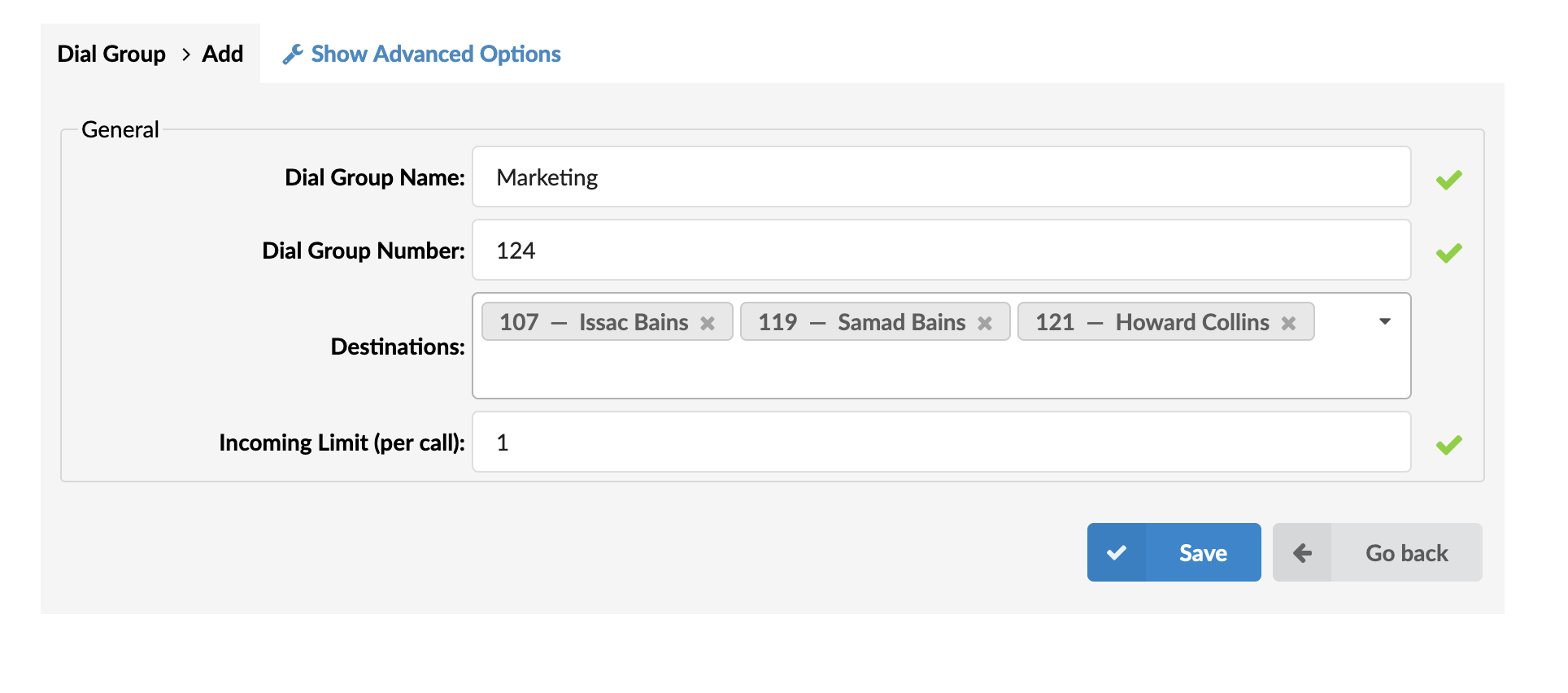
NOTE: To ensure the system’s stability and prevent any potential issues from causing the malfunction, the default number of Extensions that may be dialed in a single Dial Group is set to 30. This number limitation is applied when the ‘All’ Ring Strategy is set.
Therefore, if there are more than 30 Extensions in a Dial Group with the ‘All’ Ring Strategy, upon saving the settings for that group, a warning message with the following information should appear: “Due to limitations of the ring all strategy, only 30 Destinations will be called”.
(E.g., A user creates a Dial Group with 35 Extensions and sets the Ring Strategy to ‘All’.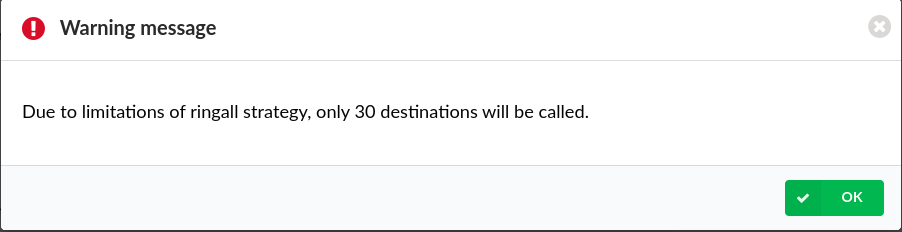 When s(he) tries to save the settings, a warning message appears, as shown in the screenshot. A user can save the Dial group, which has 35 Extensions. However, only the first 30 will be dialed in the chosen order. The warning message doesn’t appear if there are 30 Extensions or less.)
- Custom ringtone
Set a custom ringtone for the phones which are in this Dial group.
TIP: More info can be found in Call Filters & Blocking.
([0-9] [a-z])
- Replace Caller ID
Replaces the caller ID with the custom data provided here. This is used when you want all incoming calls to your Dial Group to display this value as caller ID information. Along with the custom data, you can use the ‘%CALLERID%’ variable, which shows the calling party phone number.
NOTE: Please ensure you enter this information as it is written down. Otherwise, it will not work correctly. (E.g., Providing a ‘USDID’ here will display ‘USDID’ on your phone for all calls coming to this Dial Group. Providing ‘USDID %CALLERID%’, will display ‘USDID 55510205’ on your phone display, where 55510205 is calling party phone number).
NOTE: If custom data from the previous NOTE does not work for you, try with this variable ‘USDID<%CALLERIDNUM%>’.
- Call Rating Extension
Setting the Call Rating Extension will result in it being used to pay all call expenses from the Dial Group to its Destinations, regardless of which Destination is being called. Charging only applies to the part of a call – from a Dial Group to its Destination. All call expenses must be paid by the Call Rating Extension.
(E.g., A Dial Group is set to have two Extensions and an External number as Destinations as shown in the example screenshot (Ext.901, Ext.127, and ‘035200300’). The same Dial Group has another Extension, ‘100 – Operator,’ set as a Call Rating Extension. When someone reaches the Dial Group, the call is charged accordingly to the prices specified in the Service plan used by the Call Rating Extension. If it is answered by the External number, that call will go through the Trunk and be charged accordingly.)
(Select box)
- Local destinations PBD skip (6.6.1)
When set to ‘Yes’ and this group is called from a PBD device, the user will not be asked for a PBD pin ONLY if all Dial Group destinations are Local Destinations. In case the Dial group has no Destinations set or has a Destination that is not considered ”’Local”’, the user will be prompted to enter the PBD pin.
(Option buttons)
- Use original Caller ID for external calls (6.6.1)
If set to ‘Yes’, the original Caller ID will be used for external calls. This option can be used in case when the original Caller ID that entered the system should also leave the system when an external number is dialed from the Dial group. This option will prevent the system from overriding that Caller ID.
(Option buttons)
The value in the ‘Replace Caller ID’ field still has the highest priority for the call that exits the Dial Group. Only that value overwrites the Caller ID for all calls that exit the Dial Group – including external calls as well.
Operation Times
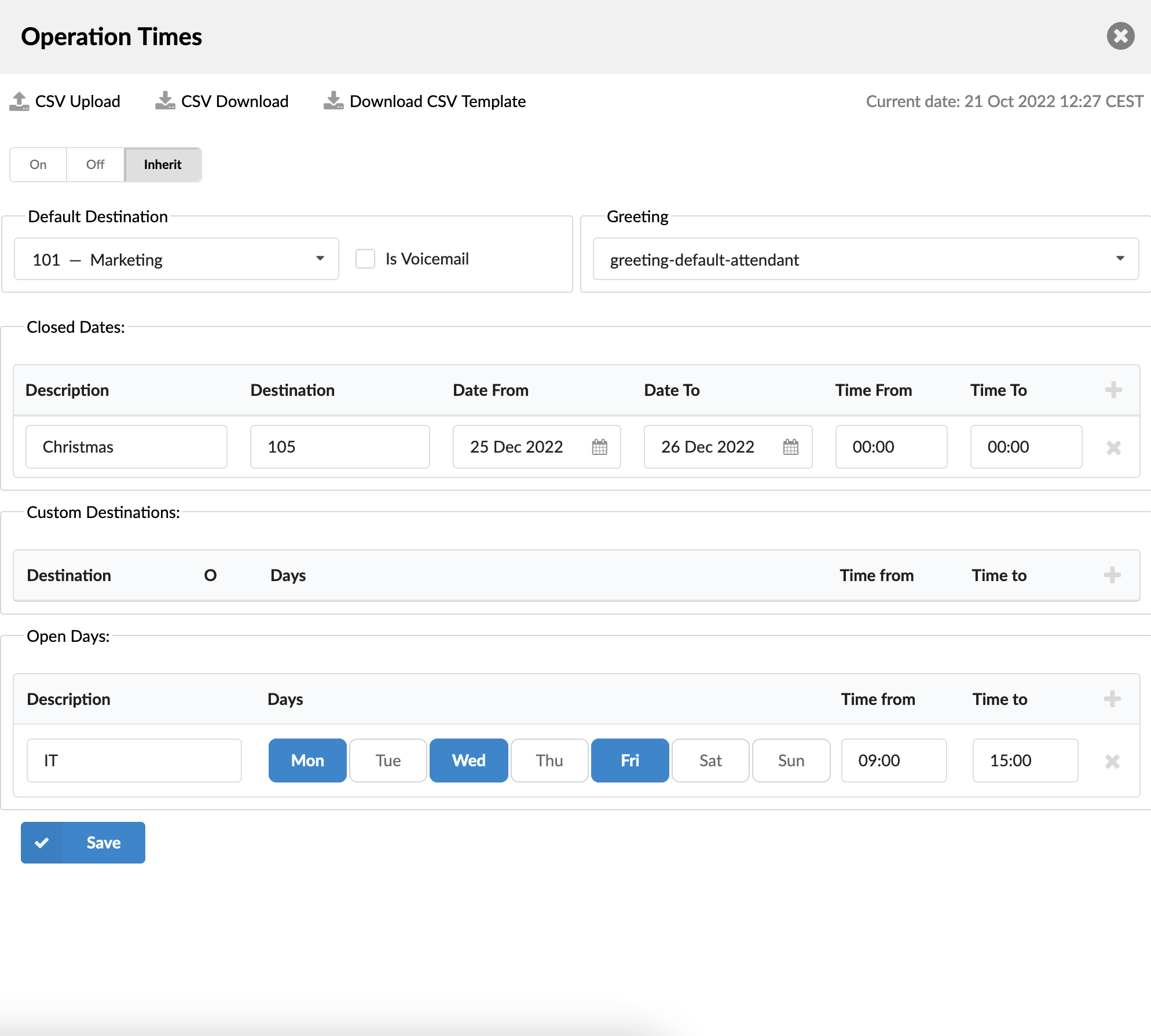
Set the system open/closed times. Depending on the time the call is received, the call can be redirected to different PBXware destinations.
Buttons
- CSV Upload
Click on this button to upload the Operation Times configuration from the CSV file.
(Button)
- CSV Download
Click this button to download the Operation Times configuration to a CSV file.
(Button)
- Enable operation times
(E.g., Yes, No, Inherit)
(Option buttons)
The Inherit option will allow administrators to simply put the Higher Level Operation Times settings into effect if deemed necessary. Previously, when Operation Times was set, it could be either turned on or off. Still, it could not be reset to use the Operation Times rules imposed on the higher level (Server or Tenant).
Default Destination
- Default Destination
Default Destination to be dialed if none of the Dial group extensions answer the call.
(E.g., John dials Dial group 1000, but nobody answers his call. The sound file selected under ‘Announce’ is played to John, and his call is transferred to the extension number set here).
([0-9])
- Is Voicemail
Choose whether you want calls redirected to the Default Destination or Default Destination voicemail.
(Checkbox)
Greeting
- Greeting
Greeting sound file played to callers during closed times.
(E.g., greeting-***)
(Select box)
Options
- Closed dates Sets the specific date/s when all calls are redirected to the ‘Default Destination’. If the ‘Destination’ field in the Closed dates is set, calls will not go to the ‘Default Destination’ but to this number.
- Custom Destinations: Redirects all calls received during non-working hours (E.g., weekend) to the PBXware MT extension provided here.
- Open dates: Sets the working hours during which the DID is to redirect calls, as set in the DID Add/Edit window. If any call is received during the hours not set here, the call is redirected to ‘Default Destination’.
Recording

- Record Calls
Enable call recording service.
(E.g., Select ‘Yes’ to enable the service. All incoming/outgoing calls will be recorded. If using call recording with many extensions, check server disk space from time to time. Please see below for the bit rates table).
(Option buttons)
- Silent
Set whether call recordings should be announced to parties in a conversation.
(E.g., If Silent=No, calling parties will hear a ‘Recorded’ or ‘This call is recorded’ message before their conversation starts)
(Options buttons)
Disk Space Used By Call Recording
With continuous tone for 60 seconds.
- wav49 = 84.5kb
- wav = 833.0kb
- gsm = 85.0kb
With continuous silent tone (without sound) for 60 seconds.
- wav49 = 84.0kb
- wav = 827.0kb
- gsm = 84.0kb
Exit Digit

- Exit Digit
Exit digits that transfer the call to the ‘Exit Destination’.
(E.g., John dials Dial group 1000. While all extensions are ringing, John presses the ‘Exit digit’ set here (E.g., 9), and his call is transferred to the ‘Exit Destination’).
([0-9])
- Exit Destination
PBXware MT extension to which the call is transferred once the user dials the ‘Exit Digit’.
(E.g., John dials Dial group 1000. While all extensions are ringing, John presses the ‘Exit Digit’, and his call is transferred to the ‘Exit Destination’ provided here (E.g., 2001))
([0-9])
NOTE: A drop-down option is now available for this selection.
Last Destination

- Last Destination
The last destination will be dialed if none of the Dial group extensions answer the call.
(E.g., John dials Dial group 1000, but nobody answers his call. The sound file selected under ‘Announce’ is played to John, and his call is transferred to the extension number set here).
([0-9])
- Last Destination is voicemail
Choose whether you want calls to be redirected to the Last Destination (some other extension) or you want to set the voicemail as the last destination.
(E.g., Yes, No, Not Set)
(Option buttons)
Incoming Call Confirmation

- Confirm Calls
Choose whether the called number in the Dial group list should be asked to accept or refuse the call from the Dial group.
(E.g., Yes, No, Not Set)
(Option buttons)
- Confirmation Message
Choose whether to play the system default or some custom-added sound asking if you want to answer or reject the call.
NOTE: All sound files for this option should start with ‘rg-announce’)
(Select box)
- Call Answered Message
Choose whether to play the system default or custom sound file presented to the user when he accepts the call from a Dial group. Still, the call has already been answered by someone else.
NOTE: All sound files for this option should start with ‘rg-late-announce’)
(Select box)
Enhanced Ring Groups (ERG)
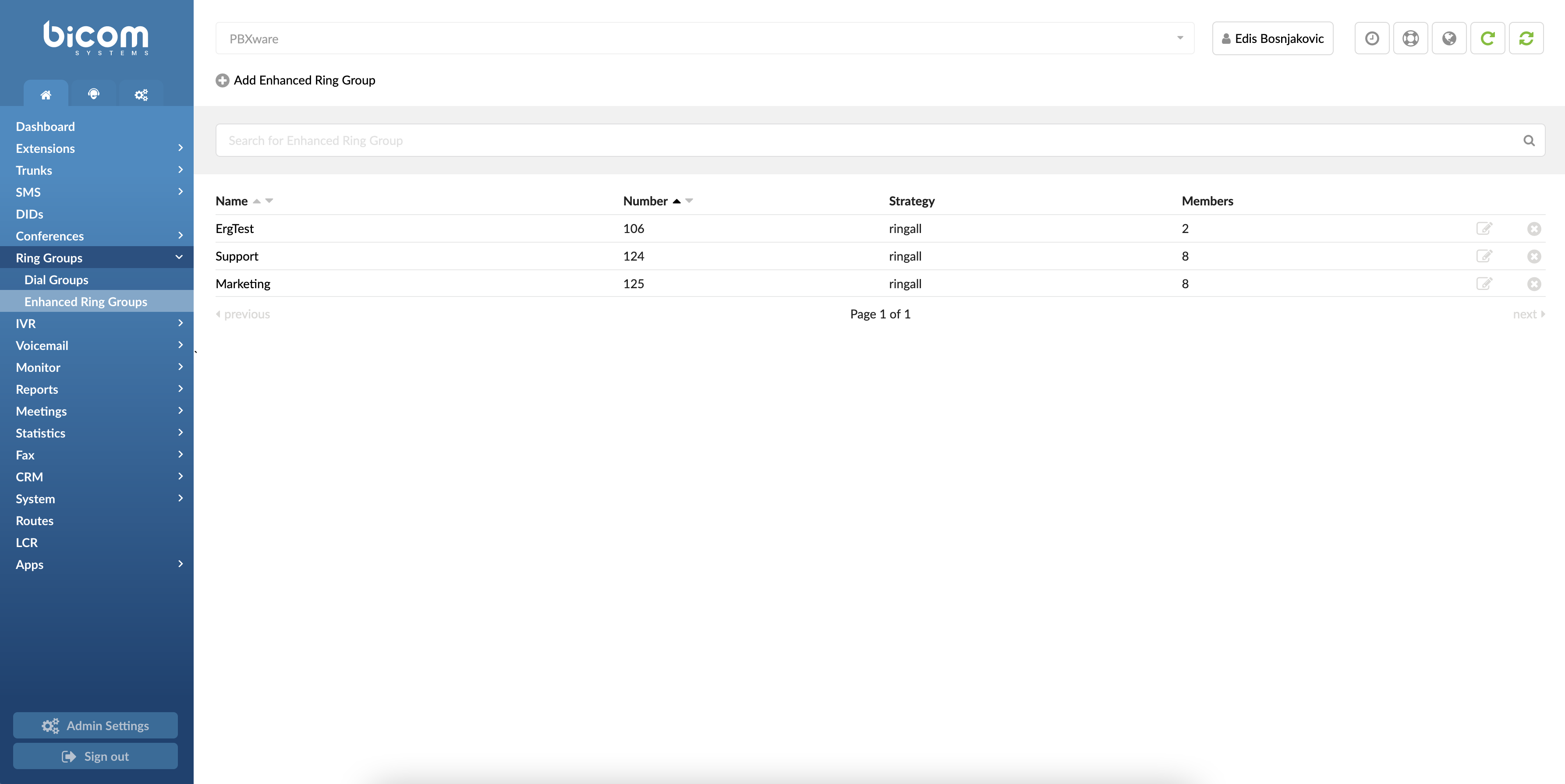
Enhanced Ring Groups (ERG) are more advanced Ring groups in PBXware that offer essential queueing functions. They are reusing Queues with members to achieve better business intelligence. New reporting systems were implemented together with leading options for a better reporting experience.
- Name
ERG name.
(E.g., Patience)
(Display)
- Number
ERG number.
(E.g., 1001)
(Display)
- Strategy
ERG strategy.
(E.g.,ringall)
(Display)
- Members
A number of ERG members.
(E.g., 5)
(Display)
- Edits the ERG configuration.
(E.g., Click to edit ERG configuration)
(Button)
 Deletes an ERG from the system.
(E.g., Click to delete an ERG from the system)
(Button)
Search
Search is, by default, performed by Name and Number.
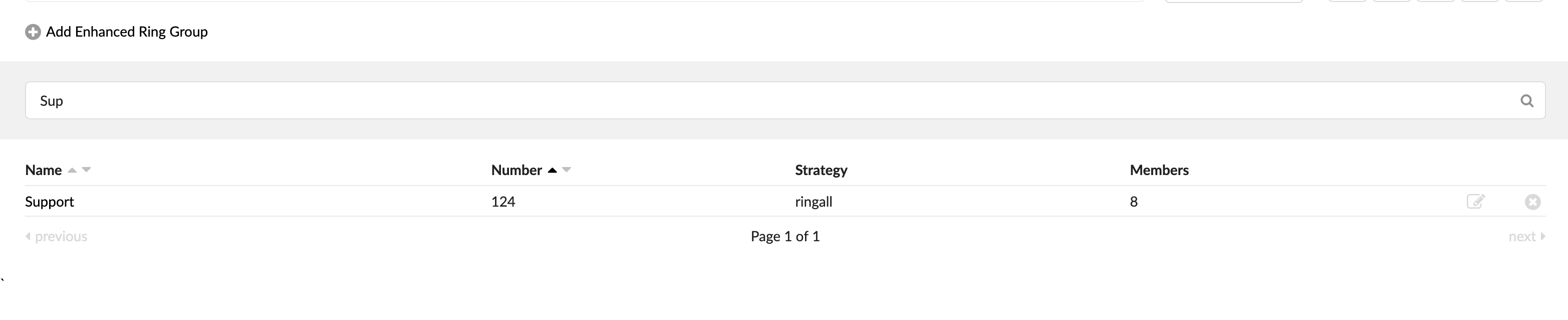
- Search:
Search phrase.
(E.g., Provide a search phrase here and hit enter to filter the records.)
([a-z][0-9])
Add/Edit ERG

- ERG Name:
Set an ERG name.
(E.g., Provide a unique ERG name here)
([a-z][0-9])
- ERG Number:
Set an ERG number.
(E.g., This number is to be dialed to access the ERG.)
([0-9])
- Max Waiting Callers:
A maximum number of callers are allowed to wait in an ERG simultaneously. This number should be set following the number of members answering the ERG calls.
(E.g., If this field is set to 4, only four callers will be allowed to enter the ERG. If caller 5 tries to join the ERG, he will be transferred to <%PRODUCT%> ‘Redirect Extension’ number).
([0-9])
- Ring to Answer:
How many rings will be played to a caller before the call enters the ERG.
Set this value to 0 if you want calls to hear ERG music on hold as soon as the call is connected.
(E.g., 5)
([0-9])
- Record ERG Calls
Set whether to record ERG calls or not.
(E.g., ‘Yes’)
(Select box)
NOTE: To record calls with ERG, this option has to be set to ‘Yes’. There is no inheritance applied in this case.
- Wake up Mobile Devices
Select whether ERG should wake up mobile devices that are asleep or not
(E.g., ‘Yes’)
(Select box)
- Members
Opens up a screen and adds/manages ERG members
(E.g., Click on the button to manage ERG members)
(Button)
Members
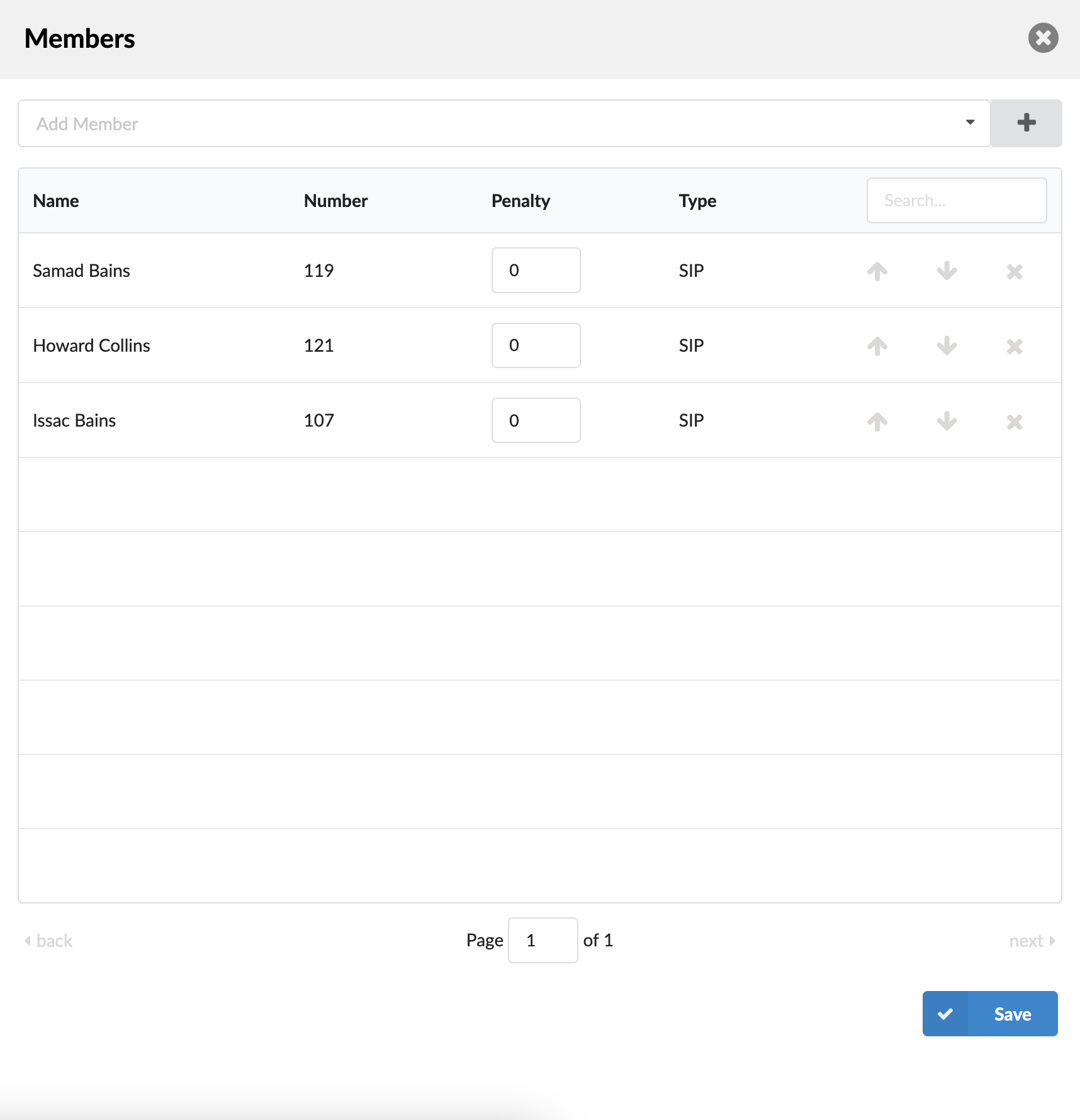
Clicking the ‘Members’ button opens the ‘Members’ pop-up window where users can select one or more Members and add them to the ERG group.
 Click this button to add selected Members (button)
There is a table that shows ERG members with the following details:
- Name
Members’ name.
(E.g., Samad Bains)
([0-9][a-z])
- Number
A number of the Extension on the system.
(E.g., 119)
([0-9])
- Penalty
This value can be set per member, so the system can decide which priority to use when sending calls to members.
(E.g., Set values between 0 and 10 where 0 is the highest priority and 10 is the lowest priority. If the strategy is defined as ‘ringall’, then only those available members with the lowest priorities will ring. ).
([0-10])
NOTE: If the Extension does not pick up, it will not automatically go to the next Extension. It will keep ringing until it is picked up. It will only go to the next extension if the current extension is either busy or unavailable.
- Type
Member type.
(E.g., SIP)
(Display)
- Search
Search ERG members.
(E.g., Provide a search phrase here to filter the records.)
([a-z][0-9])
Move up  Move an ERG member one place up on the list.
Move down  Move an ERG member one place down on the list.
Remove member Remove an ERG from the list.
Advanced Options
General
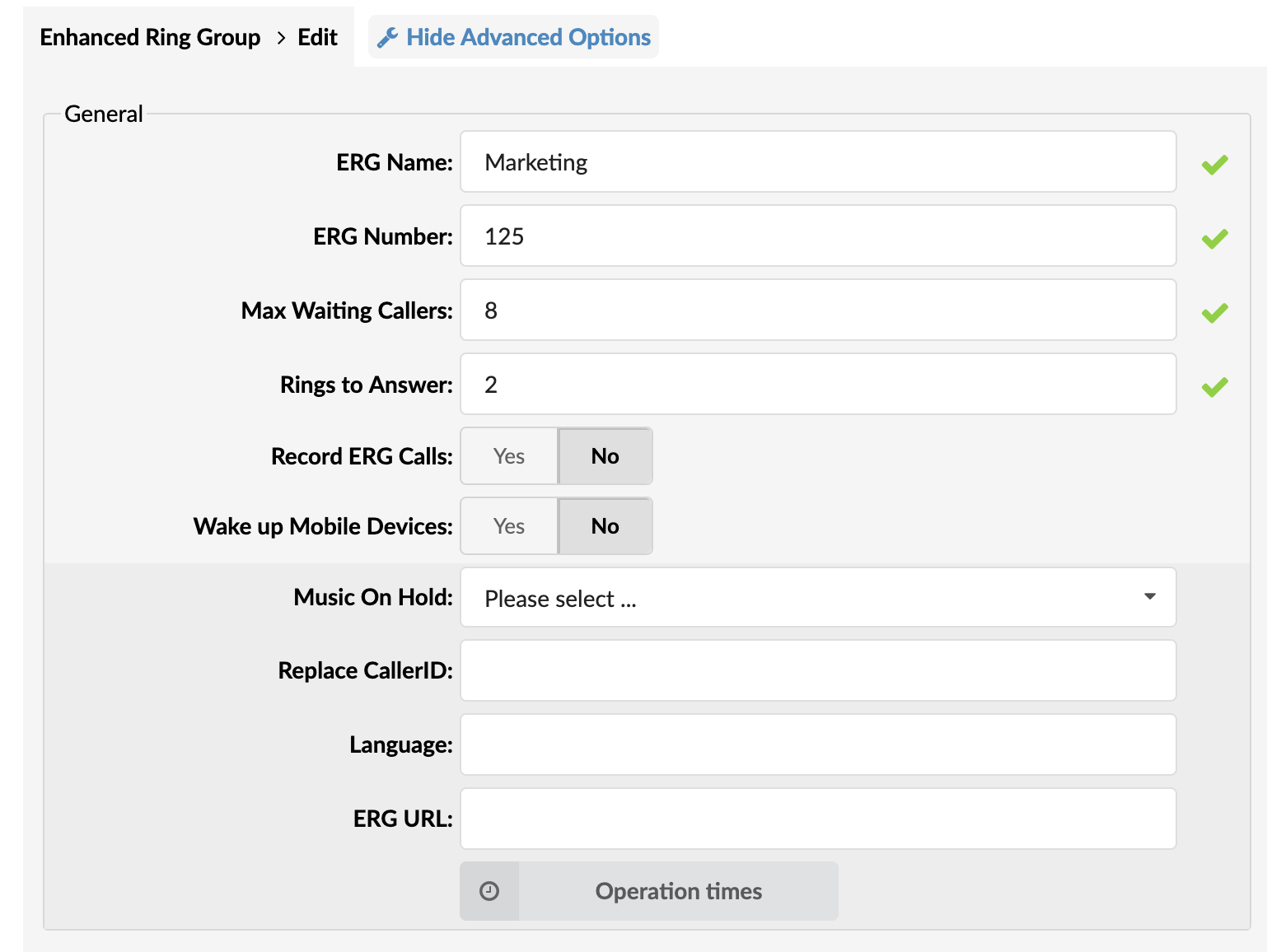
- Music On Hold:
Select MOH(Music On Hold) class name. All sound files in this MOH class will be played to users in ERG.
(E.g., User A enters the ERG. After the greeting message is heard, all sound files belonging to the selected MOH class are played in the background.)
(Select box)
- Replace CallerID:
Replace the caller id with the custom value.
(E.g., Type ‘Lobby – %CALLERID%’ to display the caller id information as ‘Lobby – 5552879’ where 5552879 is the actual number calling in)
([a-z][0-9])
- Language:
Define the custom language for all sound files played by the ERG.
(E.g., To play Spanish sound files to all users waiting in the ERG, type ‘es’ here. NOTE: PBXware MT comes with English sound files by default. To install sound files in other languages, please see ‘ Settings: Protocols: Sip: Language’ for more information)
([a-z])
- ERG URL:
Send the following URL to Member’s softphone if it supports that option. The softphone can open that URL so the Member can see the caller’s additional info if available. A softphone must support this option for it to be used.
(E.g., Additional info on the ERG URL field can be obtained here.)
([a-z][0-9])
Operation Times
Set the ERG open/closed times. Depending on when a call is received, the call can be redirected to different PBXware destinations.
- CSV Upload
Upload Operation Times configuration from CSV file.
(Button)
- CSV Download
Download the current Operation Times configuration to a CSV file.
(Button)
- Download CSV Template
Download the template of the Operation Times configuration to a CSV file.
(Button)
- Operation Times:
Enable operation times.
(E.g., Yes, No, Inherit)
(Option buttons)
The Inherit option will allow administrators to simply put the Higher Level Operation Times settings into effect if deemed necessary. Previously, when Operation Times was set, it could be either turned on or off. Still, it could not be reset to use the Operation Times rules imposed on the higher level (Server or Tenant).
- Default Destination
PBXware extension, all calls are redirected to during the closed time hours.
(E.g., 1000)
([0-9])
- Is Voicemail
Whether the default destination is Voicemail or not.
(checkbox)
- Greeting:
Greeting sound file played to callers during the closed times.
(E.g., greeting-***)
(Select box)
Description of destinations follows in this priority order:
- Closed dates: Sets the specific date/s when all calls are redirected to the ‘Default Destination’. If the ‘Destination’ field in the Closed dates is set, calls will not go to the ‘Default Destination’ but to this number.
- Custom Destinations: Redirects all calls received during set hours to the PBXware extension provided here
- Open dates: Sets the working hours during which DID is to redirect calls as set in DID Add/Edit window. If any call is received during the hours not specified here, ‘Custom Destination’ is checked, and if they do not apply, the call is redirected to ‘Default Destination’ (Closed dates)
Enhanced Ring Group Full

- Redirect Destination
ERG full redirect extension number.
(E.g., If ERG 2000 accepts a maximum of 4 users waiting simultaneously, any new user that enters ERG 2000 will be redirected to the extension number provided here.)
([0-9])
- Redirect to Voicemail
Choose whether the redirect extension is a voicemail.
(E.g., Yes, No, Not Set)
(Option buttons)
Enhanced Ring Group Timers
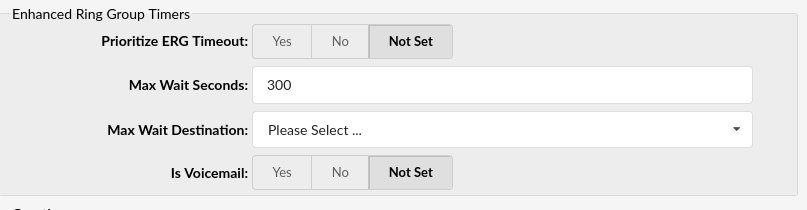
- Prioritize ERG Timeout
Set whether to prioritize ERG timeout or not.
(E.g., Yes, No, Not Set)
(Option buttons)
- Max Wait Seconds:
The maximum time a caller can wait in an ERG. Once this time is exceeded caller will be redirected to the ‘Max Wait Destination’ number, or a callback will be activated.
(E.g., User A is waiting 5 minutes already in the ERG. Suppose this field is set to 300(300s = 5min). In that case, A will be redirected to ‘Max Wait Destination’, or a callback will be activated depending on the configuration.)
([0-9])
- Max Wait Destination:
This option works along with the ‘Max Wait Seconds’ field. Drop down to select the extension to which the caller will be redirected once the time set under ‘Max Wait Seconds’ exceeds.
(E.g., User A is waiting 5 minutes already in the ERG. If the ‘Max Wait Seconds’ field is set to 300(300s = 5min) and the Max Wait Destination option is selected, A will be redirected to this destination.)
([0-9])
- Is Voicemail:
Set whether the max wait destination is pointing to voicemail.
(E.g., Yes, No, Not Set)
(Option buttons)
Greeting

- Greeting:
Select a greeting file that will be played to all callers waiting in this ERG.
(E.g., queue-greeting-introduction)
(Select box)
NOTE: Users can record and select a custom sound greeting file, such as “All our representatives are busy…”. This file will be played to all callers once they enter the ERG. Please note that the file name has to be in the following format: periodic-announce-.
Position Announcements
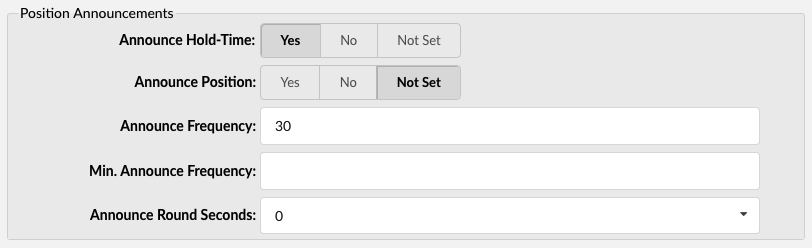
There are two types of position announcements: ‘Hold Time’ (Tells the ERG position) and ‘Periodic Announcements’ (Plays custom message).
- Announce Hold-Time:
Enable callers waiting in an ERG to hear the hold-time announcements.
(E.g., Setting this option to ‘Yes’ will enable the hold-time announcements. A single caller waiting in an ERG would hear, ‘The estimated hold time is currently N minutes. Thank you for your patience message).
(Option buttons)
- Announce Position:
Enable callers waiting in an ERG to hear the position announcements.
(E.g., Setting this option to ‘Yes’ will enable the position announcements. A single caller waiting in an ERG would hear, ‘Your call is now first in line and will be answered by the next available representative. Thank you for your patience message).
(Option buttons)
- Announce Frequency:
How often to play the hold-time announcement message (time in seconds).
NOTE: If you set this option to ‘0’, the announce message will not be played.
(E.g., If this field is set to 30, a single caller waiting in an ERG will hear, ‘Your call is now first in line and will be answered by the next available representative. Thank you for your patience.’ message every 30 seconds) The estimated hold time is currently N minutes.
([0-9])
- Min. Announce Frequency
Specify the minimum amount of time before we announce the caller’s position in an ERG again. This is used when the caller’s placement may frequently change to prevent the caller from hearing multiple updates in a short period. The default value is 15 seconds.
(E.g., 30)
([0-9])
- Announce Round Seconds:
Rounding level for hold-time announcements. If this is set to 0, only minutes, not seconds, are announced; other possible values are 0, 5, 10, 15, 20, and 30.
(E.g., When set to 30, a wait time of 2:34 will be rounded to 2:30.)
(Select box)
Periodic Announcements

- Periodic Announce:
Select the sound file played periodically to callers waiting in an ERG.
(E.g., Record a message ‘Hang in there buddy!’ and set it as a periodic announcement. This message will be played to callers every ‘Periodic Announce Frequency’ seconds.)
(Select box)
NOTE: File name has to be in the following format ‘periodic-announce-$NAME.gsm’
- Periodic Announce Frequency:
Time interval in seconds at which the periodic message is to be played.
(E.g., If this field is set to 30, all callers waiting in an ERG will hear the ‘Periodic Announce’ message every 30 seconds, as long as they stay in the ERG.)
([0-9])
- First Periodic Announce Delay:
The minimum number of seconds between position announcements. The default value is 15 seconds.
(E.g., 30)
([0-9])
Members Settings
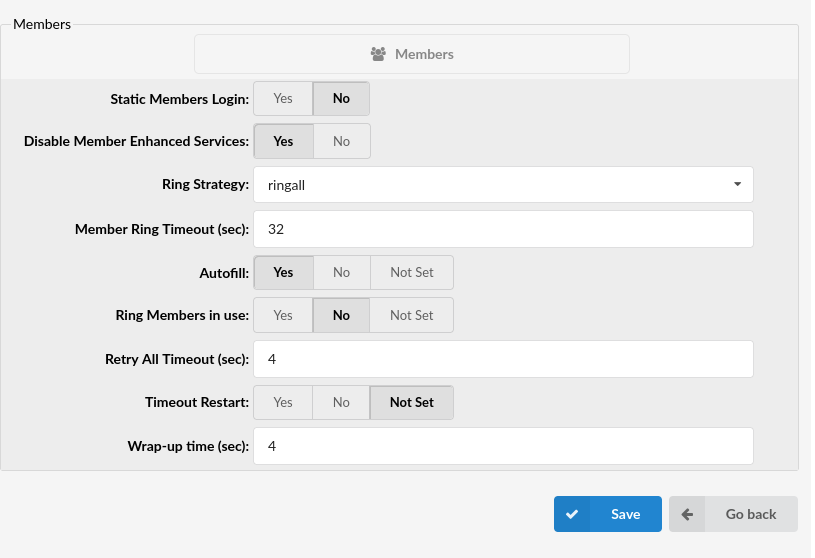
- Static Members Login
Select whether to enable Static Members Login.
(Option buttons)
NOTE: If set to ‘Yes’, Static Members must log in/log off manually to start/stop receiving calls. To log in to all ERGs that an Extension is a member of, please enter the default access code: ‘*200’, and to log off, please enter: ‘*201’. If John Smith is a member of five ERGs but wants to log in to a specific ERG and receive calls only from that ERG, he can enter ‘*200xxx’, where ‘xxx’ represents the ERG number. The same action applies to logging off. If John wants to stop receiving calls from a specific ERG, he can enter ‘*201xxx’, where ‘xxx’ stands for the ERG number.
NOTE: If the system is restarted or if it crashes, all Static Members will be logged in successfully upon successful system start. If a Static Member is logged in, s(he) can be added to an ERG through the GUI and start receiving calls from that specific ERG, or conversely, deleted from the ERG to stop receiving calls from that particular ERG.
NOTE: If this option is set to ‘Yes’, please note that reordering of Members and penalty configuration will not work.
- Disable Member Enhanced Services
If set to ‘Yes’, Enhanced Enhanced that are enabled on the Extension (ERG members) will possibly not be applied if an ERG call is passed.
(E.g., Yes, No)
(Option buttons)
NOTE: Please note that this option is set to ‘No’ by default since enabling this may cause issues with Statistics.
- Ring Strategy
Set the way calls are transferred to ERG members answering the calls.
Available options:
- ringall – Ring all available Members until one answers (default)
- linear – When used with members, the members will be rung in the order in which they are ordered in the GUI. If the ‘Static Member Login’ option is set to ‘Yes’, they will ring in the order in which they were logged in.
- leastrecent – Rings the interface that least recently received a call. This can work in an ERG where there are many calls of roughly the same duration. It does not work as well if a member has been on a call for an hour, and their colleagues all got their last calls 30 minutes ago because the Member who just finished the 60-minute call will get the next one.
- random – Rings a random interface. This can work very well and end up being very fair in evenly distributing calls among members.
- rrordered – Same as rrmemory, except the ERG member orders from the config file are preserved so that interfaces will ring in the order specified in this configuration file. If you use members, the members will be enveloped in the order in which they were added.
(E.g., linear)
(Select box)
- Member Ring Timeout (sec)
Set the Member’s ring timeout.
(E.g., ’32’)
([0-9])
- Autofill
Should callers be served one by one or in a parallel fashion.
(E.g., With this option turned ‘Off’, even if there are five members available, calls will not be transferred to them until the first caller waiting in an ERG is connected to the member. When the first caller gets served, caller number two gets served, and all others keep waiting. It is recommended to keep this feature always turned ‘On’ so callers can be served in order)
(Option buttons)
- Ring Members in Use
Ser whether Members in use should be called when a new caller comes into the ERG.
(E.g., If the Member is already in an active conversation, with this option set to ‘Yes’, the Member’s Extension will ring when a new caller enters the ERG.)
(Option buttons)
- Retry All Timeout
Time interval in seconds, for how long to wait before trying the ERG member again.
(E.g., If a member Smith cannot answer the incoming ERG call and hangs up the ringing line, the call will not be transferred back to his extension for a time in seconds provided in this field).
([0-9])
- Timeout Restart
If this option is set to yes and a BUSY or CONGESTION signal is received on the line, the Member’s timeout for answering will be reset. This can be useful with Members that have permission to cancel a call with a reject.
(E.g., A call enters the ERG and is transferred to Member X. Member X has a Polycom phone (for example) and sends a BUSY signal by hitting the ‘Reject’ key. This will reset the internal timer. The call will be transferred to another ERG Member(s). The original member will not be contacted until all other Members are tried, and the call does not get answered by any of them.)
(Option buttons)
- Wrap-up Time (sec):
After a successful call will determine how long to wait (time interval in seconds) before sending a new call to a potentially free member.
(E.g., 4)
([0-9])
Incoming Options
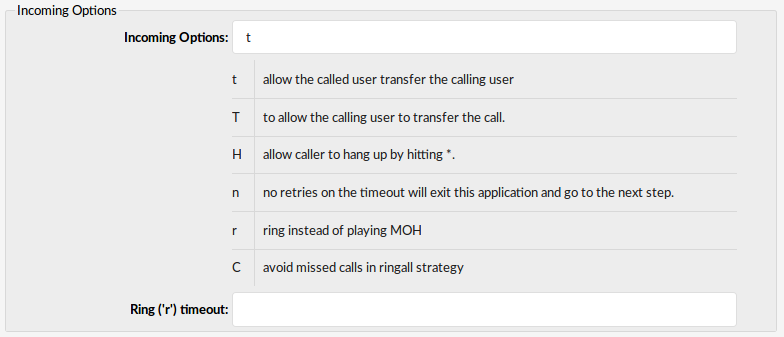
- Incoming Options Set the advanced ERG call options.
Available options:
- t – allow the called user to transfer the calling user
- T – allow the calling user to transfer the call
- H – allow the caller to hang up by pressing *
- n – no retries on the timeout; will exit ERGs and go to the next step
- r – ring instead of playing MOH
- C – avoid missed calls in ring-all strategy
- w – Instant Recording with Monitor
- x – Instant Recording with MixMonitor
([a-z])
- Ring (‘r’) timeout
When ‘r’ is selected as Incoming Options, and this timeout is used, ERG will first ring entered number of seconds, after which MOH will start.
(E.g., 10)
([0-9])
Dial Options:
- t – Allow the called user to transfer the call by hitting #
- T – Allow the calling user to transfer the call by hitting #
- r – Generate a ringing tone for the calling party, passing no audio from the called channel(s) until one answers. Use with care, and don’t insert this by default into all of your dial statements, as you are killing call progress information for the user. You almost certainly do not want to use this. Asterisk will generate ring tones automatically where it is appropriate to do so. ‘r’ makes it go to the next step and also create ring tones where it is probably incorrect.
- H – Allow the caller to hang up by dialing *
- C – Reset the CDR (Call Detail Record) for this call. This is like using the NoCDR command
- w – Allow the called user to start recording after pressing *1 or what is defined in the features.conf requires Set(DYNAMIC_FEATURES=automon)
- x – Allow the called user to start recording the conversation to disk via MixMonitor.
Exit Digit
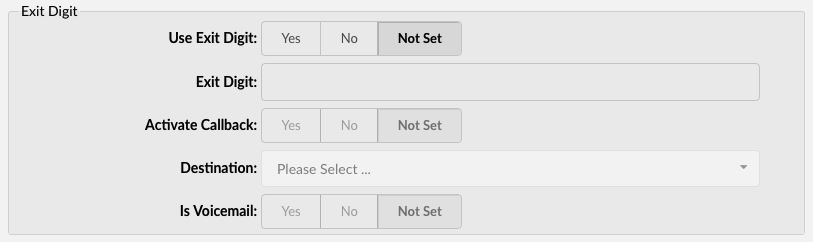
- Use Exit Digit
Should users be able to exit the ERG by dialing a single digit and be automatically redirected to a preset PBXware destination.
Example:
John enters the ERG. A greeting message explains that the user may quit the ERG by pressing the digit defined under the ‘Exit Digit’ option and be transferred directly to the operator or some other destination (set under the ‘Destination’ option).
(E.g., Yes, No, Not Set)
(Option buttons)
- Exit Digit
Define the exit digit here. Once this digit is dialed by the user waiting in ERG, it will transfer the call to the set ‘Destination’.
Example:
John enters the ERG. The greeting message explains that the user may quit the ERG by pressing the digit (E.g., 9) and is transferred directly to the operator or some other destination (set under the ‘Destination’ option).
([0-9])
- Activate Callback:
Choose whether a callback should be activated on Exit Digit.
(E.g., Yes, No, Not Set)
(Option buttons)
- Destination
The local PBXware destination number is dialed once the ‘Exit Digit’ is dialed.
(E.g., John enters the ERG. The greeting message explains that the user may quit the ERG by pressing the digit defined under the ‘Exit Digit’ option and be transferred directly to the PBXware destination specified here.).
([0-9])
- Is voicemail:
Set whether the exit digit destination is pointing to voicemail.
(E.g., Yes, No, Not Set)
(Option buttons)
Abandoned Calls Notification

Here you can set whether there will be any notification when the call inside an ERG is abandoned.
- Enable Notification:
Enable or disable the Abandoned Calls Notification feature.
(E.g., Yes, No, Not Set)
(Option buttons)
- Notification E-mail address:
The e-mail address will receive notifications of abandoned calls. An abandoned call is one where the caller hangs up the call while waiting to be answered.
(E.g., admin@domain.com)
([a-z][0-9])
Members Announcements (7.2)
- Member Announce
Select the pre-recorded message that will be played to the ERG member before the call is connected.
NOTE: The sound file name must start with a ‘member-announce-‘ prefix to be displayed in the drop-down list.
- Report Holdtime
Set this option to yes to inform the ERG member how long the caller was waiting in the queue before the call was connected.
(E.g., Yes, No, Not Set)