
Site settings set options such as site users, user groups, backup, updates, and upgrades options.
API Keys
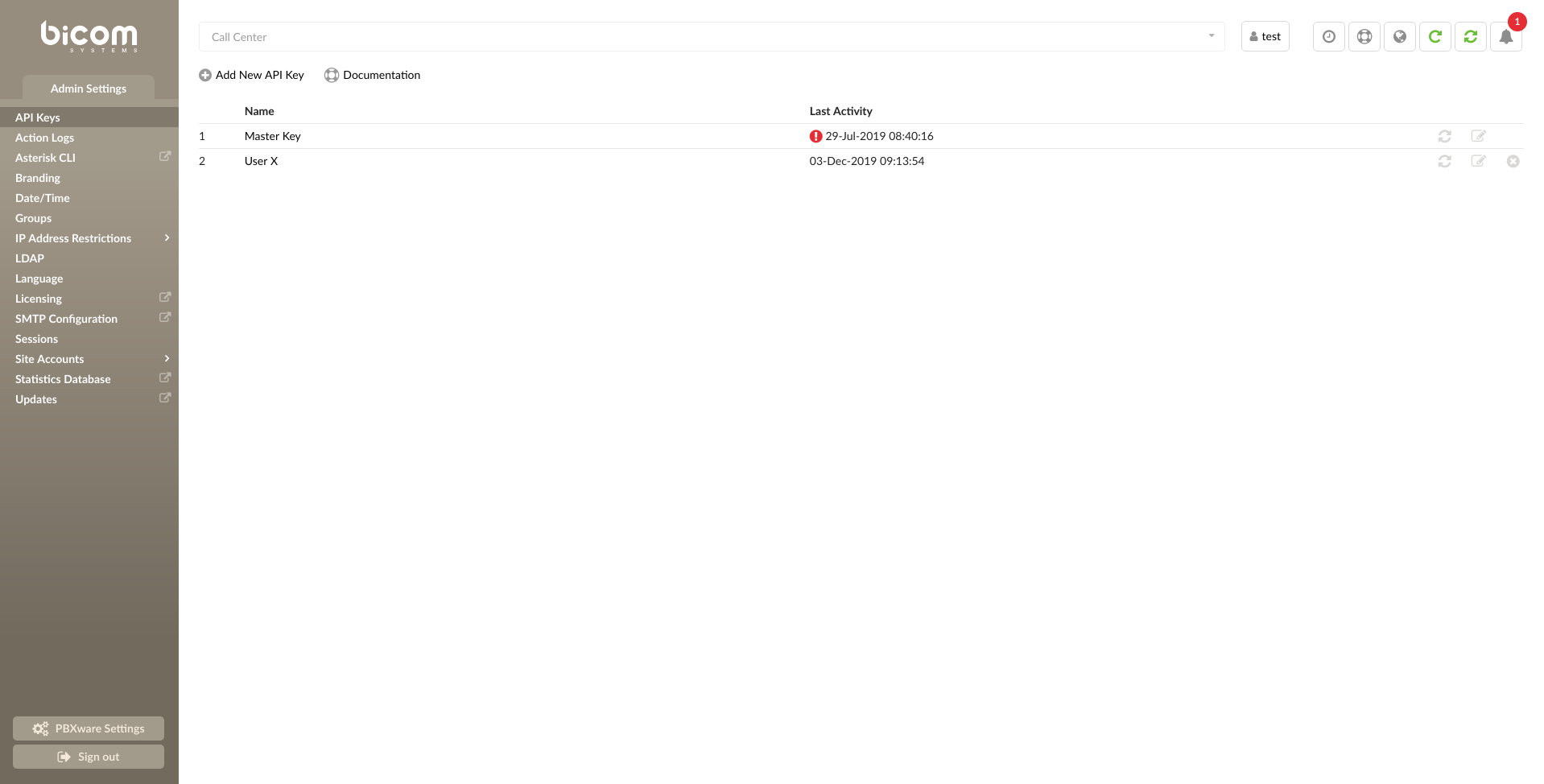
Here you can generate random keys which are used for authentication with PBXware when using the PBXware API.
The page shows all currently created API Keys. Every system has a Master Key which by default, has all permissions set and can not be deleted. The Master Key can be edited and its permissions can be changed. On new systems, the Master Key is randomly generated while on upgraded systems it will have the value of the Key that was previously used.
- Add New API Key

Clicking the Add New API Key icon will open a page where you can generate a new API key and set permissions for that key.
- Documentation
Clicking the Documentation icon will open a page with additional information about the API.
Add/Edit API Key
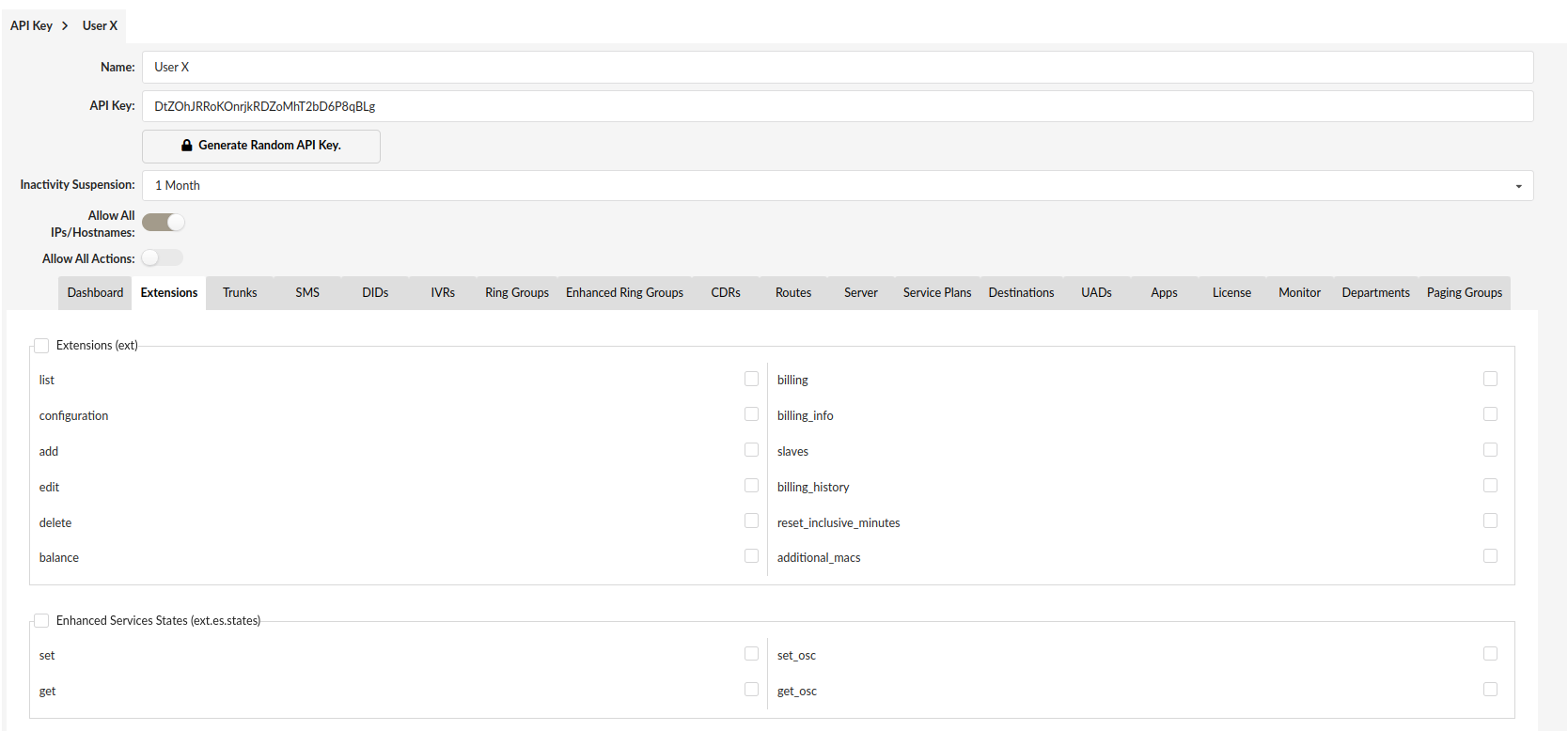
- Name
A name for the API Key. Used only for presentation.
(E.g. My API Key)
- API Key
The generated API Key. You can enter a key manually or generate it by clicking on the Generate Random API Key button.
(E.g. 22AmG6dAPpv9ZkusnOgkJPaQ7sNkVn5S)
- Generate Random API Key
Clicking this button will generate a random API Key.
(Button)
- Inactivity suspension
If the API key was not used in the selected time period, it will get suspended. If the API Key is suspended you will see a red warning icon next to the Last Activity field on API Keys main page. You can reset the suspension by clicking the Reset Icon on the API Keys page. The reset Icon can be found next to the Edit and Delete Icons.
(Select Box)
- Allow All IP Addresses
If Enabled then the API Requests containing this API Key can come from any IP Address. If you want to allow only certain IP Addresses or IP Address Ranges to use this API Key then disable this option and a field called Allow IPs will be shown where you can enter a comma-separated list of IP Addresses or IP Ranges that will be able to send requests using this API Key.
(Toggle Button)
- Allow IPs
Visible only if Allow All IP Addresses option is disabled. Here you can enter a comma-separated list of IP Addresses or IP Ranges that will be able to send requests using this API Key. Any requests coming from an IP that is not on the list will be rejected.
(E.g. 127.0.0.1,127.0.0.0/8)
- Allow All Actions
If Enabled then the user can execute any API Method using this API Key. The API Methods are described in the API Documentation, which can be found on the API Keys main page. If Disabled then a field will be shown where you can set permission for each Action separately.
(Toggle Button)
ARI (7.2)
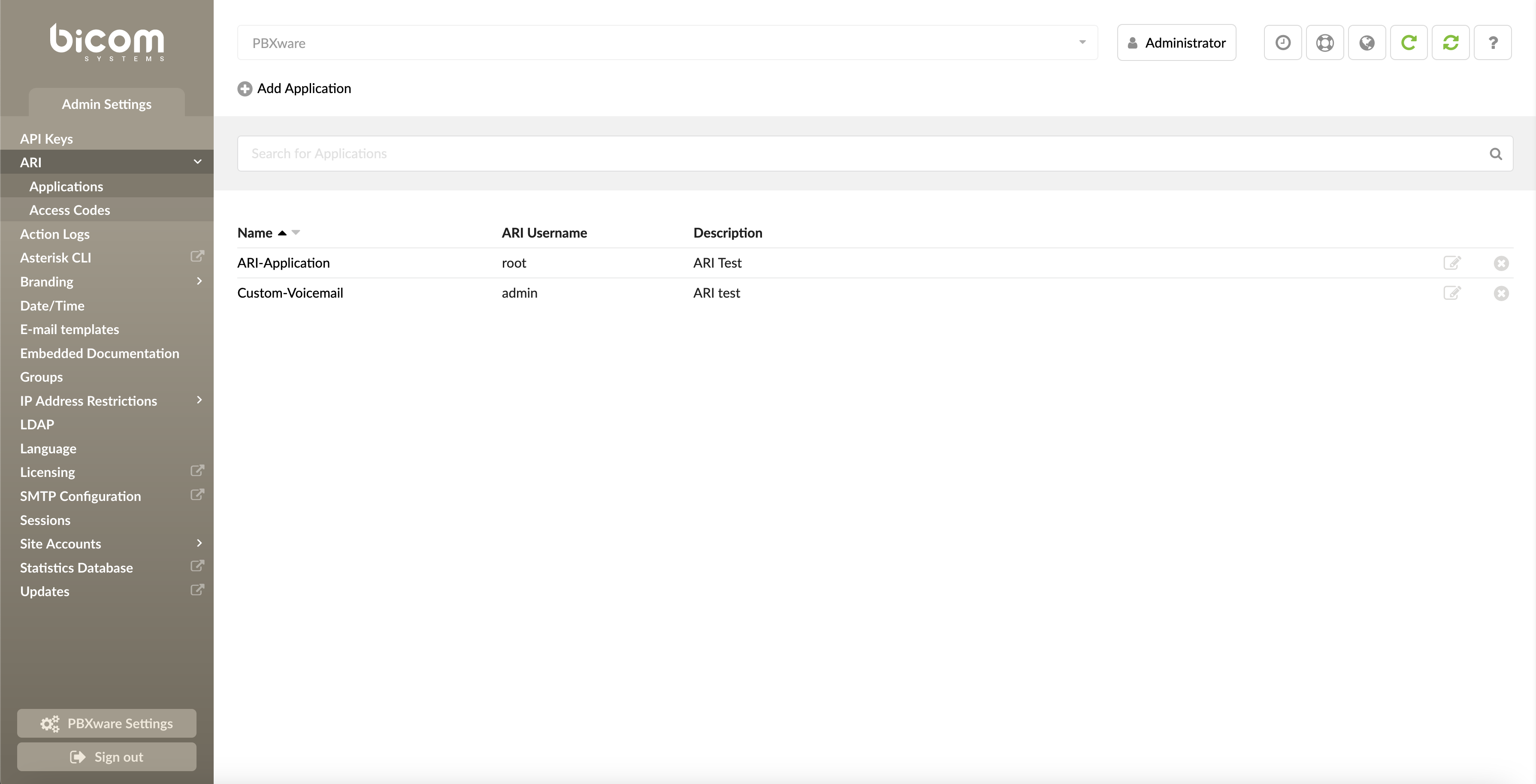
In PBXware 7.2 we have added the ability to register external ARI applications to PBXware in order to manipulate calls in a way that PBXware otherwise would not support .
To add ARI Application, in the PBXware interface, navigate to the Admin Settings -> ARI -> Applications
- Add Application
Press this button to add a new ARI Application. - Search
Enter the search pattern to filter the list of ARI applications. - Name
A custom name assigned to your ARI application. - ARI Username
The username used by the remote system for authentication with PBXware’s ARI. - Description
Short description of ARI application functionality. - Application Name
A custom name assigned to your ARI application used for easier management.
NOTE: Valid characters are a-zA-Z0-9-_
- ARI Username
The username used by the remote system for authentication with PBXware’s ARI.
ARI Username must be unique for every application.
- ARI Password
Password used by the remote system for authentication with PBXware’s ARI.
- IP Address
IP address of the remote system registering to the PBXware’s ARI.
To improve the security of this feature, we implemented an IP authentication for ARI connections which will only allow registrations from the IP addresses associated with the ARI Application.
- Description
Short description of ARI Application.
Once successfully configured and authenticated with the PBXware’s ARI, ARI Applications can be assigned as destinations on DID, IVR and Special Routes.
If the ARI Application is deleted, it will be automatically removed from all the destinations it was assigned on.
.
Access Codes
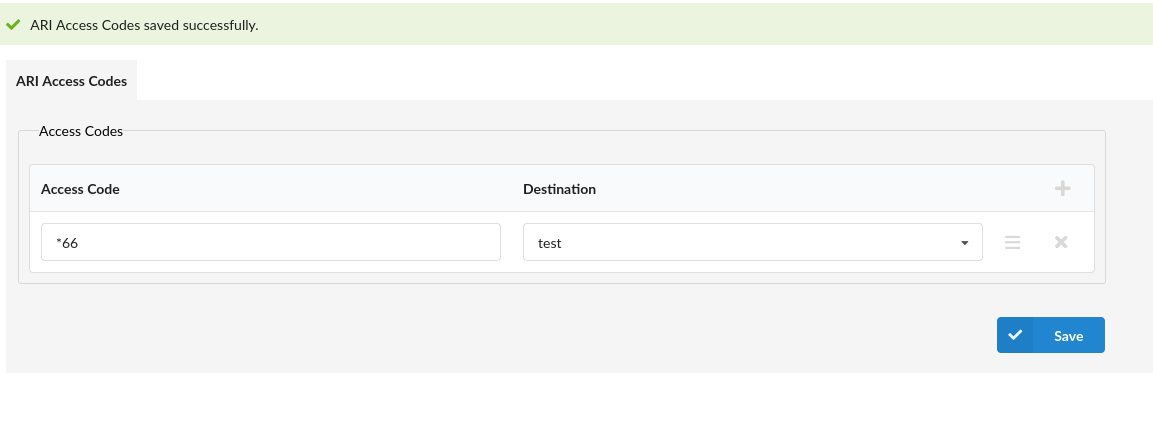
The access codes section allows PBXware administrators to create custom access codes, which will be redirected to the selected ARI Application when the access code is dialed.
ARI access codes must be different from the PBXware’s access codes, but if it does happen that ARI and PBXware access codes are identical, the access code will trigger the PBXware’s function as native features have the priority.
To add a new ARI Access Code, click the + icon in the ARI Access Codes table.
.
- Access code
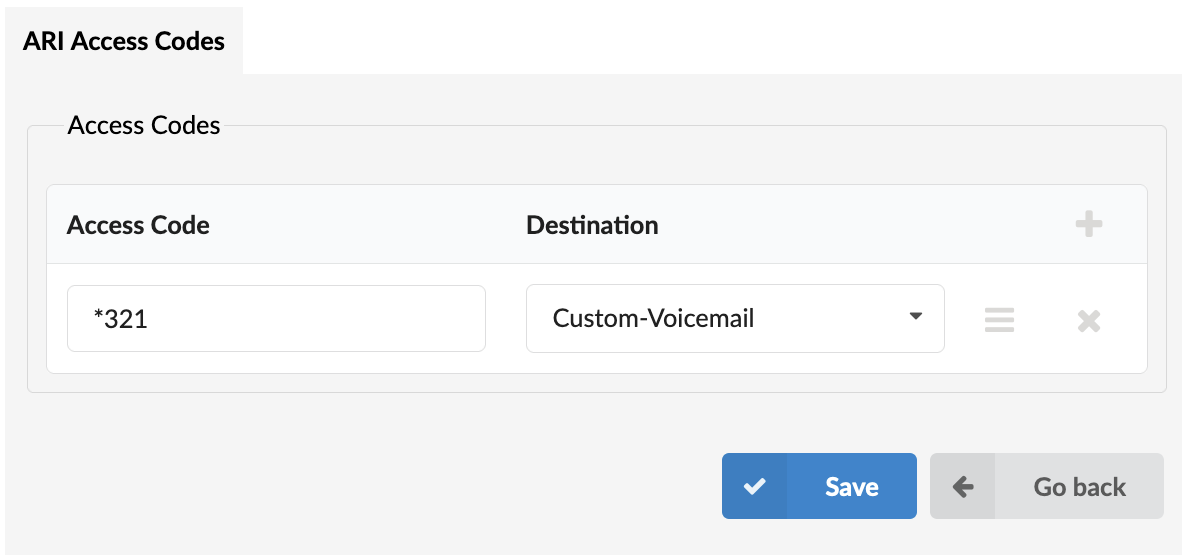
ARI Access Code as created by the user.
- Destination
Destination that will be dialed once the ARI Access code is executed.
Select a preferred destination from the drop-down list available in the Destination field. The list will include all the ARI Applications configured on the PBXware.
.
Action Logs
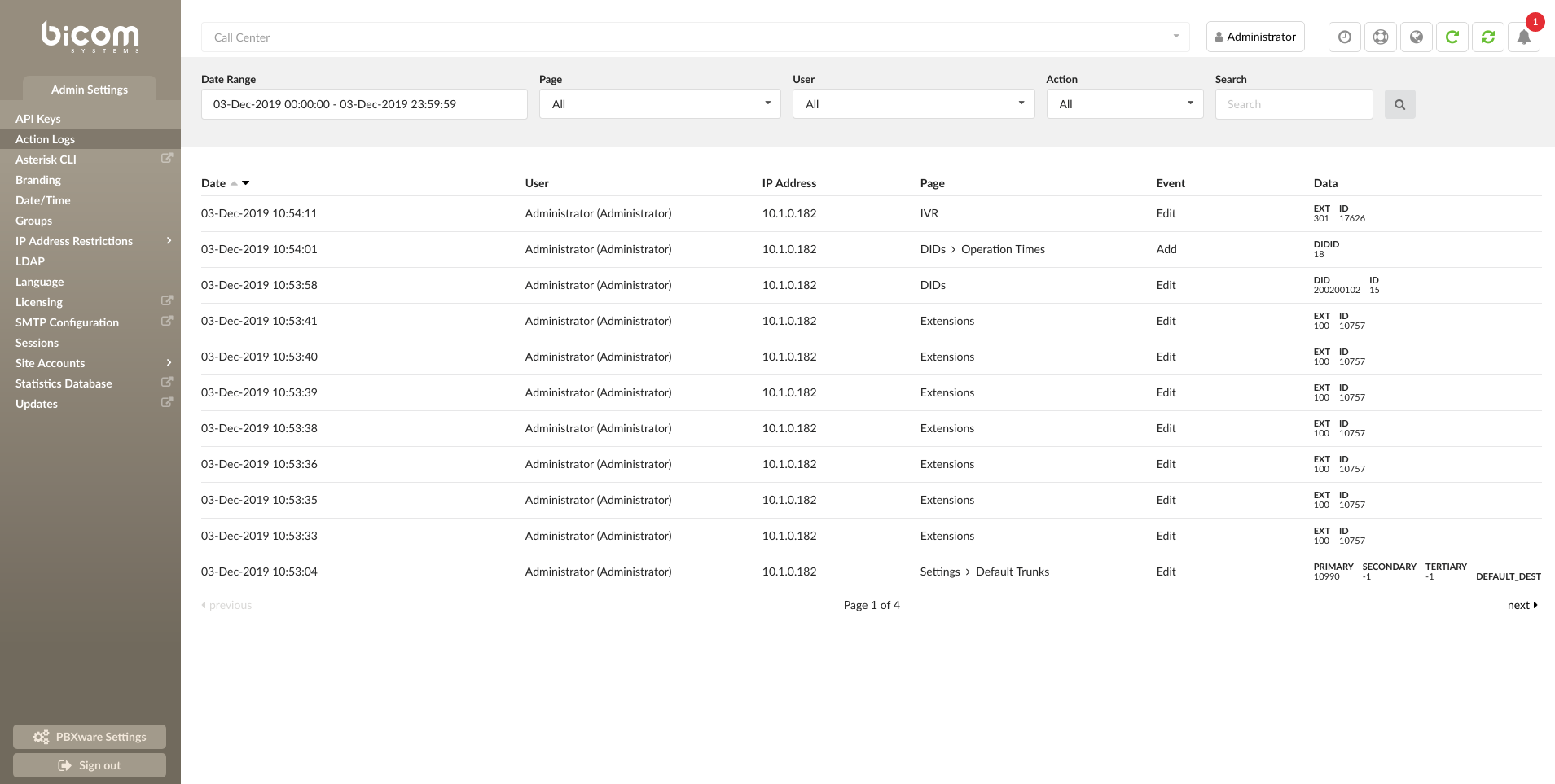
Action Logs feature will provide information on what changes are made, who made them and when. It can also help you detect unauthorized access by storing information of IP addresses used to log in to your PBXware.
.
Action Log Filters
- Date Range
Date range for which the user wants to see action logs.
(Select box)
- Page:
Filter the Action Logs by a specific page. This way you can see all the changes done on a single page.
(E.g. If you want to see all changes on the Extensions page, select ‘Extension’)
(Select Box)
- User:
Filter the Action Logs by a specific User. This way you can see all the changes that one user did on the system.
([0-9][A-Z])
- Action:
Each change on the system is presented as an action. Using this filter you can search the Action Logs for a specific action.
Action can be one of the following:
- All
- Login
- Logout
- Add
- Edit
- Reload
- Restart
- Reset
- Listen
- Download
- CSV Upload
- Delete
(Select Box)
- Search:
Use this field for a more advanced search. The search can be done by any value seen in the Data field or by an IP Address.
(E.g. 127.0.0.1 will show all Action Logs for Actions from that IP Address)
([0-9][A-Z])
Action Log Fields
- Date:
Date when the action was done.
(Display)
- User:
Shows the user who did the action.
(Display)
- IP Address:
IP Address where the request for the action came from.
(Display)
- Page:
Page where the action happened on.
(Display)
- Event:
The completed action.
(Display)
- Data:
Shows some additional data about the completed action. The data varies depending on the action type and the page where it was completed.
(Display)

NOTE: When users select one of the two action types: ‘Listen’ or ‘Download’, they can see information regarding ID and CDR ID.
Asterisk CLI
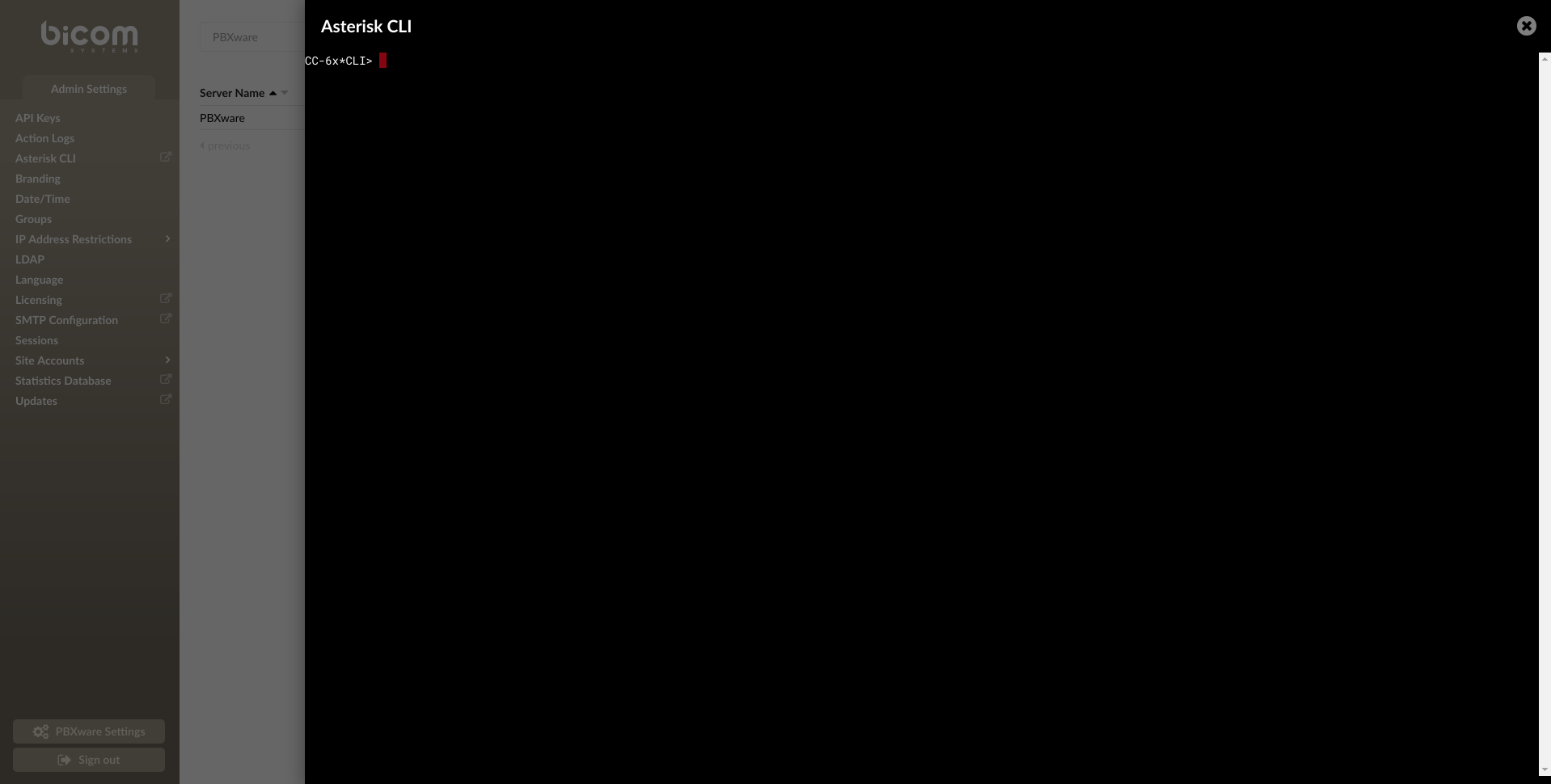
To make it easy for our customers that do not have much experience with working in a terminal environment, there is an integrated Asterisk CLI monitor in its interface. Asterisk CLI is accessible to main administrative accounts on PBXware and does not require root password in order to access it.
This might initially sound like a potential security issue but we have prevented this by only allowing execution of monitoring commands when using in-browser Asterisk CLI. Apart from permissions being limited, you will be able to use debugging and other monitoring features the same as if you are logged in Asterisk CLI.
Branding
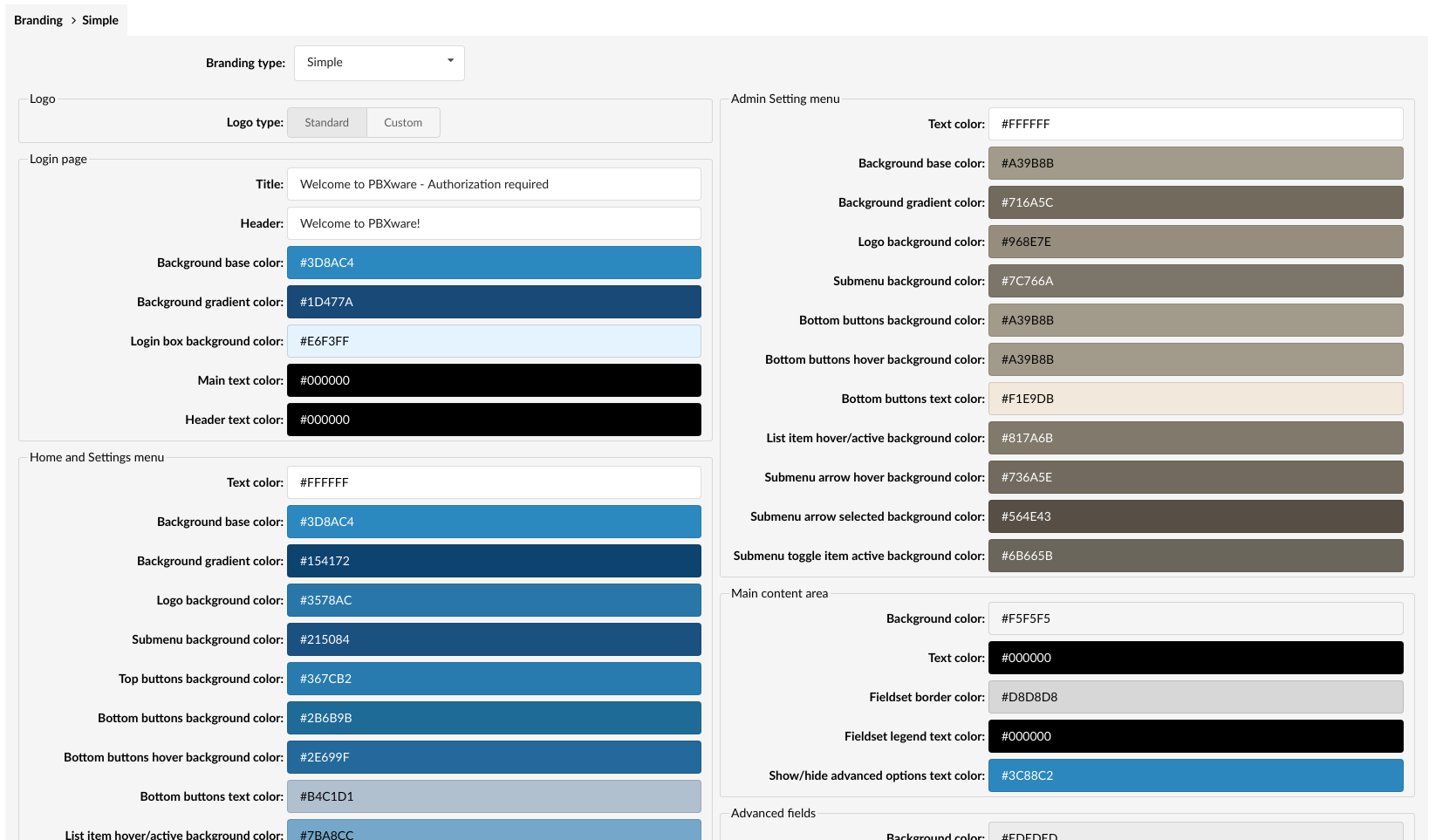
Even if we have already made the branding much easier to use for customers that do not have experience with CSS editing, new interface pushed this even further, allowing customers to use a color picker to precisely define the shade of color they would like to use for each of the PBXware GUI elements. You can also change the Logo and the Login page title and header.
Two branding types are available:
- Simple
- Advanced
By default, the branding type is set to Simple.
Simple branding
Simple branding allows you to modify the user interface colors to any colors you wish. By picking a value from a color picker you can change the color for almost any user interface item.
This page also allows you to modify the Online Self Care Logo and interface colors.
While changing the colors they will automatically be applied to the interface as a preview but will not be applied completely until the Save button is clicked.
Resetting to defaults
When using the “Reset to defaults” button, all simple branding images will be deleted and the colors will be reverted to the default system colors.
Branding Web
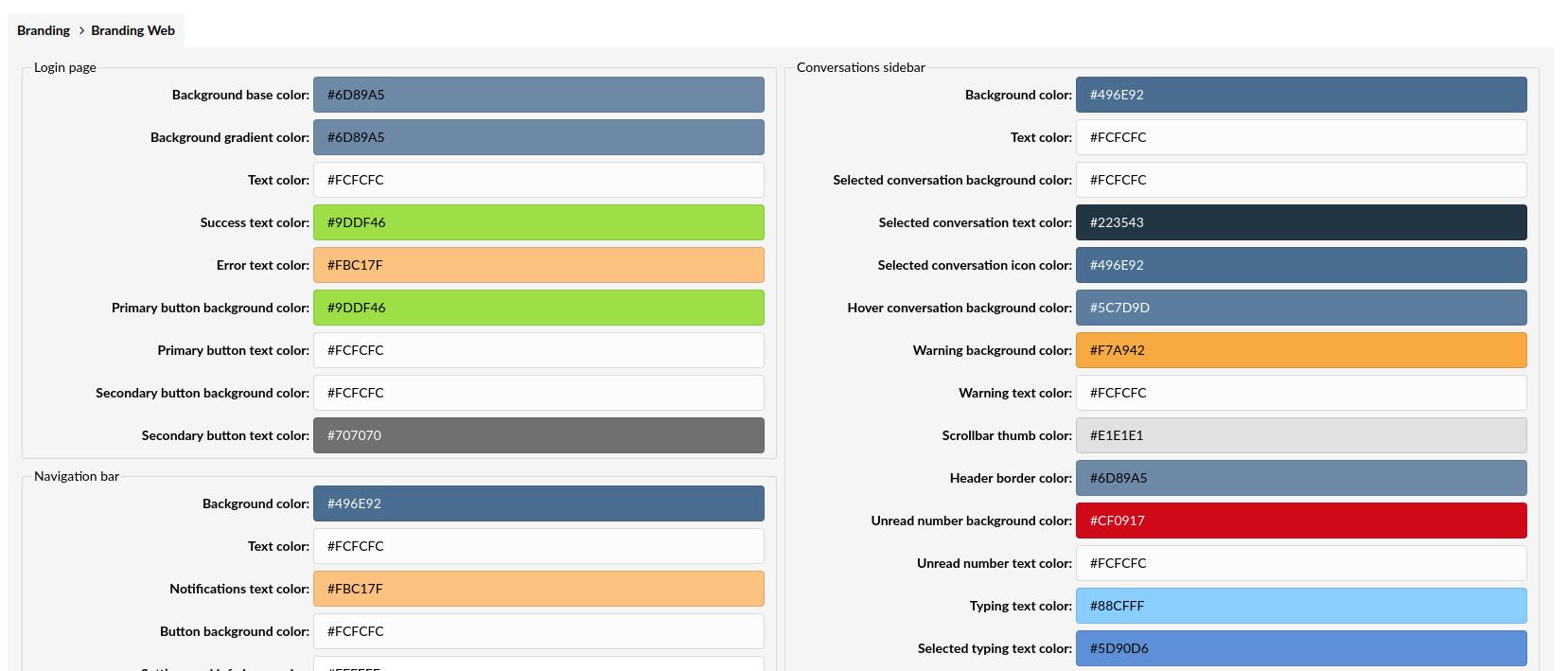
Branding Web allows customers to modify the web application interface colors to any colors they wish. By picking a value from a color picker, they can change the color for almost any user interface item.
After changing the colors, changes will not be applied until the ‘Save changes’ button is clicked, and the app page is reloaded.
Resetting to defaults
When using the ‘Reset to defaults’ button, all branding colors will be reverted to the default system colors.
Advanced branding
Advanced branding works this way: in order to make any CSS changes, you edit CSS files and upload images manually.
Date/Time
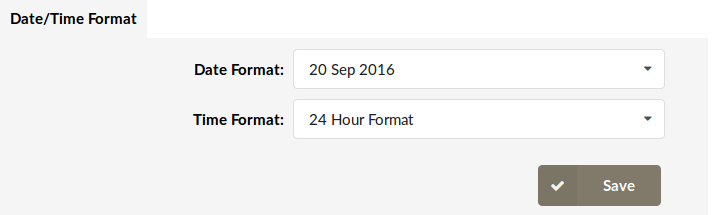
- Date Format:
Set the proper date format shown throughout the systems interface
(E.g. 04 Oct 2006)
(Select box)
- Time Format:
Set the proper time format shown throughout the systems interface
(E.g. Select between 12/24 hour format)
(Select box)
E-mail Templates
Administrators can select a specific template for the system’s emails, using default macros that can be easily modified.
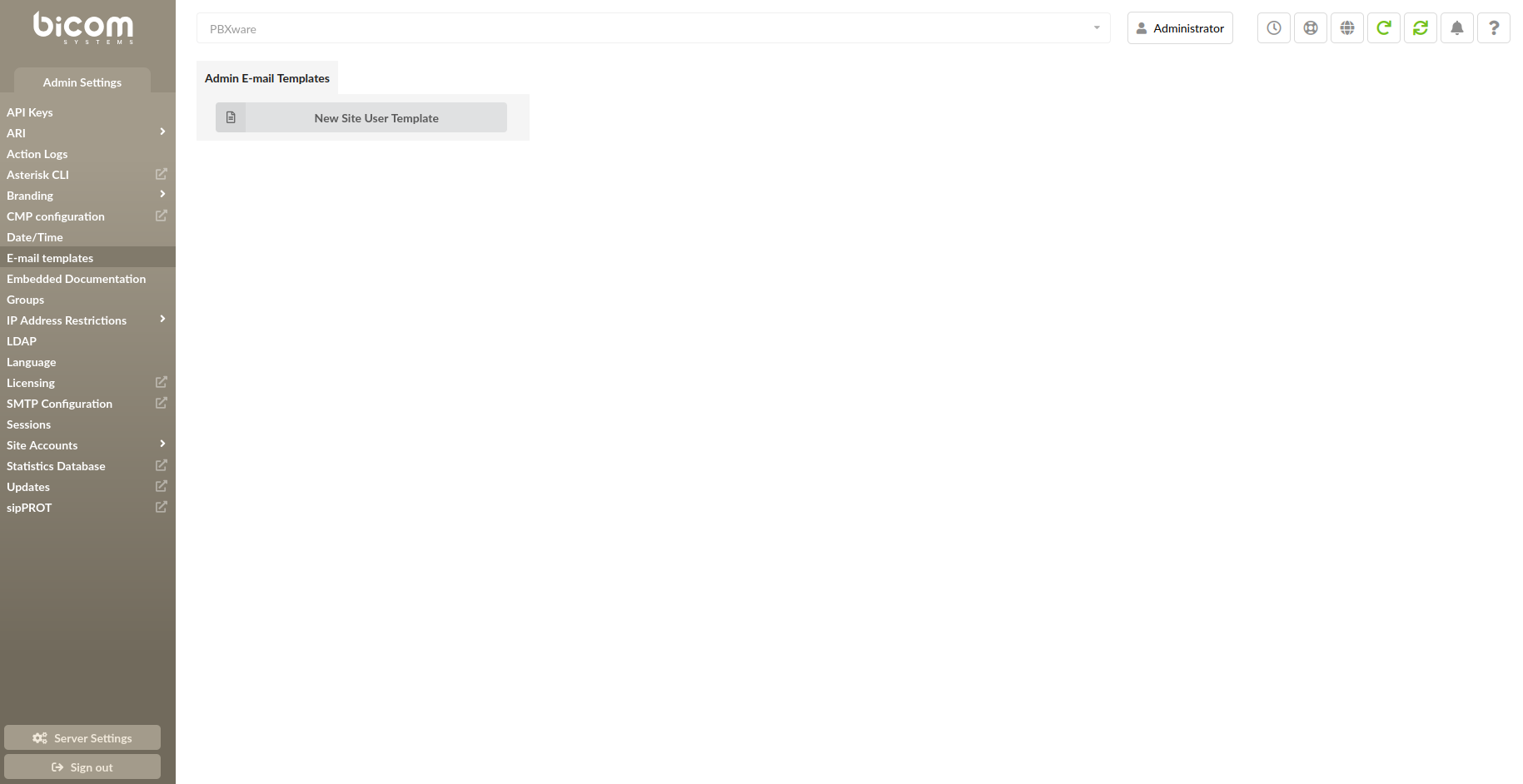
NOTE: The settings can be reset to default by clicking the ‘Reset’ button.
New Site User E-mail Templates
This template is used when an administrator selects the ‘Save & E-mail’ option on the Site Accounts > Users page to notify the user via email about the account details.
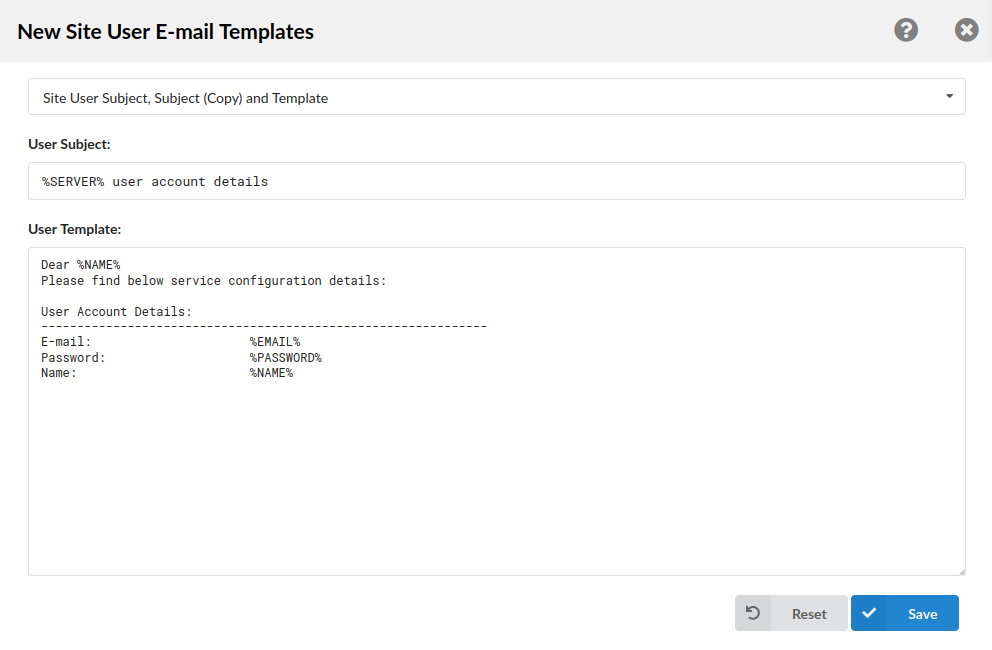
| New Site User Template | |||||||||
|---|---|---|---|---|---|---|---|---|---|
| Variable | Meaning | ||||||||
| TEMPLATE | %SERVER% | Server Name | |||||||
| %NAME% | Name of the User | ||||||||
| %EMAIL% | E-mail of the User | ||||||||
| %PASSWORD% | User Password |
Groups

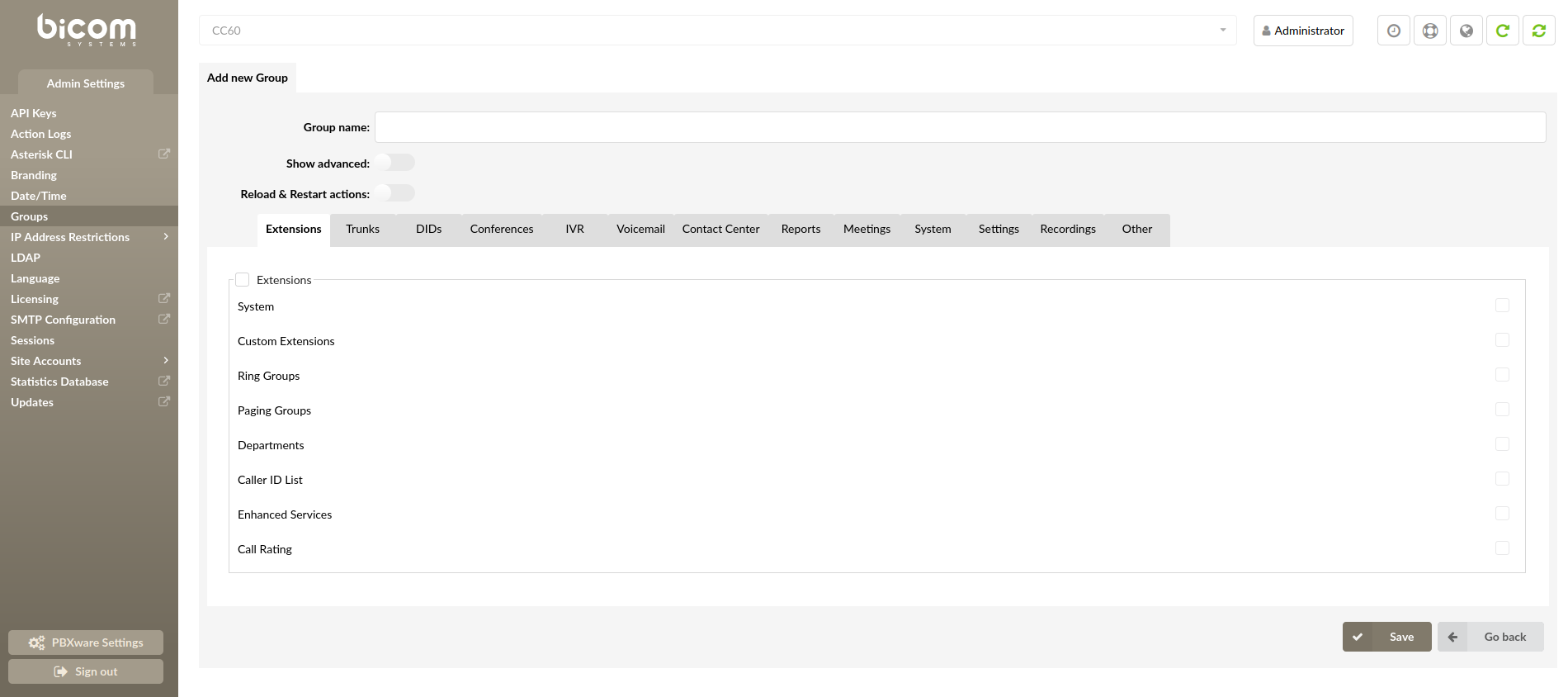
Groups allow for a unified permission system, enabling users access to various applications or parts of the applications.
Each site can edit existing or add new groups as per their requirements by clicking on the appropriate action buttons. During add/edit, permissions and group name are available for edit.
Note: After creating a group it can be assigned to a user by going to the Users page.
Add/Edit Group
- Group Name:
Name of the Group.
([a-z][0-9])
- Show Advanced
Enabling this option gives users, who are members of this group, the option to see and modify the Advanced options of sections in PBXware.
(Toggle Button)
- Reload & Restart actions
Enabling this option gives users, who are members of this group, will have the option do reload and restart actions.
(Toggle Button)
The fields under the above-mentioned options are there so you can define permissions for every page on the system. Most of the options are checkboxes and are self-explanatory, where the name of the option represents the page and if the checkbox is checked then the users, who are members of this group, will be able to view and change the page.
(E.g. Under Extensions, if System is checked then the user will be able to see the Extensions > System Page. If not checked then the page will not be visible)
Permissions that are not simple checkboxes or are not associated with a whole page, but just a part of the page, are explained below:
- Reports > Show Call Rating Cost:
If this permission is enabled, then users, who are members of this group, will be able to see the Call Rating Cost on the CDR Page, CDR CSV Download and CDR E-mail. If this permission is disabled then the Call Rating Cost field will not be shown on the previously mentioned pages.
- Reports > Allow CDR Extensions:
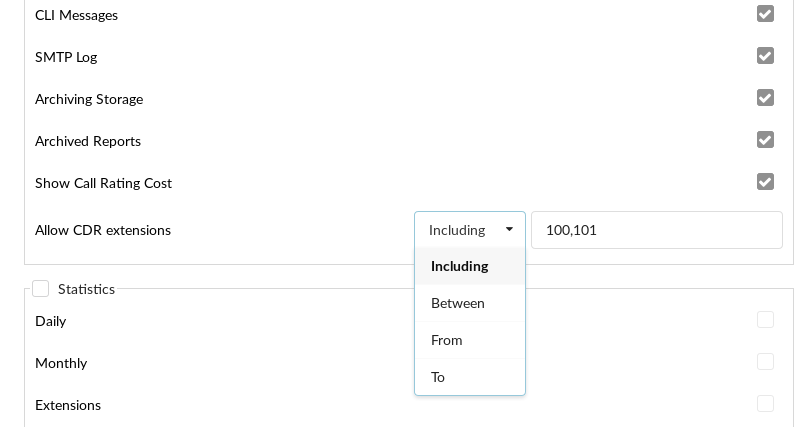
This option is used to limit the extensions that users, who are members of this group, will be able to see on the CDR page. If this field is not empty and is populated with a comma-separated list of extensions, then depending on the dropdown left of the field, the shown CDRs will be limited. You can choose the type of limitation by using the options in the dropdown field.
- Including: Show only CDRs where the caller OR the callee is one of the extensions from the list.
- Between: Show only CDRs where both the caller AND the callee are one of the extensions from the list.
- From: Show only CDRs where the caller is one of the extensions from the list.
- To: Show only CDRs where the callee is one of the extensions from the list.
- Excluding (6.7.5) – this option allows you to exclude extensions by adding them to the list and separating them with comma (i.e. 100,101,114).
Extensions
- Disable create extension (6.7.6)
With this option selected, group members will not be able to create new extensions on the system/tenant.
- Disable delete extension (6.7.6)
With this option selected, group members will not have the ability to delete extensions on the system/tenant.
NOTE: Changing the group permissions for these two options will be effective immediately, even if users are already logged in. In case they try to create/delete extensions, an error message will pop up, informing users they do not have permission to create/delete extensions.
However, in case the administrator moves the user from the group that had the ability to create/delete extensions to the group that has these permissions disabled, permissions will not be changed immediately, and the user would have to log out before changes are in effect. Because of this restriction administrator should check the box Force Logout to make sure changes are applied when moving users between groups.
DIDs
- Disable Add DID (7.4.0)
With this option selected, group members will not be able to create new DIDs on the system/tenant.
- Disable Edit DID (7.4.0)
With this option selected, group members will not have the ability to edit DIDs on the system/tenant.
- Disable Delete DID (7.4.0)
With this option selected, group members will not be able to delete DIDs from the system/tenant.
NOTE: Changing the group permissions for these options will be effective immediately, even if users are already logged in. In case they try to add/edit/delete DIDs, an error message will pop up, informing users they do not have permission to add/edit/delete DIDs.
However, in case the administrator moves the user from the group that had the ability to add/edit/delete DIDs to the group that has these permissions disabled, permissions will not be changed immediately, and the user would have to log out before changes are in effect. Because of this restriction the administrator should check the box Force Logout to make sure changes are applied when moving users between groups.
IP Address Restrictions

The IP Address restrictions page is used to set whether some IP ranges have access or are banned, which depends on the selection of the Blacklist/Whitelist in the Settings menu.
Policies
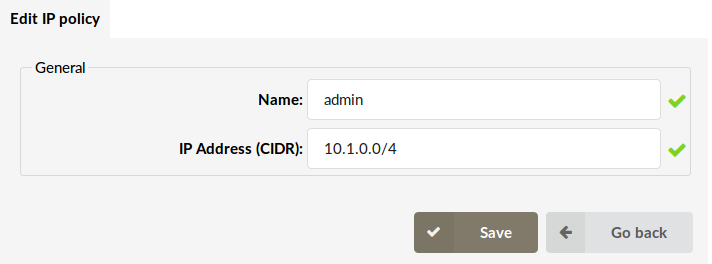
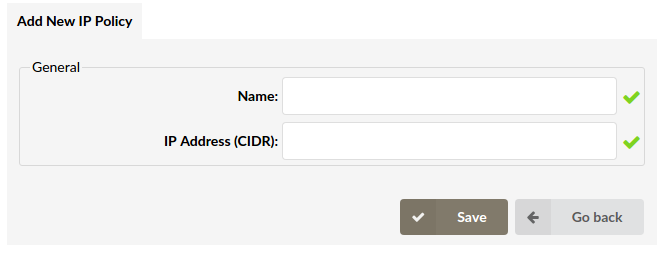
Add/Edit IP restrictions policies that dictate which IP ranges can/cannot access the PBXware user interface.
When adding/editing a policy, you need to set the name and IP range for the current policy.
General
- Policy Name:
Name that describes this policy
(E.g. admin)
([a-z][0-9])
- IP Address (CIDR):
IP Address from which users will or will not be able to access the PBXware user interface.
(E.g. 10.1.0.0/24)
([0-9])
Settings
IP Restriction Settings
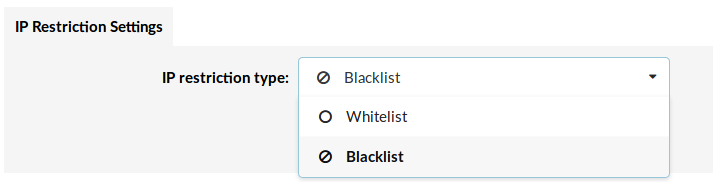
- IP Restriction type:
Select whether set policies will be whitelisted or blacklisted.
- If Whitelist is selected then all defined policies will serve as a whitelist, which means that users can access the PBXware user interface only from the IP Addresses defined in the policies.
- If Blacklist is selected then all defined policies will serve as a blacklist, which means that IP Addresses defined in the policies will be blocked.
LDAP
PBXware LDAP integration allows users with Active Directory or OpenLDAP account to authenticate to PBXware using their LDAP credentials.
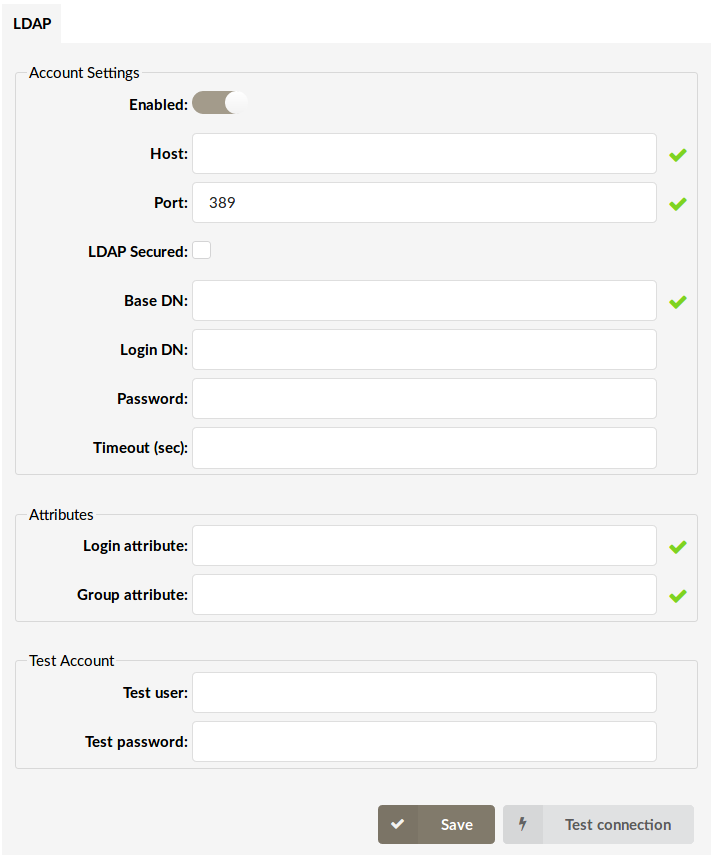
Account Settings
- Enabled
(Checkbox)
- Host
The LDAP Server hostname where the authentication requests will be sent to.
([a-z][0-9])
- Port
Port where the LDAP server will be listening on for incoming authentication requests.
([0-9])
- LDAP Secured
If Checked, LDAPS will be secured that encrypts data over the SSL protocol.
(Checkbox)
- Base DN
The point in the LDAP server directory tree where the user search will be started from.
([a-z][0-9])
- Login DN
LDAP server administrator login username.
([a-z][0-9]@)
- Password
LDAP server administrator login password.
([a-z][0-9])
- Timeout (sec)
Number of seconds after the login request will fail if a response has not been received.
([0-9])
Attributes
- Login Attribute
LDAP Server attribute used as a login username (e-mail)
([a-z][0-9])
- Group Attribute
LDAP Server attribute that holds the value of the account’s group ID.
([a-z][0-9])
Test Account
If you want to test your configuration you can enter an account’s login credentials in the fields below and click the “Test connection” button.
- Test User
Test User’s login username
([a-z][0-9]@)
- Test Password
Test User’s login password
([a-z][0-9])
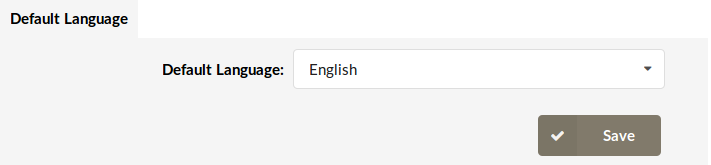
Language
Here you can set the default language for the PBXware user interface.
Available languages are:
- English
- Español
- Français
By default, English is selected.
Licensing
For more information about licensing please read the Licensing chapter.
SMTP Configuration
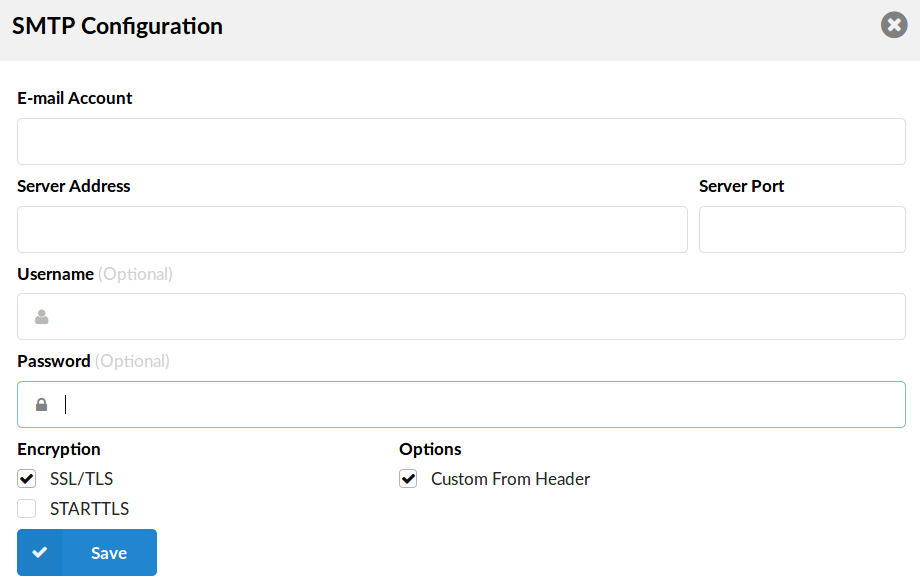
The system sends email notifications and alerts to various users and administrators during operation. For normal operation, email sending requires the user to have a remote SMTP server through which emails will be sent.
- E-mail Account:
Address to which the email will go if a recipient is not specifically defined
(E.g. john@domain.com)
([0-9][a-z] @)
- Server Address:
The host to send mail to, in the form “host | IP_addr”
(E.g. mail.domain.com)
([0-9][a-z])
- Server port:
Port used to send emails to the host
(E.g. Default port is 25)
([0-9])
- Username:
Username used for SMTP AUTH
(E.g. username)
([a-z][0-9])
- Password:
Password used for SMTP AUTH
(E.g. password)
([a-z][0-9])
Encryption
- SSL/TLS:
Specifies whether SMTP uses SSL/TLS protocols to talk to the SMTP server
Disabled by default.
(Checkbox)
- StartTLS:
Specifies whether SMTP does a EHLO/STARTTLS before starting SSL negotiation
(Checkbox)
- Options
Custom From Header
When this option is enabled, the ‘From’ E-mail address which will be used is the one set in the ‘E-mail Account’ section of the SMTP configuration. If this option is ‘unchecked’ the E-mail account, from which the E-mails will be sent, will be presented as root@email.com.
(Checkbox)
Sessions
To prevent unauthorized access to the PBXware web interface we created an automatic account suspension feature. By default, accounts will be suspended after 5 unsuccessful login attempts in 1 minute but users can change these values to match their preferences. After an account is suspended it will have to be unlocked by the administrator.
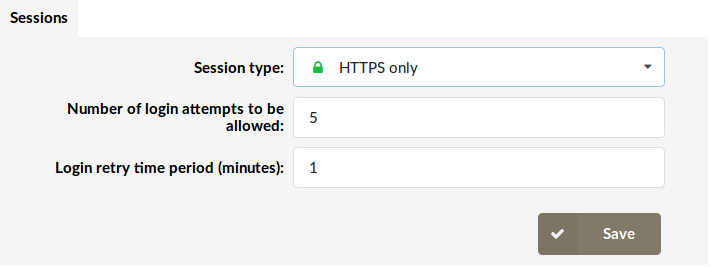
- Session Type:
Session type describes which type of connection will be used for connection to the PBXware user interface.
Available options:
- HTTPS only – Complete data flow between the system and the GUI user is secured using SSL
- Number of login attempts to be allowed
Maximum number of login attempts in a period set in the field “Login retry time period”, after which the account will be suspended.
([0-9])
- Login retry time period (minutes)
Time period for which the user can create a number of mistakes (set in the field ‘Number of login attempts to be allowed) while logging in.
If the user reaches that number of login attempts in this period of time, he will be suspended.
([0-9])
Site Accounts
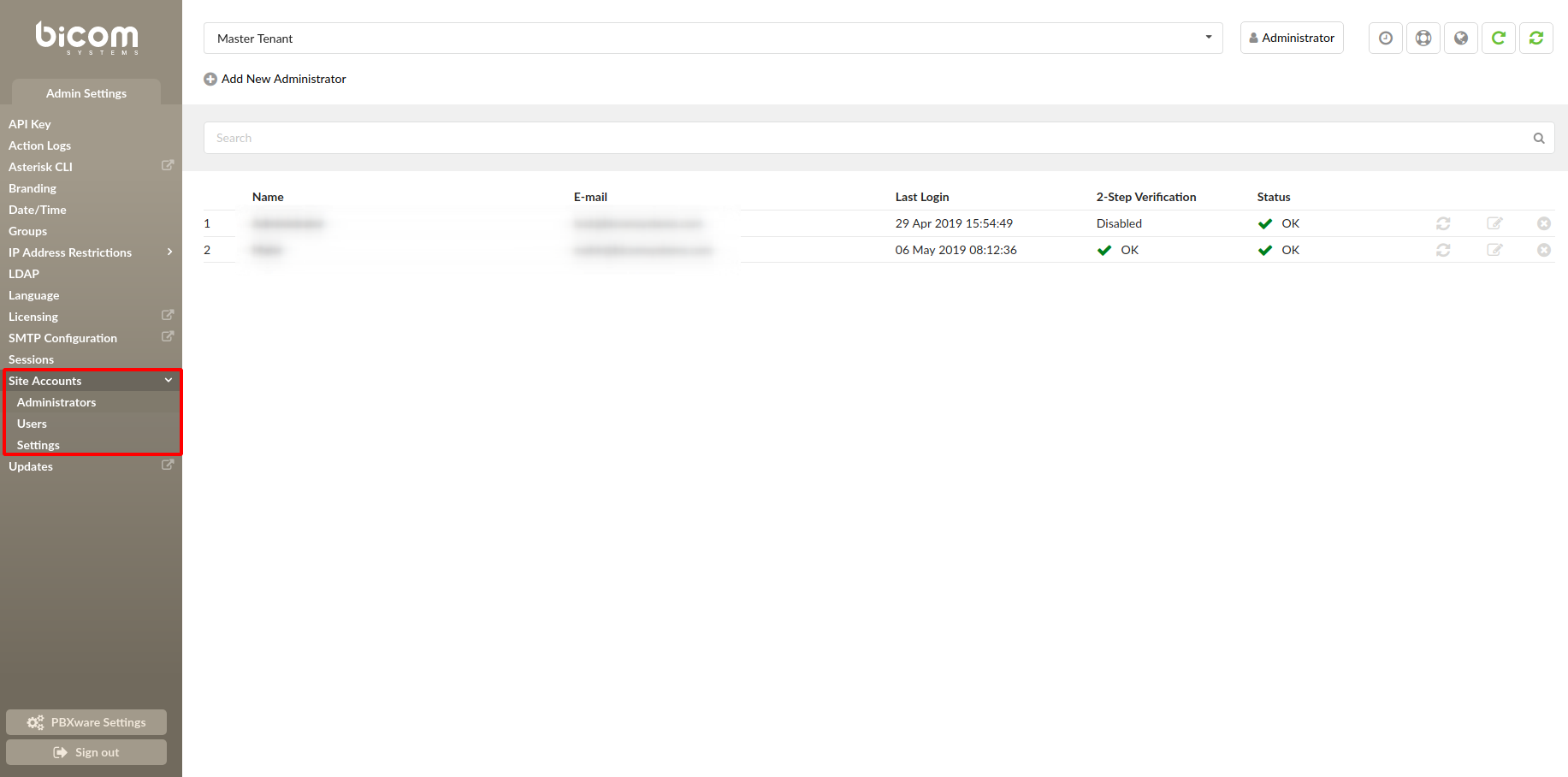
Page for managing Administrator and User accounts.
NOTE: Please bear in mind that all password checks have been revamped and strong passwords are required throughout the site.
A strong password will need to consist of:
- At least 8 characters long
- At least 1 uppercase letter
- At least 1 lowercase letter
- At least 1 digit
- At least 1 special character (! % * _ -)
Allowed characters are a-z, A-Z, 0-9, ! % * _ -.
Administrators
- Add New Administrator:
Opens a page where you can add a new Administrator account.
- Search:
Search the accounts by Name or E-mail.
([0-9][A-Z])
- Name:
Shows the admin’s name.
(Display)
- E-mail:
Shows the admin’s email address.
(Display)
- Last Login:
Shows the date and time of the administrator’s last login.
(Display)
- 2-Step Verification:
Shows if 2-Step verification is set up for the account. For more information about 2-step verification go to Account Settings page.
(Display)
- Status:
Shows the account’s status (whether the account can be used or is disabled)
(Display)
- Reset Login Status:
This button is used to reset the login status for the selected account. This will enable the account, refresh its last login time, reset the 2-step verification setup and check the “Change password at next login” option for that account.
Use this option if the account is disabled because of inactivity or if you just want to reset the above-mentioned options.
- Edit:
Clicking on this icon will open a page where you can edit the account’s options and preferences.
- Delete:
This option will delete the selected admin account.
Add/Edit Administrator
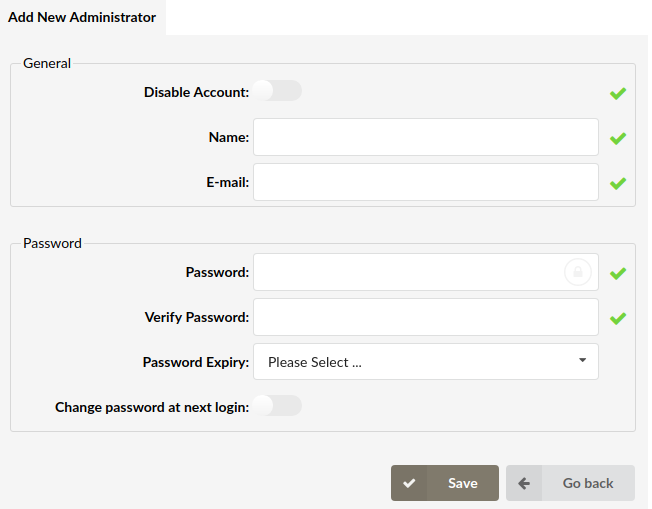
On this page, you can add a new GUI administrator or edit an existing one.
General
- Disable Account:
If this toggle is enabled, then the account will be flagged as disabled and the administrator will not be able to log in.
This does not affect accounts that are already logged in.
- Name:
Name for the new account
(E.g. John)
([a-z])
- Email:
Email address used for account login
(E.g. john@domain.com)
([a-z] [0-9] [@_.-])
Password
- Password:
Password used for logging in
(E.g. fjhoe5!4fh8o%e54fg_vh8)
([0-9][a-z])
- Verify Password:
Verify given password
(E.g. fjhoe5!4fh8o%e54fg_vh8)
([0-9][a-z])
- Password Expiry:
A drop-down field where you can choose a predefined period for password expiration. The administrator will be prompted to change his password after the given period.
(E.g. If 6 Months is selected, then if 6 months have passed since the last password change, on the next login the administrator will be prompted to change his password.)
This field overrides the field in Site Accounts -> Settings -> Password Expiry.
(Select Box)
- Change password at next login:
If this toggle is enabled, then on the next login the administrator will be prompted to change his password and will not be able to proceed until the password has been changed.
Users
Site users are allowed to log in to the system interface in order to perform a specific function according to granted permissions. Each user belongs to a user group. Each group’s permissions are pre-set in order to allow unified access and permission control.
The user can have access to any application or part of that application depending on permits granted. It is highly recommended to add/edit groups before adding new users.
NOTE: For more information about groups go to the Groups page.
- Add New User:
Opens a page where you can add a new user account.
- Search:
Search the accounts by Name or E-mail.
([0-9][A-Z])
- Name:
Shows the user’s name
(Display)
- Email:
Shows the user’s email
(Display)
- Group:
Shows the group the user is assigned to.
(Display)
- Last Login:
Shows the date and time of the user’s last login.
(Display)
- 2-Step Verification:
Shows if 2-Step verification is set up for the account. For more information about 2-step verification go to Account Settings > 2-step verification setup page.
(Display)
- Status:
Shows user’s status (whether the user’s account is OK (enabled and in use) or disabled
(Display)
- Reset Login Status:
This button is used to reset the login status for the selected account. This will enable the account, refresh its last login time, reset the 2-step verification setup and check the “Change password at next login” option for that account.
Use this option if the account is disabled because of inactivity or if you just want to reset the above-mentioned options.
- Edit:
Clicking on this icon will open a page where you can edit the account’s options and preferences.
- Delete:
This option will delete the selected user account.
Add/Edit Users
General
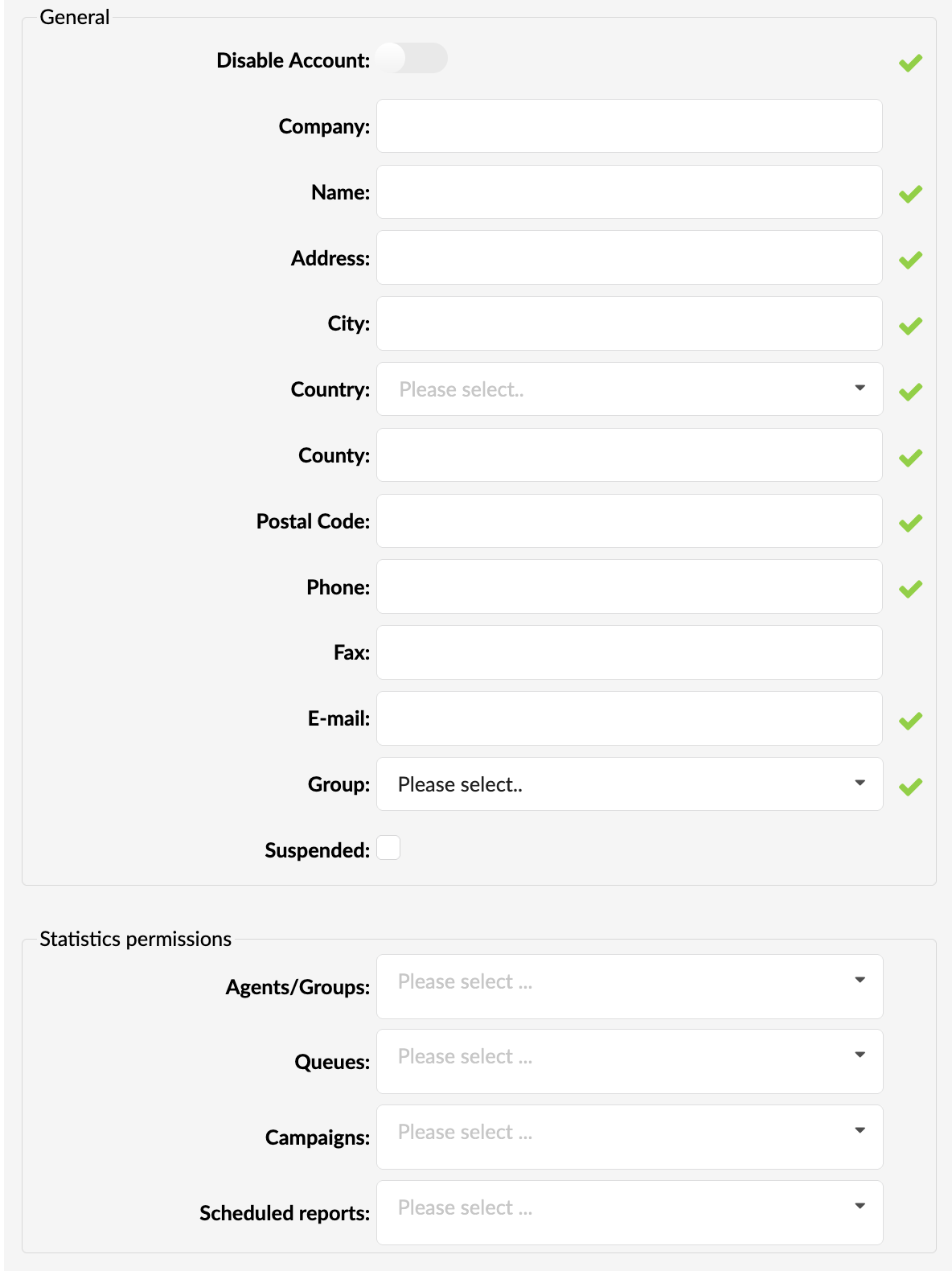
- Disable Account:
If this toggle is enabled, then the account will be flagged as disabled and the user will not be able to log in.
(Toggle Button)
NOTE: This does not affect accounts that are already logged in.
- Company:
Enter the company’s name in which the user is employed
([0-9][a-z])
- Name:
Enter the user’s name
([0-9][a-z])
- Address:
Enter the user’s address
([0-9][a-z])
- City:
Select a city from which the user works
([a-z])
- Country:
Select a country from which the user works
(Select Box)
- County
Select a County/State from which the user works
([a-z])
- Zip
Enter a zip code
([0-9])
- Phone:
Enter the user’s phone number
([0-9])
NOTE: Please note that this feature is part of the beta release and is only visible to beta testers. Once the stable version is released, it will be available for general use.
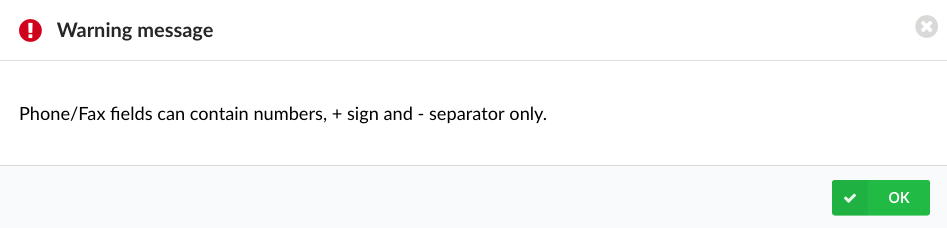
NOTE: In case the format of a phone number or fax is incorrect, the following warning message will appear: “Phone/Fax can contain numbers, + sign and – separator only.” Please refer to the screenshot.
- Fax:
Enter the user’s fax number
([0-9])
- E-mail:
Enter the user’s email address
([0-9][a-z]@)
- Group:
Select a group to which the user is assigned
(Select Box)
- Suspended:
Tick this field to suspend the user after which they won’t be able to log in
(Checkbox)
Statistics Permissions
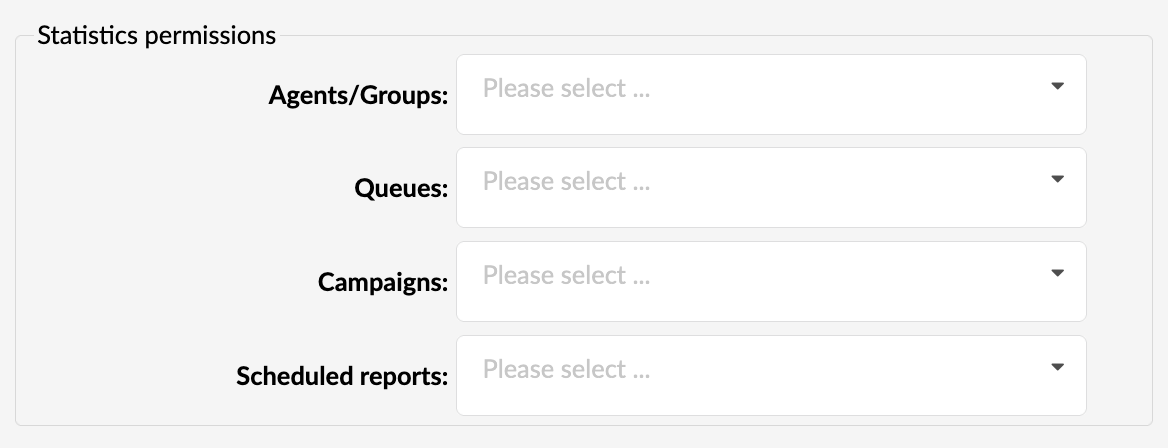
Within these four sections, the admin may set permissions and allow specific agents to access different types of statistics. The admin can set permissions for the following:
- Agent / Groups
- Queues
- Campaigns
- Scheduled reports
If a complete section is left empty, the user will be able to see reports for every queue, agent, campaign, and all scheduled reports. Once the admin sets approvals within these sections, permissions will be applied on the following user login.
So, after the login, the user will be able to run reports only on agents (groups), queues, or campaigns for which he has permission. Accordingly, the user will only see scheduled reports created by the user through PBX UI or approvals from PBX Admin. The same rules apply inside scheduled reports, where the user can filter queues, agents (groups), and campaigns assigned to him.
Password
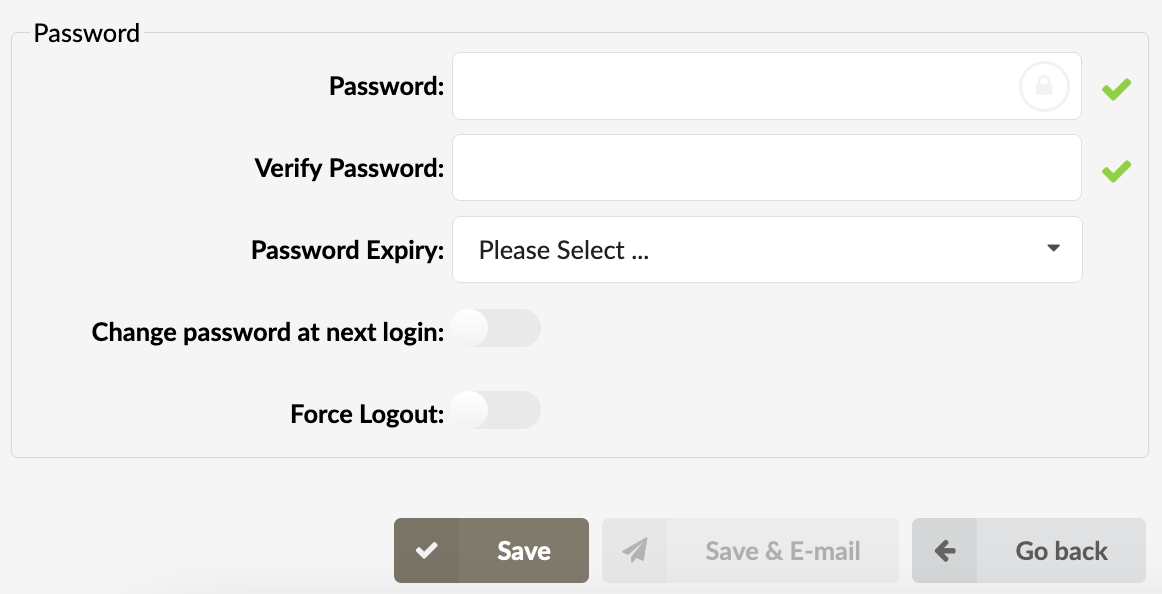
- Password:
Password which will be used for user login.
- Verify Password:
Verify the password given above.
- Password Expiry:
A drop-down field where you can choose a predefined period for password expiration. The user will be prompted to change his password after the given period.
(E.g. If 6 Months is selected, then if 6 months have passed since the last password change, on the next login the user will be prompted to change his password.)
This field overrides the field in Site Accounts -> Settings -> Password Expiry.
- Change password at next login:
If this toggle is enabled, then on the next login the user will be prompted to change his password and will not be able to proceed until the password has been changed.
- Force Logout (v6.7)
If this option is enabled, when changes to the user account are saved, the user will be automatically logged out of all active sessions across all browsers he might be logged into at that moment and will need to log in again.
This feature is added as a security measure and allows the PBXware administrator to change the account password and log the user out from all active sessions, in case the account has been compromised.
Settings
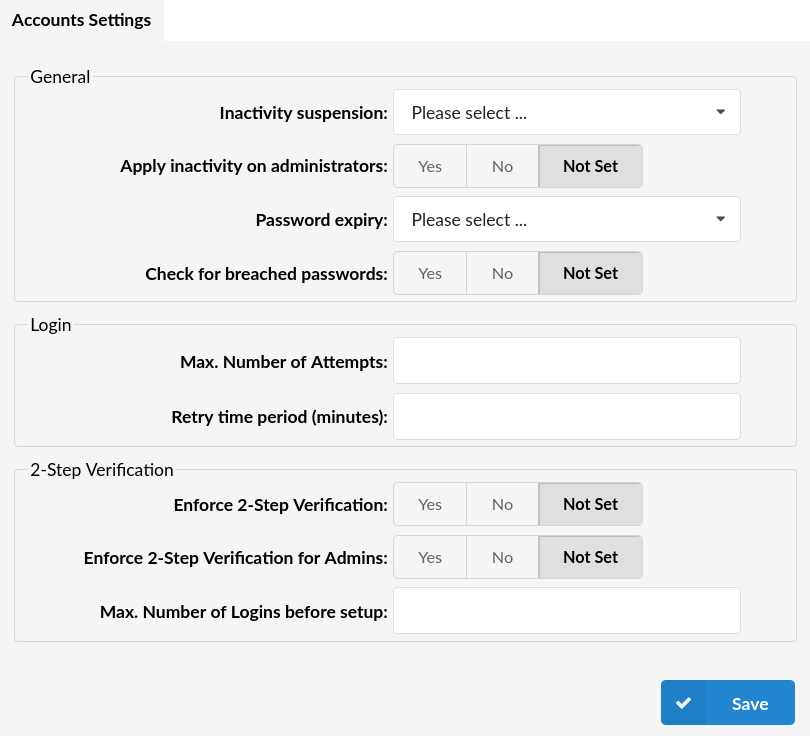
General
- Inactivity suspension:
Set a period of time allowed for accounts to be inactive. If an administrator/user’s last login was more than the defined period ago then the account will be flagged as disabled and the administrator/user will not be able to log in.
Another administrator can edit the account to enable it again.
By default, this option does not apply for administrator accounts.
(Select box)
- Apply inactivity on administrators:
If set to “Yes” then the “Inactivity suspension” option will be applied for administrator accounts as well.
(Option buttons)
- Password Expiry:
A drop-down field where you can choose a predefined period for password expiration. The administrators/users will be prompted to change their password after the given period.
(E.g. If 6 Months is selected, then if 6 months have passed since the last password change, on the next login the administrator/user will be prompted to change his password.)
(Select box)
- Check for breached passwords:
If this option is set to Yes then alongside the strong password check the password will be looked up on the https://haveibeenpwned.com API.
https://haveibeenpwned.com is a website that allows internet users to check if their personal data has been compromised by data breaches. The service collects and analyzes hundreds of database dumps and pastes containing information about billions of leaked accounts, and allows users to search for their own information by entering their username or email address. The API also allows the user to check if a password is found in the database and how many times it has been used. This makes sure that our password will not be one of the commonly used passwords and the lookup is completely secure.
It is recommended to set this option to Yes.
Login
- Max. Number of Attempts:
Defines the maximum number of unsuccessful login attempts before the account gets temporarily disabled.
If set to 0 or empty this option will be ignored.
- Retry time period (minutes)
Defines how long the account will be disabled if “Max. Number of attempts” has been reached.
There is one rule regarding this option:
- If “Max. Number of attempts” is set to more than 0 and then this field must also be greater than 0. If in this case it is saved as empty or 0 it will default to a value of 5.
2-Step Verification
NOTE: Please note that this feature is part of the beta release and is only visible to beta testers. Once the stable version is released, it will be available for general use.
- Enforce 2-Step Verification
Select whether to enforce 2-Step Verification or not
(E.g. Yes)
(Options button)
NOTE: When Not Set is selected, it will be treated as No, so no 2FA will be forced on the users. If set to Yes, users will be then prompted to set it up on the next login, or after refreshing a page if they are already logged in.
- Enforce 2-Step Verification for Admins
Select whether to enforce 2-Step Verification for administrators or not
(E.g. Yes)
(Options button)
NOTE: Administrators will be then prompted to set it up on the next login, or after refreshing a page if they are already logged in.
- Max. Number of Logins before setup
Select a maximum number of logins before setup
(E.g. 2)
[(0-9)]
NOTE: Users/Administrators will be able to log in the entered amount of time before being forced to set up the Two-Factor Authentication. The number of retries left will be shown in the warning pop-up message on login.
Statistics Database
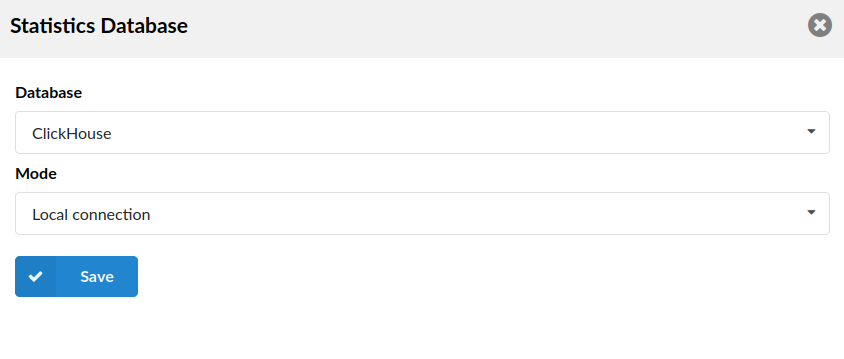
- Database
Select a suitable database
(E.g. MySQL)
(Select box)
NOTE: Please note that MySQL database is set by default.
- Mode
Select a suitable mode
(E.g. Local connection)
(Select box)
In case a user selects ‘ClickHouse’ as a database, depending on the mode chosen, the options may differ. Please refer to the following:
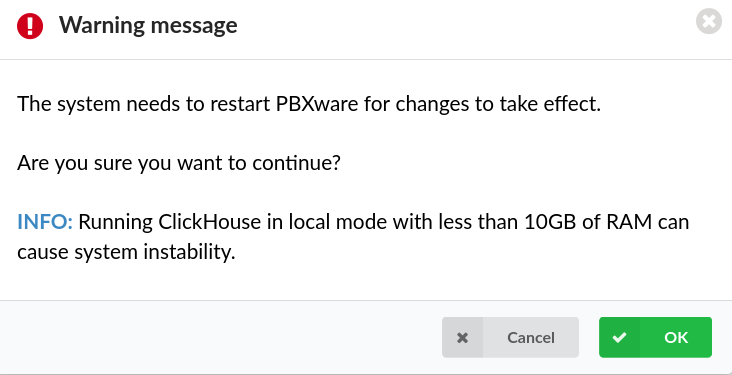
- Mode: Local connection
NOTE: Please note that the system needs to restart PBXware for changes to take effect. Running ClickHouse in local mode with less than 10GB of RAM can cause system instability.
- Mode: Remote connection
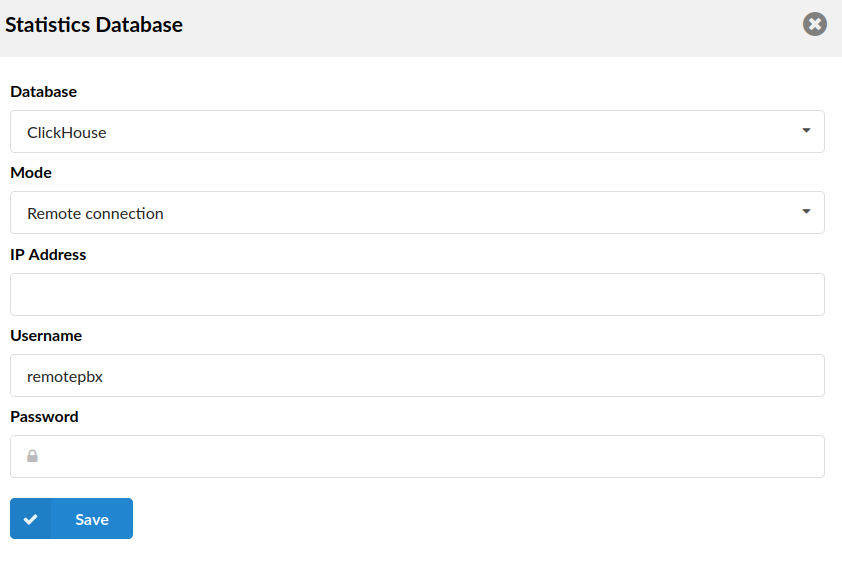
- IP Address
Enter the suitable IP address
- Username
Enter the username
- Password
Enter the password
NOTE: The system needs to restart PBXware for changes to take effect.
- Mode: Act as a server
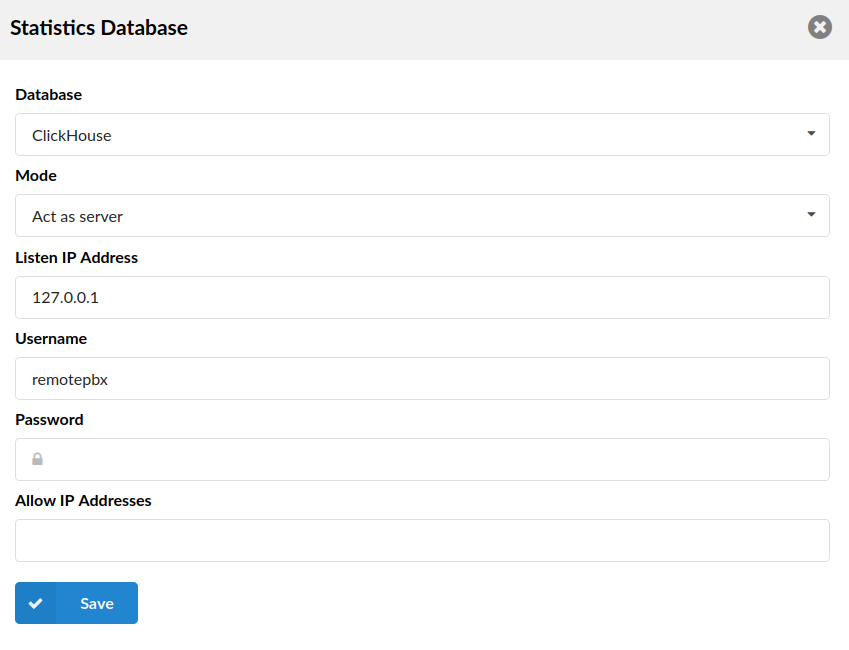
- Listen IP Address
127.0.0.1
- Username
Enter the username
- Password
Enter the password
- Allow IP Addresses
Enter the allowed IP addresses
NOTE: The system needs to restart PBXware for changes to take effect.
Updates

The Updates section allows users to see further information about the Package, Current version, Latest version and Status. Users may also update or restart the system from here.
NOTE: If a user decides to update PBXware to the latest version through Setup Wizard, but the custom updates are present on the system, s(he) will be warned of their existence by the following warning message displayed: “The system contains custom updates. Updating the system to a newer version will overwrite all custom changes!”. Please refer to the screenshot for more detailed information.
For more details about updates, please go to the Updates page.
Support Access
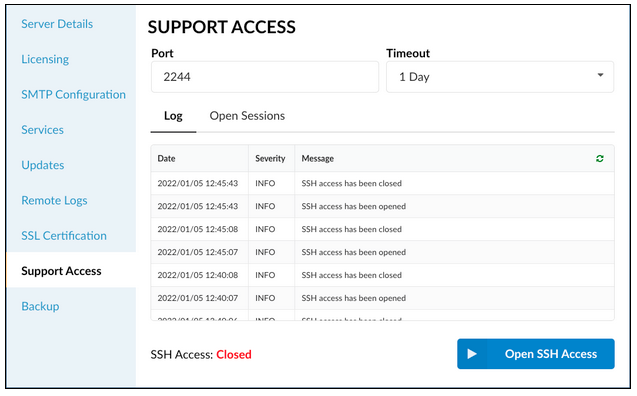
To enable Support Access, please navigate to the ‘Support Access’ page on Setup Wizard.
- Port
Define the port that will be used to open the SSH access
NOTE: The default port value is ‘2244’.
[(0-9)]
- Timeout
Define how long the SSH access will be open
NOTE: It closes automatically after the timeout is exceeded. The minimum timeout that can be set is one hour and the maximum timeout is one week.
[(0-9)]
- Log
This page displays the most recent 50 messages from the support access log. There will be information about when the access has been opened/closed, who logged into the system, and when, and if any errors are occurring.
- Open Sessions
This page displays all currently opened SSH sessions.
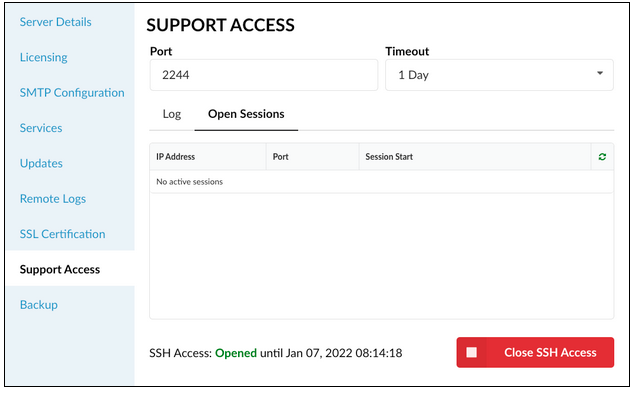
- Open/Close SSH Access
The button is used to open/close the SSH Access. Opening the SSH access will enable the support access on the entered port for the Timeout value duration.
NOTE: Once the SSH access is opened, the status will also display the exact date that specifies how long the access stays opened. The SSH Access can be closed manually by clicking on the ‘Close SSH Access’ button.