
Extensions are associated with all UADs/Phones registered to the system.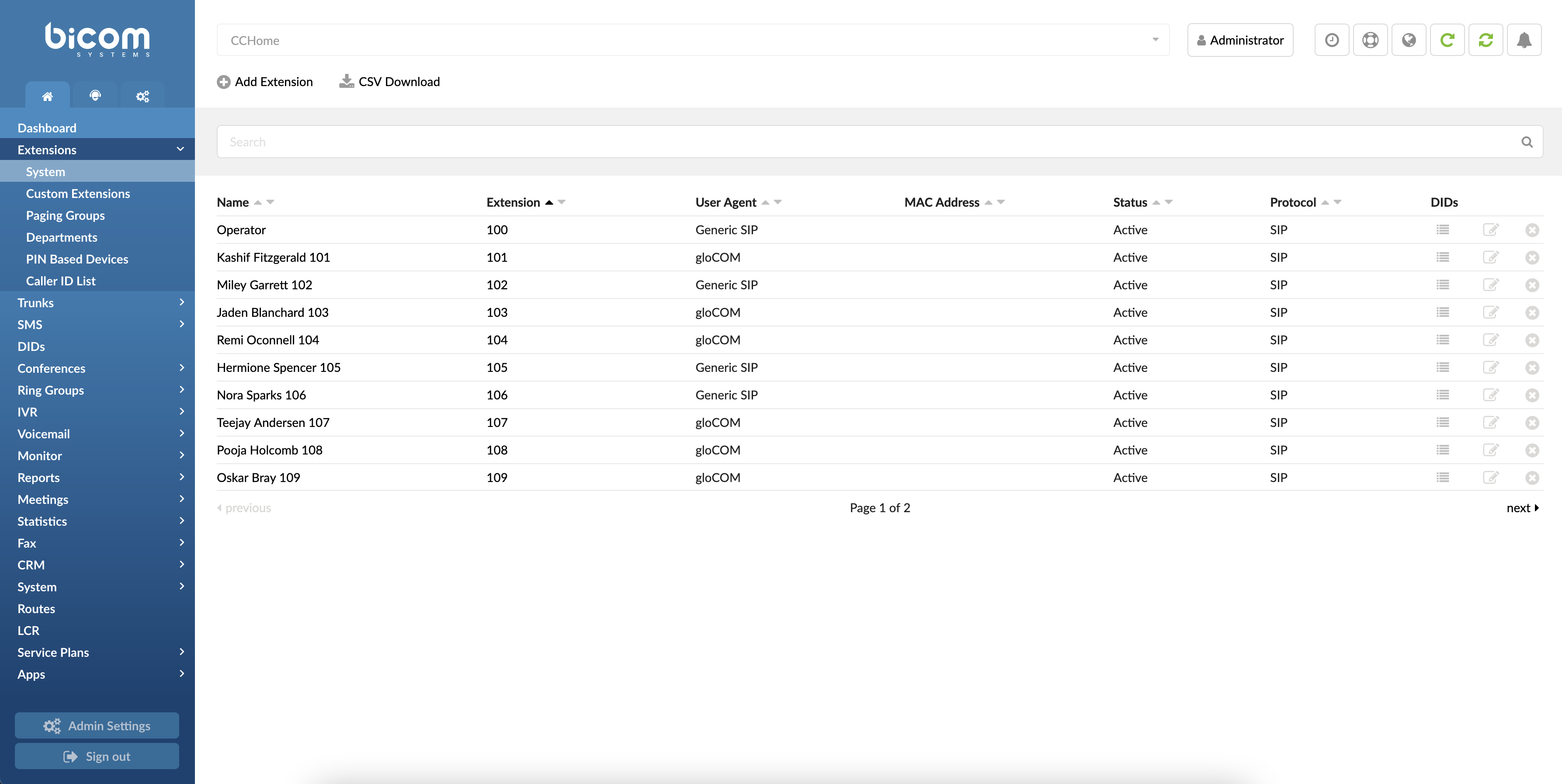
- Add Extension
Click Add Extension icon to get to the extension creation screen.
- Search
In the search section, you can find your extension by typing its Name, E-mail, Extension number, or MAC address.
- CSV Download
This option allows you to download a CSV file with all extensions already created on a tenant. This type of file can be later used to import extensions with their details to a new PBXware system.
System
In this section, all Extensions configured on the tenant are listed.
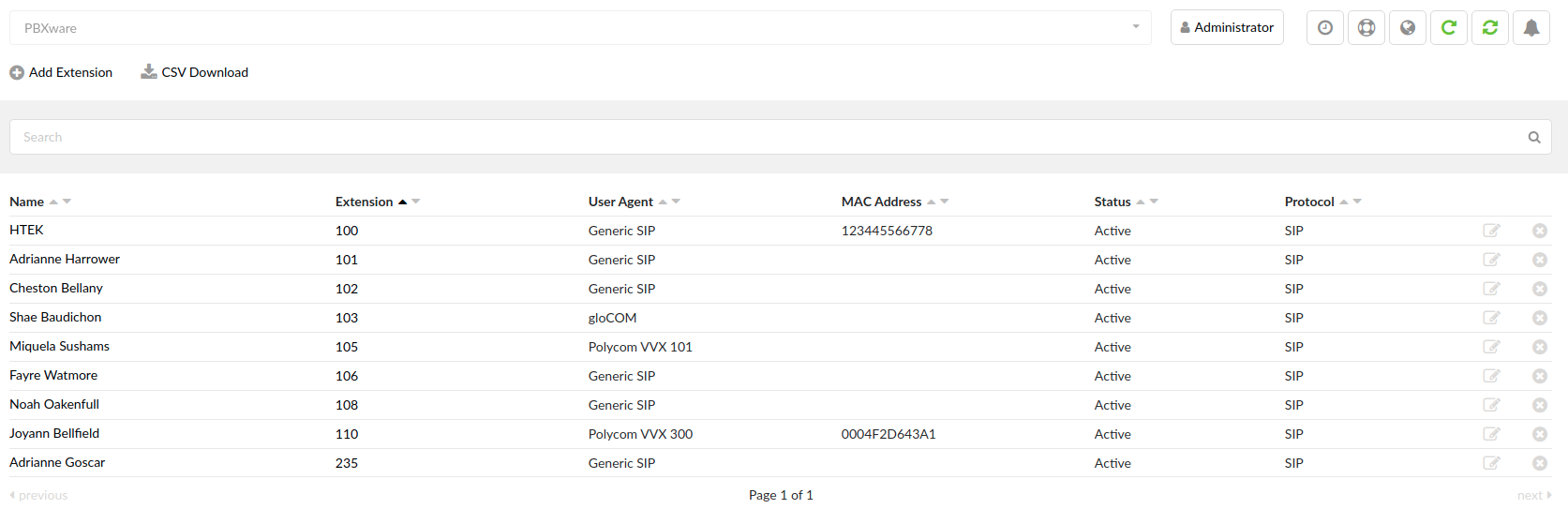
- Name
Full name of the user to which the device is registered
(E.g., Peter Doyle)
(Display)
- Extension
UAD/Phone extension number
(E.g., 1111)
(Display)
- User Agent
UAD/Phone type
(E.g., Yealink T38P)
(Display)
- MAC Address
MAC Address of UADs
- Status
UAD/Phone system status
(E.g., Active/Inactive)
(Display)
- Protocol
Protocol used by the UAD/Phone
(E.g., SIP/IAX)
(Display)
- Edit

Edit the Extension configuration
(Button)
- Delete

Delete Extension from the system
(Button)
Add/Edit Extension
The procedure for adding a new system extension is divided into two steps. The UAD/Phone type and extension location must be provided in the first step. The second step provides basic UAD/Phone information, such as the user’s name and email address.
For more information about extension limitations, please refer to System requirements and PBXware resource utilization.
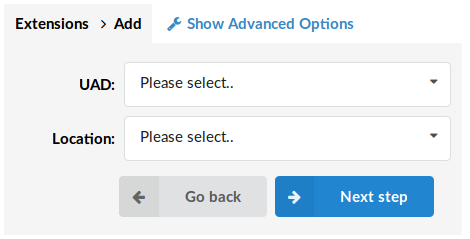
- UAD (User Agent Device)
UAD is the type of device which will be connected to the system.
If the UAD/Phone is not listed here, navigate to ‘Settings: UAD’ Edit the desired UAD/Phone, and set its ‘Status’ to ‘Active’. Now, the UAD/Phone will be available in this list.
(E.g., Linksys SPA-941)
(Select box)
- Location
Select the location of the new UAD/Phone. Location refers to whether the UAD/Phone is in a ‘Local’ or ‘Remote’ network.
(E.g., Local/Remote)
(Select box)
NOTE:
By default, a ‘Single Extension’ will be created. ‘Advanced Options’ offers the facility to add multiple extensions as well. For more information, check the ‘Adding Multi Extensions’ chapter.
TIP:
Since this is an extension on a tenant, you will see that the Username is prefixed with a tenant code, which is required for a UAD/Phone to register to the system. Nevertheless, when you register, you can dial other users on the tenant with only their extension number.
Once UAD and the locality have been selected, we can proceed with the second step. Required fields are:
General
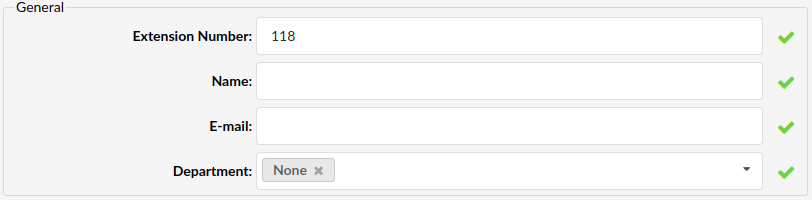
- Extension number
This field is automatically populated by default but can be changed to any free Extension number.
(E.g., Setting ‘1008’ here will create a new system extension with the same network number).
([0-9])
- Name
Full name of the person using the Extension. This name is sent in a Caller ID information.
(E.g., setting the name ‘Hermione Spencer’ in this field will display the name on the other UAD/Phone display when the call is made.)
([a-z][0-9])
The email address associated with the extension and used for various system notifications.
(E.g., Setting ‘hermione@domain.com’ here will transfer all Voicemail notifications, Extension PIN, and other details to this email. Also, the E-mail used together with ‘User Password’ is what the user needs for OSC login.)
([a-z][0-9])
- Department
Department to which the extension will belong. This is used so the mobile and desktop apps can group extensions depending on which department they belong to.
(E.g., Select “Sales” and when sorted in gloCOM, this extension will be shown in the Sales department group).
(Select box)
PIN Based Devices

- PBD PIN
PIN Used for PIN Based Dialing
(E.g., 12345)
([0-9])
Rating

- Call Rating
Turn Call Rating on or off for the current extension. If you set this option to ‘Yes’ you will also need to add a suitable Service Plan.
(E.g. Yes, No, N/A)
- SMS Rating (7.5)
Turn SMS Rating on or off for the current extension. If you set this option to ‘Yes’ you will also need to add a suitable Service Plan.
(E.g. Yes, No, N/A)
- Service Plan
Service plan, which will be applied to the extension. Call rates set in this service plan will now apply to the extension.
(E.g., Test Service Plan)
(Select box)
TIP: From a call rates perspective, an extension can be set as slave or master. The master extension has its credit and can have a reminder when the balance reaches a certain amount and certain limitations. The slave extension uses credit available under the master extension, which is set as Master Account Code for that slave extension.
- Slave
Set whether this extension is a slave or not.
(E.g., Yes, No, N/A)
(Option buttons)
- Master Account Code
Set the master account code (extension number) of a master extension from which the current extension uses funds.
(E.g., 1005)
([0-9])
- Reminder Balance
Account balance at which a reminder should be sent to the user.
(E.g., If this field is set to 10, the user will receive an email notification when the account balance reaches this amount.)
([0-9])
- Credit Limit
The maximum amount that the system will extend to the billing account.
(E.g., If this field is set to ’10’ and the account balance has dropped down to ‘0’, your account will still have ’10’ units in available funds.)
([0-9])
Authentication
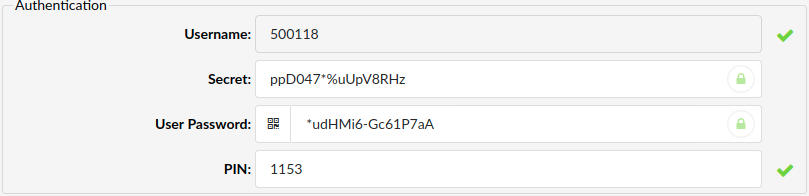
- Username
The username used by the UAD/Phone for the registration with the PBXware
By default, this field is the Extension network number prefixed with the tenant code and cannot be changed.
(E.g., If the extension number is 1008 and tenant code is 300, then the Username will be ‘3001008’).
([0-9])
- Secret
Secret/Password used by the UAD/Phone for registration with the PBXware.
This field is automatically populated by default but can be changed to any value.
(E.g., xKa2r4ef7X*v0!Fk)
- User Password
Password used for gloCOM registration with the PBXware.
This field is automatically populated by default but can be changed to any value.
(E.g., Vk5F_3*dDZrmT1k7)
- Show QR Code
The show QR Code button will display a QR code that can be scanned with gloCOM GO mobile application. This feature will make the mobile app setup and registration process as fast and straightforward as possible. To set up gloCOM GO with QR Code scanning, you will have to enter the public address of your PBXware in the QR Server field in Settings -> Servers -> Network Info section.
NOTE: Once you are registered to PBXware with your gloCOM GO, you will be asked to change the automatically generated User Password to log in. Once this procedure is completed User Password will not be visible anymore, and the QR Code button will be hidden.
Note: PBXware requires vigorous password enforcement, which means that the Password/Secret must meet specific criteria to be accepted. Otherwise, PBXware will display an error message stating that the Password/Secret is too weak.
- Strong Password Requirements
Password and Secret have to meet the following criteria to be accepted:
- It must be at least eight characters long
- It must contain at least one uppercase
- It must contain at least one lowercase
- It must contain at least one digit
- It must contain at least one special character
- Allowed characters are: a-z, A-Z, 0-9, ! % * _
TIP: To make it easier for our users, we also implemented a password generator that will automatically generate a strong password that meets the criteria above with a single mouse click on a key icon located on the side of the Secret/User Password field.
2FA Expiry Time (7.1)
To configure a 2-factor authentication expiry time for the extension, an administrator can use this option to select the period, after which the user will have to repeat the 2FA process to be able to log in to their gloCOM app and OSC portal.
Settings available in the drop-down selection list are 1 day, 3 days, 1 week, 1 month, and 3 months but if 2FA Expiry Time is not configured, the default period of 7 days will be used.
NOTE: When 2FA Expiry Time is configured on the extension level, that selection will have priority over the tenant-level settings.2FA Max Inactivity Time (7.1)
This option allows you to set the maximum inactivity time frame which would reset user’s 2FA in case user does not log in to gloCOM app for period longer than what is configured here.
Available options are: 1 Month, 3 Months, 6 Months, 9 Months and 1 Year.
SSO Enabled (7.5)
When the server is not forced to use Single Sign-On, each extension will have the option ‘SSO Enabled’ and SSO can be configured for each extension individually.
- PIN (Personal Identification Number)
A number used for account authorization.
(E.g., If the PIN for this extension is set to ‘84745’, PBXware will ask for it when checking your Voice inbox or Enhanced Services.)
([0-9])
TIP:
- After the extension is created, the ‘Permissions’ group will be editable for the administration.
- Do not paste a value to the ‘Name’ and ‘Email’ fields, but please type it in. If these values are pasted, ‘Advanced options’ will need to be opened, and the system will prompt for missing values.
- Once the extension is created, the ‘Save & Email’ button becomes available. This command sends Extension details on the provided ‘E-mail’ address.
Auto Provisioning
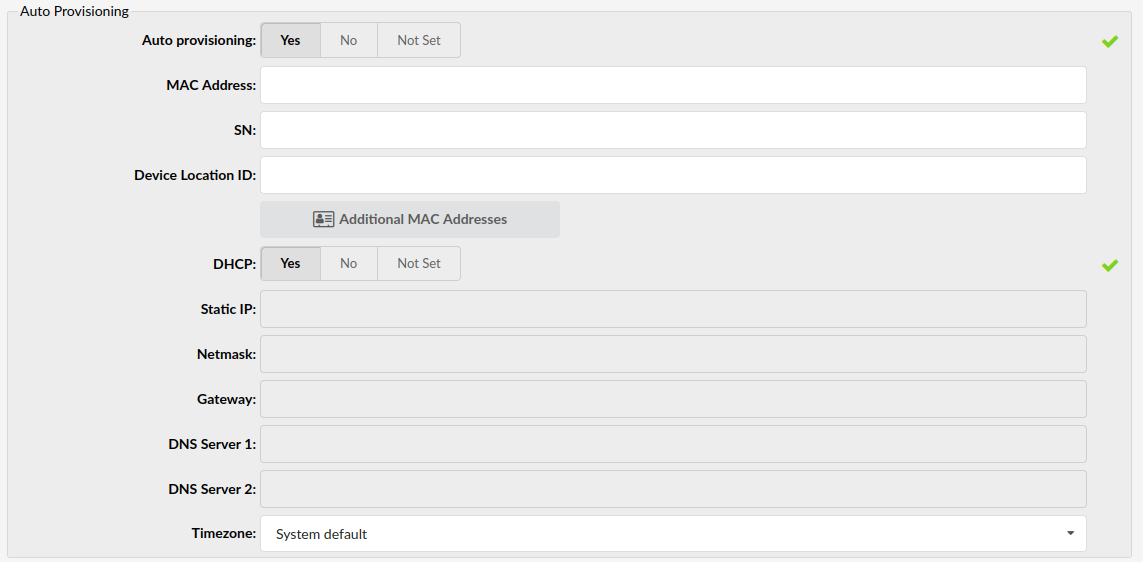
- Auto Provisioning
Option for enabling auto provisioning service for this extension. This feature allows you to connect the UAD/Phone to PBXware without the hassle by providing UAD/Phone MAC address (and optionally adding the Static UAD/Phone IP address and network details).
(E.g., Yes, No, Not Set)
(Option buttons)
- MAC Address (Media Access Control)
Provide the UAD/Phone MAC address here.
(E.g., It is a 48-bit hexadecimal number (12 characters))
([a-z][0-9])
- SN:
Provide the UAD/Phone serial number here.
(This is used for the Yealink Touchless provisioning V2)
- Device Location ID
Set the device location ID
([a-z][0-9])
NOTE: When a call is made from the device with the MAC address populated in the field above, then the device’s location ID will be sent as the value of the emergency location header.
- Additional MAC Addresses
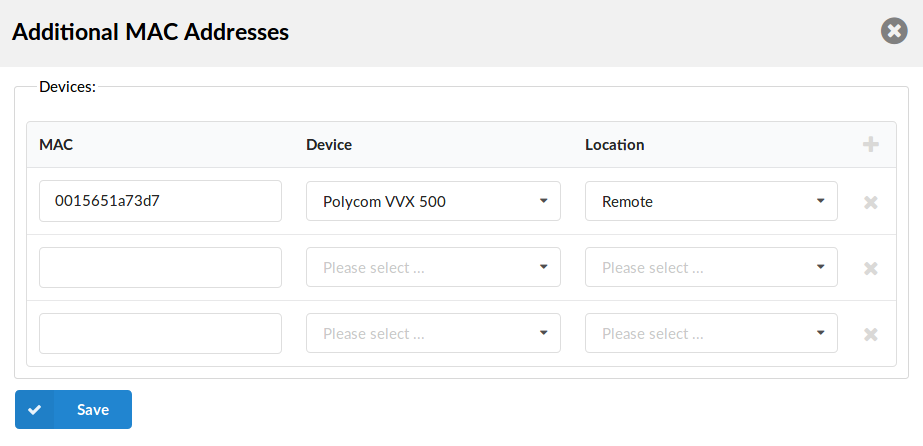
Ability to use multiple MAC addresses per one Extension. This provides the ability to auto provision multiple phones attached to the same Extension.
- DHCP (Dynamic Hosts Configuration Protocol)
Set whether the UAD/Phone is on DHCP or Static IP address.
Set DHCP = Yes if UAD/Phone is on dynamic or DHCP = No if UAD/Phone is on static IP address. If on static IP, you will have to provide more network details in the fields below.
(Option buttons)
- Static IP
Provide the Static UAD/Phone IP address. For this, you have to set DHCP = ‘No’.
([0-9][.])
- Netmask
UAD/Phone netmask
(E.g., Netmask applied to UAD/Phone static IP address)
([0-9][.])
- Gateway
Gateway IP address
(E.g., Local area network gateway IP address)
([0-9][.])
- DNS Server1 and Server2 (Domain Name Server)
DNS Server IP address
(E.g., Local area network DNS IP address (Usually the same as your gateway))
([0-9][.])

Presence
This option simply notifies you of whether device presence is enabled or disabled. Supported UADs can be seen in the Settings->UAD menu.
Advanced Options – Pressence
- Presence Enabled
Enable presence support, but not every UAD/Phone supports this feature.
(Read only)
- Global Presence
It enables presence like the option above, but when this option is turned on, it will allow presence for all tenants on the system. Please note enabling this option will prevent you from monitoring the presence status for extensions on the same tenant unless you enter the tenant prefix in front of the extension number (e.g., 2001001 for extension 1001 on tenant 200.). However, setting Global Presence to Yes, will prevent you from using BLFs to monitor parking lots on your tenant as their numbers do not have tenant prefixes.
(E.g., Yes, No, Not Set)
(Option buttons)
User Agent Auto Provisioning Template
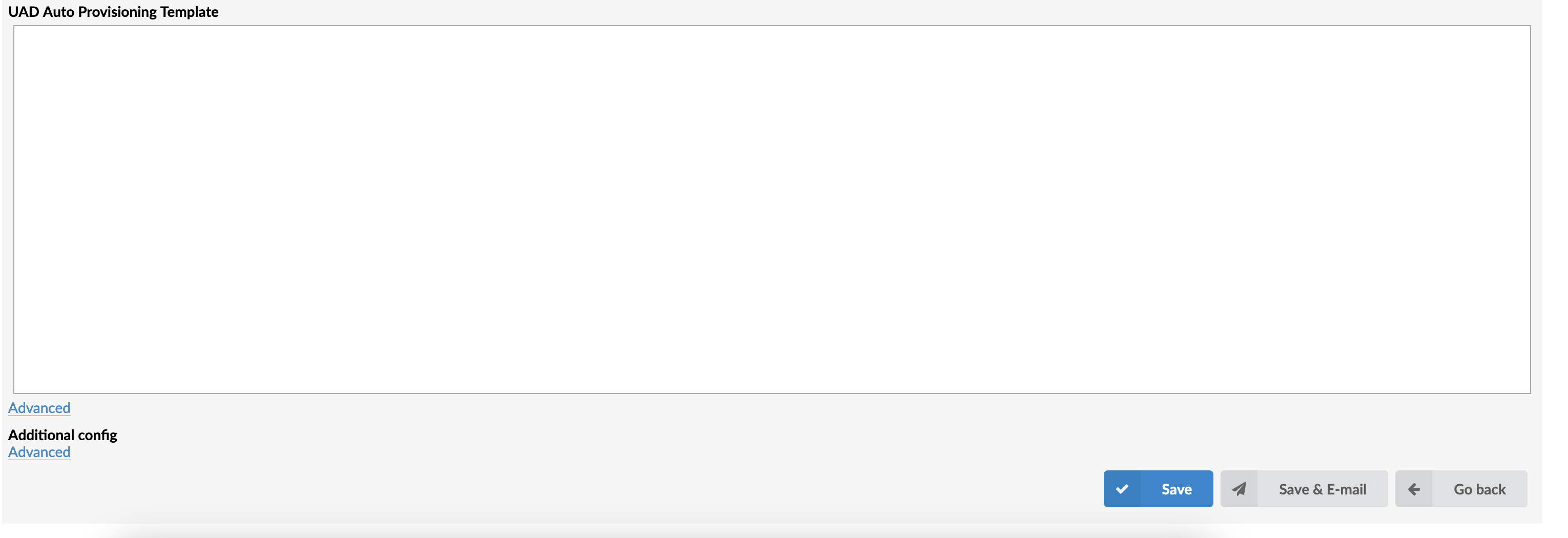
UAD Auto Provisioning Template Text box
This option allows adding of additional settings to the auto provisioning template. Auto-provisioning settings are generally defined in the ‘Settings: UAD’ and are custom set for each device.
NOTE: Do not change or add to this template.
Additional Config
Additional Config text box
This option provides additional config parameters for SIP and IAX configuration files. Values provided here will be written into these configuration files.
NOTE: Do not change or add to this template.
Buttons
- Save
Save changes
- Save & E-mail
Save changes and send an email to the email address from the E-mail field in the General section.
- Go back
Go back without saving changes.
Adding Multiple Extensions
Send E-mail
- Select whether Welcome Emails with configuration details will be sent to specified E-mail addresses or not. Default value is “Yes”.
- (E.g. Yes/no)
Extension Template
- Select an Extension that will be used as a template
- (E.g. M100)
- (Checkbox)
If a user selects the ‘Extension Template’ option and chooses a specific Extension, then the complete configuration of that Extension will be applied to all other Extensions created below. In case a user does not check the ‘Extension Template’ option, then s(he) can create multiple Extensions, but has to edit their additional configuration respectively.
Users can add multiple Extensions to PBXware in two ways:
1. Manually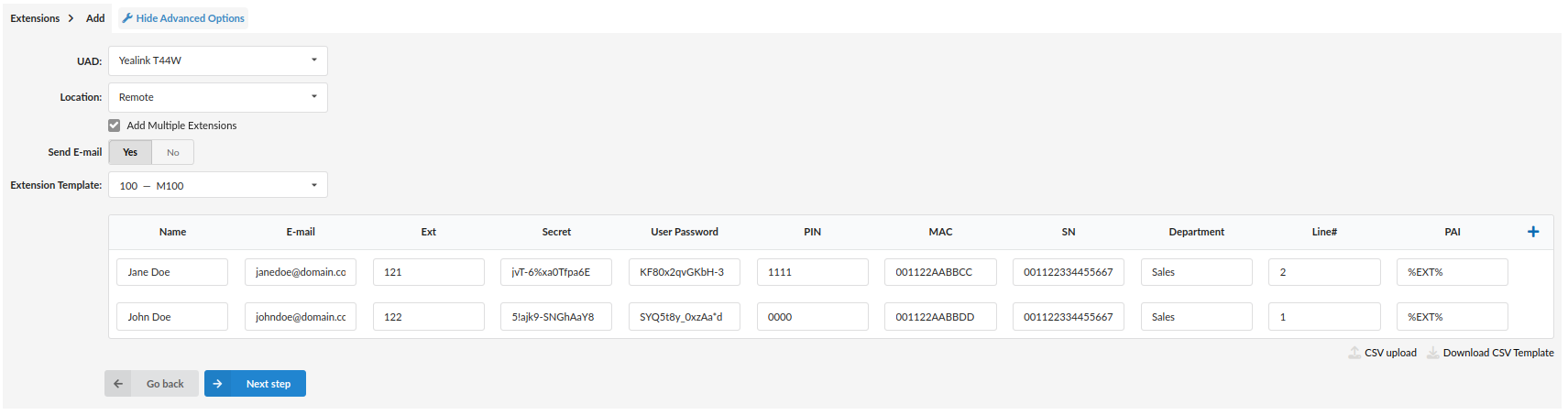
- Create a list
- Manually populate the following fields: ‘Name’,’E-mail’,’Ext’,’Secret’, ‘User Password’, ‘PIN’, ‘MAC’, ‘SN’, ‘Department’, ‘Line#’, ‘PAI’
- Click the Add(+) icon
2. Creating and uploading ‘.csv’ file
- Upload a .csv file
- Open a new file in the text editor
- Add the following lines (as shown in the example):
| “Name” | “Email” | “Ext” | “Secret” | “User Password” | “PIN” | “MAC” | “SN” | “Department” | “Line#” | “PAI” |
|---|---|---|---|---|---|---|---|---|---|---|
| “Jane Doe” | “janedoe@domain.com“ | “121” | “jvT-6%xa0Tfpa6Em” | “KF80x2qvGKbH-3” | “1111” | “001122AABBCC” | “001122334455667788” | “Sales” | “2” | “%EXT%” |
| “John Doe” | “johhndoe@domain.com“ | “122” | “5!ajk9-SNGhAaY8” | “SYQ5t8y_0xzAa*d” | “0000” | “001122AABBDD” | “001122334455667799” | “Sales” | “1” | “%EXT%” |
- Save the file as ‘multiple-extensions.csv’
- Click the ‘CSV upload’ button
- Select the ‘multiple-extensions.csv’ from the hard drive
- Click the ‘Upload’ button
- New Extensions will be created
NOTE: In order for this to work as intended, please note that the following fields must be populated: ‘Name’, ‘E-mail’, and ‘Ext’.
NOTE: Always use a simple editor such as Notepad++ on Windows, or Gedit on Linux when editing .csv files. Please refrain from using Excel as it may remove formatting which will render the file unusable.
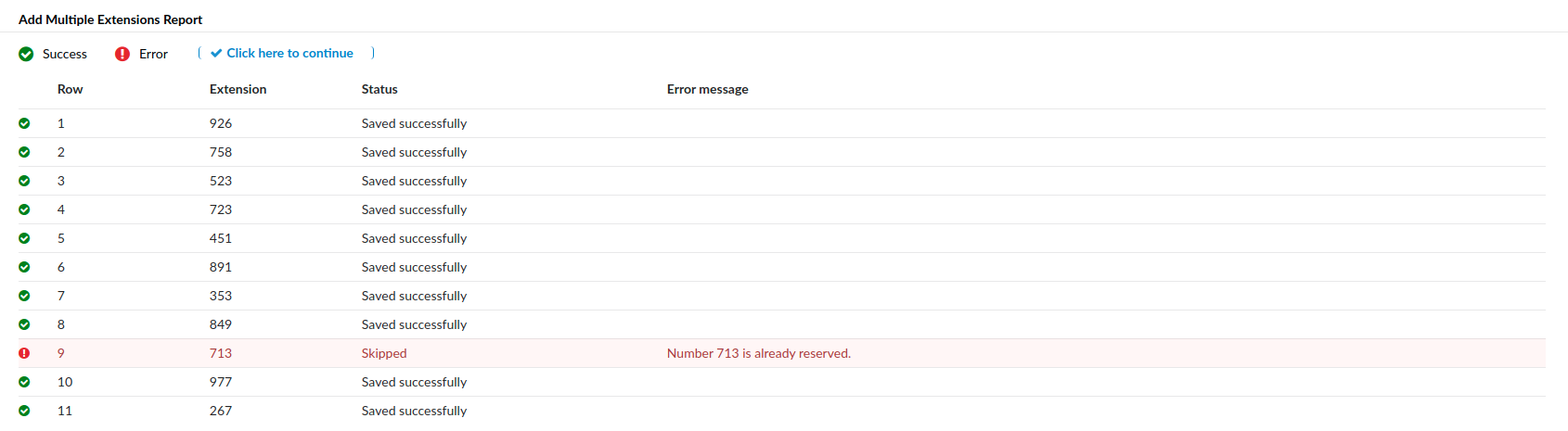
After the CSV file was uploaded, a report showing the number of uploaded/failed/skipped Extensions will be displayed. For more information, please refer to the screenshot.
NOTE:
PBXware enforces strong password requirement, which means that the Secret must meet certain criteria in order to be accepted, otherwise PBXware will display an error message stating that Password/Secret is too weak. For more on how to create a successful Password/Secret in order to be accepted, please refer to the following criteria:
- It must be at least 8 characters long
- It must contain at least 1 uppercase
- It must contain at least 1 lowercase
- It must contain at least 1 digit
- It must contain at least 1 special character ()
- Allowed characters are: a-z, A-Z, 0-9, ! % * _ –
3. Download a CSV template for adding multiple Extensions
Download CSV Template button will present you with a file that already contains necessary headers which should help you create CSV file easier.
(Button)
Advanced Options
Clicking the Advanced Options button will show advanced configuration options and previously hidden fields.
Opening the ‘Advanced Options’ section following options are added:
General
The following options are used frequently and are mainly required for regular extension operation. Some of these fields are pre-configured with default values. It is not recommended to change these unless prompted to do so while saving the changes.
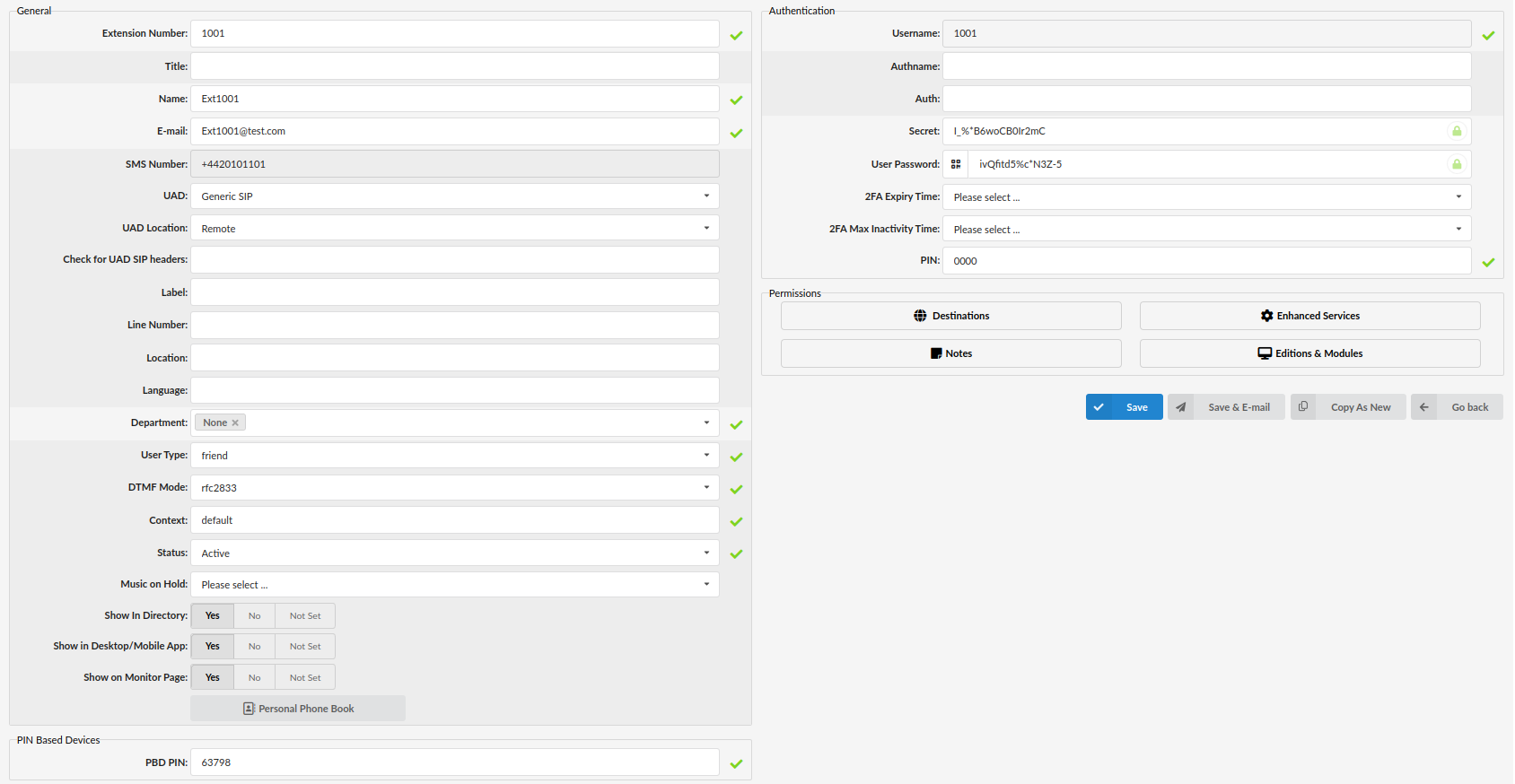
- Title
The user’s title, such as Mrs, Mr, etc.
([a-z])
- SMS Number
Displays the SMS number if set on the Extension
(E.g. +1234567890)
(Display)
NOTE: Please note that the SMS number cannot be edited on this page.
- UAD
UADs (User Agent Devices) are various IP phones, soft phones, ATA (Analog Telephone Adaptors), and IADs (Integrated Access Devices) used for system extensions. PBXware supports many UADs using SIP, IAX, MGCP, and ZAPTEL protocols. If your phone is on the supported UAD list and UAD is enabled on your PBXware, you can choose the UAD that matches the phone registering to the extension.
(E.g., Generic SIP)
(Select box)
- UAD Location
This option is related to the Auto Provisioning function of PBXware. Extensions located in the same LAN as PBXware have to be set to Local, while extensions connecting to PBXware from WAN should be set to Remote.
(E.g., Local)
(Select box)
- Check for UAD SIP Headers (6.6.)
List desired SIP headers that will be forwarded from a UAD to the outbound Trunk
(E.g. p-early-media, x-tn-mobility)
[a-zA-Z0-9-]
NOTE: For example, if the UAD sends the ‘x-TN-Mobility’ header through the SIP INVITE and users want to preserve it on the outbound Trunk, they can add this header to the ‘Check for UAD SIP Headers’ field. When making a call, a check will be made to see if the UAD sends header(s) that is/are listed in this field. In case it is set, that header will be forwarded to the outbound Trunk.
NOTE: When checking for additional headers, make sure to avoid using all default invite headers.
Here is the list of unsupported headers which should be case insensitive: “via”, “from”, “to”, “cseq”, “call-id”, “contact”, “allow”, “user-agent”, “accept-language”, “supported”, “allow-events”, “max-forwards”, “content-type”, “content-length”, “p-asserted-identity”, “privacy”, and “remote-party-id”.
If one of the aforementioned headers is typed in as shown in the screenshot, the warning message should appear saying that the header is not allowed.
- Label
The name showing on the LCD of the current device
(E.g., John Doe)
- Line Number
When auto provisioning multiple extensions on one phone, extensions are assigned onto lines in the order in which they were created in PBXware, the line field will allow customers to specify the extension line where this extension will be assigned on the device.
(E.g., 2)
([0-9])
NOTE: An empty line number field will be treated as the last one.
- Location
Information on the geographic location of a user
(E.g., Los Angeles)
- Language
Set a language per Extension
(E.g., en)
([a-z][0-9])
NOTE: The language set on the Extension will override the language set on the system.
- User Type
An extension can be set to make calls only, receive calls only, or both make and receive calls.
- Friend – make and receive calls
- Peer – receive calls only
- User – make calls only
(Select box)
- DTMF Mode (Dual Tone Multi-Frequency)
A specific frequency consists of two different tones. Each key has a particular tone, so a microprocessor can quickly identify it.
This is a sound heard when dialing digits on touch-tone phones. Each phone has a different ‘DTMF Mode’.
(E.g., By default, this field is populated automatically for supported devices. If adding other UAD/Phone select between ‘inband’, ‘rfc2833’ or ‘info’ options)
(Select box)
- Context
Every system extension belongs to a specific system context. Context may be described as a collection/group of extensions. Here you can set the context for an extension.
(E.g., default)
- Status
Extension status/presence on the network.
Rather than deleting the extension and then recreating it again, later on, the extension can be activated/deactivated using this field.
(E.g., Setting this field to ‘Not Active’ will disable all calls to this extension).
Options:
Active – The extension is active. It can make and receive calls.
Not Active – The extension is not active, and it can’t make or receive calls.
Suspended – Extension is suspended and can’t make calls to numbers other than those defined as Emergency Service numbers in Settings -> Servers -> Edit Server -> Locality (section) -> Emergency Services,
(Select box)
- Music on Hold
It allows users to choose different Music on Hold classes for every extension. Select the MOH (Music On Hold) class name. All sound files belonging to this MOH class will be played to users dialing this extension.
NOTE: When you select MoH class, you need to enter ‘m’ in the Incoming Dial Option field. Entering ‘m’ will provide Music on Hold to the calling party until the called channel answers.
(E.g., default)
(Select box)
- Show In Directory
The extension should be shown in the Remote Directory accessed through the desk-phones interface.
(E.g., Yes, No, Not Set)
(Options button)
- Show in Desktop/Mobile App
Enable/disable non-gloCOM extensions from displaying in gloCOM contacts.
(E.g., Yes, No, Not Set)
(Options button)
NOTE Device must support this feature.
- Show on Monitor Page
This excludes an extension from showing on the Monitor page. Useful for virtual extensions that will never be online in order to get a more accurate count of phones online.
(E.g., Yes, No, Not Set)
- Personal Phone Book
When you click on this button new pop-up (where you can manage your Personal Phone Book contacts) will be shown.
More about managing Phone Contacts you can find at Central Phone Book section within the Settings page.
Rating
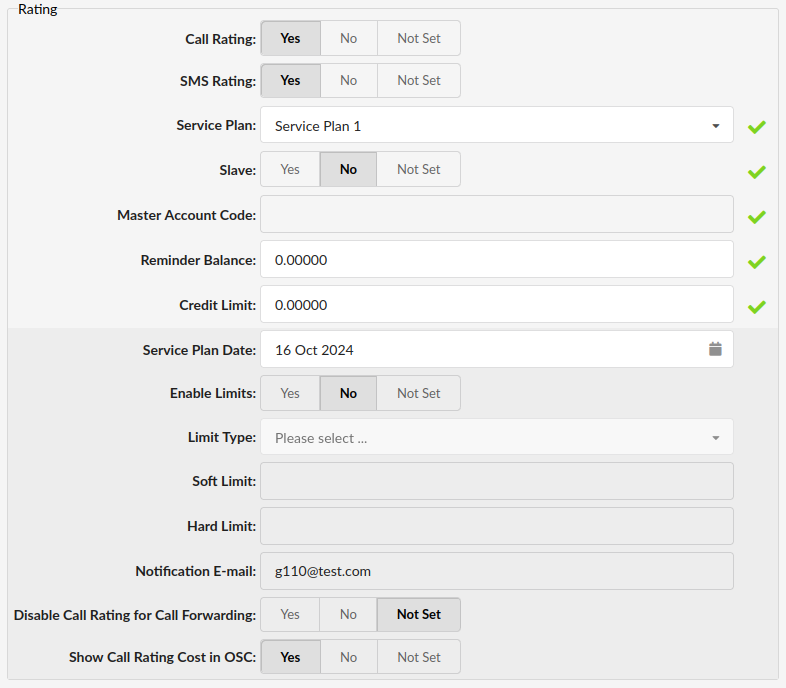
These options are used for call rating of incoming and outgoing calls. The extension is assigned to a service plan and its call rates and additional call rating options are set here as well.
Additionally, in this section, we have the option to enable SMS rating, which is configured in the service plan used by the extension.
- Service Plan Date
This option is only available if you set the extension to be a master extension. Call rating -> Slave-> No/Not Set. Also, Service Plan must be set for this to work. This date defines when the service plan will reset.
(E.g., In the service plan, you have set inclusive minutes to 5. If this field is set to 03-12-2019, inclusive minutes will be reset on 3rd day of each month. So, if all five inclusive minutes were used by this day, inclusive minutes will be reset back five from this date)
([dd-mm-YYYY])
- Enable Limits
If the extension is a master extension, it is possible to set this option to ‘Yes’. Setting this field to ‘Yes’ enables limits on the current extension.
(E.g., Yes, No, Not Set)
(Option buttons)
- Limit Type
This option lets us decide whether the limits we set will be applied daily or monthly.
(E.g., Daily)
(Select box)
- Soft Limit
Depending on the Limit Type, when the extension reaches Soft Limit, it will email the person in charge of a call rating.
(E.g., If you set this field to 10, an email will be sent to you when the user reaches that amount [10] while calling)
([0-9])
- Hard Limit
Depending on the Limit Type, when an extension reaches Hard Limit, the system will block this extension from making any further calls.
(E.g., If you set this field to 20 and the user reaches that amount while calling, system will block this extension from making further calls)
([0-9])
- Notification E-mail
An email that will be used when the user reaches Soft Limit.
(E.g., admin@domain.com)
([a-z][0-9])
- Disable Call Rating for Call Forwarding:
You can set whether you want a call rating applied for any forwarded calls.
(E.g., Yes/No/Not Set)
(Option buttons)
- Show Call Rating Cost in OSC:
Users can choose a call rating displayed for their extension in the Online Self-Care window.
(E.g., Yes/No/Not Set)
Rating Info
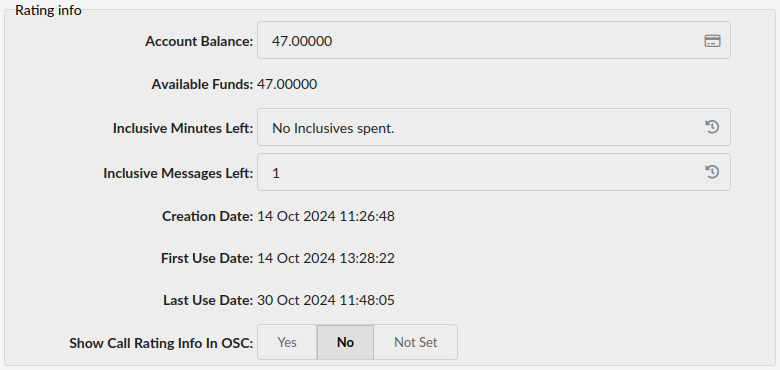
This section displays the extension’s Rating information such as: Account Balance, Available Funds, Inclusive Minutes Left and Inclusive Messages Left.
- Account Balance
Displays the amount of credit units left (available funds minus sum that is already spent by the user).
(E.g If the user has 100 units of credit, 100 units + the credit limit can be spent in total. If this field displays a negative value (e.g. -4.00000) that means that the account balance has reached 0 and the credit limit is being used).
 Credit/Debit
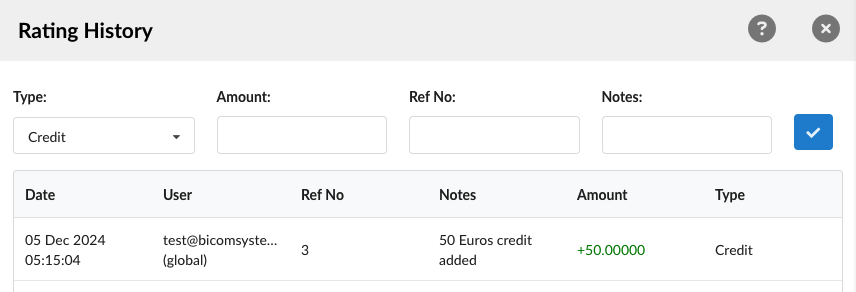
Opens a window with Rating History, where you have an option for adding extension credit/debit. The following parameters are available:
- Type
Rating type, select whether the rating is Credit or Debit.
(E.g., Credit)
(Select box)
- Amount
Rating amount, if the rating type is in Euros, and you add 100 here, 100 Euros will be added to the extension amount.
(E.g., 50)
([0-9])
- Ref No
Rating reference number, depending on how your company bills clients, the invoice number can be assigned here, for example.
(E.g., Invoice01)
([a-z][0-9])
- Notes
Additional Rating notes.
(E.g. 50 Euros credit added)
([a-z][0-9])
- Confirm
This will finalize the Rating action. Fill in all previous fields and click this button to add funds. The following details will be displayed:
- Date: Time and date of the payment
- User: The username used for login to the system of the user who added the funds
- Ref No: Rating reference number
- Notes: Additional Rating notes
- Amount: Amount of funds added
- Type: Rating type
Once the funds are successfully added, the changes will be reflected in the Rating Info section.
- Available Funds
Displays available account funds (account balance + credit limit).
(E.g., If the user account balance has 100 units + 10 credit limit units, 110 units will be displayed here).
(Display)
- Inclusive Minutes Left
Displays the inclusive minutes left. As long as there is any inclusive time left, call rating is not calculated for outgoing calls.
(E.g. You’ll see the inclusive minutes left in the following form ‘0d 0h 4m 25s’).
- Reset Inclusive

Reset extension inclusive minutes, click on this button and confirm with ‘Yes’ to reset inclusive minutes.
NOTE: Buttons Reset Inclusive and Credit/Debit will not be displayed unless Call Rating is enabled.
- Inclusive Messages Left (7.5)
Displays the remaining inclusive SMS messages. When inclusive messages are available, and the Inclusive Messages option is enabled under Service Plan->SMS Rates for a specific SMS Trunk, national SMS messages are not charged from the Account Balance.
NOTE: The system will distinguish between national and international messages based on the national prefix configured on the specific SMS trunk.
- Reset Inclusive
Reset extension inclusive messages. Click on this button and confirm with ‘Yes’ to reset inclusive messages.
NOTE: The new value for the remaining inclusive SMS messages will be updated after the next SMS message is sent.
- Creation Date
Extension creation date.
If your system was updated to a newer version, all extensions created on the old version would display ‘unknown’ in this field.
(E.g., 14-06-2021 12:30:36)
(Display)
- First Use Date
Date/Time of the first extension use.
(E.g., 11 Jun 2021 18:58:25)
(Display)
- Last Use Date
Date/Time of the last extension use.
(E.g., 11 Jun 2021 19:25:12)
(Display)
Network Related
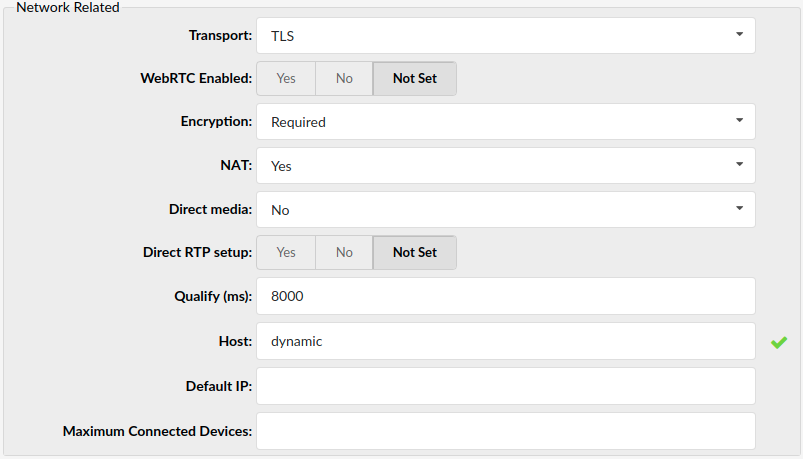
These options set important network-related values regarding NAT, monitoring, and security.
- Transport
Type of transfer protocol that will be used on PBXware.
Available options:
UDP ((User Datagram Protocol) – is used primarily for establishing low-latency and loss-tolerating connections between applications on the internet. UDP enables process-to-process communication. With UDP, computer applications can send messages, referred to as datagrams, and it is considered the best-effort mode of communication. UDP is considered a connectionless protocol because it doesn’t require a virtual circuit to be established before any data transfer occurs.
TCP (Transmission Control Protocol) – provides reliable, ordered, error-checked delivery of a stream of octets between programs on computers connected to an intranet or the public Internet. TCP sends individual packets and is considered a reliable transport medium.
TLS (Transport Layer Security) – a cryptographic protocol that provides communication security over the Internet. They use asymmetric cryptography for the authentication of key exchange, symmetric encryption for confidentiality, and message authentication codes for message integrity.
(E.g., TLS)
(Select box)
- WebRTC Enabled
Whether WebRTC is enabled for this Extension or not
(E.g., Yes, No, Not Set)
(Option buttons)
Navigate to Settings > Protocols > SIP and make sure TLS is set to “Yes”.
Under Extensions > Extension > Edit screen, make sure option WebRTC Enabled is set to Yes.
For Allowed Codecs, make sure “Opus” is enabled and set.
NOTE: For WebRTC to function correctly, the following things must be made:
- Go to the Setup Wizard > SSL Certification page and make sure to upload a valid certificate or to use the automatic Let’s Encrypt service.
- Navigate to Settings > Protocols > SIP and make sure TLS is set to “Yes”.
- Set WebRTC Enabled option to Yes.
- For Allowed Codecs, ensure “Opus” is enabled and set.
- Encryption
This option enables or disables encryption in PBXware transport.
Offered options are:
- Offer if possible (TLS only) – Offers encryption only if it is possible and only with TLS protocol.
- Required -Encryption is always required.
- Offer (TLS only) – Always offers encryption only with TLS.
(Select box)
- NAT (Network Address Translation)
Set the appropriate Extension – PBXware NAT relation.
If extension 1000 is trying to register with the PBXware from a remote location/network and that network is behind NAT, select the appropriate NAT settings here.
Available options:
- Default (report) – this setting forces RFC3581 behavior and disable symmetric RTP support.
- Yes – Always ignore info and assume NAT
- No – Use NAT mode only according to RFC3581
- Comedia RTP – enables RFC3581 behavior if the remote side requests it and enables symmetric RTP support.
(Option buttons)
- Direct Media
Should you allow RTP voice traffic to bypass Asterisk.
Available options:
- No – this option tells Asterisk never to issue a reinvite to the client
- Yes – send reinvite to the client
- No NAT only – allow reinvite when local, deny reinviting when NAT
- Use UPDATE – use UPDATE instead of INVITE
- No NAT, Update – use UPDATE when local, deny when NAT
(Option buttons)
- Direct RTP setup
Here you can enable or disable direct RTP setup. Setting this value to yes sets up the call directly with media peer-2-peer without re-invites. It will not work for video and cases where the callee sends RTP payloads and FMTP headers in the 200 OK that does not match the caller INVITE. This will also fail if direct media is enabled when the device is behind NAT.
(E.g., Yes, No, Not Set)
(Option buttons)
- Qualify (ms)
Timing interval in milliseconds at which a ‘ping’ is sent to the UAD/Phone or trunk to find its status(online/offline). Set this option to ‘2500’ to send a ping signal every 2.5 seconds to the UAD/Phone or trunk. Navigate to ‘Monitor: Extensions’ or ‘Monitor: Trunks’ and check the ‘Status’ field.
In PBXware 5.1, ‘Qualify’ is set to 8000 by default.
(E.g., 6000)
([0-9])
- Host
Set the way the UAD/Phone registers to PBXware. Set this field to ‘dynamic’ to register the UAD/Phone from any IP address. Alternatively, the IP address or hostname can be provided as well.
(E.g., dynamic)
([dynamic][a-z][0-9])
- Default IP
Default UAD/Phone IP address. Even when the ‘Host’ is set to ‘Dynamic’, this field may be selected. This IP address will be used when dynamic registration cannot be performed or when it times out.
NOTE: UAD/Phone must be on static IP address.
(E.g., 192.168.1.1)
([0-9])
- Max Connected Devices
A maximum number of connected devices per extension.
(E.g., 10)
([0-9])
Caller ID
The caller’s name and number displayed here are sent to the party you call and are shown on their UAD/Phone display. The information you see here is taken from the extension number and user name. To set different Caller ID information, please go to ‘Enhanced services: Caller ID’ and put new information there.
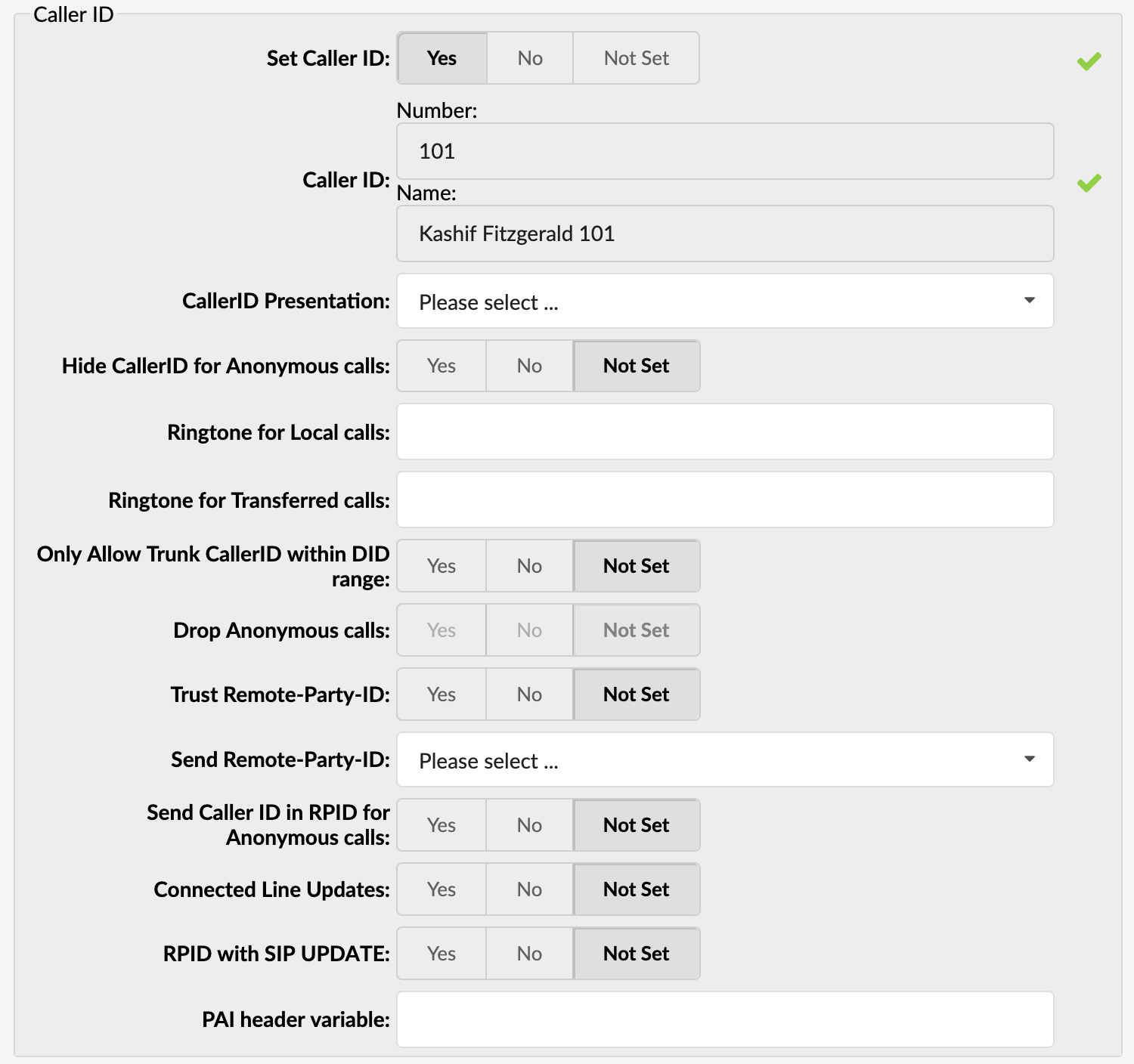
- Set Caller ID
Enable the ‘Caller ID’ service. Set this option to ‘Yes’ to enable the Caller ID service.
(E.g., Yes, No, Not Set)
(Option buttons)
- Caller ID
The extension Number and Name are displayed on dialed party UAD/Phone. These options are read-only. Caller ID information can be changed only through ‘Enhanced Services’.
(Read-only)
- Caller ID Presentation
The way the Extension sends the Caller ID.
If PBXware is connected to third-party software and there are problems with passing the Caller ID information to it, applying different ‘Caller ID Presentation’ methods should sort out the problem.
(E.g., Allowed, Not Screened)
(Select box)
- Hide CallerID for Anonymous calls
Setting this option to ‘Yes’ formats all incoming calls who have Caller ID set but anonymous number to both anonymous (Anonymous).
(E.g., Yes, No, Not Set)
(Option buttons)
- Ringtone for Local calls
This option enables setting up the custom ringtone for local calls. It is necessary to know which phone is registered on this extension.
([a-z][0-9])
- Ringtone for Transferred calls
The ringtone for transferred calls works the same as Ringtone for local calls. Depending on your phone manufacturer, you can send a string to the phone to use a different ringtone than the one set on the device. Once this string is specified in Ringtone for the transferred calls field (as well as in your device itself), it will be used for all calls transferred to your extension.
- Only Allow Trunk CallerID within DID range
When you assign the extension to a customer and assign some DIDs to it, the customer can make calls through that extension with Trunk CallerIDs that match its DID numbers. If a customer tries to make a call with a Trunk CallerID that doesn’t match any of the DIDs assigned to him, the Trunk CallerID will be reset to Anonymous.
(E.g., Yes, No, Not Set)
(Option buttons)
NOTE: This option is also available when creating a tenant. When setting this on a tenant, it applies to all its extensions. If we want a different treatment for a particular extension, we set this option here while creating or editing the desired extension.
- Trust Remote-Party-ID
Defines whether PBXware will allow Remote-Party-ID header
(E.g., Yes, No, Not Set)
(Option buttons)
- Send Remote-Party-ID
Should ‘Remote-Party-ID’ be added to uri.
Options available:
- Use Remote-Party-Id – Use the “Remote-Party-ID” header to send the identity of the remote party
- Use P-Asserted-Identity – Use the “P-Asserted-Identity” header to send the identity of the remote party
(Select Box)
- Send Caller ID in RPID for Anonymous calls
Whether Caller ID will be sent in the RPID header for an Anonymous call.
(E.g., Yes, No, Not Set)
(Option buttons)
- Connected Line Updates
This option is beneficial for some providers, and if Use PAI is enabled, calls might start dropping a short time after the update is sent. Setting Connected Line Updates to No will prevent these call drops.
(E.g., Yes, No, Not Set)
(Option buttons)
- RPID with SIP UPDATE
Sometimes, the only method that will immediately transmit connected line change is with a SIP UPDATE request. If you are communicating with another Asterisk server and wish to be able to transmit such UPDATE messages to it, then you must enable this option. Otherwise, we will have to wait until we can send a reinvite to share the information.
(E.g., Yes, No, Not Set)
(Option buttons)
- PAI header variable
Set the value for the PAI header.
Available placeholders are:
- %CALLERIDNUM%
- %EXT%
- %CALLERIDNAME%
- %PAIEXT%
([a-z][0-9])
Call Properties
These options fine-tune incoming/outgoing call settings.
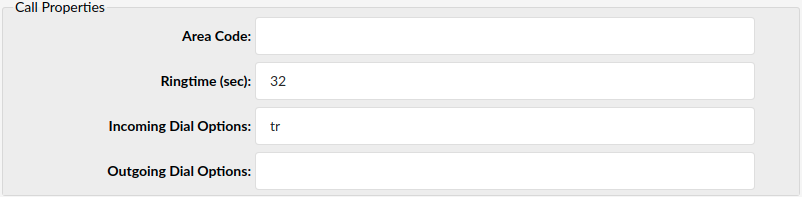
- Area Code
Area code that the system is located in or is operating from.
(E.g., If PBXware is located in New York, set the New York area code here (212) to override the default area code, which is set on the tenant.)
([0-9])
- Ringtime (sec)
UAD/Phone ring time in seconds.
(E.g., The amount of time that tells us how long the UAD/Phone will ring before the call is considered unanswered (by default, it is 32 seconds))
([0-9])
- Incoming Dial Options
Advanced dial options for all incoming calls.
Note: Please see below for a detailed list of all available dial options (default: tr).
([a-z])
- Outgoing Dial Options
Advanced dial options for all outgoing calls.
Note: Please see below for a detailed list of all available dial options (default: empty).
([a-z])
Dial Options:
- t – Allow the called user to transfer the call by hitting #
- T – Allow the calling user to transfer the call by hitting #
NOTE: The caller can use ‘#’ to transfer local calls but only if both Extensions or the callee’s Extension has ‘T’ as the ‘Incoming dial’ option. Please note that the calls originating from Trunk do not execute a transfer on ‘#’.
- r – Generate a ringing tone for the calling party, passing no audio from the called channel(s) until one answers. Use this option with care, and don’t insert it by default into all of your dial statements, as you are killing call progress information for the user. Asterisk will generate ring tones automatically where it is appropriate to do so. ‘r’ makes it go to the next step and additionally generate ring tones where it is probably not suited.
- R – Indicate ringing to the calling party. When the called party indicates ringing, pass no audio until answered. This is available only if you are using kapejod’s bristuff.
- m – Provide Music on Hold to the calling party until the called channel answers. This is mutually exclusive with option ‘r’. Use m(class) to specify a type for the music on hold.
- o – Restore the Asterisk v1.0 Caller ID behavior (send the original caller’s ID) in Asterisk v1.2 (default: send this extension’s number)
- j – Asterisk 1.2 and later: Jump to priority n+101 if all of the requested channels were busy (just like the behavior in Asterisk 1.0.x)
- M (x) – Executes the macro (x) upon connect of the call (i.e., when the called party answers)
- h – Allow the called party to hang up by dialing *
- H – Allow the caller to hang up by dialing *
- C – Reset the CDR (Call Detail Record) for this call. This is like using the NoCDR command
- P (x) – Use the Privacy Manager, using x as the database (x is optional)
- g – When the called party hangs up, exit to execute more commands in the current context.
- G (contextextenpri) – If the call is answered, transfer both parties to the specified priority; however, the calling party is transferred to priority x, and the called party is to priority x+1
- A (x) – Play an announcement (x.gsm) to the called party.
- S (n) – Hang up the call n seconds AFTER the called party picks up.
- d: – This flag trumps the ‘H’ flag, intercepts any DTMF while waiting for the call to be answered, and returns that value on the spot. This allows you to dial a 1-digit exit extension while waiting for the call to be answered – see also RetryDial.
- L (x[:y][:z]) – Limit the call to ‘x’ ms, warning when ‘y’ ms are left, repeated every ‘z’ ms) Only ‘x’ is required, ‘y’ and ‘z’ are optional. The following special variables are optional for limit calls: (pasted from app_dial.c)
- + LIMIT_PLAYAUDIO_CALLER – yes|no (default yes) – Play sounds to the caller.
- + LIMIT_PLAYAUDIO_CALLEE – yes|no – Play sounds to the called party.
- + LIMIT_TIMEOUT_FILE – File to play when time is up.
- + LIMIT_CONNECT_FILE – File to play when the call begins.
- + LIMIT_WARNING_FILE – File to play as a warning if ‘y’ is defined. If LIMIT_WARNING_FILE is not defined, then the default behavior is to announce (‘You have [XX minutes] YY seconds’).
- f – forces CallerID to be set as the extension of the line making/redirecting the outgoing call. For example, some PSTNs don’t allow Caller IDs from extensions other than those assigned to you.
- w – Allow the called user to start recording after pressing *1 or what is defined in the features.conf requires Set(DYNAMIC_FEATURES=automon)
- W – Allow the calling user to start recording after pressing *1 or what is defined in the features.conf requires Set(DYNAMIC_FEATURES=automon)
NOTE: Dial options can bind together. (E.g., t + r = tr)
Groups
These options define who is allowed to pick up our calls and whose calls we are allowed to pick up.

- Call Group
Set the Call Group that the extension belongs to. It is only allowed to have 1 Call Group.
(E.g., 3)
(Select box)
- Pickup Group
Set which groups the extension is allowed to pick up by dialing ‘*8’. It is allowed to have as many Pickup Groups as needed.
(E.g., 4 2)
(Select box)
TIP: Grouping works only within a technology (SIP to SIP or IAX to IAX)
Example:
Extension A:
- Call Group = 1
- Pickup Group = 3,4
Extension B:
- Call Group = 2
- Pickup Group = 1
- If A is ringing, B can pick up the ringing call by dialing ‘*8’.
- If B is ringing, A cannot pick up the ringing call because B’s Call Group = 2, and A can pick up only Call Groups 3 and 4.
NOTE: To be able to select Call Group and Pickup Group, they have to be assigned to the tenant in Settings -> Tenants -> edit tenant -> Numbering Defaults (section) -> Call groups/Pickup groups.
Default Trunks
These options enable extensions to use custom default trunks for all outgoing calls.
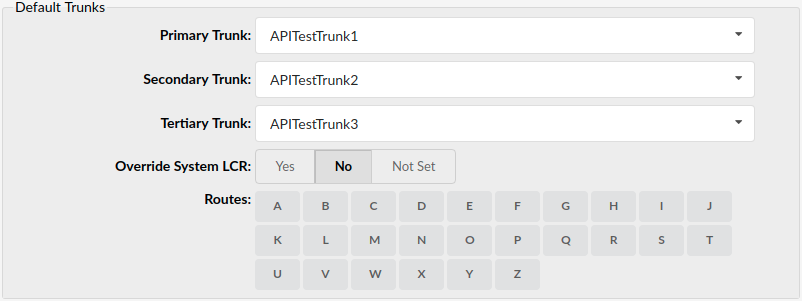
- Primary/Secondary/Tertiary Trunk:
Set the default trunks for all routes dialed from this extension.
If the connection is not established through the primary, the secondary trunk is used, etc. Default trunks can be set per extension and on Settings->Default Trunk. Please look at the ‘Precedence’ section below.
(Select box)
- Override System LCR
This option tells the system that when making calls, it should omit to check System Level LCR.
- NOTE: Override System LCR is not available if the system is set to use Simple Routing mode.
Routes table
- Routes
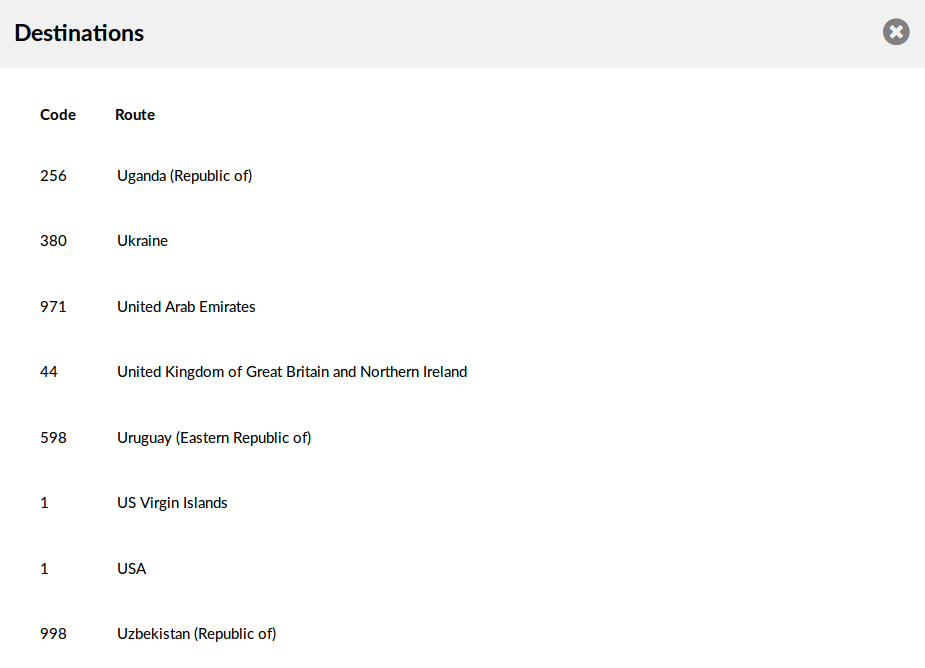
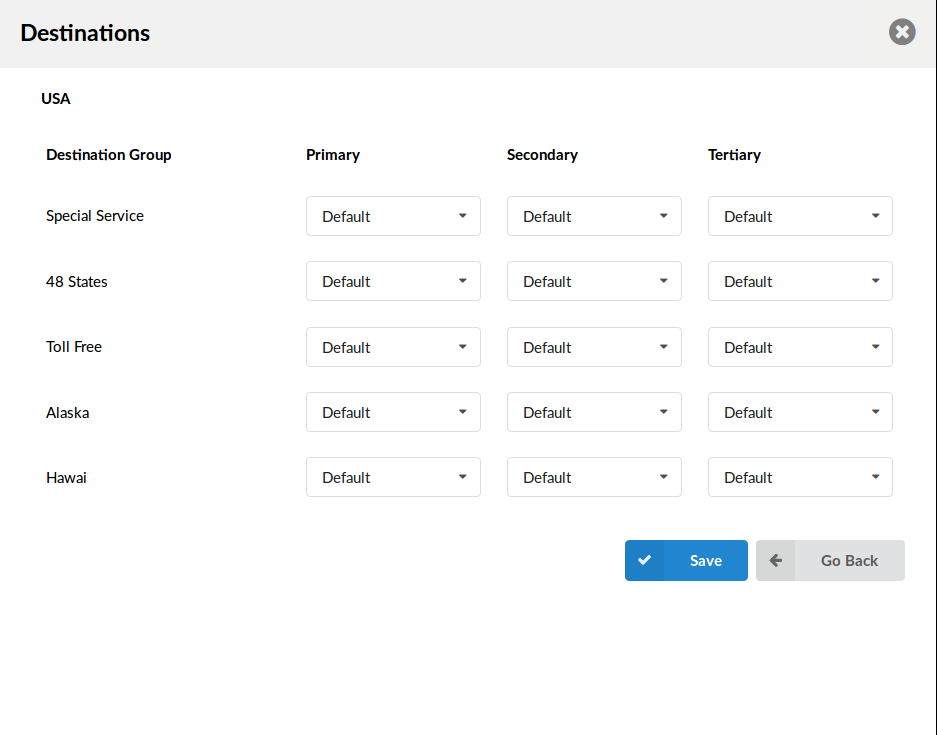
Set the default extension trunks ‘per Destination/Country provider’ (Routes: Example). For some countries/providers to be reached through non-primary trunks, or when one of the default trunks needs to be given higher precedence over another, a route may be set for each destination provider.
NOTE: These routes are unavailable if the system uses Simple Routing mode.
(Select box)
Precedence
Settings
- Default Trunks: All System calls go through the trunks defined here.
- MiniLCR: Overrides ‘Default Trunks’ and sets a specific trunk for a destination.
Extensions
- Trunks: Overrides ‘Settings: Default Trunks’
- Routes: Overrides ‘Settings: MiniLCR’
Routes: Example The list of countries that start with the letter ‘A’ is displayed when you click on the ‘A’ in the upper navigation. After the countries are listed, click on one of them to see the default trunks for their providers. Once the default trunk is selected for a provider, all calls made from that extension to the set provider will be made using the set trunk.
Emergency Trunks
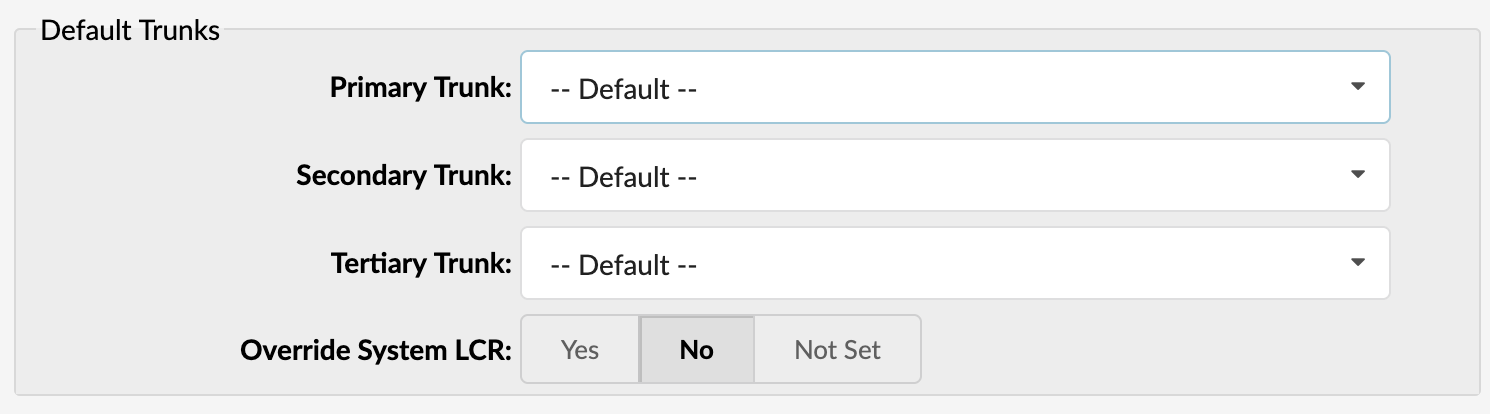
NOTE: This option will be shown only if enabled on System > General Settings > Emergency Trunks per Extension.
- Primary/Secondary/Tertiary Trunk
These trunks will override the trunks set on Trunks and Tenants. The trunks available for selection are only those allowed to be set on that tenant (defined in Trunks & Tenants), but only if the value is not “Default”.
- Override System LCR
This option tells the system that when making calls, it should omit checking System Level LCR.
(Option buttons)
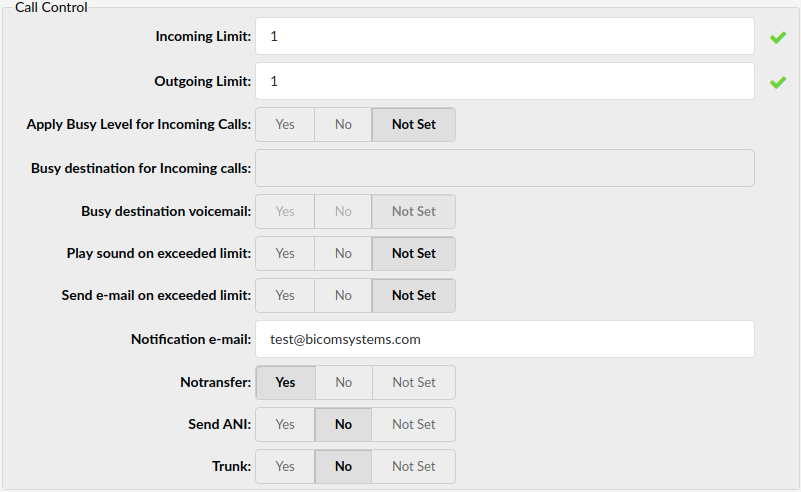
Call Control
These options set the number of simultaneous incoming and outgoing extension calls.
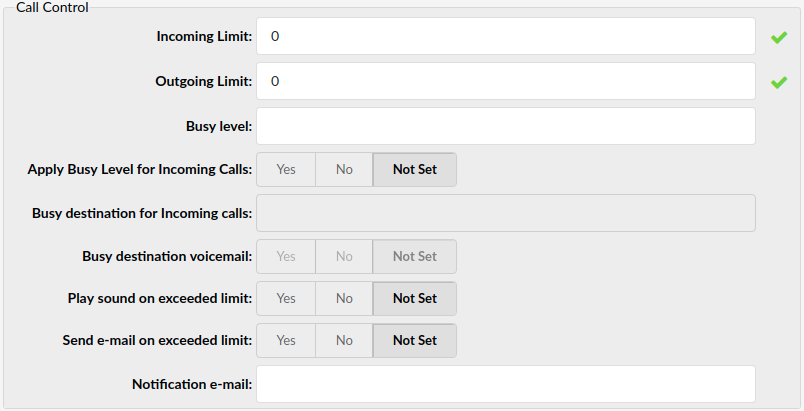
- Incoming Limit
Sets the maximum number of simultaneous incoming calls. If an extension receives more incoming calls than set here, they are all redirected to the extension voice-box
(E.g., 2)
([0-9])
- Outgoing Limit
Sets the maximum number of simultaneous outgoing calls. The outgoing call can be placed on hold, and another call can be made from the same extension. However, this feature has to be supported by the UAD/Phone.
(E.g., 2)
([0-9])
- Busy level
A maximum number of concurrent calls until the user/peer is considered busy. This option is not intended for blocking calls but for displaying user/peer status correctly, for example, in BLF.
- Apply Busy Level for Incoming Calls
Suppose Apply Busy Level for Incoming Calls is set, and one receives an incoming call while the extension is on a call. In that case, the incoming call is blocked and redirected to Voicemail or any other option set for an extension. (For this to work, one needs to set the Busy Level option to 1 under group Call Control).
- Busy destination for Incoming calls
Users can redirect calls to a custom extension when the busy level is set, and they have the option to set the busy destination voicemail to yes/no as well.
- Busy destination voicemail
Whether the destination for the busy level is voicemail.
(E.g., Yes, No, Not Set)
(Option button)
- Play sound on exceeded limit
If you try to make more calls than allowed in the Outgoing Limit, a message will be played that the limit has been exceeded.
(E.g., Yes, No, Not Set)
(Option button)
- Send e-mail on exceeded limit
Whether or not to send a notification mail when the limit is exceeded.
(E.g., Yes, No, Not Set)
(Option buttons)
- Notification e-mail
E-mail address to which the notification mail should be sent if the number of calls exceeds the limit.
(E.g., user@domain.com)
([a-z][0-9] @)
gloCOM
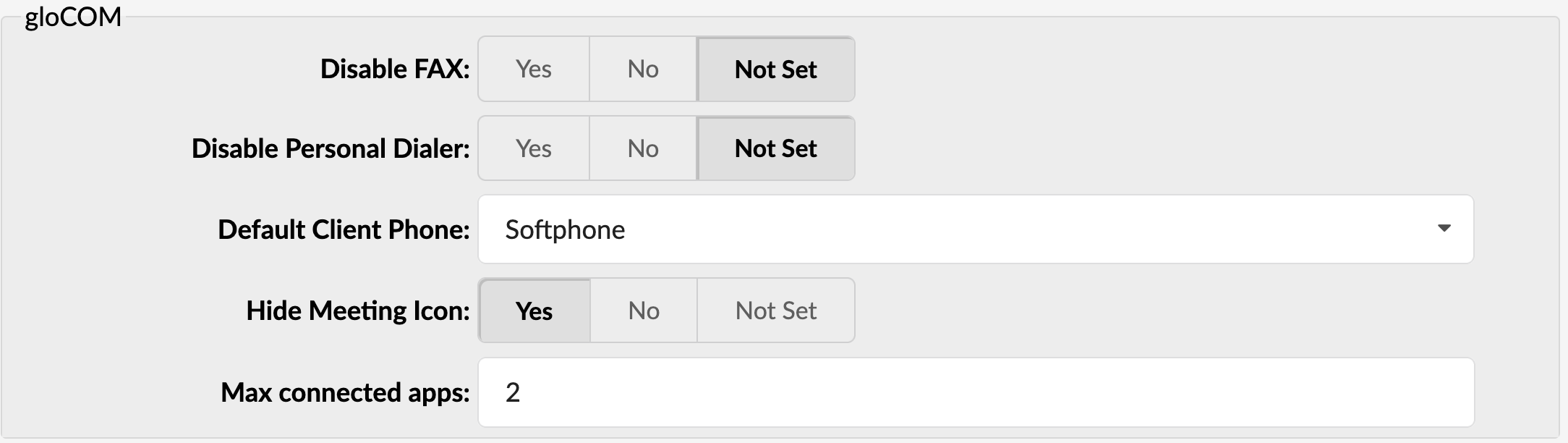
- Disable FAX
This option allows the PBXware administrator to prevent specific extensions from using the FAX feature in gloCOM desktop app. Selecting Yes will remove the FAX option from gloCOM app registering to this extension, ensuring that the user will not be able to send faxes from the app.
By default, this option is set to No.
- Disable Personal Dialer
This option allows the PBXware administrator to prevent specific extensions from using the My Dialer feature in the gloCOM desktop app. Selecting Yes will remove the My Dialer option from the gloCOM app registering to this extension, ensuring that the user will not have this option available in the app.
By default, this option is set to No.
- Default Client Phone (7.3)
This feature allows the PBXware administrator to enforce which gloCOM phone type will be used when the gloCOM desktop app registers to this extension.
For example, if Deskphone is selected, the gloCOM desktop app will always register in Deskphone mode, and the user will need a deskphone registered to the extension to be able to make calls.
Users can still change the phone type once the gloCOM desktop app is registered to the PBXware.
Available options: Please select, Softphone, Deskphone
- Hide Meeting Icon (7.3)
This option allows you to hide the Meeting icon from being visible in the gloCOM desktop application. This can be useful for organisations that prefer using 3rd party applications for conference and/or video calls. To prevent the Meeting icon from being accessible in the gloCOM app, set this option to Yes.
By default, this option will be configured as Not Set, which should have a Meeting icon visible in gloCOM. Available options are Yes, No, and Not Set.
- Disable MMS (7.3)
If the ‘Disable MMS’ is enabled, gloCOM users will not be able to send MMS messages and the MMS icon will be removed from the gloCOM.
This option has three available settings ‘Yes, No, and Not Set’.
‘Disable MMS’ uses the standard inheritance logic where ‘Disable MMS’ on the Extension has the highest priority, followed by the ‘Disable MMS’ on Tenant, and then the System (Master Tenant) level.
- Max connected apps (7.3)
This option allows you to limit the number of gloCOM connections to individual extensions. By default, no limitations will be applied however if this option is set to 2, user will only be able to connect two gloCOM apps at the same time, for example desktop and mobile clients.
IAX Extensions only
- NoTransfer
Prohibit Asterisk from stepping out of the media path and connecting the two endpoints directly. This, of course, affects your CDR and call rating information.
(E.g., Yes, No, Not Set)
(Option buttons)
- Send ANI
Whether to send ANI along with CallerID
(E.g., Yes, No, Not Set)
(Option buttons)
- Trunk
Whether to use IAX trunking. IAX Trunking needs the support of a hardware timer
(E.g., Yes, No, Not Set)
(Option buttons)
Authentication
These options are used for UAD/Phone authentication with PBXware.
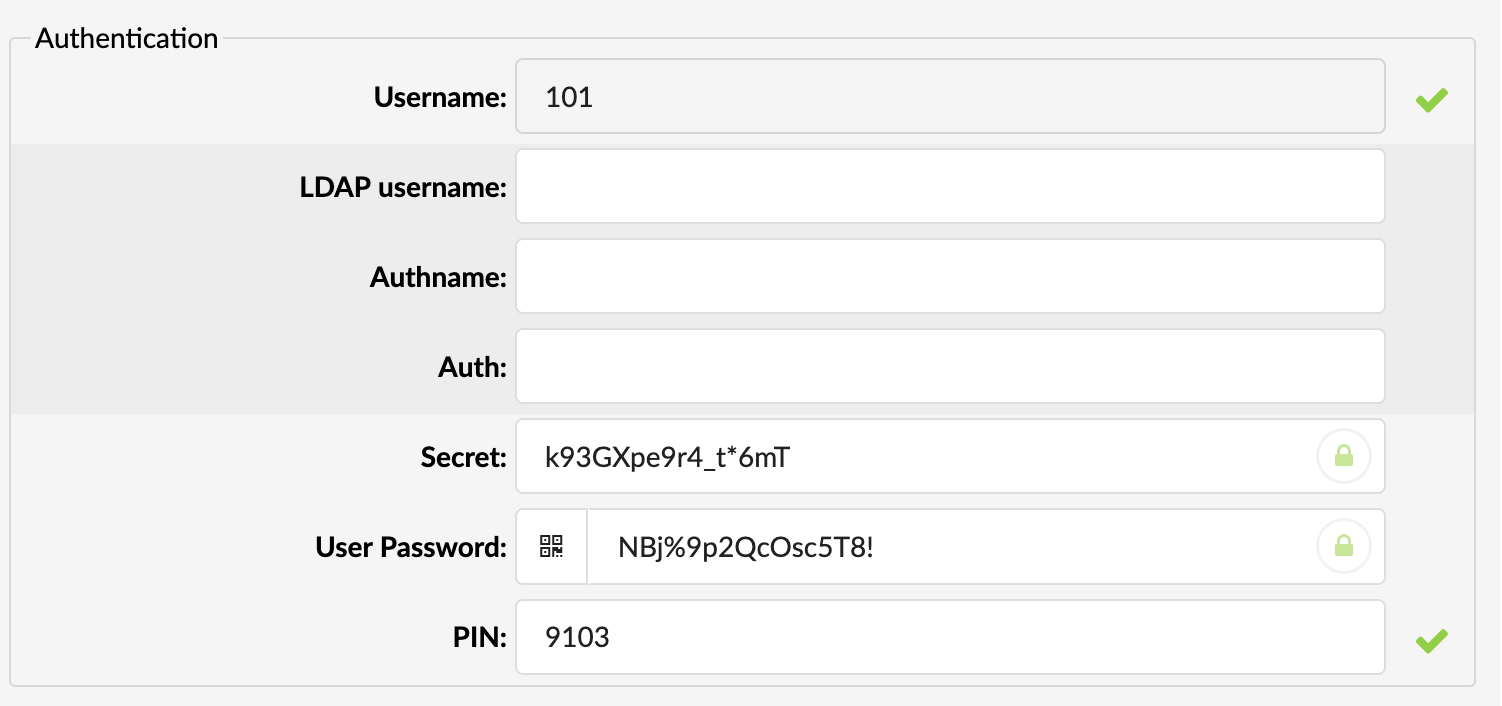
- Authname
Name used for authentication with the sip provider
(E.g., If you set this field to 12345, for example, the sent SIP header will look like 12345@sipprovider.com)
([0-9])
- LDAP Username
The LDAP username used for authentication with LDAP.
- Auth
Auth is the optional authorization user for the SIP server.
(E.g., 44000)
([a-z][0-9])
Fields from Trunks available on Extension
- Incoming IP addresses (newline-separated)
Ip used by the phone for registration with PBXware
(E.g., 192.168.x.x)
- Insecure
security level for incoming connection
(E.g., port)
(Select box)
TIP: If Incoming IP addresses are empty Insecure option will not apply.
Note: To enable this option go to Settings > Tenants > “Tenant name” Allow IP Address Authentication for Extensions set this to “YES”
IAX Extensions only
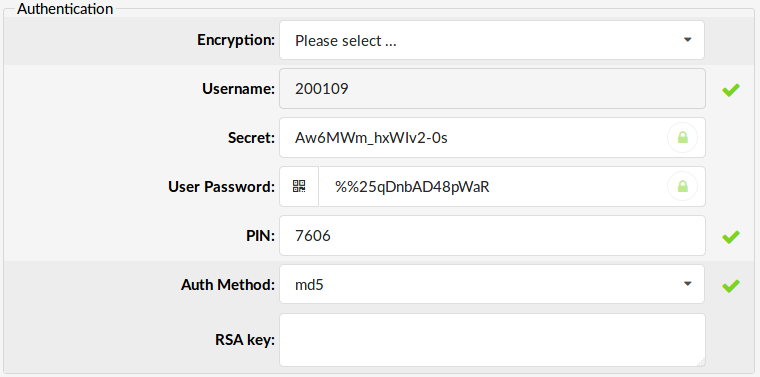
- Encryption
Whether to enable encryption of IAX data stream. For this to work, you must choose the ‘md5’ auth method.
(E.g., AES-128)
(Select box)
- Auth Method
The authorization method used for IAX extensions can be set to:
- none
- plaintext
- md5
- rc4
- RSA
(Select box)
- RSA Key
RSA key used for authorization. If the preferred auth method is ‘RSA’, then the RSA key must be supplied to this field.
([0-9][a-z][A-Z])
Permissions
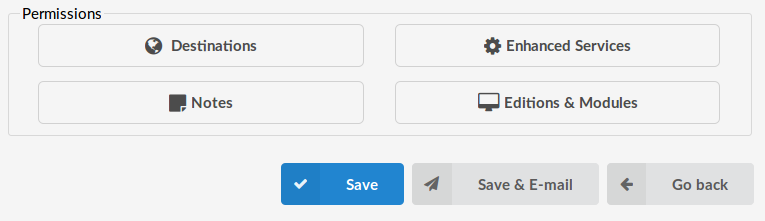
Destinations
The destination permission template was set if a Service Plan was previously created. Every extension using that service plan will have the same destination permissions. Here we can change (or add if we don’t have Service Plan) destination permissions only for one particular extension.
By pressing “Allow all destinations” every single country and every single destination group will be allowed.
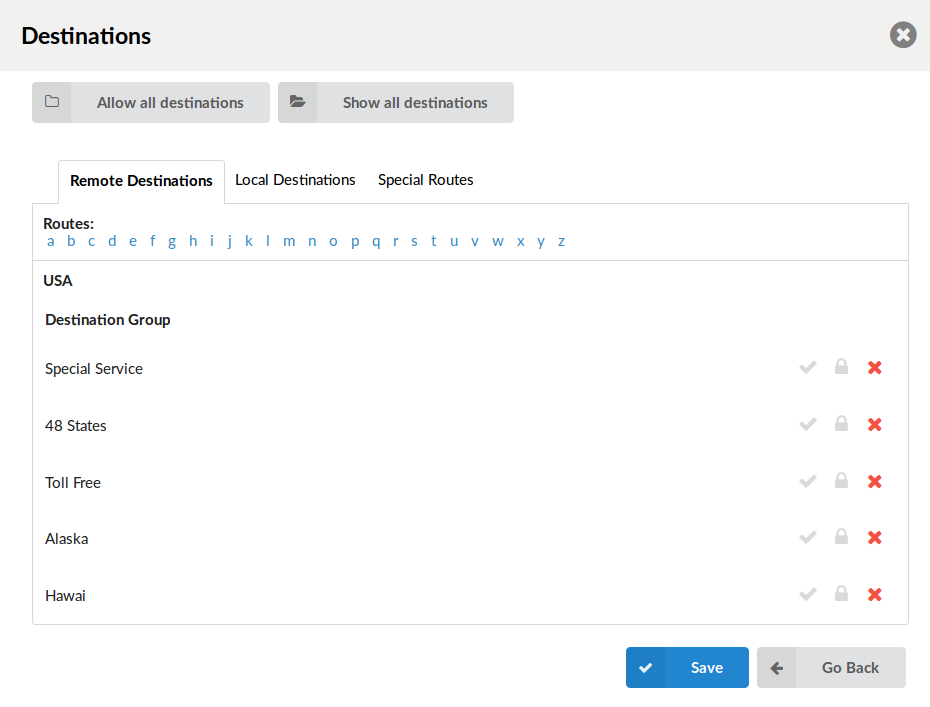
Manually, destinations can be set through the following groups:
- Remote – E164 PSTN destinations, ITSPs, other VoIP networks etc.
- Local – All destinations within the system/network (Extensions, IVR, Queues, Conferences…).
- Special Routes – Other PBX networks we are connected to.
Allowed

PIN Required

Not allowed

Enhanced Services
When you click on Enhanced Services new window with various features will be opened. Before setting up and editing any of these, it is first necessary to enable it and save changes.

For detailed information on Enhanced Services, click the link below:
Notes
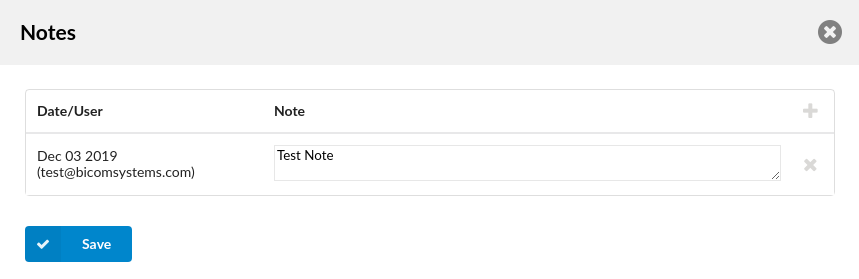
When you click on the ‘Notes’ button, you can set notes regarding this extension.
- Date/User
When a new note is added, this field is automatically filled with the current date and email of the user who created a note.
- Note
In this field, enter your desired note.
.
Editions & Modules
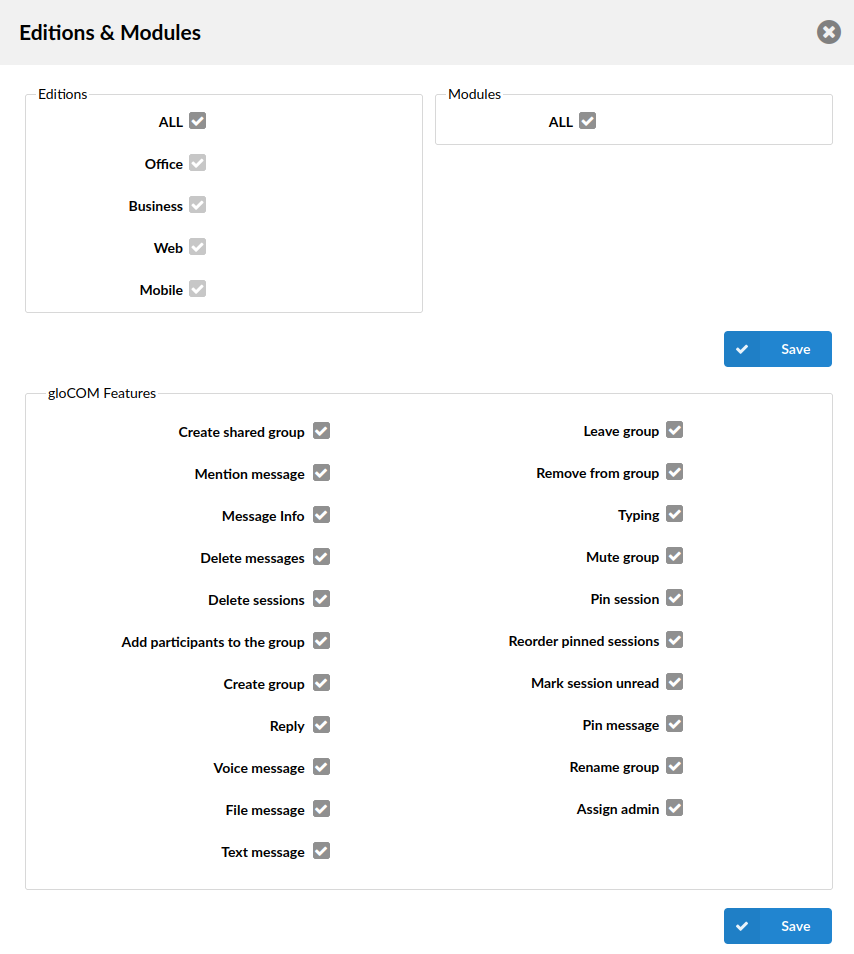
Here you can set which gloCOM editions the extension can use. The ALL option is set by default so that the extension can use all editions. You can uncheck the ALL option and choose which editions you want to enable per extension. (E.g., If you select Office and Mobile, this extension will be able to use gloCOM Office edition and gloCOM GO).
.
gloCOM Features (v6.7)
This section allows PBXware administrator to allow or prevent gloCOM users from using specific features when using gloCOM Desktop, Mobile, or Web applications.
- Create shared group
Enable or prevent user from creating shared gloCOM groups.
- Mention message
Enable or prevent user from using mention in gloCOM chat
- Message info
Enable or prevent user from being able to see message info in gloCOM chat groups.
- Delete message
Enable or prevent user from deleting messages in gloCOM chat.
- Delete sessions
Enable or prevent user from deleting gloCOM chat sessions in gloCOM application.
- Add participants to the group
Enable or prevent user from adding new participants to gloCOM chat group.
- Create group
Enable or prevent user from creating a new gloCOM chat group.
- Reply
Enable or prevent user from replying to gloCOM chat messages.
- Voice Message
Enable or prevent user from leaving voice messages on gloCOM
- File Message
Enable or prevent user from sending file messages in gloCOM chat.
- Text Message
Enable or prevent user from sending text messages on gloCOM
- Leave Group
Enable or prevent user from leaving gloCOM chat group.
- Remove from Group
Enable or prevent user from removing participants from gloCOM chat groups.
- Mute Group
Enable or prevent user from muting gloCOM chat groups.
- Pin session
Enable or prevent user from pinning chat sessions in their gloCOM application.
- Reorder pinned sessions
Enable or prevent user from reordering pinned chat sessions in their gloCOM application.
- Mark session unread
Enable or prevent user from marking chat sessions unread in their gloCOM application.
- Pin message
Enable or prevent user from pinning chat messages in gloCOM chat groups.
- Rename group
Enable or prevent user from renaming gloCOM chat groups.
- Assign admin
Enable or prevent user from assigning admin permissions in gloCOM chat groups.
For more information and specifics of these features, please check gloCOM user manual for your preferred platform.
.
Voicemail
These options mimic an answering machine’s functions but add many additional features. Voice messages are saved on a central file-system location instead on a UAD/Phone.
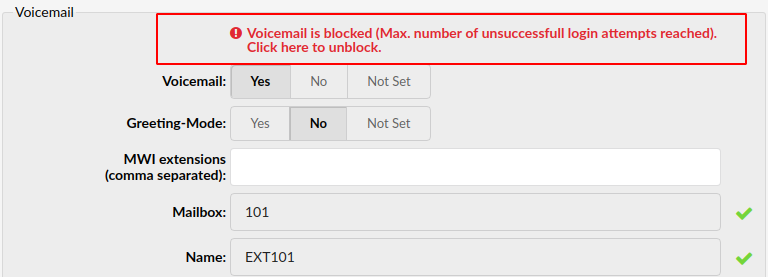
NOTE: PBXware 6.0 has introduced a new lockout feature for Voicemails. It is directly related to the ‘Max login attempts’ option meaning that if a user fails to enter their voicemail PIN correctly after, e.g., three tries, that voicemail will be blocked until an administrator unblocks it.
- Accessing voice-box
To access a voice box, dial ‘*123’, enter the extension PIN (if “Skip PIN Prompt” is not set to “Yes”), and follow the instructions.
- Leaving a voice message
When the user is transferred to the voice box, ‘Please leave your message after the tone. When done, hang up or press the # key’ message will be heard. Two options are available:
- Leave a voice message (ended by pressing the ‘#’ key or by hanging up), or
- Reach an operator by dialing ‘0’
- If ‘0’ is dialed, the ‘Press 1 to accept this recording, otherwise please continue to hold’ message will be heard. Two options are available:
- Press ‘1’ to save your message, after which the operator will be dialed. The ‘Please hold while I try that extension’ message will be heard, or
- Continue to hold, which will delete any left messages, after which the operator will be dialed. ‘Message deleted, please hold while I try that extension’ message will be heard.
- File – system usage:
With continuous tone for 60 seconds:
- wav49 = 91.0kb
- wav = 863.0kb
- gsm = 91.0kb
- With continuous silent tone for 60 seconds:
- wav49 = 0.38kb
- wav = 3.0kb
- gsm = 0.32kb
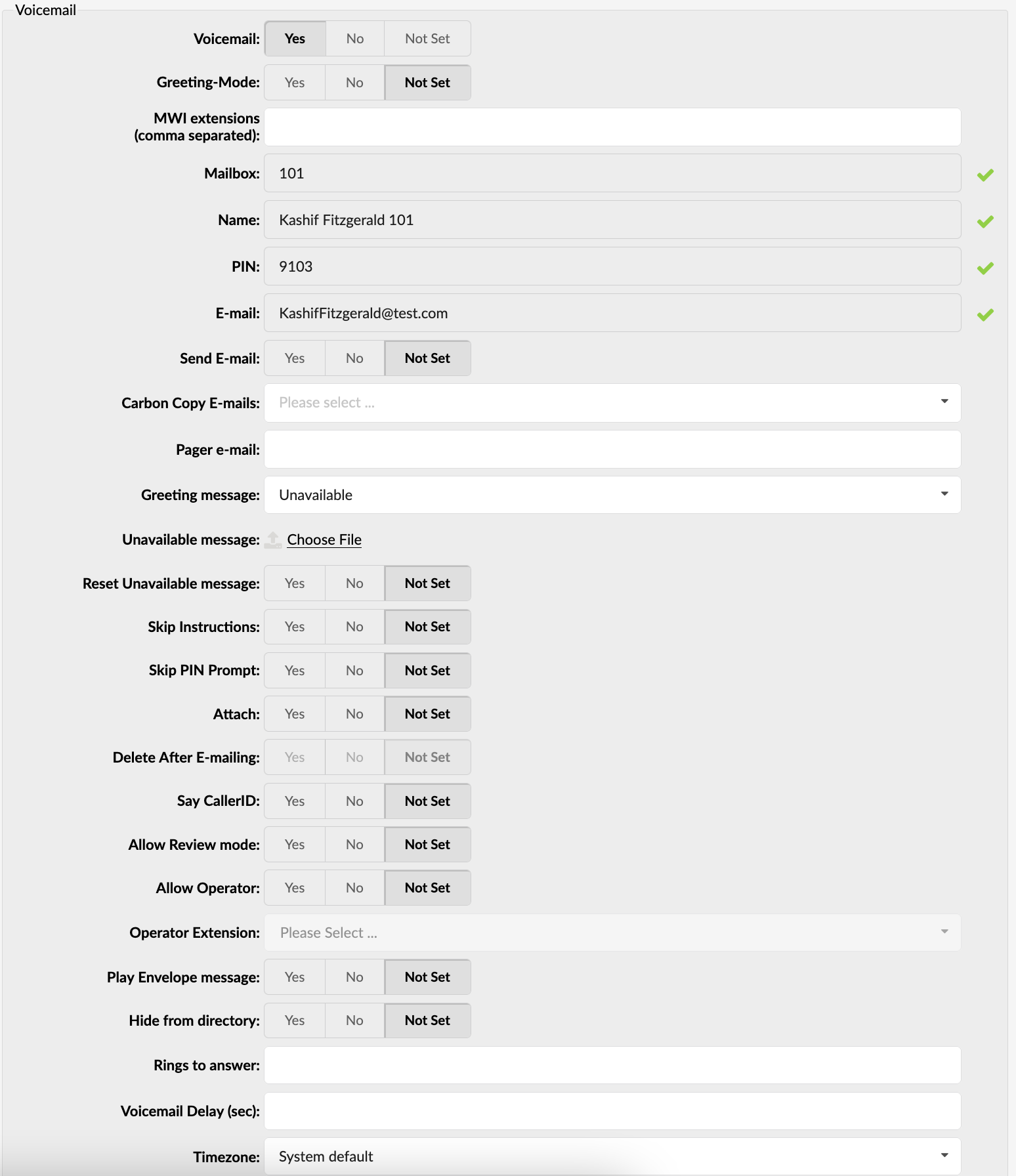
- Voicemail
The option for enabling the Voicemail service. When no one picks up the call, the calling party will be transferred to the voice box of the dialed extension. The caller will then have an option to leave a voice message.
(E.g., Yes, No, Not Set)
(Option buttons)
- Greeting-Mode
If your Voicemail is turned on, you can set this option to yes to play a greeting and then a busy sound.
(E.g., Yes, No, Not Set)
(Option buttons)
- MWI extensions (comma separated)
You can enter this field if you want your extension to be notified for multiple Voicemails.
(E.g., 2002, 2003, 2004, 2005)
NOTE: Please remember that if you make any changes to the MWI option in the GUI, you will have to re-register your device for those changes to be applied.
- Mailbox
Mailbox extension number. This value is the same as the extension number and cannot be modified.
(E.g., 1008)
(Read-only)
- Name
Full name of the user associated with the voice box. This value is the same as the ‘Name’ field from the ‘General’ section and cannot be modified.
(E.g., John Doe)
([a-z][0-9])
- PIN: (Personal Identification Number)
Password used for accessing voicemail. The value of this field is set under ‘Authentication: PIN’. You will be asked to authenticate with a four-digit PIN when you want to access your voicemail.
(E.g., 1234)
([0-9])
The E-mail address associated with the voice box. The value of this field is set under the ‘E-mail’ field from the ‘General’ section.
(E.g., When A calls B and leaves a voice message, B will get an email notification about a new voice message on this email address).
([a-z] [0-9] [@._-])
- Send E-mail
Whether or not to send an E-mail to the address given above
(E.g., Yes, No, Not Set)
(Option buttons)
- Carbon Copy E-mails
Add additional email addresses with which you want voice inbox to be associated.
(Select box)
- Pager e-mail
The pager e-mail address associated with the voice box.
(E.g., When A calls B and leaves a voice message, B will get a pager email notification about a new voice message on this email address).
([a-z] [0-9] [@._-])
- Greeting message
Greeting messages played to users upon entering the voice box.
(E.g., When A gets to B’s voice box, the selected ‘Greeting message’ is played to A before he is allowed to leave a message).
(Select box)
- Unavailable/Busy message
Upload a sound file that will be played when the extension is unavailable/busy.
(Button)
- Reset Busy message
If the greeting message is set to busy, you have the option to reset the busy message.
(E.g., Yes, No, Not Set)
(Option buttons)
- Skip Instructions
Skip the instructions on how to leave a voice message.
(E.g., Once user A reaches the dialed voice box, if this option is set to ‘Yes’, A will hear the ‘Greeting message’, and then be transferred directly to the ‘beep’ sound).
(Option buttons)
- Skip PIN Prompt
Enter your voicemail options faster. Setting this option to Yes will skip the PIN entry when dialing *123 (*124 should work as before with the PIN.
(Option buttons)
- Attach
Send the voice message as an attachment to the user’s email.
(E.g., Once B gets the new voice message, if this option is set to ‘Yes’, the message sound file will be attached to the new voicemail notification email).
(Option buttons)
- Delete After E-mailing:
Delete the voice message after sending it as an attachment to the user’s email.
(E.g., Once B gets the new voice message, if this option is set to ‘Yes’, the message will be deleted from the voice box after it has been emailed to B.)
(Option buttons)
- Say Caller ID
Announce the extension number from which the voice message has been recorded.
(E.g., If this option is set to ‘Yes’, when checking voicemail, the ‘From phone number {$NUMBER}’ message will be heard).
(Option buttons)
- Allow Review mode
Allow B to review the voice message before committing it permanently to A’s voice box.
E.g., B leaves a message on A’s voice box, but instead of hanging up, he presses ‘#’. Three options are offered to B:
- Press 1 to accept this recording
- Press 2 to listen to it
- Press 3 to re-record your message
(Option buttons)
- Allow Operator
Allow the user to reach an operator from within the voice box.
E.g., B leaves a message on A’s voice box, but instead of hanging up, B presses ‘#’.
‘Press 0 to reach an operator’ message played (Once ‘0’ is pressed, the user is offered the following options):
- Press 1 to accept this recording (If selected, ‘Your message has been saved. Please hold while I try that extension’ is played, and the operator is dialed)
- Or continue to hold (If B holds for a moment, ‘Message deleted. Please hold while I try that extension’ is played, and the operator is dialed)
(Option buttons)
- Operator Extension
Local extension number that acts as an operator.
(E.g., If A’s voice box has an option ‘Allow Operator’ set to ‘Yes’, all users dialing ‘#0’ inside the voice box will reach this operator extension).
([0-9])
- Play Envelope message
Announces the Date/Time and the Extension number from which the message was recorded.
(E.g., Once the voice box is checked for new messages, if this option is set to ‘Yes’, ‘Received at {DATE} from phone number {NUMBER}’ will be played, giving more details about the message originator).
(Option buttons)
- Hide from directory
This option will allow you to hide your extension from the Directory/BLF list.
(E.g., Yes, No, Not Set)
(Option buttons)
- Rings to answer
Number of rings before Voicemail answers the call
(E.g., 5)
([0-9])
- Voicemail Delay (sec)
How long to pause in seconds before asking the user for a PIN/Password.
(E.g., Some UADs/Phones tend to garble the beginning of sound files. Therefore, when asked for a password, the user checking the voice box would hear ‘…sword’ instead of ‘Password’. Setting this field to 1-2 seconds will provide a long enough gap to fix this anomaly).
([0-9])
- Timezone:
Sets the correct date/time stamp.
NOTE: Time zones are taken from ‘/usr/share/zoneinfo’ system directory
(E.g., By setting the correct time zone, the user would always be notified of the exact date/time voice message was left on their box. Set the correct time zone if the user is located in a different time zone than PBXware).
(Select box)
Speakerphone Page Auto-Answer SIP Header
These options allow the caller to use a UAD in a public announcement system. If the UAD fully supports this service, the call is accepted automatically and put on a loudspeaker.

- Custom SIP Header
Set a custom UAD/Phone header for this extension.
(E.g., If one of the predefined headers does not work, you might want to try setting a custom header for this service. The custom header line to be used ‘Call-Info:\;answer-after=0’).
([a-z][0-9])
Note: If Custom SIP Header is not set, a header is automatically detected via User-Agent.
Codecs
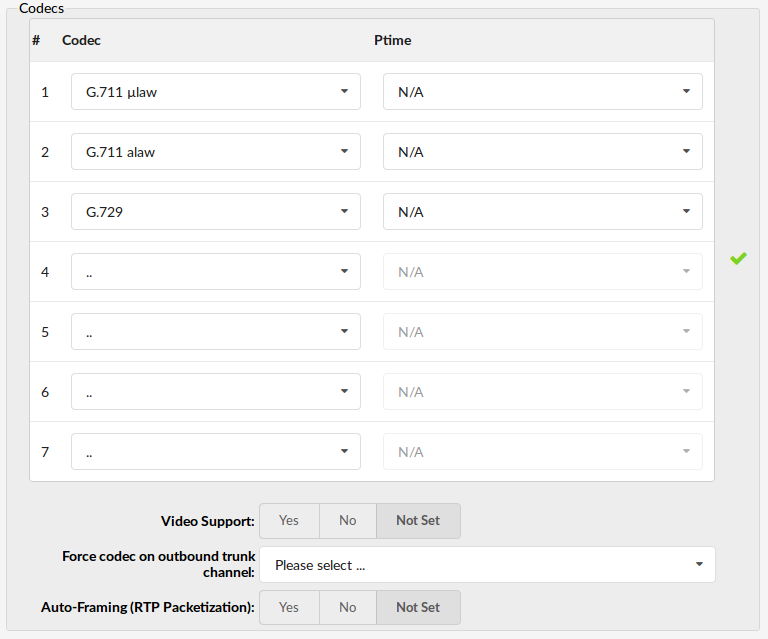
Codecs convert voice signals from analog to digital and vice versa—these options set the preferred codecs used by the extension.
NOTE: Opus codec will be the default codec when dialing mobile apps (gloCOM GO) in PBXware 6.0. This change affects incoming and outgoing calls via the mobile app.
TIP: If some of the desired codecs is disabled (cannot be selected), navigate to ‘Settings: Tenants: Edit: Default Codecs’ and enable them under the ‘Local’ group.
- Codec
Choose which codec to use.
(E.g., iLBC)
(Select box)
- Ptime
Time in ms – represents how much audio recorded in itself will have each packet.
(E.g., 20ms)
(Select box)
- Video Support
Set this option to Yes to enable SIP video support.
(E.g., Yes, No, Not Set)
(Option buttons)
- Force codec on outbound trunk channel
With this option, you can force codec use for outbound trunk calls.
(E.g., iLBC)
(Select box)
- Auto-Framing (RTP Packetization)
If auto-framing is turned on, the system will choose the packetization level based on remote end preferences.
(E.g., If the remote end requires RTP packets to be of 30 ms, your PBXware system will automatically send packets of this size if this option is turned on. The default is set to 20 ms and depends on the codec’s minimum frame size like G.729, which has 10 ms as a minimum).
(Option buttons)
Codecs:
- ITU G.711 ulaw – 64 Kbps, sample-based, used in US
- ITU G.711 alaw – 64 Kbps, sample-based, used in Europe
- ITU G.722 – 64 Kbps,
- Opus – 6-510 Kbps, 2.5 ms – 60 ms frame size
- ITU G.723.1 – 5.3/6.3 Kbps, 30ms frame size
- ITU G.726 – 16/24/32/40 Kbps
- ITU G.729 – 8 Kbps, 10ms frame size
- GSM – 13 Kbps (full rate), 20ms frame size
- iLBC – 15Kbps,20ms frame size: 13.3 Kbps, 30ms frame size
- Speex – 2.15 to 44.2 Kbps
- LPC10 – 2.5 Kbps
- H.261 Video – Used over ISDN lines with the resolution of 352×288
- H.263 Video – Low-bit rate encoding solution for video conferencing
- H.263+ Video – Extension of H.263 provides additional features that improve compression over packet-switched networks.
- H.264 Video – Offers a great balance between quality and size
Note: If the H.264 codec is used for video calls, ensure that the H.264 Payload type on your UAD is set to 99 to match the Asterisk Payload type. Otherwise, you could encounter issues with video decoding.
Jitter Buffer
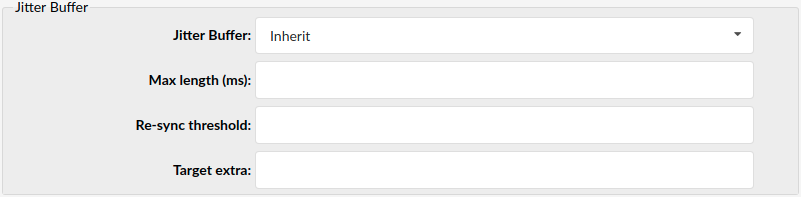
- Jitter buffer
Choose Jitter Buffer Type
Available options are:
- Inherit – inherited jitter buffer settings from the tenant configuration.
- Fixed – Set a fixed jitter buffer on the channel.
- Adaptive – Set an adaptive jitter buffer on the channel.
- Disabled – Remove a previously set jitter buffer from the channel.
(Select box)
- Max lenght (ms)
Length in milliseconds for the buffer. By default, it is 200 ms.
(E.g., 20)
([0-9])
- Re-sync threshold
The length in milliseconds over which a timestamp difference will result in resyncing the jitter buffer. By default it is 1000ms.
(E.g., 1000)
([0-9])
- Target extra
This only affects the adaptive jitter buffer. It represents the millisecond time the new jitter buffer will pad its size. By default, it is 40.
(E.g., 40)
([0-9])
Hot-desking

- Automatic Logout (hours)
Sets automatic log-out time in hours for devices set up for hot-desking.
(E.g., 5)
([0-9])
Recording
This group of options is used to record all incoming/outgoing calls.

TIP:
- Laws in some countries may require notifying the parties that their call is being recorded.
- Recorded calls, marked with the icon, can be accessed from the ‘Self Care Interface’ or ‘Reports: CDR’ PBXware’ menu.
- Call are recorded in the audio format set under ‘Settings: Servers: Recordings Format’.
- Record Calls
Enable call recording service. Select ‘Yes’ to enable the service. All incoming/outgoing calls will be recorded. If using call recording with many extensions, check server disk space from time to time. Please see below for bit rates table.
(E.g., Yes, No, Not Set)
(Option buttons)
- Silent
Set whether call recording would be announced to the parties in a conversation. If Silent is set to ‘No’, calling parties will hear the ‘Recorded’ or ‘This call is recorded’ message before their conversation starts.
(E.g., Yes, No, Not Set)
(Option buttons)
NOTE: When creating a new extension in PBXware, the “Record Calls” option will now default to “Not Set.” This change ensures that, unless explicitly configured otherwise, the new extension will automatically inherit call recording settings from the server level. Administrators still have the flexibility to manually select “Yes” or “No,” which will override the server-level setting. This default behavior is consistent across both the GUI and API, aligning with how other server-level inherited settings operate.
- Play Periodic Beep
To enable this feature, enter time in seconds to define how often periodic sound signals will be played to inform parties that call recording is enabled.
For example, enter 60 to enable this feature and play a periodic signal every 60 seconds.
Disk Space Used By Call Recording
With continuous tone for 60 seconds:
- wav49 = 84.5kb
- wav = 833.0kb
- gsm = 85.0kb
With continuous silent tone (without sound) for 60 seconds:
- wav49 = 84.0kb
- wav = 827.0kb
- gsm = 84.0kb
Custom Exstensions

Custom extensions are used for executing custom PBXware commands/scripts. This screen lists all PBXware custom extensions with the following details:
- Add Custom Extension
Click Add Custom Extension icon to get to the Add Custom Extension screen.
- Search
You can find your extension in the search section by typing its Custom Extensions per Extension number.
- CSV Download
By clicking the CSV Download icon, you can download the CSV file containing all the extensions already created on this system. This file can be used to import all the extensions, with their basic details, to a new PBXware system.
- Extension:
The custom extension network number.
Dial this number to execute a custom PBXware script.
(E.g., 7777)
(Display)
- Context:
Context custom extension belongs to
(Display)
- Edit custom extension configuration
(Button)
- Delete custom extension configuration
(Button)
Add/Edit Custom Extension
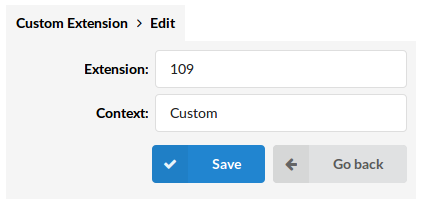
To add a new custom extension, click on the ‘Add custom extension’ button.
TIP: Custom extensions do not belong to the ‘default’ system context. Their actions are set under the ‘Settings: Conf Files: Extensions’ configuration file.
- Extension:
System extension number.
(Setting ‘1002’ here will create a new system extension with the same network number. Dial this number to execute a custom script set under ‘Settings: Conf Files: Extensions’)
([0-9])
Extension.conf sample
Navigate to ‘Setting: Conf Files: Extensions’ and add the following lines to the bottom of the file
[ test ] exten => 1002, 1, Answer ( ) exten => 1002, 2, Playback ( hello-world ) exten => 1002, 3, Hangup ( )
Click on the ‘Save’ button.
Reload PBXware and dial extension 1002.
‘Hello world’ will be played from the other end.
Paging Groups

The paging Groups feature works similarly to standard paging, except this feature allows you to organize extensions to multiple paging groups and assign a unique number to each. This feature is used with access code *600; the paging group number is entered after the access code.
For example, suppose we assign the number 300 to the paging group and add four extensions to it. In that case, once we dial *600300, we will be able to broadcast the message over the intercom to all the extensions added to paging group 300.
- Search
You can find your Paging Group in the search section by typing its Name or Number.
- Group Name
Paging group name
(Display)
- Number
Paging Group number. Once the user dials *600 + this number, all extensions assigned to this paging group will be paged.
(Display)
- Destinations
Extensions associated with a paging group
(E.g., 102,103,105…)
(Display)
NOTE: Please remember that the destination’s limitation is 100 extensions.
Click to edit the paging group configuration.
(Button)
Click to delete a paging group from the system.
(Button)
Add/Edit Paging Group
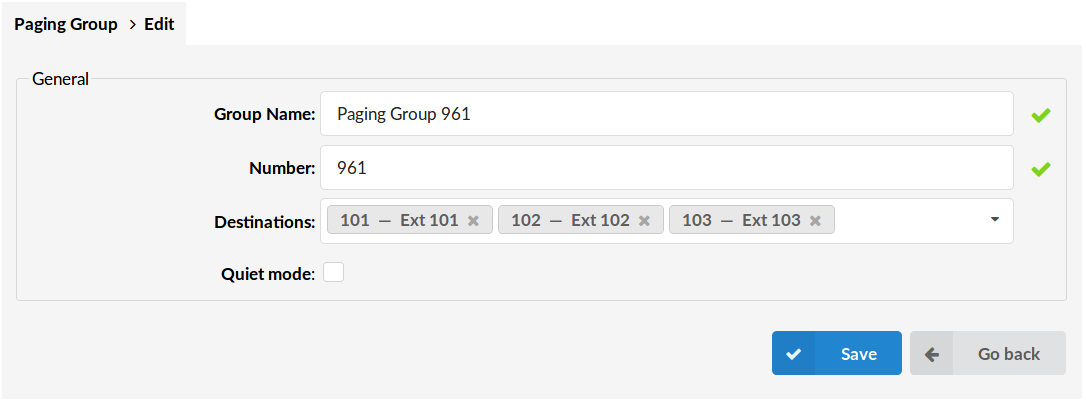
Clicking on ‘Add Paging Group’ or ‘Edit’ will open the following options:
General
- Group Name
Unique Paging group name
(E.g., Group I)
([a-z][0-9])
- Number
Paging group extension number
(E.g., 1010)
([0-9])
- Destinations
System extensions associated with the paging group
(E.g., 101, 102, 103… Selected extensions will be paged)
(Multi select)
- Quiet mode
Does not play beep to paged extensions.
(Checkbox)
Departments
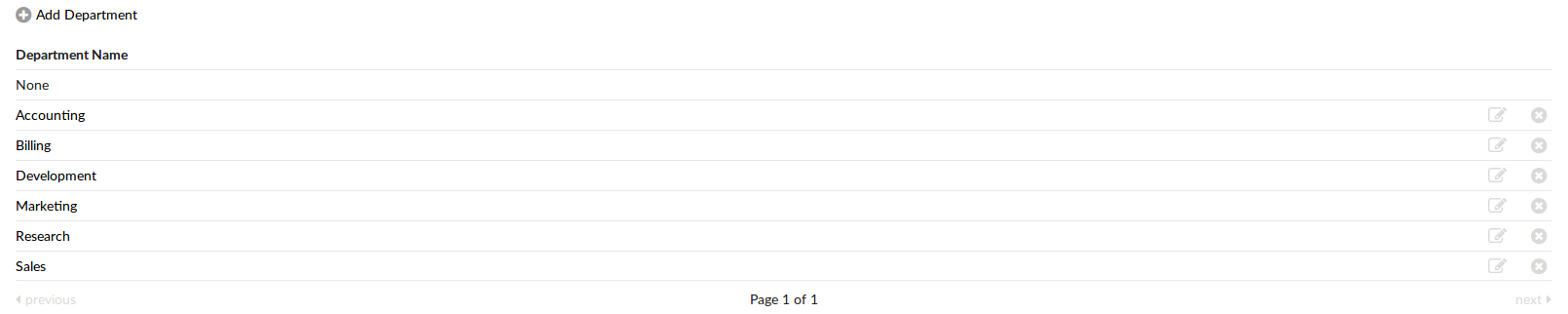
The departments section will list all the departments present on this system and allow you to edit or add a new one. Departments are used by Bicom Systems gloCOM to sort extensions based on the department they belong to.
Add/Edit Department
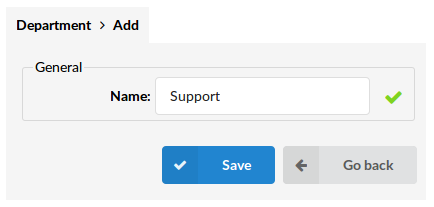
When you click on the Add Department link or the edit button you will be presented with this screen:
General
- Name:
Name of the department
(E.g., Accounting)
([0-9][a-z])
Hot Desking
Hot Desking* is a feature that allows your business not to assign permanent desks in a workplace so that employees may work at any available desk.
From a managerial perspective, Hot Desking is attractive because it can cut overhead costs significantly. However, the concept won’t work in environments where employees are expected to be in the office most of the time.
Hot Desking, as a PBXware feature, is simple as it can be. By dialing the proper access code (*555 by default) on any pre-configured office phone for HotDesking, the user will go to an IVR, where it will be asked for an extension and pin. Once the proper extension/pin combination is entered, the phone will be rebooted and auto-provisioned with the new extension.
If any phone is already registered with the same extension, it will reboot and auto-provisioned with dynamic extension. The phone will reboot once the call ends if the extension is in use. Phones provisioned with dynamic extension will not be able to dial anything but Hot Desking IVR.
NOTE: To use the Hot Desking feature in PBXware 6, it must be enabled in your PBXware license. Please contact your account manager for more information on how to get Hot Desking enabled.
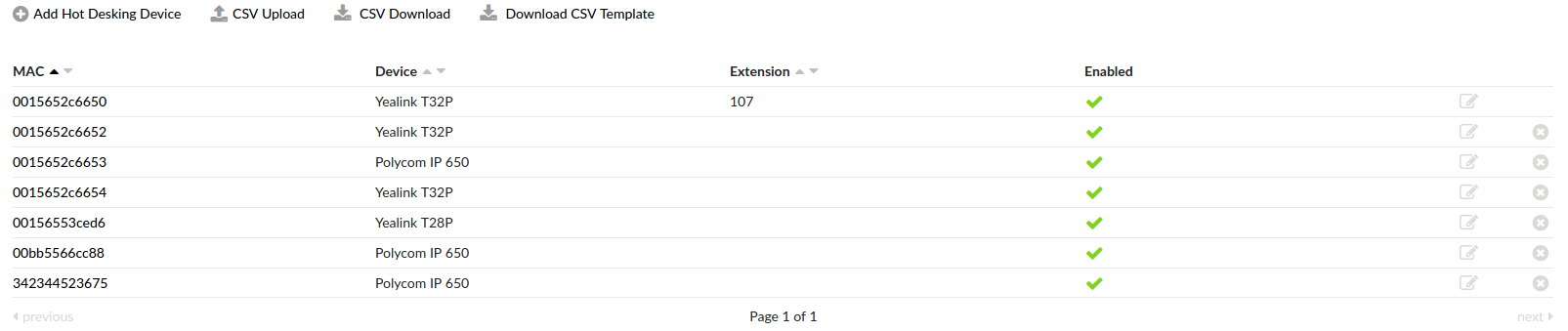
- MAC
MAC address of the device.
(Display)
- Device
Hot Desking Device
(Display)
- Extension
Extension’s number associated with MAC/Device.
(Display)
- Enabled
Status of Hot Desking device.
(Display)
Click to edit the hot desking device configuration.
(Button)
Click to delete a hot desking device from the system.
(Button)
CSV upload
There is an option to upload a CSV file instead of manually entering phones. Click the Browse button, select the .csv file from your hard drive, and press the upload button. Please make sure that the CSV file contains comma-separated MAC address of the phone and device type per each line (MAC, device), like in the example below:
001565267db9,yealinkt42p
0004f23fd871,polycomvvx300
If you are unsure what to enter for your device name, check Settings -> UAD, edit UAD for your device model, and in General (section), match the exact name set under the Internal UAD name for Auto-Provisioning field.
CSV download
Once you have created a list of Hot Desking devices, you might get into the position where you would like to export it to a new system, for testing purposes or in case of migration, for example. The CSV Download button allows you to download a complete list of hot desking devices from a tenant in CSV format, which can later be used to recreate the list on a new system/tenant.
Download CSV Template
As described earlier, creating a CSV file can add many hot desking devices at once. The download CSV Template button will present you with a file containing the necessary headers, which should help you create a CSV file more quickly.
Add/Edit Hot Desking Device
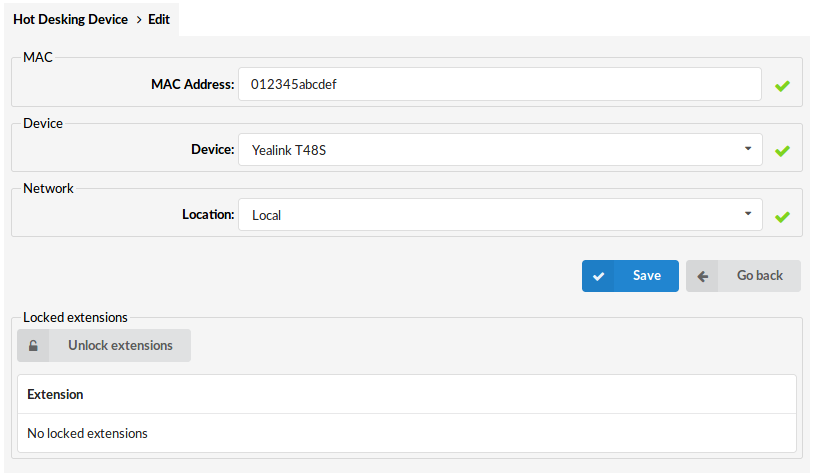
MAC
- MAC address
MAC address of the UAD.
Device
- Device
Select a device for Hot Desking.
NOTE: List of supported devices can be found on the following page:
Network
- Network
Network refers to whether the UAD/Phone is in the ‘Local’ or ‘Remote’ network.
Emergency CallerID
- Emergency CallerID
CallerID entered here will be used only for calls to Emergency Services numbers.
Emergency numbers can be dialed even if the hot desking device is not logged in. In this case, the Caller ID set here will be used for the outgoing call.
Locked extensions
- Unlock extensions
Unlock locked extensions
(Button)
- Extension
List of all locked extensions for this device
(Display)
PIN Based Devices
Every extension has its unique PBD PIN. When you are making a call from a device set as a Pin Based device, entering the desired extension number will ask you to enter your PBD PIN. This PIN will identify the user on the system, and then dialing will proceed as if the user was dialing from his extension. Call Rating, CDRs, and everything else will apply for the user extension and not for the extension of the Pin Based device. To make a call with an extension connected with a PIN Based device, you must enter the PBD PIN for that extension.

CSV Upload
There is an option to upload a CSV file instead of manually entering PIN Based devices. Click the Browse button, select the .csv file from your hard drive, and press the upload button. Please make sure that the CSV file contains comma-separated names, extensions, and information if the Device is active or not, like in the example below:
Device I,1050,yes
Device II,1009,no
(Button)
CSV Download
The CSV Download button gives you an option to download a complete list of PIN Based devices from a tenant in CSV format, which can later be used to recreate the list on a new system/tenant
(Button)
Download CSV Template
The download CSV Template button will present you with a file containing the necessary headers, which should help you create a CSV file more easily.
(Button)
Once you click on PIN Based Devices in Extensions Menu, a page with the following details will open:
- Name
Name of a PIN Based Device
(Display)
- Extension
Extension used by the device
(Display)
- Active
Is PIN Based Device active or not
(Display)
Click to edit a PIN based device configuration.
(Button)
Click to delete a PIN based device from the system.
(Button)
Add/Edit PIN Based Device
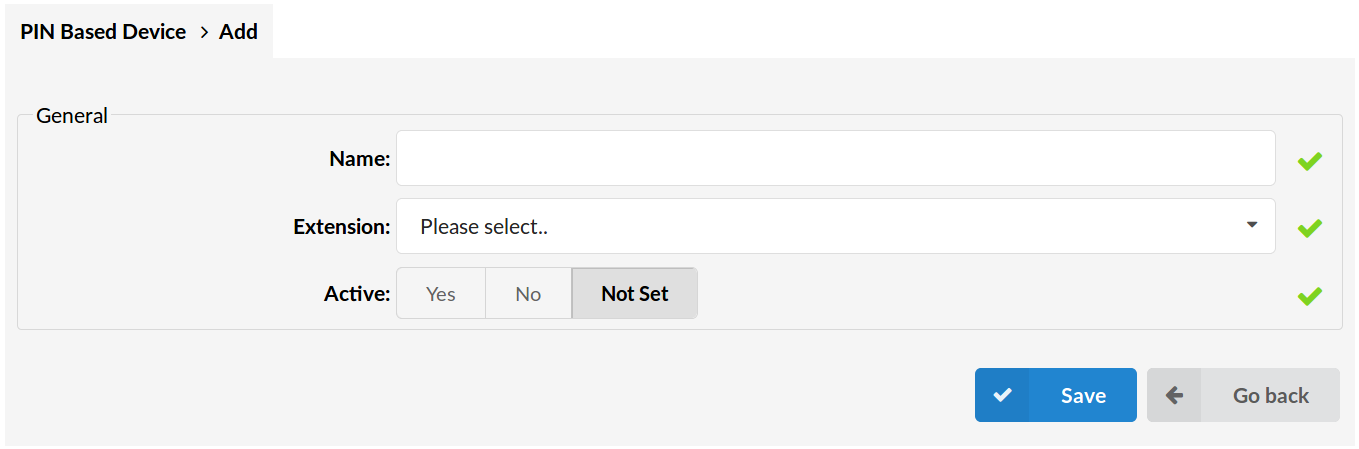
General
- Name
Name of a PIN Based Device
(E.g., Device 1)
([a-z][0-9])
- Extension
Extension that the device will use.
(Select box)
- Active
Whether PIN based device is active or not
(E.g., Yes, No, Not Set)
(Option buttons)
Aditional information
PBD local extensions
PIN Based dialing is disabled for local extensions. Entering PBD Pin for local calls is not required.
PBD access codes
Using access codes requires proper identification of the user with a PBD pin. Most access codes are related per user, meaning they can be used only if enabled under enhanced services. Dialing access codes will require entering the PBD pin so that the system can identify the user and do the required actions.
Access codes that can be used with PBD:
- General Voicemail = *124
- Call Park = 700
- Call Park Start = 701
- Call Park End = 720
- Speed Dial = *130
- Call Pickup = *8
- Asterisk Call Pickup = *88
Caller ID List
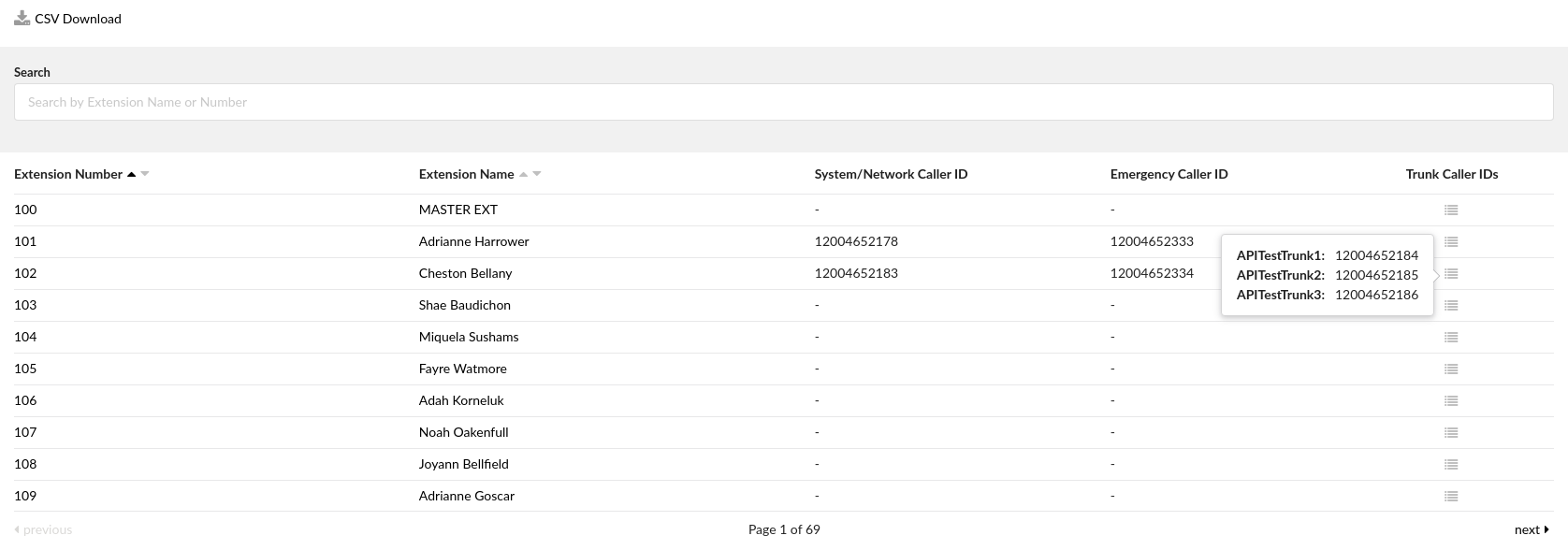
In this section, users can see all extensions on this tenant and the values from Enhanced Services/Caller ID for each extension individually. Those values are applied here and visible in one place, so users can associate each emergency call with the calling extension.
CSV Download
By clicking the CSV Download icon, the user can download the CSV file containing all the visible data from the list.
Search
Click the Search icon to open a search filter that allows users to find extensions by Extension Number or Extension Name.
- Extension Number
UAD/Phone extension number
(E.g., 108)
(Display)
- Extension Name
Full name of the user to which the device is registered
(E.g., Jane Doe).
(Display)
- System/Network Caller ID
This value is applied here from Enhanced Services/CallerID.
(Display)
- Emergency Caller ID
This value is applied here from Enhanced Services/CallerID.
(Display)
- Trunk Caller IDs
This value is applied here from Enhanced Services/CallerID. By clicking the Trunk Caller IDs icon, users can see which Caller ID is used by an extension on different trunks.
(Button)