
- E-mail: Provide the e-mail address that is assigned to your extension.
- Password: Enter the password that you created during the gloCOM configuration.
- Remember password Check if you want gloCOM to save your password.
- Log In automatically on startup: When this option is turned on, gloCOM will log in automatically. Every time gloCOM is started, it will automatically log in.
- Forgot my password: If a user forgets their password, they can recover it by following these steps:
- SSO Login: Allows the user to switch to the Single Sign-On (SSO) Login method.
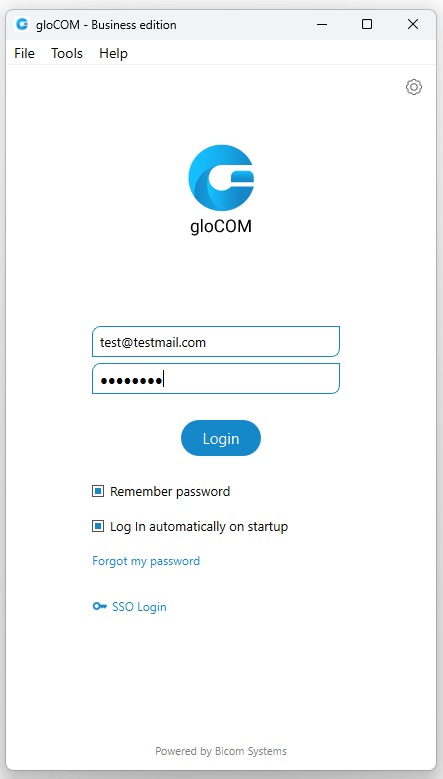
- The user clicks the Forgot my Password on the gloCOM login screen.
- After clicking the link, the user will receive an email indicating that a password recovery has been initiated, along with instructions to click on the link provided in the email.
- Recovery Process:
- Once the user clicks the link in the email, they will be redirected to a web page that opens in their default browser. This page will display a panel with the message: “Your new temporary password is:” and a button labeled “Show Password.”
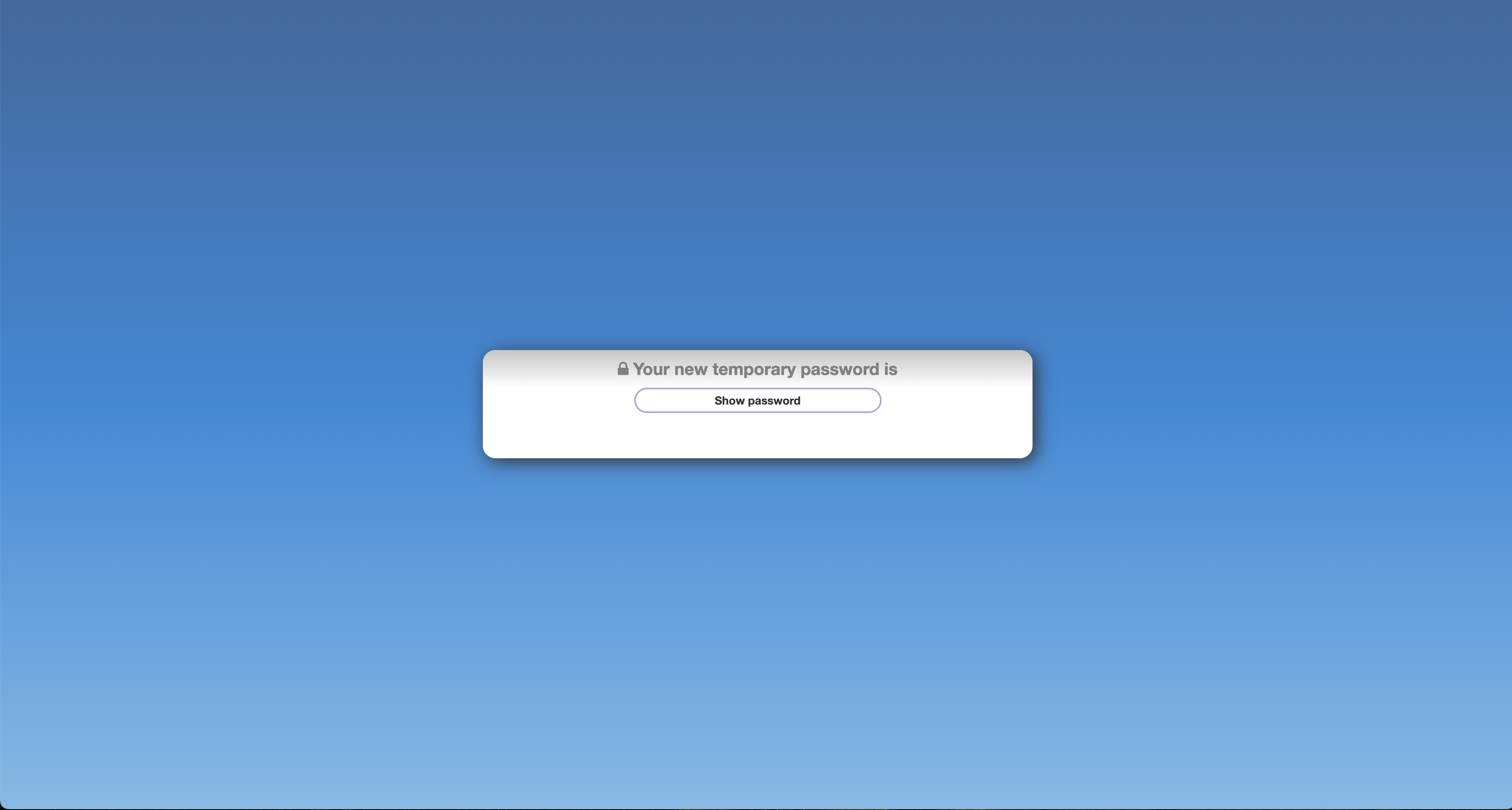
- The password recovery link received via email will have a validity of one hour from the time it is sent.
- The user’s password will not be reset immediately upon opening the link. Instead, the reset occurs only when the user clicks the Show Password button.
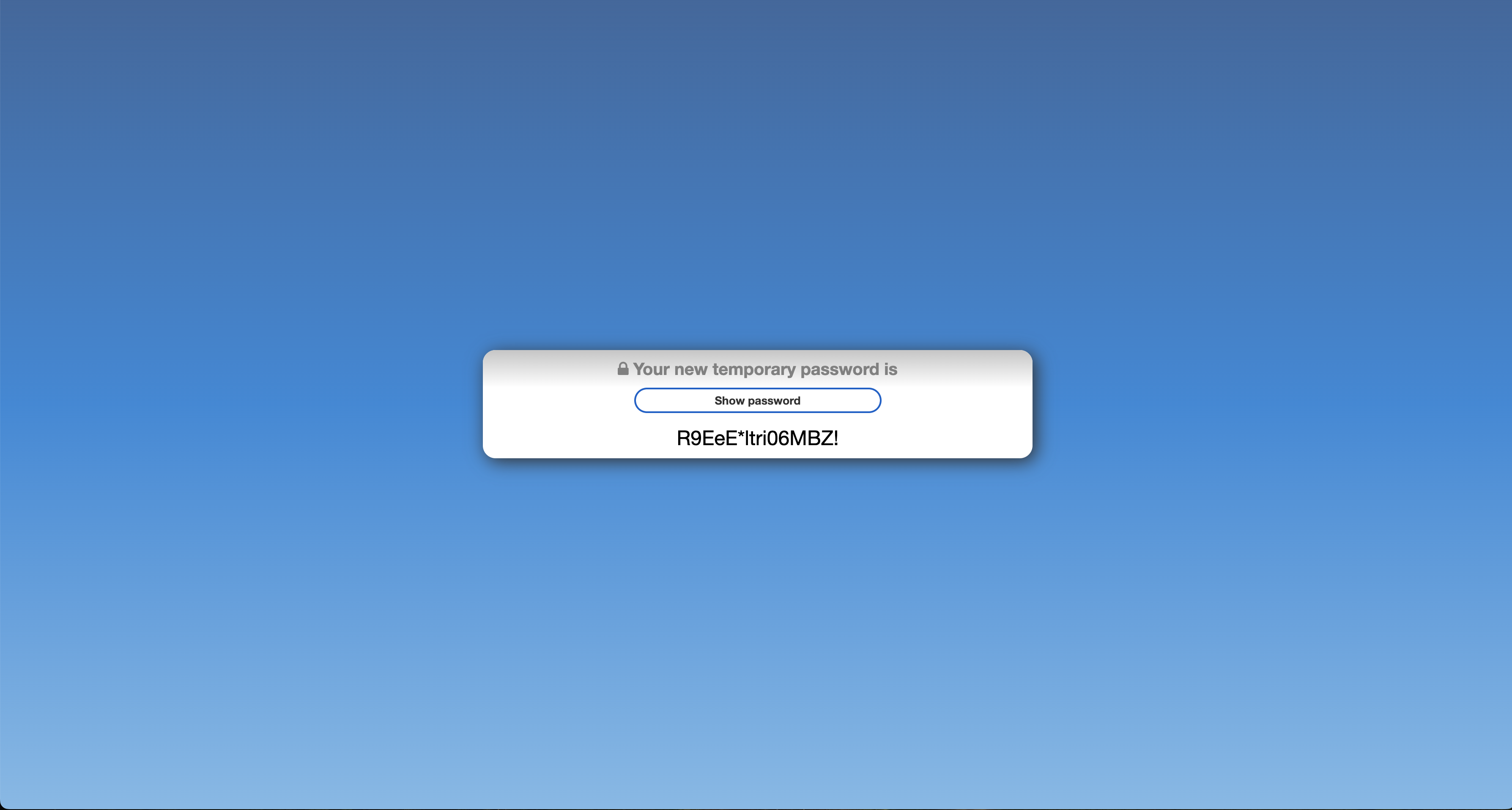
- Once the Show Password button is clicked, the new temporary password will be revealed. The user can then copy this temporary password and use it to log in and set a new permanent password.
Important Notes:
- The password recovery link expires one hour after it is generated. If the link is not used within this timeframe, the user must initiate the password recovery process again.
- It is crucial that the user copies the temporary password immediately after it is revealed, as this will be needed to access their account and create a new password.
Please bear in mind that one can use only one email address associated with a single extension. Using the same email address for multiple extensions is not supported.
- Login Failure message: In case of invalid credentials, a message will appear displaying the following: “Login Failed: Username or Password is Incorrect”.
SSL Certificate
When connecting to the server with an insecure/invalid certificate, a warning message appears asking permission to connect.
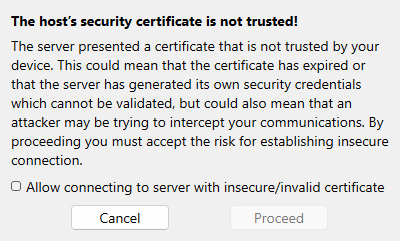
Once permission has been granted, the app will connect, changing the configuration for the server the user was trying to connect to. The app will not ask the user for permission on the next login.
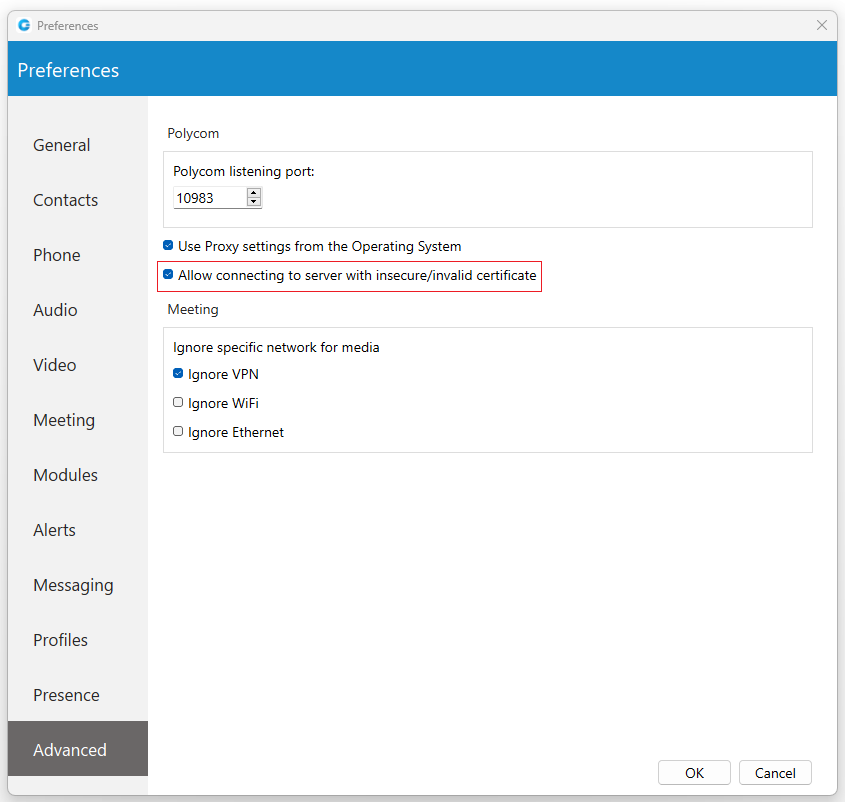
However, this configuration can be modified by navigating to the Preferences -> Advanced section and turning the “Allow connecting to server with insecure/invalid certificate” option off, allowing the application to ask the user for permission on the next login. This option is turned off by default, which means it will not allow insecure connections.
Two-Factor Authentication (2FA) on Login
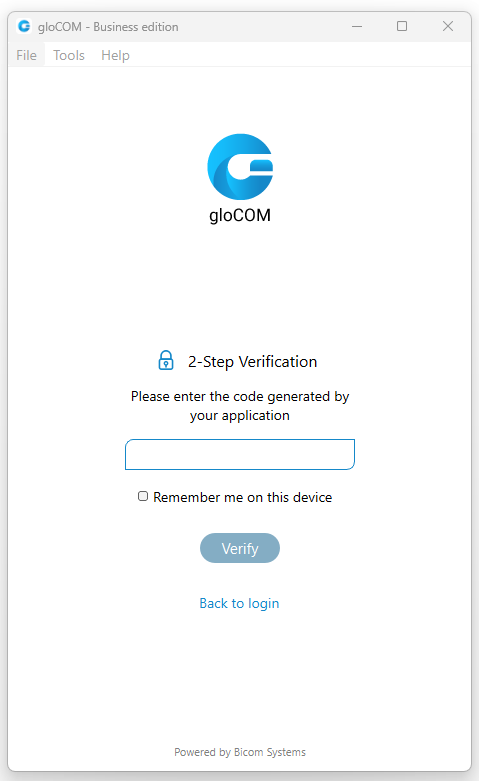
2FA is an additional layer of security used to ensure that users trying to gain access to an online account are who they say they are. First, a user will enter their username and password. Then, instead of immediately gaining access, they will be asked to provide a code generated by the authenticator app to proceed with the login.
To set 2FA up, log in to the app, navigate to Online Self Care, click the 2-Step Verification button, and follow the instructions.
In case the user has not set up 2FA and if 2FA has been enforced on the server side, the following message will be displayed after clicking the Login button: “2-Step Verification needs to be configured on the Online self care to proceed with login. Configure it now.“. Otherwise, the user can access the app by entering their username and password.
After setting 2FA up, on the next login, the user will be asked to provide the code generated by the authenticator app in order to proceed with the login. Also, users can check the “Remember me on this device” option, so they do not have to enter the 2FA code every time they try to log in.
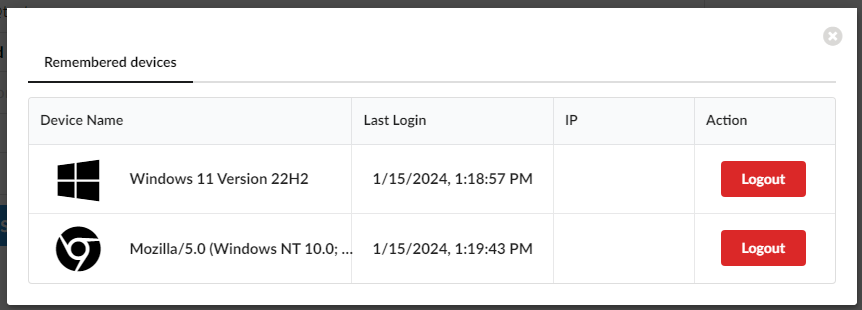
Clicking the Remembered devices button within Online Self Care displays a list of all of the user’s currently logged devices. Clicking the Logout button will log the user out of the desired device.
Older versions of the app do not support 2FA.
2FA verification can be reset through Online Self Care. Also, it can be reset by the server administrator.