
Statistics
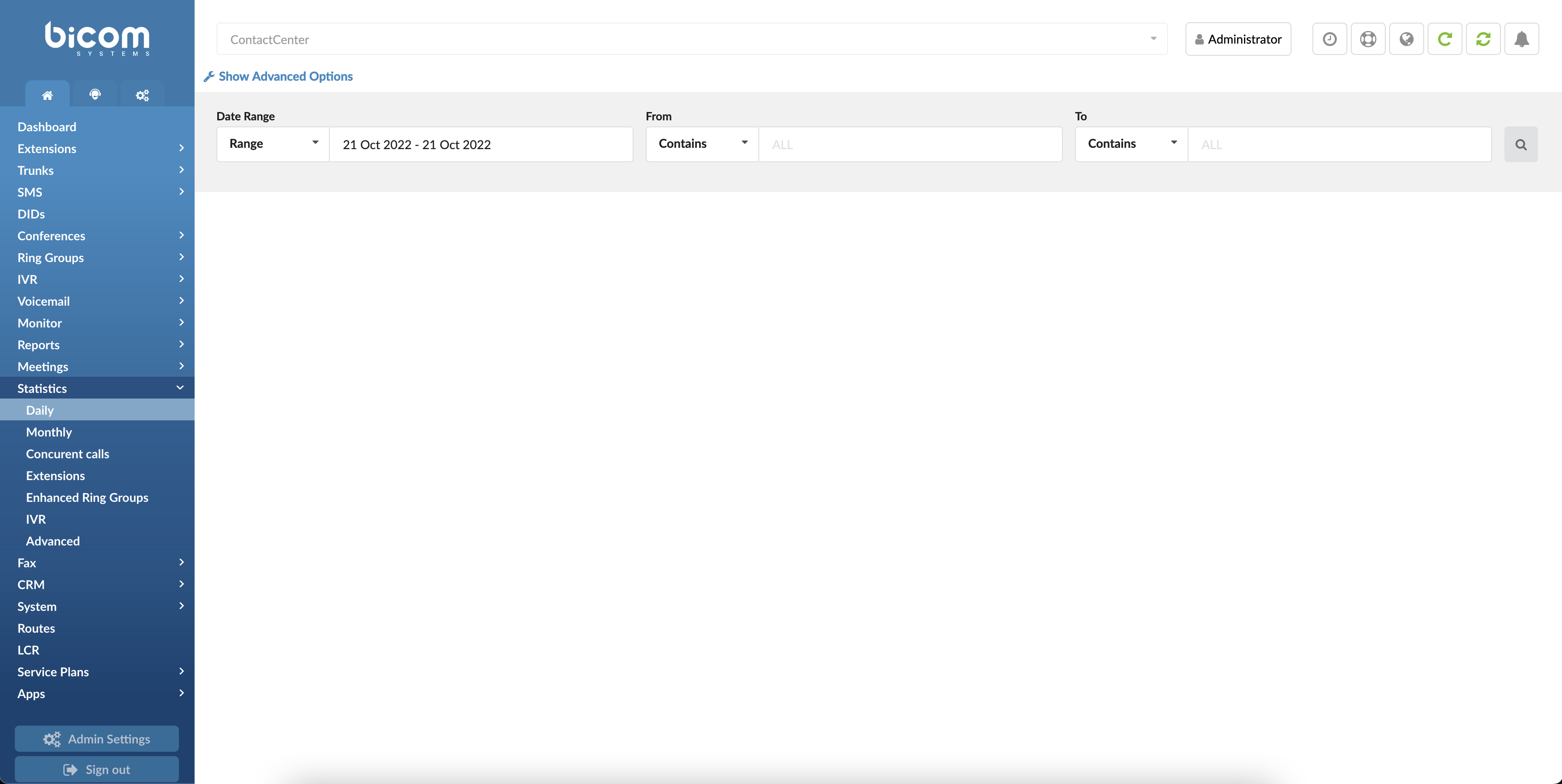
Statistics can generate detailed information on the number of calls made during the hour, day, month, etc. It can also be shown on an extension basis, meaning that when you enter all the desired search information, you will get a list with the number of calls per extension on the system. It also contains a page for concurrent calls and an advanced page with reports.
Daily

Daily statistics will list the number of calls daily. This will show a list of days with the number of calls made during those days with average call time and graphs.
Clicking on the “Show Advanced Options” will expand searching criteria, and the following will be listed to users:
- Date range:
Users are given a drop-down list with the following options:
- Range:
Select a date range by clicking on a calendar or choose the following options:
- Today
- Yesterday
- Last 7 Days
- Last 30 Days
- This Month
After selecting, users will be introduced to the statistics, which include only that time range.
- From
In this field, users need to write a number from which the desired call is made. By default, the ‘ALL’ modifier will be in this field, meaning statistics will be made for all calls on the system which happened on the selected date range.
Users should write all desired numbers separated by commas if they want to see statistics from a few particular numbers.
(E.g. To display calls made from extension 104 and remote number 44207296666 user should type “104,44207296666”)
([0-9],)
Also, users are given a drop-down list with the following options:
- Equals
Do a statistic only for a number equal to the number/s written.
(E.g., John sets this option to ‘Equals’ and types number 101. Statistics will be shown only for calls made from number 101.)
- Begins with
Do a statistic for all numbers which begin with the number/s written.
(E.g. John sets this option to ‘Begins with’ and types number 101. Let’s imagine that John made calls from numbers 1011 and 105. Statistics will be shown only for calls made from numbers that begin with number 101, in this case, from numbers 101 and 1011.)
- Contains
Do a statistic for all numbers which contain number/s written.
(E.g. John sets this option to ‘Contains’ and types number 101. Let’s imagine that John made calls from numbers 1011, 2101, and 501. Statistics will be shown only for calls made from numbers that contain number 101, in this case, from numbers 1011 and 2101.)
- Ends with
Do a statistic for all numbers which end with number/s written.
(E.g. John sets this option to ‘Ends with’ and types number 101. Let’s imagine that John made calls from numbers: 1101, 2101, and 501. Statistics will be shown only for calls made from numbers that end with number 101, in this case, from numbers 1101 and 2101.)
- To
In this field, users need to write the number to which the desired call is made. By default, the ‘ALL’ modifier will be in this field, meaning statistics will be made for all calls on the system which happened on the selected date range.
Users should write all desired numbers separated by commas if they want to see statistics from a few particular numbers.
(E.g. To display calls made to extension 104 and remote number 44207296666 user should type “104,44207296666”)
([0-9],)
Also, users are given a drop-down list with the following options:
- Equals
Do a statistic only for a number equal to the number/s written.
(E.g. John sets this option to ‘Equals’ and types number 101. Statistics will be shown only for calls made to number 101.)
- Begins with
Do a statistic for all numbers which begin with the number/s written.
(E.g. John sets this option to ‘Begins with’ and types number 101. Let’s imagine that John made calls to numbers 1011 and 105. Statistics will be shown only for calls made to numbers that begin with number 101, in this case, to numbers 101 and 1011.)
- Contains
Do a statistic for all numbers which contain number/s written.
(E.g. John sets this option to ‘Contains’ and types number 101. Let’s imagine that John called numbers 1011, 2101, and 501. Statistics will be
only for calls made to numbers that contain number 101, in this case, to numbers 1011 and 2101.)
- Ends with
Do a statistic for all numbers which end with number/s written.
(E.g. John sets this option to ‘Ends with’ and types number 101. Let’s imagine that John made calls to numbers: 1101, 2101, and 501. Statistics will be shown only for calls made to numbers that end with number 101, in this case to numbers 1101 and 2101.)
- CallerID
Filter statistics based on the CallerID.
Also, users are given a drop-down list with the following options:
- Equals
Do statistics only for CallerID, which is equal to CallerID written.
- Begins with
Do statistics for all callers whose beginning letters are the same as in CallerID written in the field beside.
(E.g., John chooses this option and types “Tech”. The statistic will be done for all CallerID that start with “Tech”, for example, “TechSupport”)
- Contains
Do statistics for all CallerID containing the same letters as in the field.
(E.g., John chooses this option and types “Tech”. The statistic will be done for all CallerID that start with “Tech”, for example, “TechSupport” and “TestTechDepartment”)
- Ends with
Do a statistic for all CallerIDs whose ending letters are the same as CallerID written in the field beside.
(E.g., John chooses this option and types “Tech”. The statistic will be done for all CallerIDs that end with “Tech”, for example, “TestTech”)
([0-9][a-z])
- Trunk
Show the calls filtered on a trunk basis. Enter a trunk name or more trunk names separated by commas.
Also, users are given two drop-down lists with the following options:
First list:
- Equals
Do a statistic only for the trunk whose name is equal to the name written.
- Begins with
Do a statistic for all trunks whose names begin with the name written.
- Contains
Do a statistic for all trunks which contain the name written.
- Ends with
Do a statistic for all trunks which end with the name written.
Second list:
Select the technology of the outgoing trunk:
- SIP
- IAX
- Local
- DAHDI
([0-9][a-z])
- Duration
In these fields, you can set a range for the duration of the calls in seconds.
Both fields can be modified depending on selected equality signs:
- > (greater than)
- >= (greater than or equal to)
- == (equal to)
- <= (less than or equal to)
- < (less than)
(E.g., If the user wants to see statistics of calls that last more than 15 but less than 45 seconds, in the first field, there will be “>” and “15” set, and in the second, “<” and “45”.)
([0-9])
The Download CSV option is used to download a CSV formatted file with all the statistics shown on this page.
Daily Statistics
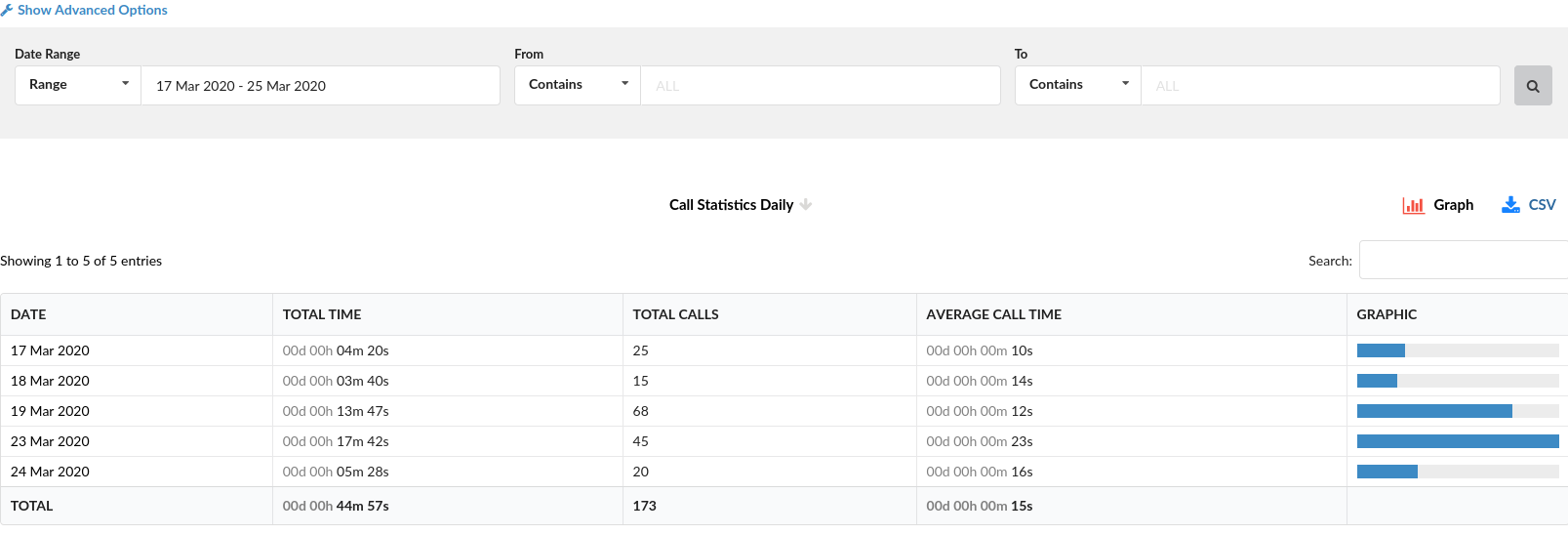
This table will show the total number of daily calls in the date range selected in the search box.
- DATE
Clickable date for which the total number of calls is shown
- TOTAL TIME
Total time of calls on that particular day
- TOTAL CALLS
Total number of calls made on that particular day
- AVERAGE CALL TIME
Average call time of the calls on that particular day
- GRAPHIC
This field shows the graphic representation of all calls on that day relative to the day with the most significant total call time. The day with the biggest total call time will have a 100% bar filling this field, and every other day will have a bar relative to this day.
TIP: The TOTAL line on the bottom of the table will show the total times of all calls in this date range, the total number of calls of all calls, and the average call time of all calls in this date range.
Daily Statistics Breakdown
Clicking on any day of daily statistics will bring up a new window with a breakdown of calls for that range.
- Date/Time
Date and time when the call was made.
- Trunk
Name of the trunk which was used for the call.
- From
The extension number from which the call was made.
- CallerID
CallerID of the user who made the call.
- To
The extension/external number to which the call was made.
- Duration
Duration of the call
TIP: The Download CSV option is used to download the CSV formatted file with all calls in the breakdown.
Monthly

This will show a list of months with the number of calls made during the selected period.
Clicking on the “Advanced Search” button will expand the above search and give users more criteria to choose from:
- Date range:
Users are given a drop-down list with the following options:
- Range:
Select a date range by clicking on a calendar or choose the following options:
- Today
- Yesterday
- Last 7 Days
- Last 30 Days
- This Month
After selecting, users will be introduced to the statistics, which include only that time range.
- From
In this field, users need to write a number from which the desired call is made. By default, the ‘ALL’ modifier will be in this field, meaning statistics will be made for all calls on the system which happened on the selected date range.
Users should write all desired numbers separated by commas if they want to see statistics from a few particular numbers.
(E.g. To display calls made from extension 104 and remote number 44207296666 user should type “104,44207296666”)
([0-9],)
Also, users are given a drop-down list with the following options:
- Equals
Do a statistic only for a number equal to the number/s written.
(E.g. John sets this option to ‘Equals’ and types number 101. Statistics will be shown only for calls made from number 101.)
- Begins with
Do a statistic for all numbers which begin with the number/s written.
(E.g. John sets this option to ‘Begins with’ and types number 101. Let’s imagine that John made calls from numbers 1011 and 105. Statistics will be shown only for calls made from numbers that begin with number 101, in this case, from numbers 101 and 1011.)
- Contains
Do a statistic for all numbers which contain number/s written.
(E.g. John sets this option to ‘Contains’ and types number 101. Let’s imagine that John made calls from numbers 1011, 2101, and 501. Statistics will be shown only for calls made from numbers that contain number 101, in this case, from numbers 1011 and 2101.)
- Ends with
Do a statistic for all numbers which end with number/s written.
(E.g. John sets this option to ‘Ends with’ and types number 101. Let’s imagine that John made calls from numbers: 1101, 2101, and 501. Statistics will be shown only for calls made from numbers that end with number 101, in this case, from numbers 1101 and 2101.)
- To
In this field, users need to write the number to which the desired call is made. By default, the ‘ALL’ modifier will be in this field, meaning statistics will be made for all calls on the system which happened on the selected date range.
Users should write all desired numbers separated by commas if they want to see statistics from a few particular numbers.
(E.g. To display calls made to extension 104 and remote number 44207296666 user should type “104,44207296666”)
([0-9],)
Also, users are given a drop-down list with the following options:
- Equals
Do a statistic only for a number equal to the number/s written.
(E.g. John sets this option to ‘Equals’ and types number 101. Statistics will be shown only for calls made to number 101.)
- Begins with
Do a statistic for all numbers which begin with the number/s written.
(E.g. John sets this option to ‘Begins with’ and types number 101. Let’s imagine that John made calls to numbers 1011 and 105. Statistics will be shown only for calls made to numbers that begin with number 101, in this case, to numbers 101 and 1011.)
- Contains
Do a statistic for all numbers which contain number/s written.
(E.g. John sets this option to ‘Contains’ and types number 101. Let’s imagine that John called numbers 1011, 2101, and 501. Statistics will be
only for calls made to numbers that contain number 101, in this case, to numbers 1011 and 2101.)
- Ends with
Do a statistic for all numbers which end with number/s written.
(E.g. John sets this option to ‘Ends with’ and types number 101. Let’s imagine that John made calls to numbers: 1101, 2101, and 501. Statistics will be shown only for calls made to numbers that end with number 101, in this case to numbers 1101 and 2101.)
- CallerID
Filter statistics based on the CallerID.
Also, users are given a drop-down list with the following options:
- Equals
Do statistics only for CallerID, which is equal to CallerID written.
- Begins with
Do statistics for all callerIDs whose beginning letters are the same as in CallerID written in the field beside.
(E.g., John chooses this option and types “Tech”. The statistic will be done for all CallerIDs that start with “Tech”, for example, “TechSupport”)
- Contains
Do statistics for all CallerIDs containing the same letters as in the field.
(E.g., John chooses this option and types “Tech”. The statistic will be done for all CallerIDs that start with “Tech”, for example, “TechSupport”, and “TestTechDepartment”)
- Ends with
Do statistics for all CallerIDs whose ending letters are the same as CallerID written in the field beside.
(E.g., John chooses this option and types “Tech”. The statistic will be done for all CallerIDs that end with “Tech”, for example, “TestTech”)
([0-9][a-z])
- Trunk
Show the calls filtered on a trunk basis. Enter a trunk name or more trunk names separated by commas.
Also, users are given two drop-down lists with the following options:
First list:
- Equals
Do a statistic only for the trunk whose name is equal to the name written.
- Begins with
Do a statistic for all trunks whose names begin with a name written.
- Contains
Do a statistic for all trunks which contain the name written.
- Ends with
Do a statistic for all trunks which end with the name written.
Second list:
Select the technology of the outgoing trunk:
- SIP
- IAX
- Local
- DAHDI
([0-9][a-z])
- Duration
In these fields, you can set a range for the duration of the calls in seconds.
Both fields can be modified depending on selected equality signs:
- > (greater than)
- >= (greater than or equal to)
- == (equal to)
- <= (less than or equal to)
- < (less than)
(E.g., If the user wants to see statistics of calls that last more than 15 but less than 45 seconds, in the first field, there will be “>” and “15” set, and in the second, “<” and “45”.)
([0-9])
TIP
The Download CSV option is used to download the CSV formatted file with all the statistics shown on this page.
Monthly Statistics
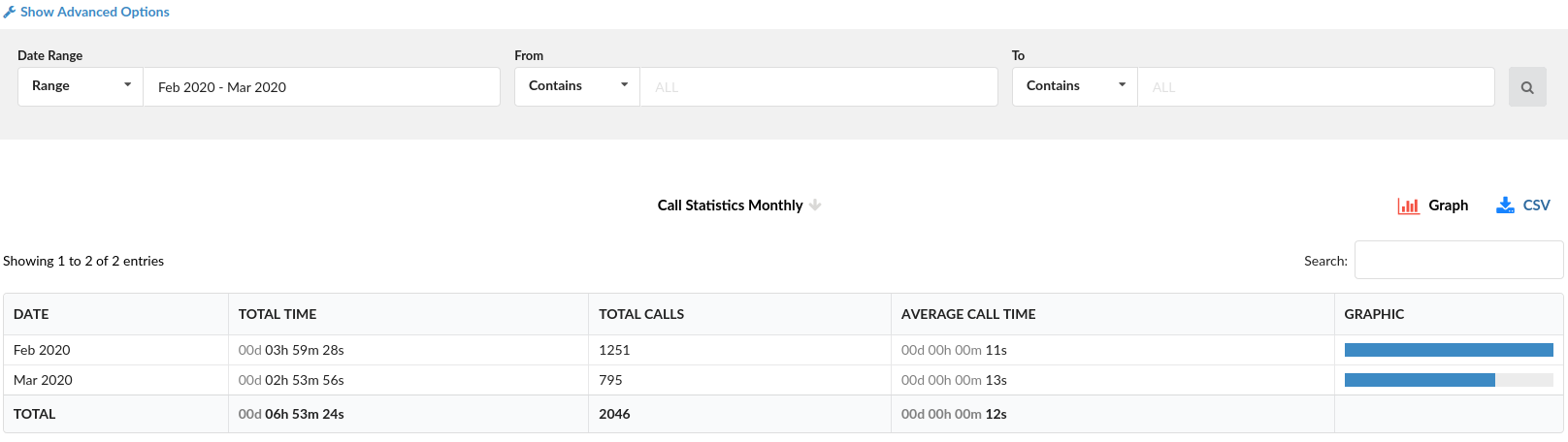
This table will show the total number of daily calls in the date range selected in the search box.
- DATE
Clickable date for which the total number of calls is shown.
- TOTAL TIME
Total time of calls on that particular day.
- TOTAL CALLS
A total number of calls made on that particular day.
- AVERAGE CALL TIME
Average call time of the calls on that particular day.
- GRAPHIC
This field shows the graphic representation of all calls on that day relative to the day with the biggest total call time. The day with the biggest total call time will have a 100% bar filling this field, and every other day will have a bar relative to this day.
Monthly Statistics Breakdown
Clicking on “Call Statistics Monthly” will create a new window with a detailed breakdown of calls for every day of the selected period.
- Date/Time
Date and time when the call was made.
- Trunk
Name of the trunk which was used for the call.
- From
The extension number from which the call was made.
- CallerID
CallerID of the user who made the call.
- To
The extension/external number to which the call was made.
- Duration
Duration of the call
TIP: The Download CSV option is used to download the CSV formatted file with all calls in the breakdown.
Extensions Statistics
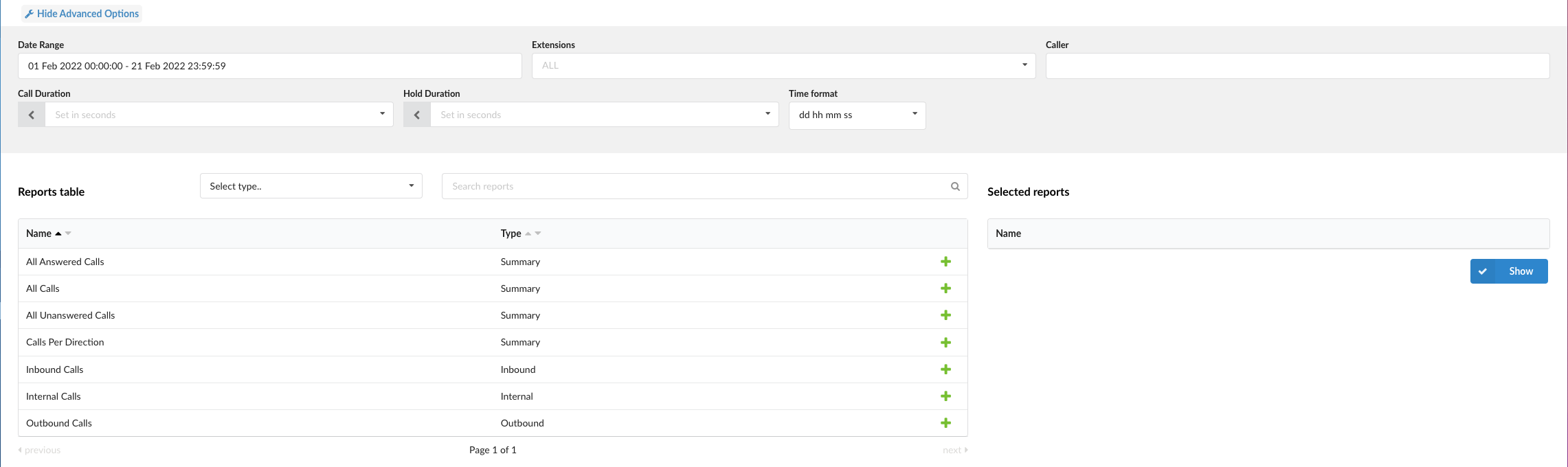
This section gives users a preview of the reports table showing Extension statistics related to ‘All Answered Calls’, ‘All Calls’, ‘All Unanswered Calls’, ‘Calls Per Direction’, ‘Inbound Calls’, and ‘Internal Calls’.
Clicking on the “Show Advanced Options” will expand the search criteria, and the following will be listed to users:
- Call Duration: Filters data by the call duration less or more than what number is set.
Default values are; 10, 20, 30, 60, 120. Users can set the random numbers too.
- Hold Duration: Filters data by holding duration less or more than what number is set.
Default values are; 10, 20, 30, 60, 120. Users can set the random numbers too.
- Time format: Filters data by the type of date format;’dd hh mm ss’,’dd:hh:mm:ss’, ‘Days’, ‘Hours’, ‘Minutes’, ‘Seconds’.
Filters
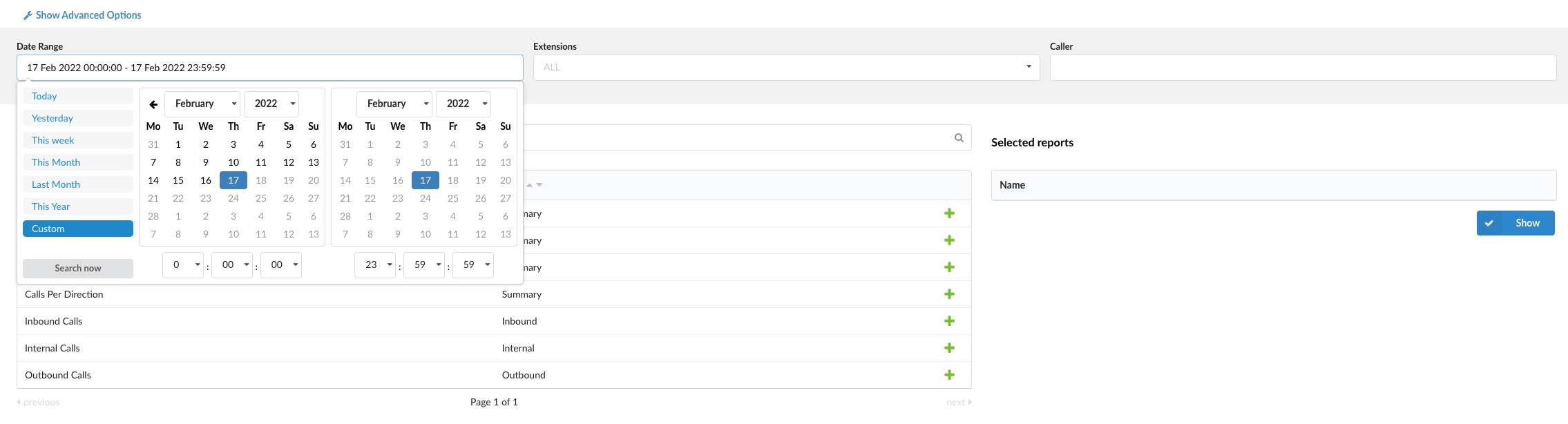
Users can filter reports using ‘Date Range’, ‘Extensions’, and ‘Caller.’
- Date Range: Filters the data by date range, which means the user can set a wished range for which information is to be shown. It can be a custom range or of the default pre-built ranges;
(‘Today’, ‘Yesterday’, ‘This Week’, ‘This Month’, ‘Last Month’, ‘This Year’).
- Extensions: Filters the data by extension or extensions chosen from the dropdown menu.
- Caller: Filters the data by Caller.
- Select type..: From this dropdown, the user can choose the type of the report to be shown in the Reports table;(‘Summary’, ‘Outbound’, ‘Inbound’, ‘Internal’).
- Search reports: The user can type in the first letters of the report name to be filtered and shown in the Reports table.
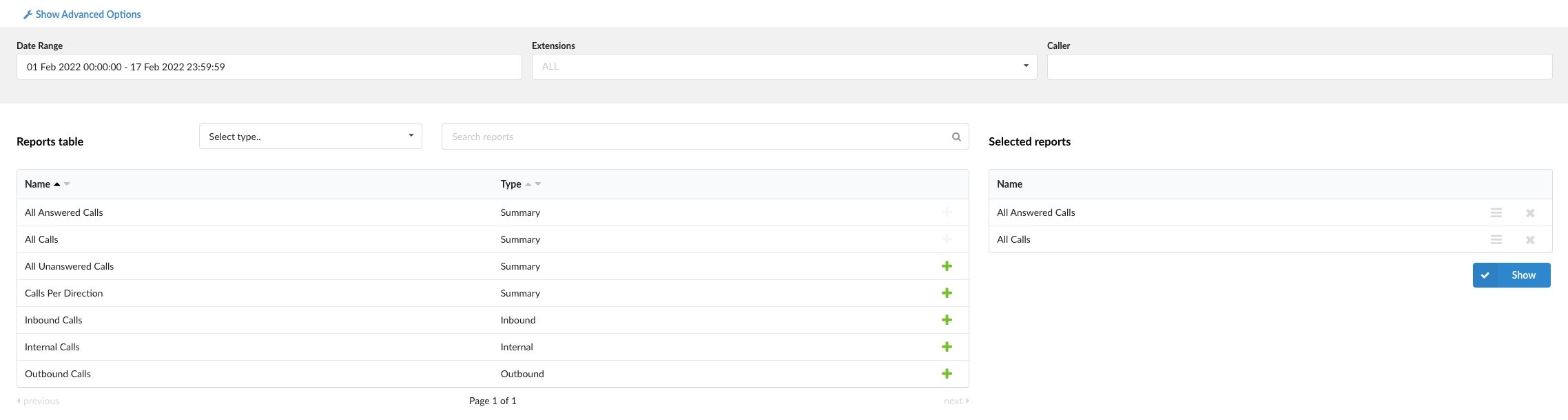
Users need to select one or more reports to generate reports by clicking the green plus sign. This report(s) will then be moved to the ‘Selected reports’ section. The selected reports will appear in a new window by clicking the ‘Show’ button.
All Answered Calls

Users can access the ‘All Answered Calls’ report to gain information about all calls on the system that were answered.
- Calls – Contains one column; Answered: Sum of all answered calls.
- Talk time – Contains four columns; Total: Total duration of all answered calls Min: Minimum duration of a single answered call. Max: Maximum duration of a single answered call. Mean: Average talk time value for all answered calls.
- Hold Time – Contains four columns; Total: Total duration of hold time for all answered calls Min: Minimum hold time for a single answered call. Max: Maximum hold time for a single answered call. Mean: Average talk hold for all answered calls.
All Calls

Users can access the ‘All Calls’ report to gain information about all calls on the system.
- Talk time – Contains four columns; Total: Total talk time. Min: Minimum duration of a single call. Max: Maximum duration of a single call. Mean: Average talk time value for all calls.
- Hold Time – Contains four columns; Total: Total hold time Min: Minimum hold time duration of a single call. Max: Maximum hold time duration of a single call. Mean: Average hold time value for all calls.
All Calls dispositions
- Total – Sum of all calls.
- Answered – Sum of all answered calls.
- Percentage – Percentage of all answered calls.
- Unanswered – Sum of all unanswered calls.
- Percentage – Percentage of all unanswered calls.
All Unanswered Calls

Users can access the ‘All Unanswered Calls’ report to gain information about all calls on the system that were unanswered.
- Calls – Contains one column; Unanswered: Sum of all unanswered calls.
- Hold Time – Contains four columns; Total: Value of total hold time for all unanswered calls Min: Minimum hold time for all unanswered calls. Max: Maximum hold time for all unanswered calls. Mean: Average value of hold time for all unanswered calls.
Calls Per Direction
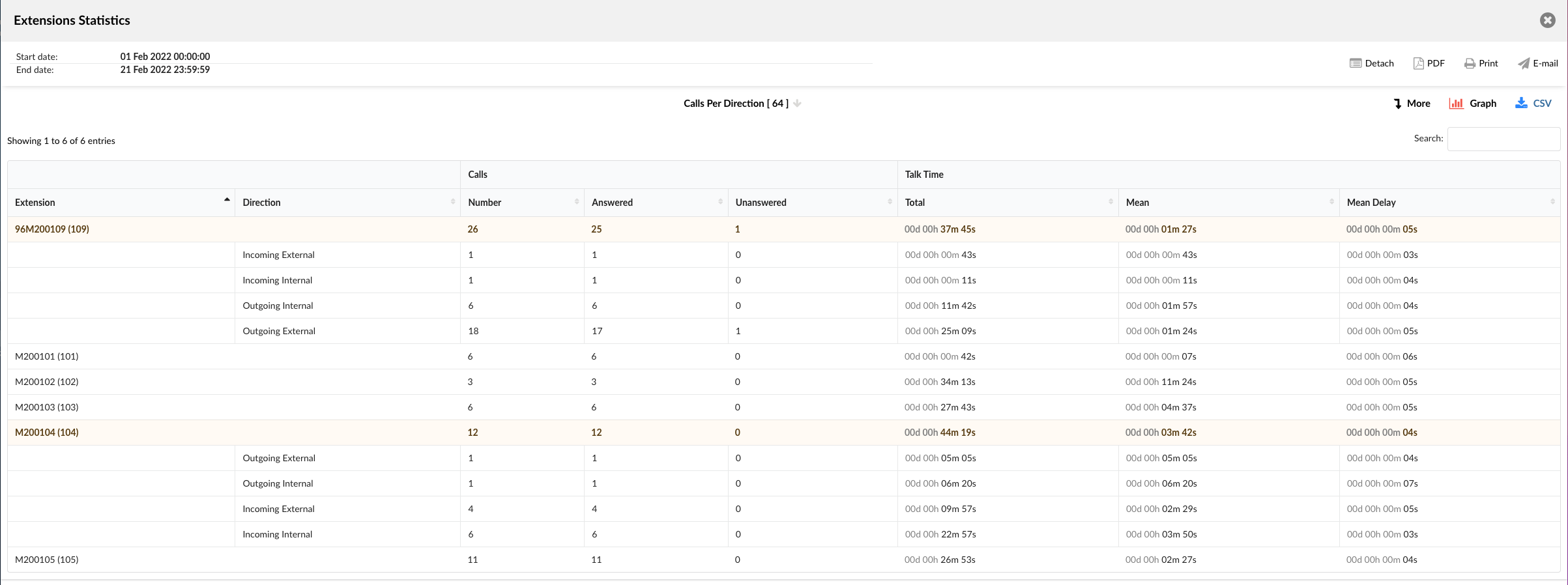
- Extension – Name and number of the caller Extension.
- Direction – By clicking on the Extension field column, Direction collapses where the user can see the number of types of calls by direction (‘Incoming External’, ‘Incoming Internal’, ‘Outgoing Internal’, ‘Outgoing External’)
- Calls – Divided into three columns; Number: Represents the total number of calls per destination. Answered: Represents total answered calls per destination. Unanswered: Represents total unanswered calls.
- Talk time – Divided into three columns; Total: Represents total talk time. Mean: Average value of talk time per direction. Mean Delay: Average delay time for calls per direction.
Inbound Calls

Users can access the ‘Inbound Calls’ report to gain information about all Inbound calls on the system.
- Talk time – Contains four columns; Total: Total inbound talk time. Min: Minimum duration of a single inbound call. Max: Maximum duration of a single inbound call. Mean: Average talk time value for all inbound calls.
- Hold Time – Contains four columns; Total: Total inbound hold time Min: Minimum hold time duration of a single inbound call. Max: Maximum hold time duration of a single inbound call. Mean: Average hold time value for all inbound calls.
All Inbound Calls dispositions
- Total – Sum of all inbound calls.
- Answered – Sum of all answered inbound calls.
- Percentage – Percentage of all answered inbound calls.
- Unanswered – Sum of all unanswered inbound calls.
- Percentage – Percentage of all unanswered inbound calls.
Internal Calls
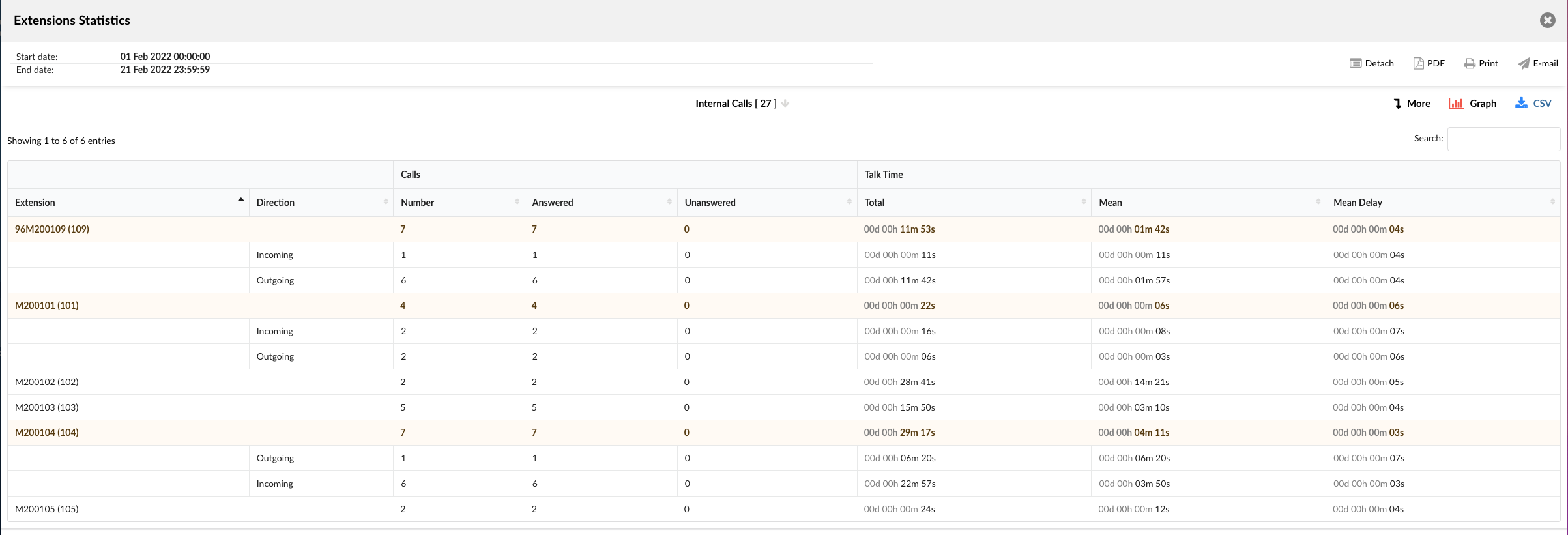
Users can access the ‘Internal Calls’ report to gain information about all Internal calls on the system.
- Extension – Name and number of the caller Extension.
- Direction – By clicking on the Extension field column, Direction collapses where the user can see the number of type of calls by direction (‘Incoming’ or ‘Outgoing’)
- Calls – Divided into three columns; Number: Represents the total number of calls per destination. Answered: Represents total answered calls per destination. Unanswered: Represents total unanswered calls.
- Talk time – Divided into three columns; Total: Represents total internal calls talk time. Mean: Average value of internal calls talk time. Mean Delay: Average delay of internal calls talk time.
Outbound Calls

Users can access the ‘Outbound Calls’ report to gain information about all Outbound calls on the system.
- Talk time – Contains four columns; Total: Total outbound talk time. Min: Minimum duration of a single outbound call. Max: Maximum duration of a single outbound call. Mean: Average talk time value for all outbound calls.
- Hold Time – Contains four columns; Total: Total outbound hold time Min: Minimum hold time duration of a single outbound call. Max: Maximum hold time duration of a single outbound call. Mean: Average hold time value for all outbound calls.
All Outbound Calls dispositions
- Total – Sum of all outbound calls.
- Answered – Sum of all answered outbound calls.
- Percentage – Percentage of all answered outbound calls.
- Unanswered – Sum of all unanswered outbound calls.
- Percentage – Percentage of all unanswered outbound calls.
Breakdowns

The selected reports will appear in a new window with more details on the Extension statistics calls by clicking the’ Breakdown’ buttons.
Breakdown shares a similar format for every report.
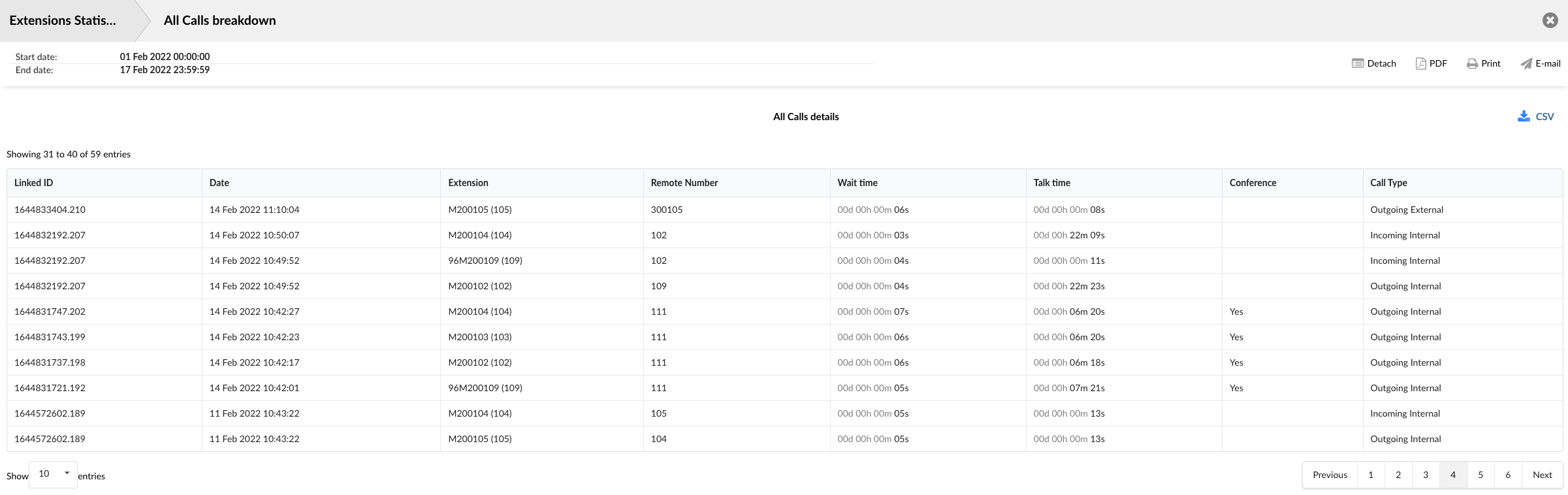
- Linked ID – Event ID.
- Date – Date when the event occurred.
- Extension – Name and number of the Extension from which the call was initiated.
- Remote Number – Destination number that was dialed.
- Wait time – The time caller waited for the call to be answered.
- Talk time – Time spent on call.
- Conference – This field represents info where the user can see if it was a Conference call or not. (If it were a Conference call, this column would be populated with ‘Yes’; if it were a regular call, this field would be empty.
- Call Type – The user can see the type of call in this column (Incoming Internal, Incoming External, Outgoing Internal, Outgoing External)
TI:P The Download CSV option is used to download the CSV formatted file with all calls in the breakdown.
ERG Statistics
This section gives the user a preview of the table that shows ERG Statistics related to ‘All answered calls’, ‘All calls’, and ‘All unanswered calls’. ‘Member calls per Enhanced Ring Group’, ‘Member missed calls’, and ‘Repeated callers’.
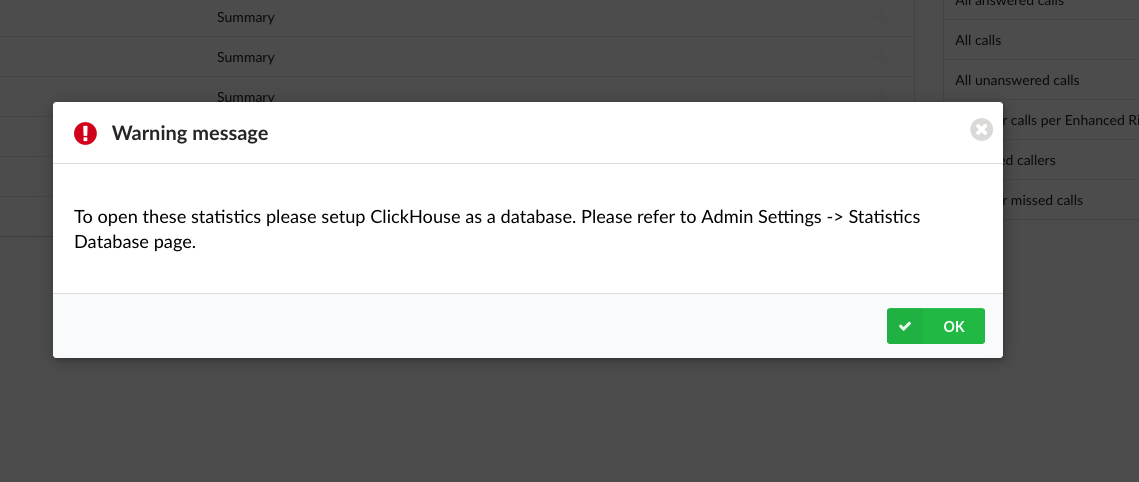
NOTE: To see ERG statistics, ClickHouse needs to be set as a database. To set it up successfully, navigate to ‘Admin Settings’ -> ‘Statistics Database’.
NOTE: Please be notified that if Enhanced services are used with ERG (i.e., the ‘Disable Member Enhanced Services’ option is turned ON by default), statistics for those calls will not work.
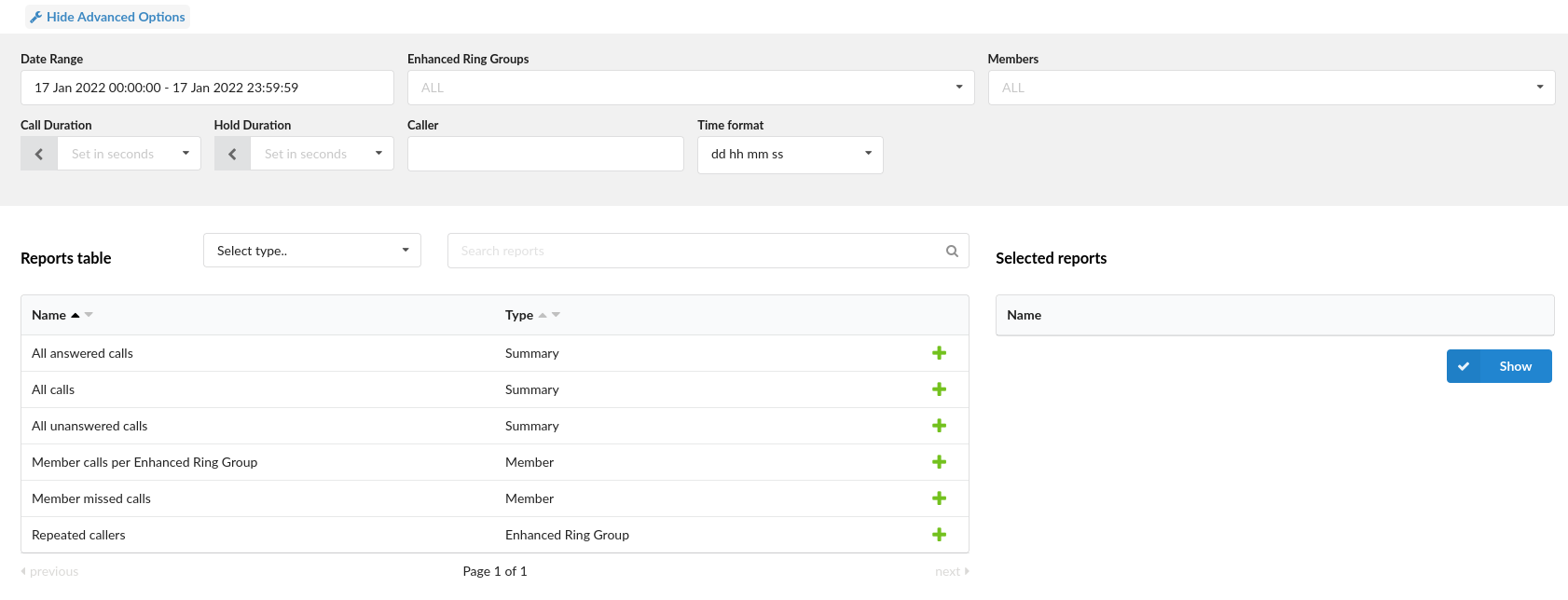
Users can filter data by using the following filters:
- Date Range
Select the specific time and generate data accordingly.
(Multi-Choice box)
- Enhanced Ring Group
Enter the name of the ERG.
([a-z][0-9])
- Members
Enter the specific Member.
([a-z][0-9])
- Call Duration
Set a specific call duration.
([0-9])
- Hold Duration
Set a specific hold duration.
([0-9])
- Caller
Search data by the caller.
([a-z][0-9])
- Time format
Set a specific time format.
(Select box)
Users can also select a specific type of report: ‘Summary’, ‘Member’, and ‘Enhanced Ring Group’. After choosing the desired type, the list of available reports will be generated.
All Answered Calls Report
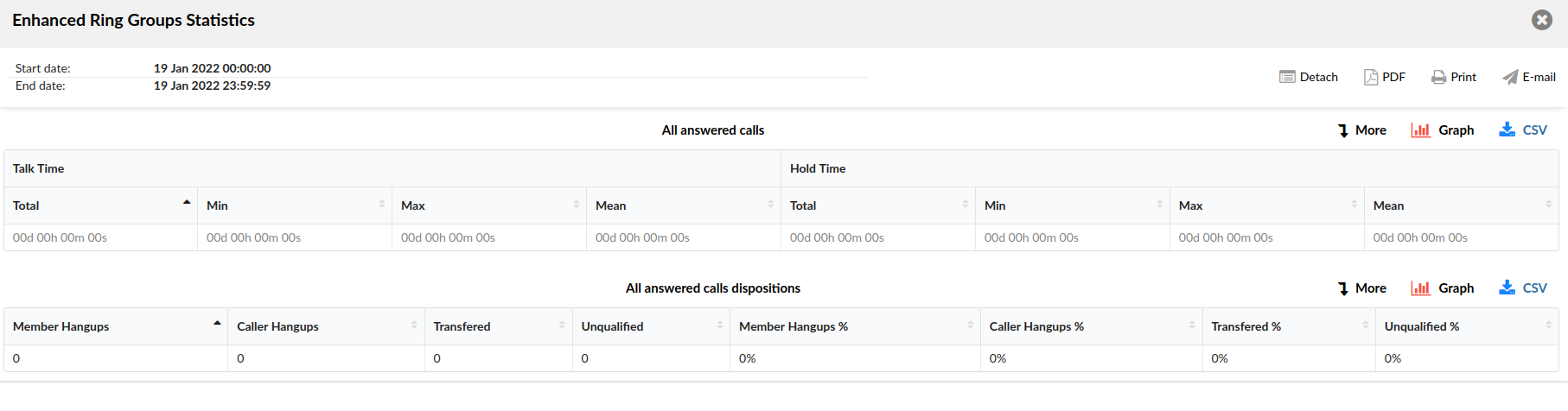
Users can access the ‘All Answered Calls’ report to gain information about all calls on the system that were answered.
All Calls Report
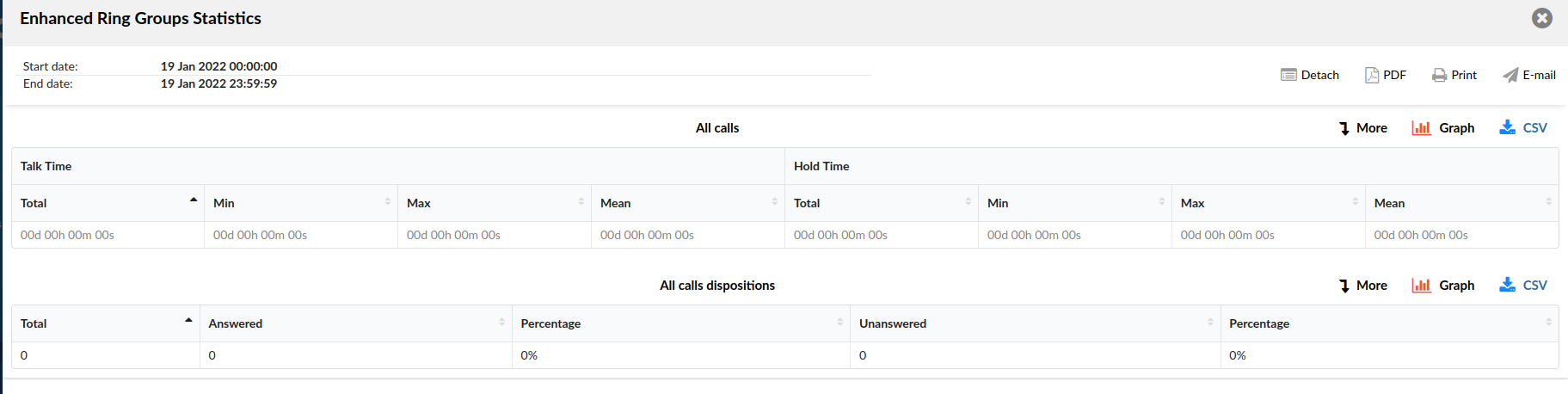
Users can access the ‘All Calls’ report to gain information about all calls on the system.
All Unanswered Calls Report
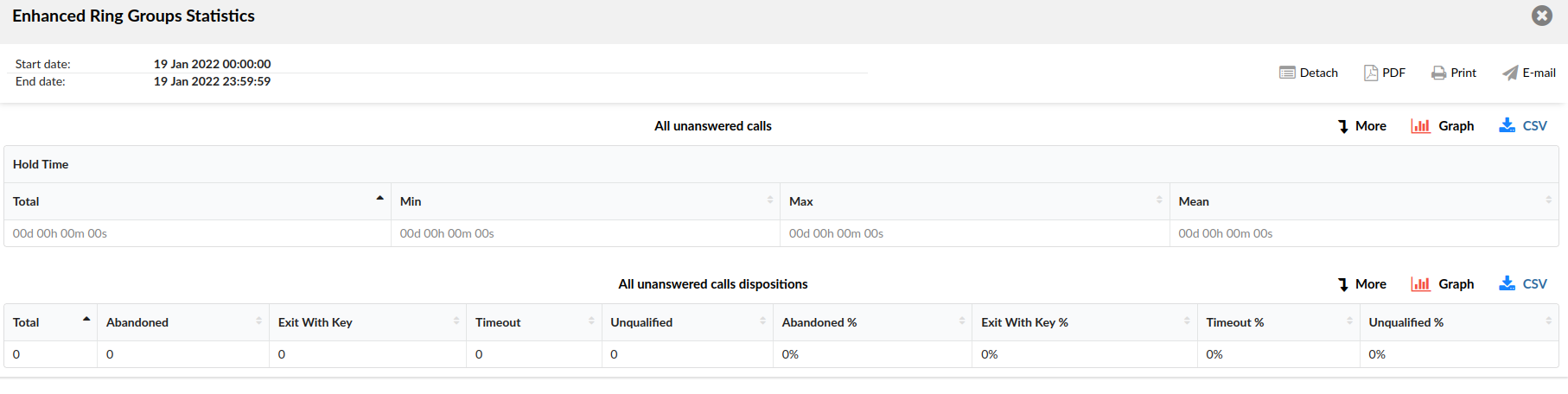
Users can access the ‘All Unanswered Calls’ report to gain information about all calls on the system that were unanswered.
Member Calls Per Enhanced Ring Group Report

Users can access the ‘Member Calls Per Enhanced Ring Group’ report to gain information about all member calls on the system per ERG.
Member Missed Calls Report

Users can access the ‘Member Missed Calls’ report to gain information about all members’ missed calls on the system.
Repeated Callers Report

Users can access the ‘Repeated Callers’ report to gain information about repeated callers on the system.
Recordings under ERG statistics
Users now can access call recordings through ERG statistics under the All answered calls details breakdown, All answered calls dispositions breakdown, All calls breakdown, All calls dispositions breakdown, Member calls per Enhanced Ring Group breakdown, and Member missed calls breakdown. It can be done by clicking on Call-ID, which has a REC mark. REC mark will be shown if the recording is locally available or offloaded. After clicking on the wanted Call ID new window will be opened, which will offer a reports page for the given call. The report page for isolated calls works just as the regular report page, which shows if the recording is available locally or if the recording is offloaded and removed from the system. If the recording is offloaded, it will show the icon representing the service used for archiving files inside Archiving feature.
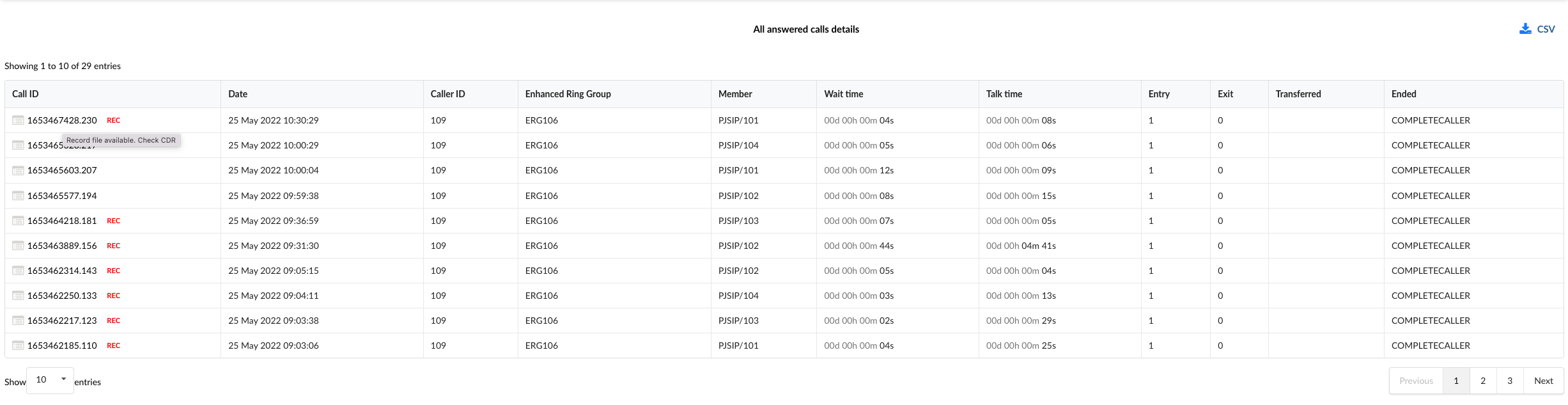
The breakdown page for each report type shows the REC mark next to the Call ID. When hovered over the Call ID message is shown in the alert dialog saying, “Record file available. Check CDR”. Users can also hover over Call IDs with no recordings where an alert dialog will be shown saying, “Check CDR,” which will, after being clicked on, lead to a reports page in a new minimized window as in the case with the Caller ID with recordings on it.
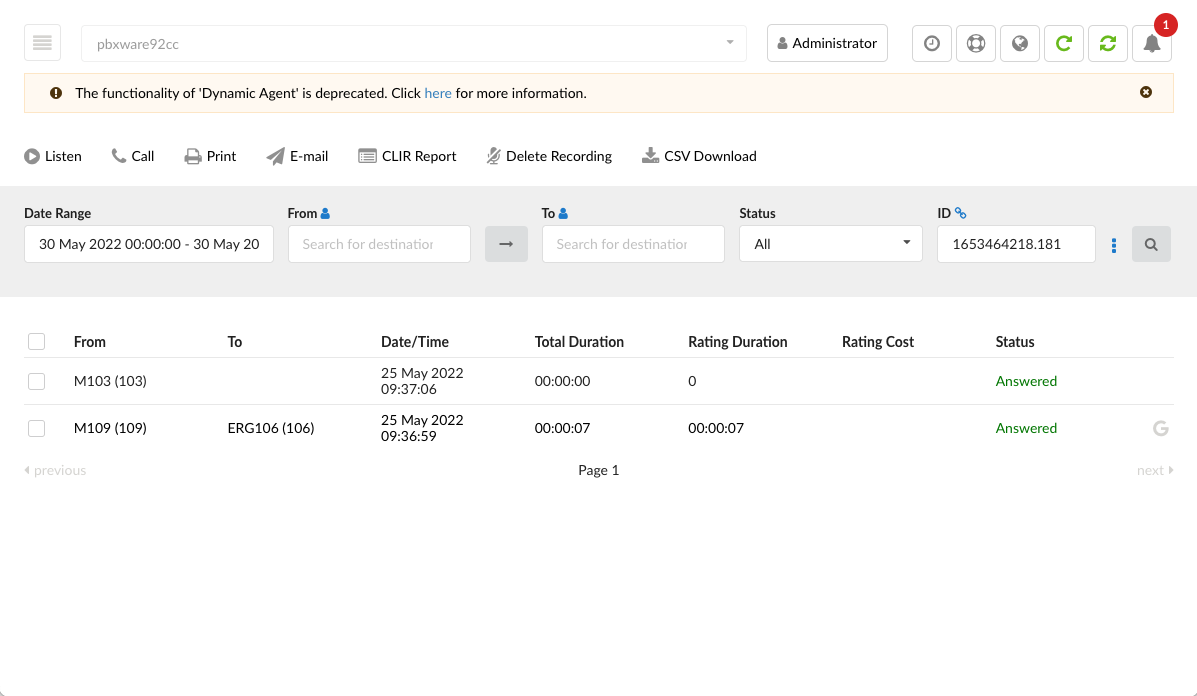
Users can click on the Caller ID with a REC mark next to it, and a new window will be opened where a report is shown. It is a reports page for that single call, and the recording can be played for both local and offloaded recordings. If the recording is still on the system Play button will be shown, and if the recording is already offloaded and removed from the system icon correlating to the service used for archiving will be displayed.
IVR Statistics
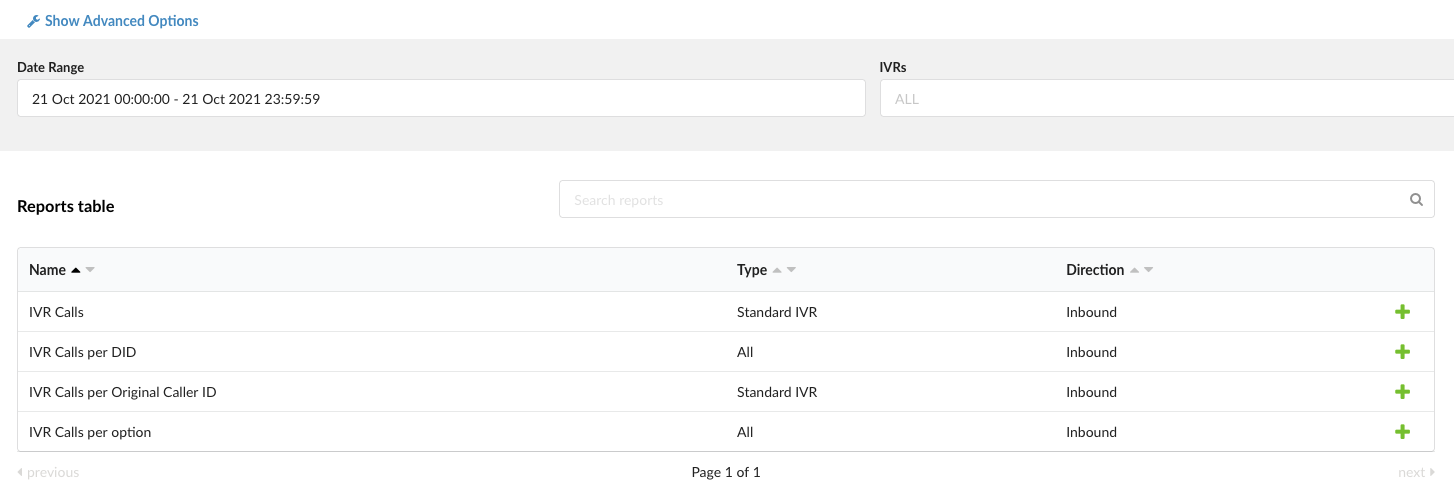
This section gives the user a preview of the table that shows IVR Statistics related to ‘IVR Calls’, ‘IVR Calls per DID’, ‘IVR Calls per Original Caller ID’, and ‘IVR Calls per option’.
Clicking the ‘Show Advanced Options’ button will result in more filters being displayed:
‘Original Caller ID’: Filters data by the Original Caller ID provided ‘Caller ID’: Filters data by the Caller ID provided ‘Destination’: Filters data by the chosen Destination(s)
Filters
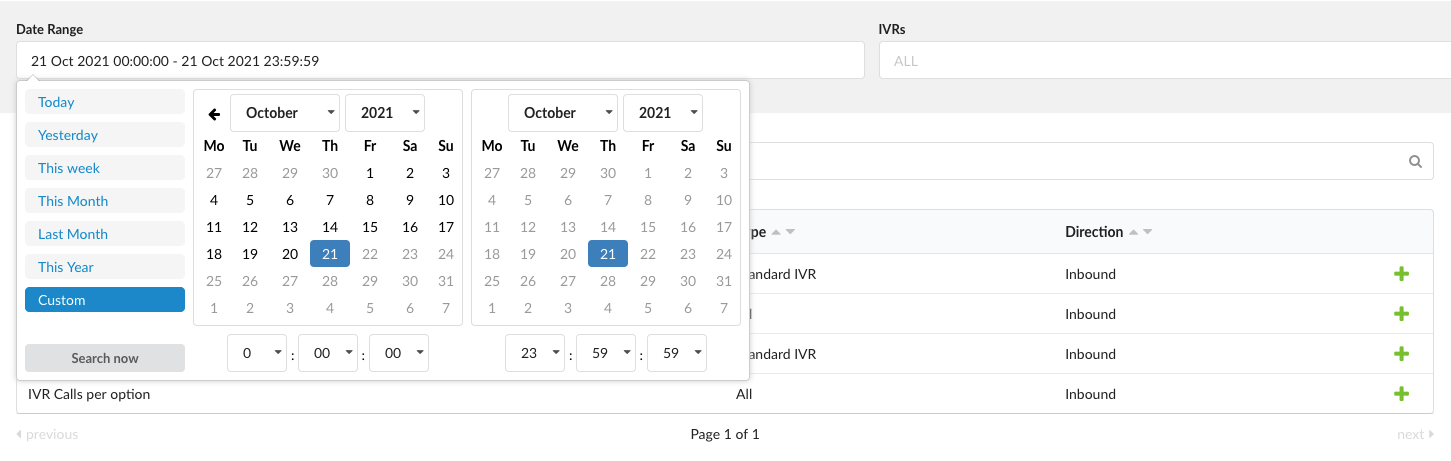
Users can filter reports using ‘Date Range’ and ‘IVRs’. The ‘Date Range’ filter can have one of the pre-built ranges (‘Today’, ‘Yesterday’, ‘This Week’, ‘This Month’, ‘Last Month’, ‘This Year’) or any other custom date range.
Users need to select one or more reports to generate reports by clicking the green plus sign. This report(s) will then be moved to the ‘Selected reports’ section. The selected reports will appear in a new window by clicking the ‘Show’ button.
Report Details
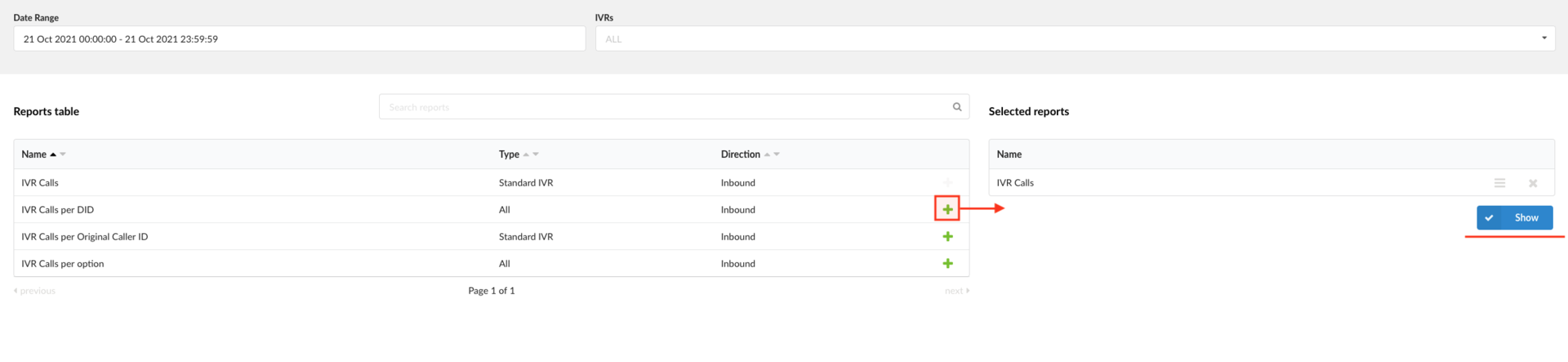
By clicking the ‘Show’ button, users will be prompted to a new page where all the additional report data and other options are displayed. Hovering the mouse over the page’s top left corner will display all the filters applied during data generation.
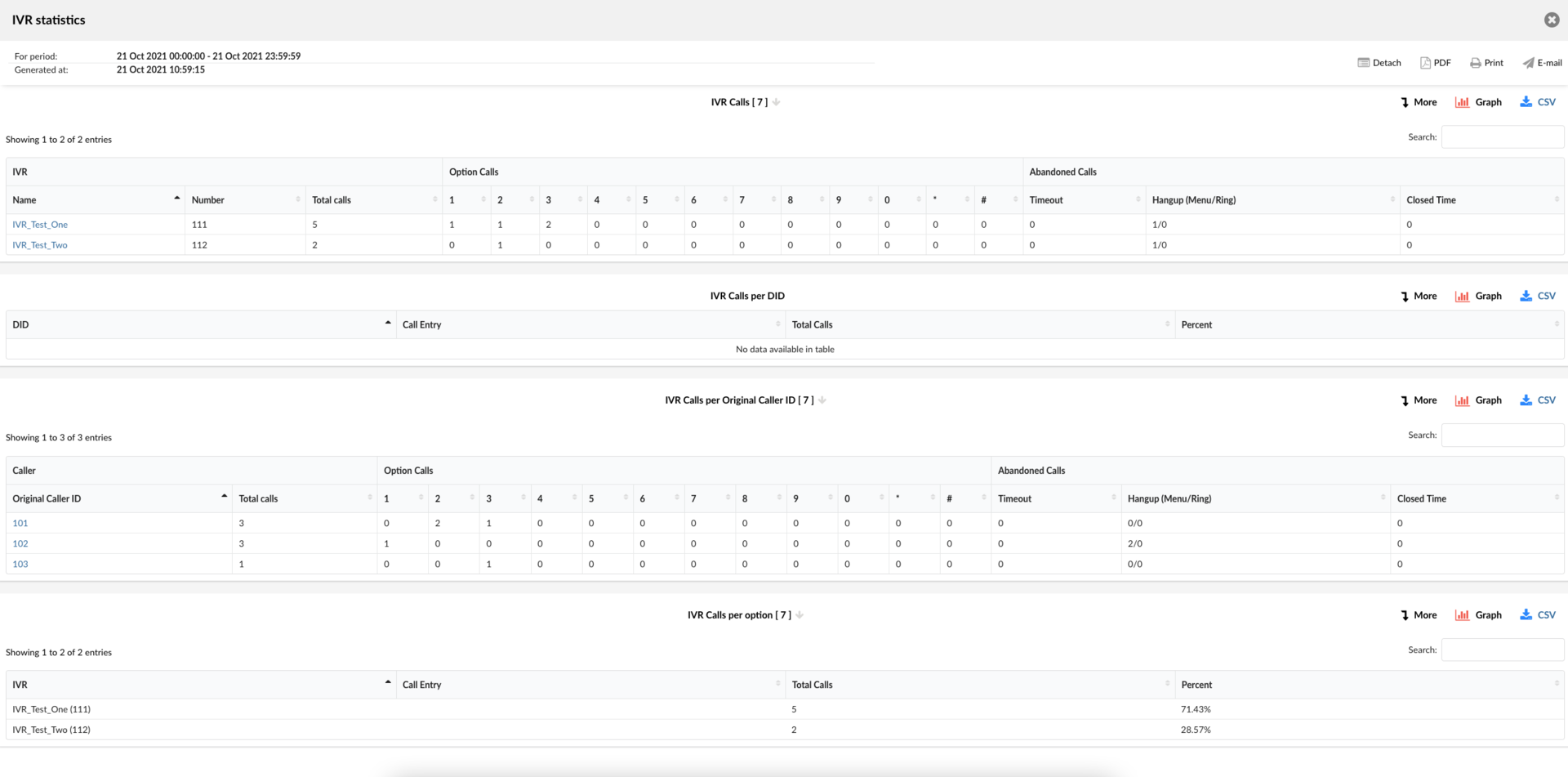
From this page, users can:
- Sort the data by any column.
- Search for any data in the table by typing the desired search option in the search bar, which will be applied automatically.
- View graphs, download CSV or PDF files, and print and e-mail reports.
NOTE: Upon clicking the ‘Show’ button, users can see two rows, “For period” and “Generated at”, which rely on the system time. Other rows are changed depending on the chosen report template.
Report Types
The list of available reports is as follows:
- IVR Calls
- IVR Calls per DID
- IVR Calls per Original Caller ID
- IVR Calls per option
Report Fields’ Meanings
This is a list of fields used in report tables. Some special fields used in a particular report are explained within the report description.
All fields are explained as: Field name (Synonym name) – Description.
Some fields can have more levels of information. This can be seen in tables that have one or two headers.
- Field
- Child field 1
- Child field 2
Fields:
- IVR – IVR name and number in the format: Name (Number)
- Name – IVR name
- Number – IVR number
- Total Calls – Number of calls for that particular IVR
- Caller
- Original Caller ID – The original number of the caller who entered the IVR
- Total Calls – Number of calls from that particular Original Caller ID
- Option Calls – Number of calls for each option
- 0-9, ‘*’, ‘#’ – Number of calls for the option, where the number 0-9 or the symbol ‘*’ or ‘#’ represents the option.
- Call Entry – Represents the caller entry when calling the IVR. It can be an IVR option or any abandoned call types (Timeout, Hangup(Menu/Ring), or Closed Times).
- Abandoned Calls – Number of abandoned calls
- Timeout – Number of calls that ended due to a timeout
- Hangup (Menu/Ring) – Number of calls that ended due to the caller hanging up in the IVR menu or while the call was still ringing. Represented in the format: HangupInMenu / Hangupwhilering
- Closed Time – Number of calls that came during the closed hours of the IVR
Destination Types and Events
The ‘Destination Type’ field can have one of the following values:
- Extension
- Queue
- Conference
- IVR
- Voicemail
- Directory
- Remote Access
- Fax to Email
- External number
- Timeout Destination
The ‘Ended’ field that shows which event occurred can have the following values:
- Connected – Any IVR call that successfully connected the caller with the Destination
- Abandoned – Calls hung up by the caller
- Timed Out – Calls ended by a timeout
- Closed Time – Calls that came during closed hours of the IVR
- Invalid Selection – Calls with invalid DTMF input by the caller (E.g., non-existing option number, etc.)
Note: This will be available in future reports.
IVR Calls
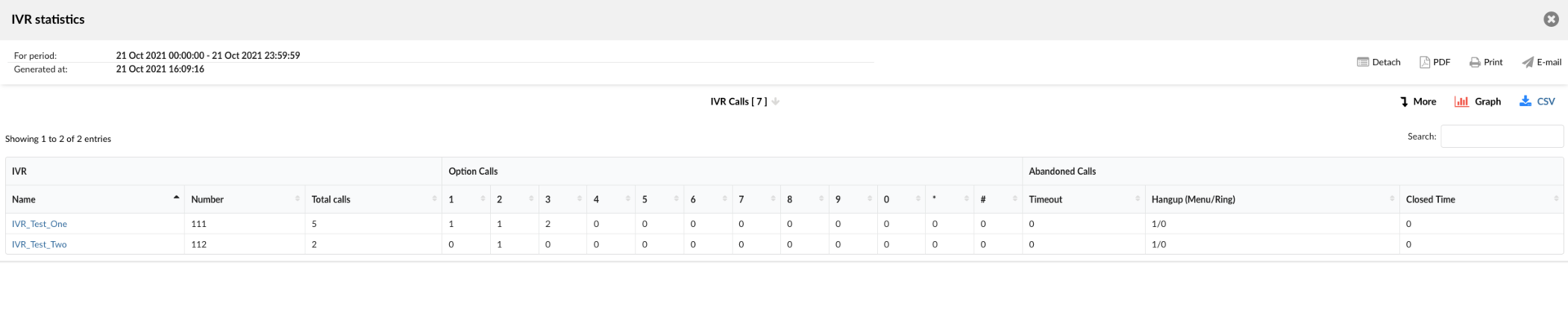
Only calls for the Standard IVR type are included. It shows all calls per IVR, the number of Option calls, and Abandoned calls for each IVR. Users may also see a timeline in the form of a graph showing total, connected, and abandoned calls for all IVRs summarized and a total calls comparison per IVR. Filtering these reports for one IVR will result in the graphs showing the total calls per option and the total number of abandoned calls for that particular IVR only.
IVR Calls per DID
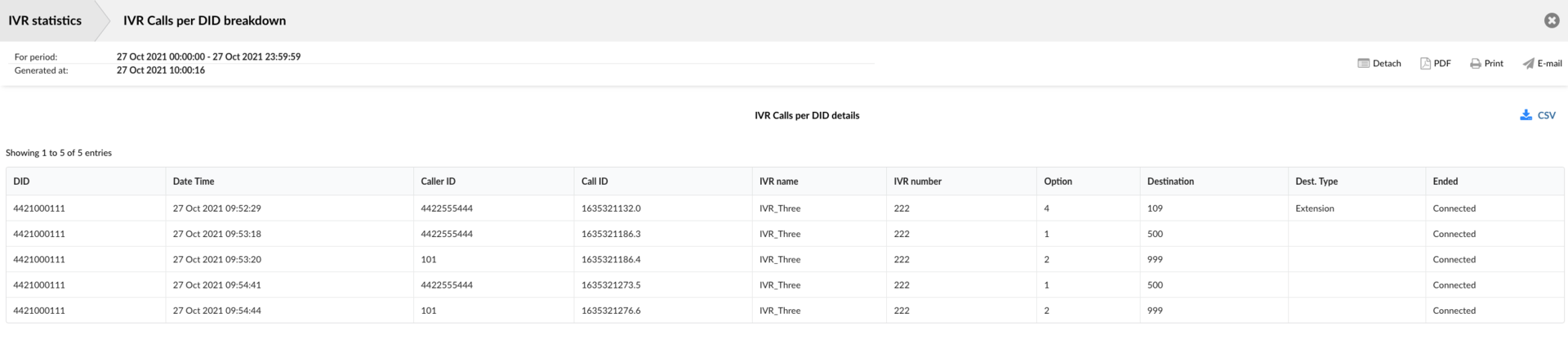
This report shows the number of calls per IVR and for each call entry or abandoned call per IVR. It offers data for all IVR types. Information is grouped by DID.
IVR Calls per Original Caller ID

Only calls for the Standard IVR type are included. It shows all calls per Original Caller ID, the number of Option calls, and Abandoned calls for each Original Caller ID. Users may also see a timeline of the total, connected, and abandoned calls for all Original Caller IDs summarized and a total calls comparison per Original Caller ID.
IVR Calls per Option

This report shows the number of calls per IVR and each option or abandoned call per IVR. It shows data for all IVR types.
Breakdowns
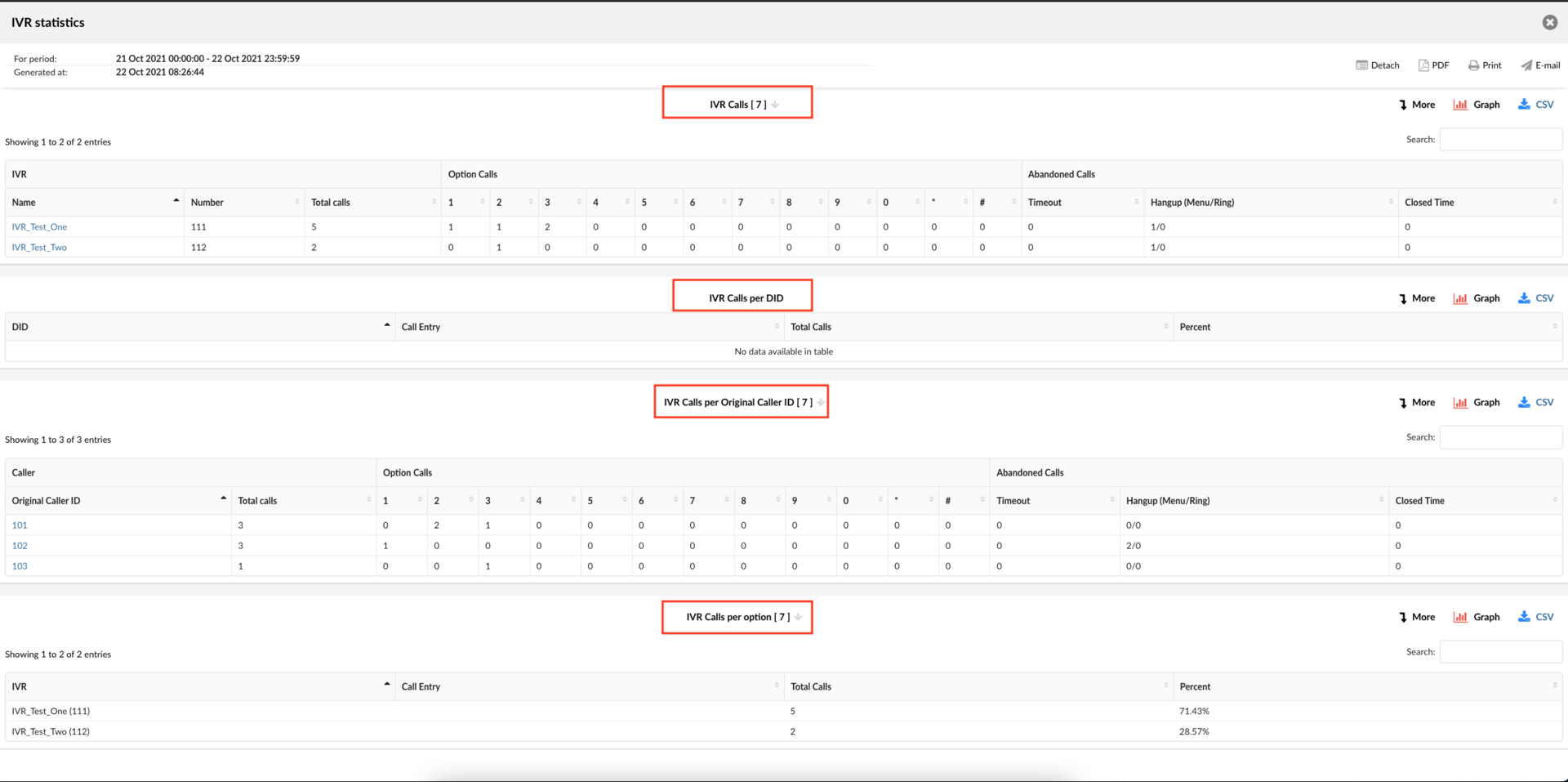
The selected reports will appear in a new window with more details on the IVR Calls by clicking the’ Breakdown’ buttons.
Breakdown shares a similar format for every report.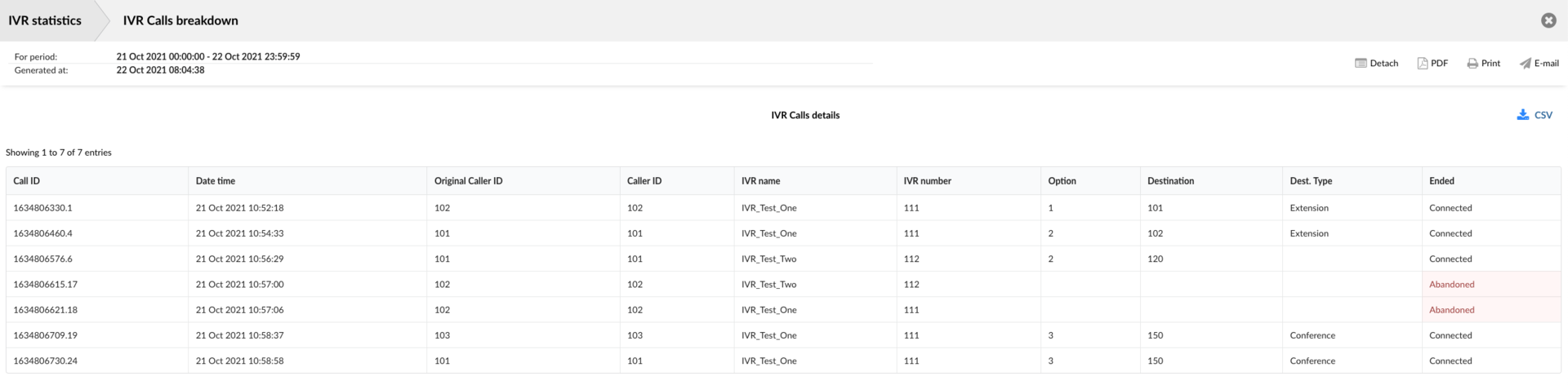
All fields are explained as Field name (Synonym name) – Description.
Fields:
- CallID – Event ID
- Date time – Date when the event occurred
- Original Caller ID – Original number of the caller who entered the IVR
- CallerID – Caller’s Extension (can be the same as or different from the Original Caller ID)
- IVR name – Name of the IVR where the call entered
- IVR number – Number of the IVR
- Option – Option number (empty for abandoned calls)
- Destination – Number of the Destination where the call proceeded from the IVR (empty for abandoned calls, except for timeout where the ‘Timeout Destination’ can be specified)
- Destination Type – Type of a Destination where the call proceeded from the IVR (empty for abandoned calls, except for timeout where it can be specified)
- Ended – Shows which event happened for that particular call
Concurrent calls

This section gives users a preview of calls that co-occur on the same line.
- Max
Maximum number of concurrent calls in the selected period
- Average
The average number of concurrent calls in the selected period.
We can here also use a graph that will show graphically max calls.
TIP
The Download CSV option is used to download the CSV formatted file.
Advanced
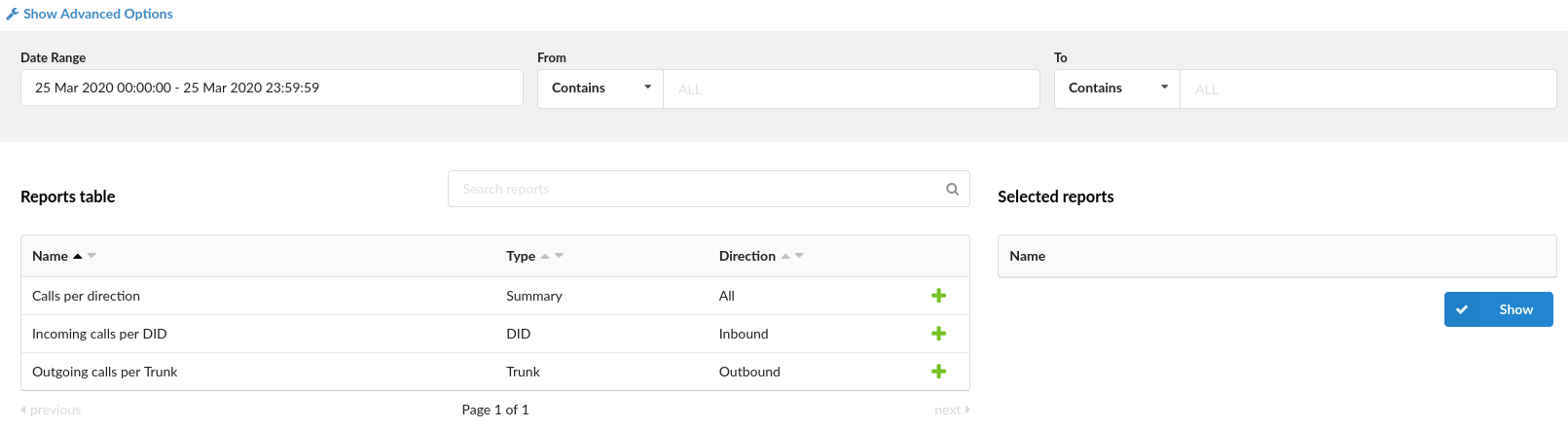
Advanced options for Statistics reports are available. This section enables the creation of a unique statistic report that fits the user’s needs.
Clicking on the “Show Advanced Options” will expand searching criteria, and the following will be listed to users:
- Date range:
Users are given a drop-down list with the following options:
- Range:
Select a date range by clicking on a calendar or choose the following options:
- Today
- Yesterday
- Last 7 Days
- Last 30 Days
- This Month
After selecting, users will be introduced to the statistics, which include only that time range.
- From
In this field, users need to write a number from which the desired call is made. By default, the ‘ALL’ modifier will be in this field, meaning statistics will be made for all calls on the system which happened on the selected date range.
Users should write all desired numbers separated by commas if they want to see statistics from a few particular numbers.
(E.g., To display calls made from extension 104 and remote number 44207296666 user should type “104,44207296666”)
([0-9],)
Also, users are given a drop-down list with the following options:
- Equals
Do a statistic only for a number equal to the number/s written.
(E.g., John sets this option to ‘Equals’ and types number 101. Statistics will be shown only for calls made from number 101.)
- Begins with
Do a statistic for all numbers which begin with the number/s written.
(E.g., John sets this option to ‘Begins with’ and types number 101. Let’s imagine that John made calls from numbers 1011 and 105. Statistics will be shown only for calls made from numbers that begin with number 101, in this case, from numbers 101 and 1011.)
- Contains
Do a statistic for all numbers which contain number/s written.
(E.g., John sets this option to ‘Contains’ and types number 101. Let’s imagine that John made calls from numbers 1011, 2101, and 501. Statistics will be shown only for calls made from numbers that contain number 101, in this case, from numbers 1011 and 2101.)
- Ends with
Do a statistic for all numbers which end with number/s written.
(E.g., John sets this option to ‘Ends with’ and types number 101. Let’s imagine that John made calls from numbers: 1101, 2101, and 501. Statistics will be shown only for calls made from numbers that end with number 101, in this case, from numbers 1101 and 2101.)
- To
In this field, users need to write the number to which the desired call is made. By default, the ‘ALL’ modifier will be in this field, meaning statistics will be made for all calls on the system which happened on the selected date range.
Users should write all desired numbers separated by commas if they want to see statistics from a few particular numbers.
(E.g., To display calls made to extension 104 and remote number 44207296666 user should type “104,44207296666”)
([0-9],)
Also, users are given a drop-down list with the following options:
- Equals
Do a statistic only for a number equal to the number/s written.
(E.g., John sets this option to ‘Equals’ and types number 101. Statistics will be shown only for calls made to number 101.)
- Begins with
Do a statistic for all numbers which begin with the number/s written.
(E.g. John sets this option to ‘Begins with’ and types number 101. Let’s imagine that John made calls to numbers 1011 and 105. Statistics will be shown only for calls made to numbers that begin with number 101, in this case, to numbers 101 and 1011.)
- Contains
Do a statistic for all numbers which contain number/s written.
(E.g., John sets this option to ‘Contains’ and types number 101. Let’s imagine that John called numbers 1011, 2101, and 501. Statistics will be
only for calls made to numbers that contain number 101, in this case, to numbers 1011 and 2101.)
- Ends with
Do a statistic for all numbers which end with number/s written.
(E.g., John sets this option to ‘Ends with’ and types number 101. Let’s imagine that John made calls to numbers: 1101, 2101, and 501. Statistics will be shown only for calls made to numbers that end with number 101, in this case to numbers 1101 and 2101.)
- Duration
In these fields, you can set a range for the duration of the calls in seconds.
Both fields can be modified depending on selected equality signs:
- > (greater than)
- >= (greater than or equal to)
- == (equal to)
- <= (less than or equal to)
- < (less than)
(E.g., If the user wants to see statistics of calls that last more than 15 but less than 45 seconds, in the first field, there will be “>” and “15” set, and in the second, “<” and “45”.)
([0-9])
- Trunk
The user is given a drop-down list with all trunks on the system.
- DID
The user is given a drop-down list with all DID-s on the system.
Reports table:
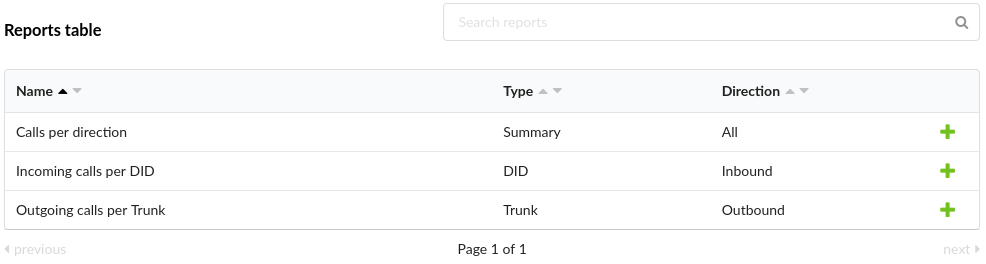
There are three kinds of reports available to choose from in this section :
- Outgoing calls per Trunk
This report shows the duration and number of calls (answered and unanswered) that came through a particular trunk in the selected time range.
This report can also be represented as a pie chart, which can be modified by clicking colored circles above the chart. This way, users can include or exclude Trunks that they want from the chart.
- Incoming calls per DID
This report shows the duration and number of inbound calls (answered and unanswered) per DID.
This report can also be represented as a pie chart, which can be modified by clicking colored circles above the chart. This way, users can include or exclude DIDs that they want from the chart.
- Calls per direction
This report shows the total number of calls (incoming and outgoing) on the system that happened in the selected time range.
This report can also be represented as a pie chart, which can be modified by clicking colored circles above the chart.
TIP
The Download CSV option is used to download the CSV formatted file.