
Agent Statistics
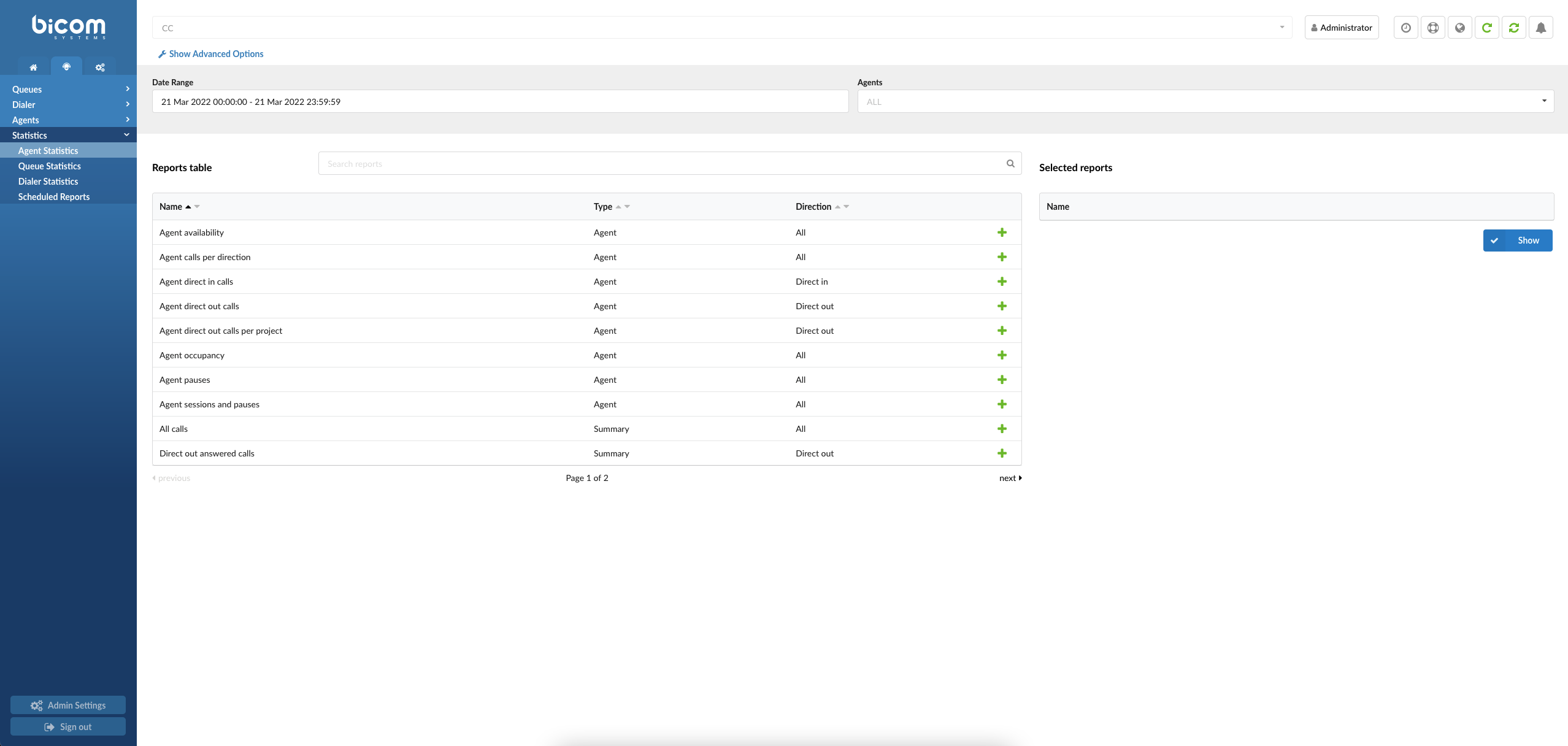
Agent statistics display a comprehensive and detailed array of agent details.
- Date Range
Statistics time period.
(E.g., Select the period for which statistics are to be displayed.)
(Select the box button)
- Agents
Select the Agent for which you’d like to see statistics.
(E.g., Click on the ‘Please select’ button to select ‘All’ (all agents) or a specific agent name and then click the ‘Show’ button)
(Select the box button)
- Reports Table
You may see a list of all Report Templates available and choose the preferred one accordingly. Please refer to the further description for more details.
- Search
Type in a specific Report title and obtain information faster.
([a-z])
- Selected reports
The table where all the selected reports are shown.
(E.g., Click on the Show button to generate statistics for all selected reports)
NOTE: Upon clicking the Show button, you will be prompted to the Reports page, and in the upper left corner, you may get more details about the preferred Report. If you hover your mouse over the Start date and End date rows displayed, you can see when the report was last generated. “Generated at” relies on the system time. Other rows are changed depending on the Report Template chosen.
- Show statistics for agent availability
Shows detailed information about agents. It provides a lot of information in a single report to give the customer a quick overview of agent availability. The main feature here is agent idle time. This report focuses on all agents’ calls, sessions, and pauses and provides accurate information about agent idle time.
(E.g., Click on this checkbox to show statistics for agent availability.)
(Check box)
- Show statistics for agent calls per direction
Shows the number of calls per direction. For each agent, the data is grouped per agent and direction ( direct in, direct out, inbound, outbound).
(E.g., Click on this check box to show all statistics for agent calls per direction.)
(Check box)
- Show statistics for agent direct in calls
Shows agents direct in calls. The main feature here is calls > 1m. Those calls should be looked at as effective calls. This value is configurable.
(E.g., Click on this check box to show all statistics for agent direct in calls.)
(Check box)
- Show statistics for agent direct out calls
Shows detailed information about the agent’s direct out calls. The main feature here is calls > 1m. Those calls should look like as effective calls. This value is configurable.
(E.g., Click on this checkbox to show all statistics for agent direct out calls.)
(Check box)
- Show statistics for agent direct out calls per project
Shows detailed information about agents’ direct out calls with project codes. The data is grouped per agent, and for each agent, the data is grouped per project code. E.g., If one agent made direct out calls with three different project codes, that will also be shown in statistics.
(E.g., Click on this check box to show all statistics for agent direct out calls per project.)
(Check box)
- Show statistics for agent occupancy
Shows detailed information about agent sessions, pauses, talk time, and occupancy. The data is grouped per agent. Provides a lot of information in a single report to give the customer a quick overview of agent occupancy.
(E.g., Click on this check box to show the agent occupancy report.)
(Check box)
- Show statistics for agent pauses
Shows the number of agent pauses with/without reason and billable/payable pauses. The data is grouped per agent.
(E.g., Click on this check box to show agent pauses.)
(Check box)
- Show statistics for agent sessions and pauses
Shows information about agent sessions and pauses. The data is grouped per agent. The main feature here is the number of agent pauses per session.
(E.g., Click on this check box to show agent sessions and pauses.)
(Check box)
- Show statistics for all calls
Shows summary information about all agent calls. Includes all call dispositions, including the total number of answered and unanswered calls.
(E.g., Click on this check box to show statistics about all calls.)
(Check box)
- Show statistics for all direct out answered calls
Shows summary information about agent direct out answered calls. Includes direct out answered calls dispositions (agent hangups, caller hangups, transferred calls).
(E.g., Click on this check box to show statistics about all direct out answered calls.)
(Check box)
- Show statistics for all direct out calls
Shows summary information about all direct out calls. Includes direct out calls dispositions which contain the total number of calls and the number of answered and unanswered calls.
(E.g., Click on this check box to show statistics about all direct out calls.)
(Check box)
- Show statistics for all direct out unanswered calls
Shows summary information about the agent direct out unanswered calls. Includes direct out unanswered calls dispositions where users can see what was the reason for not answering (busy, no answer, cancel)
(E.g., Click on this check box to show statistics about all direct out unanswered calls.)
(Check box)
- Show statistics for all project calls
Shows a number of calls made with some project code. The data is grouped per Project so the user can see how project codes are used. You can see here how calls are distributed per each project code.
(E.g., Click on this check box to show statistics about all project calls.)
(Check box)
Queue Statistics
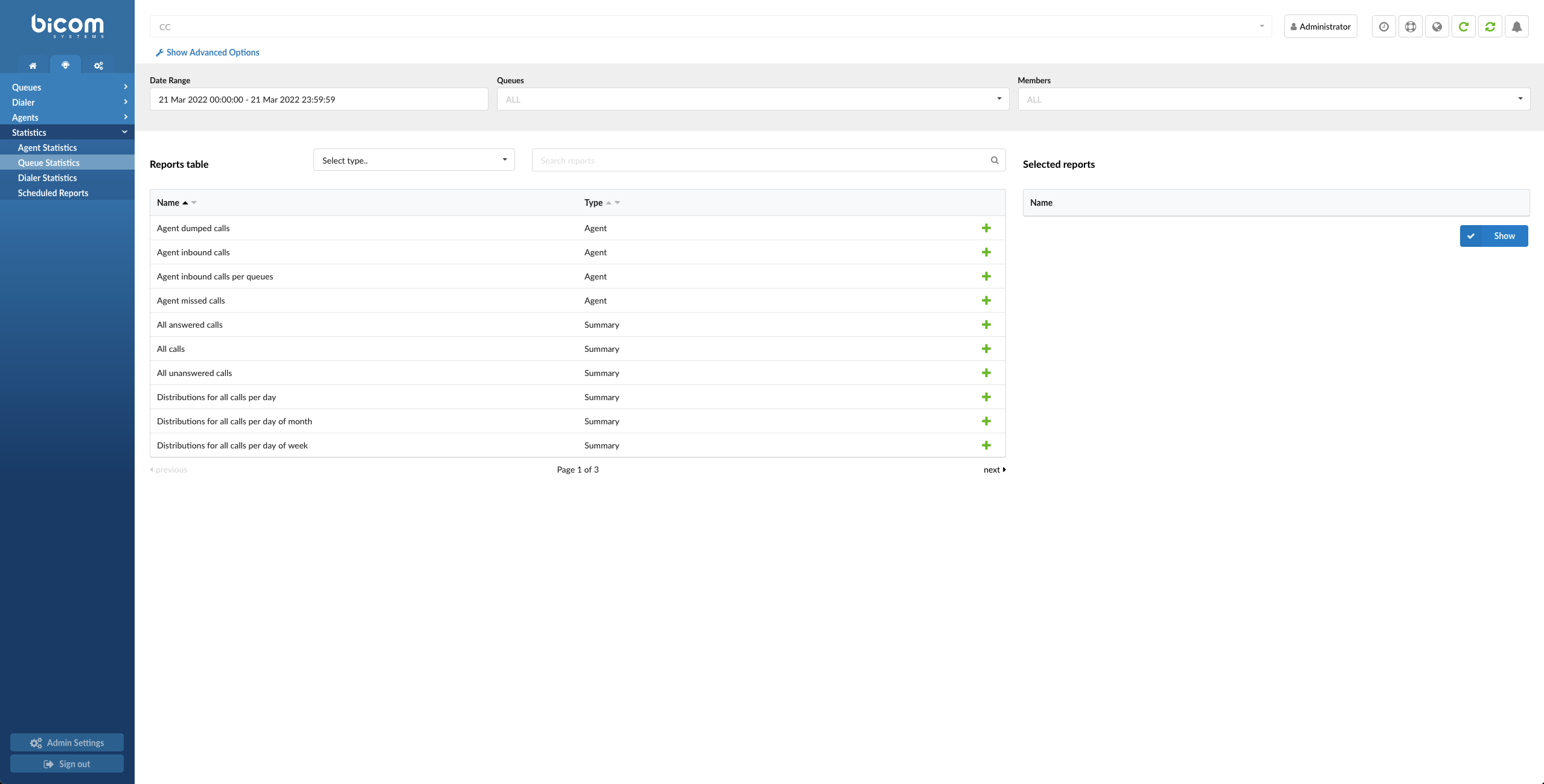
Queue statistics display a comprehensive and detailed array of queue details.
- Date Range
Statistics time period.
Example:
Select the time period for which statistics are to be displayed.
- Queues
Select the queue for which you’d like to see statistics.
(E.g., Click on the ‘Please select’ button to select ‘All’ (all queues) or a specific queue name and then click the ‘Show’ button.)
(Select the box button)
- Members
Queue members.
In the Contact Center, users can filter statistics by Agent Group.
- Select type
Type of reports to be generated. (E.g., Queue, Agent, Summary)
(E.g., Click on the dropdown menu and select the type of report you want to be generated.)
- Reports Table
You may see a list of all Report Templates available and choose the preferred one accordingly. Please refer to the further description for more details.
- Search
Type in a specific Report title and obtain information faster.
([a-z])
- Selected reports
A table where all the selected reports are shown.
(E.g., Click on the Show button to generate statistics for all shown reports.)
NOTE: Upon clicking the Show button, you will be prompted to the Reports page, and in the upper left corner, you may get more details about the preferred Report. If you hover your mouse over the Start date and End date rows displayed, you can see when the Report was last generated. “Generated at” relies on the system time. Other rows are changed depending on the Report Template chosen.
- Show statistics for all agent dumped calls
It shows how many calls the agent had dumped. Note that for one call, an agent can dump several times. Total is the number of calls the agent had, including dumped calls. This type of call happens when the agent hangs up on the caller while the queue announcement (agent announcement) is being played.
(E.g., Click on this check box to show statistics for all agent dumped calls.)
(Check box)
- Show statistics for all agent inbound calls per queue
Shows detailed information about agent inbound calls. For each agent, data is grouped by the queue. Users can see here how calls are distributed per agent per each queue.
(E.g., Click on this check box to show statistics for all agent inbound calls.)
(Check box)
- Show statistics for all agent missed calls
It shows agent missed calls, average missed calls and total ring time. The important thing here is that we can have more than one missed call for one agent call in the queue.
(E.g., Click on this check box to show statistics for all agent missed calls.)
(Check box)
- Show statistics for all answered calls
Shows summary information about all answered inbound calls. Includes all answered call dispositions where we can see how did call finished (agent hangups, caller hangups, transferred).
(E.g., Click to show all answered calls.)
(Check box)
- Show statistics for all calls in general
Shows summary information about all inbound calls. Includes all call dispositions (Total, Answered, Unanswered).
(E.g., Click to show statistics for all answered calls.)
(Check box)
- Show statistics for all unanswered calls
Shows summary information about all unanswered inbound calls. Includes unanswered call dispositions where we can see the reason for not answering (Abandon, Exit With Key, Timeout).
(E.g., Click to show statistics for all unanswered calls.)
(Check box)
- Show statistics of distributions for all calls per day
Shows all calls per day. The list of days depends on the time range filter.
(E.g., Click to show statistics for the distribution of all daily calls.)
(Check box)
- Show statistics of distributions for all calls per day of a month:
It shows you all calls every 1st and 2nd day of the month.
(E.g., Show all statistics for calls where someone on the system played an interrupt message for callers waiting in the queue.)
(Check box)
- Show statistics of distributions for all calls per day of the week
Shows how the calls were distributed per day of the week.
(E.g., Click to show statistics for the distribution of all calls per day of the week.)
(Check box)
- Show statistics of distributions for all calls per hour
Shows how the calls were distributed per hour.
(E.g., Click to show statistics for the distribution of all calls per hour.)
(Check box)
- Show statistics of entry positions
Shows average, min, and max entry positions of the calls in the queue. Data is grouped per queue. This is a critical report because from this report, and we can find out how much load was in queues.
(E.g., Click to show statistics for entry positions.)
(Check box)
- Show statistics for queue answered calls
Shows more detailed information about queues answered calls. Data is grouped per queue. Includes answered call dispositions where we can see how did call finished (agent hangups, caller hangups, transferred).
(E.g., Click to show statistics for queue answered calls.)
(Check box)
- Show statistics for queue callback calls
Shows information about queue callback calls. Data is grouped per queue. Includes callback calls dispositions which contain the total number of callback calls answered and unanswered calls.
(E.g., Click to show statistics for queue callback calls.)
(Check box)
- Show statistics for queue calls
Shows summary information about all queue calls. Data is grouped per queue. Includes Queue Calls Dispositions which contain the total number of calls answered and unanswered.
(E.g., Click to show statistics for queue callback calls.)
(Check box)
- Show statistics for queue calls per agent
Shows detailed information about queue calls per agent. Data is grouped per queue. For each queue, data is additionally grouped by an agent. You can see here how calls are distributed per queue per agent.
(E.g., Click to show statistics for queue calls per agent.)
(Check box)
- Show statistics for queue unanswered calls
Shows more detailed reports about queues unanswered calls. Data is grouped per queue. Includes unanswered call dispositions where we can see the reason for not answering (abandon, exit with key, timed out).
(E.g., Click to show statistics for queue unanswered calls.)
(Check box)
- Show statistics for repeated callers
This report shows statistics of a caller who has called the queue at least two times.
(E.g., Click to show statistics for repeat callers.)
(Check box)
- Show statistics for service level agreement
Service level agreement is calculated per each time range (10, 20, 30, 40 ,50, 60, 70, 80, 90, 100, 110, 120) as: Service level = answered calls_inside_time/ total_calls * 100
(E.g., Click to show statistics for service level agreement.)
(Check box)
- Show statistics for service level agreement inclusive
Service level agreement inclusive is calculated per each time range(10, 20, 30, 40 ,50, 60, 70, 80, 90, 100, 110, 120) as: Service level agreement inclusive = 100 – Answered calls inside time / Total all calls * 100
(E.g., Click to show statistics for service level agreement inclusive.)
(Check box)
Dialer Statistics
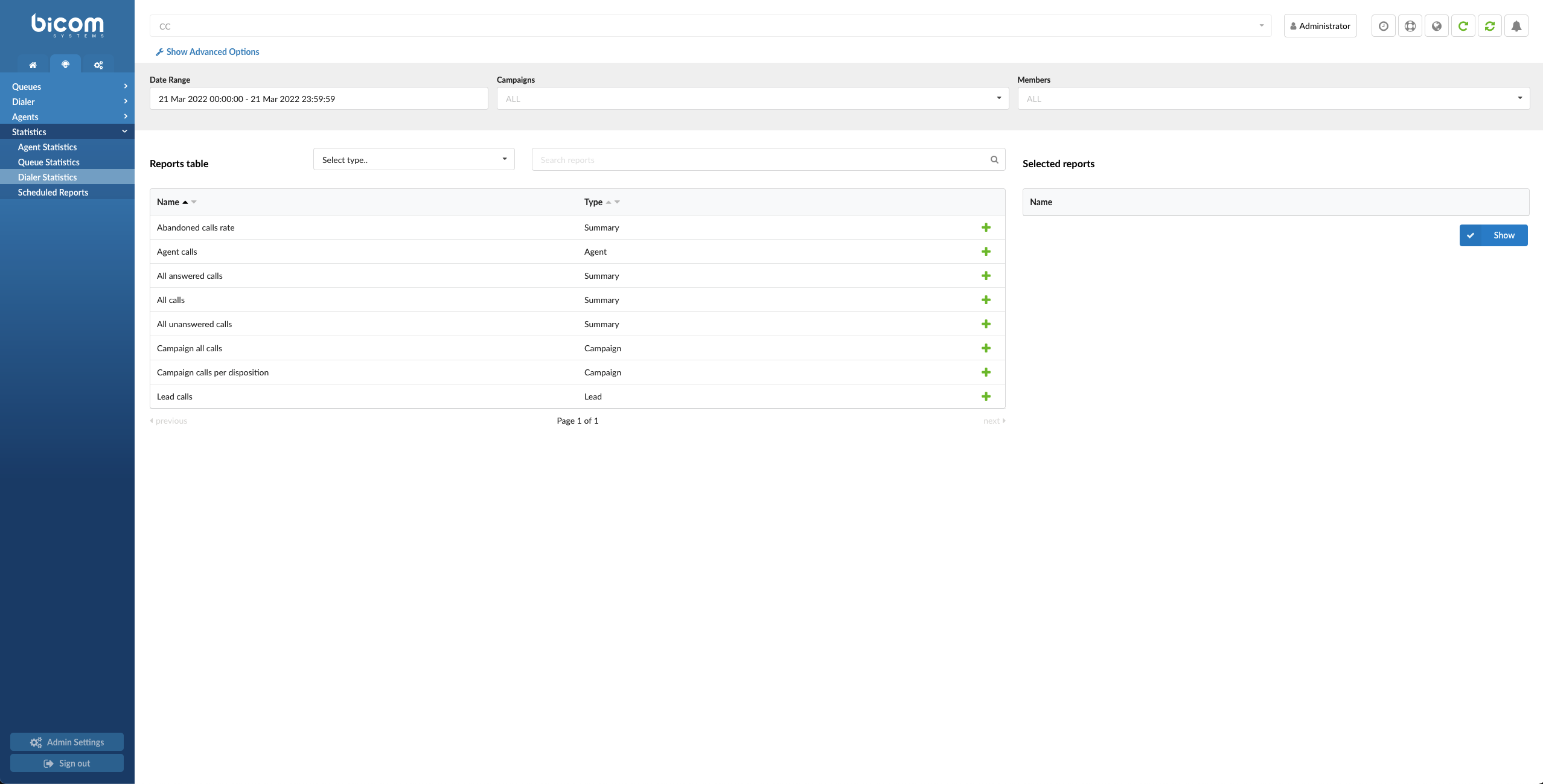
Dialer statistics display a comprehensive and detailed array of Dialer details.
- Date Range
Statistics time period
Example:
Select the time period for which statistics are to be displayed.
- Campaigns
A list of campaigns that can be selected for reports
(E.g., Select ALL or choose the campaigns for which you want reports to be shown.)
- Members
Members that can be selected.
(E.g., member or members you can select for the report to be made.)
- Advanced Options:
Call Duration
Filter the reports based on call duration in seconds.
E.g., Choose the button on the left of this section that says ‘Less than/Greater than’ and then set the call duration in seconds for which you want to see a report.
E.g., Click on Greater than and choose 60 seconds. All calls with a duration of over 60 seconds will be shown in the report(s) that you want to generate.
Hold Duration
Filter the reports based on hold duration in seconds.
E.g., Choose the button on the left of this section that says ‘Less than/Greater than’ and then set the hold duration in seconds for which you want to see a report.
Lead
Enter the lead number if you want to generate a report(s).
Time Format
Select the time format for the reports.
E.g., dd hh mm ss.
- Select type
Type of reports to be generated. (E.g., Campaign, Agent, Summary)
(E.g., Click on the dropdown and select the type of report you want to be generated.)
- Reports Table
You may see a list of all Report Templates available and choose the preferred one accordingly. Please refer to the further description for more details.
- Search
Type in a specific Report title and obtain information faster.
([a-z])
- Selected reports
A table where all the selected reports are shown.
(E.g., Click on the Show button to generate statistics for all shown reports)
NOTE: Upon clicking the Show button, you will be prompted to the Reports page, and in the upper left corner, you may get more details about the preferred Report. If you hover your mouse over the Start date and End date rows displayed, you can see when the Report was last generated. “Generated at” relies on the system time. Other rows are changed depending on the Report Template chosen.
- Show statistics for all abandoned calls rate
Shows the number and percentage of abandoned calls.
(E.g., Click on this check box to show statistics for all abandoned calls rate.)
(Check box)
- Show statistics for all agent calls
Shows a detailed report about agent outbound calls. Data is grouped per agent.
(E.g., Click on this check box to show statistics for all agent calls.)
(Check box)
- Show statistics for all answered calls
Shows summary information about all answered outbound calls. Includes all answered call dispositions where we can see how did call finished (agent hangups, caller hangups, transferred).
(E.g., Click on this check box to show statistics for all answered calls.)
(Check box)
- Show statistics for all calls
Shows summary information about all outbound calls. Includes all call dispositions, which have the total number of answered and unanswered calls.
(E.g., Click on this check box to show statistics for all calls.)
(Check box)
- Show statistics for all unanswered calls
Shows summary information about all unanswered outbound calls. Includes all unanswered call dispositions where we can see the reason for not answering (abandoned, machine, busy, no answer, cancel).
(E.g., Click on this check box to show statistics for all unanswered calls.)
(Check box)
- Show statistics for the campaign all calls
Shows summary information about the campaign and all calls, which include talk time, hold time, and ring time. Data is grouped per campaign.
(E.g., Click on this check box to show all the campaign calls.)
(Check box)
- Show statistics for campaign calls per disposition
Shows the number of campaign calls per disposition. Data is grouped per campaign. For each campaign, information is additionally grouped per disposition. You can see here how calls are distributed per campaign per disposition.
(E.g., Click on this check box to show campaign calls per disposition.)
(Check box)
- Show statistics for all lead calls
Shows summary information about lead calls, which includes the number of answered calls and number of unanswered calls separated because of not answering (machine, no answer, busy, no route, abandoned, failed dial)
(E.g., Click on this check box to show statistics for all lead calls.)
(Check box)
Scheduled Reports
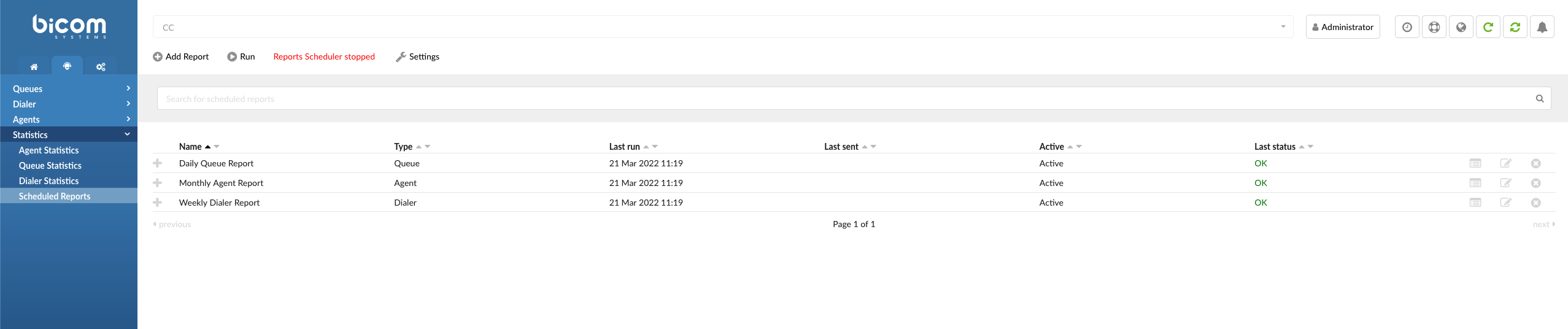
Scheduled reports are extended from Agent, Queue, and Dialer reports. Users can select a specific type of report template when creating scheduled reports. Users can create Queue, Agent, and Dialer report templates. Each report template has different filters that can be applied while editing.
- Search for scheduled reports
Search for already created scheduled reports by name.
([a-z][0-9])
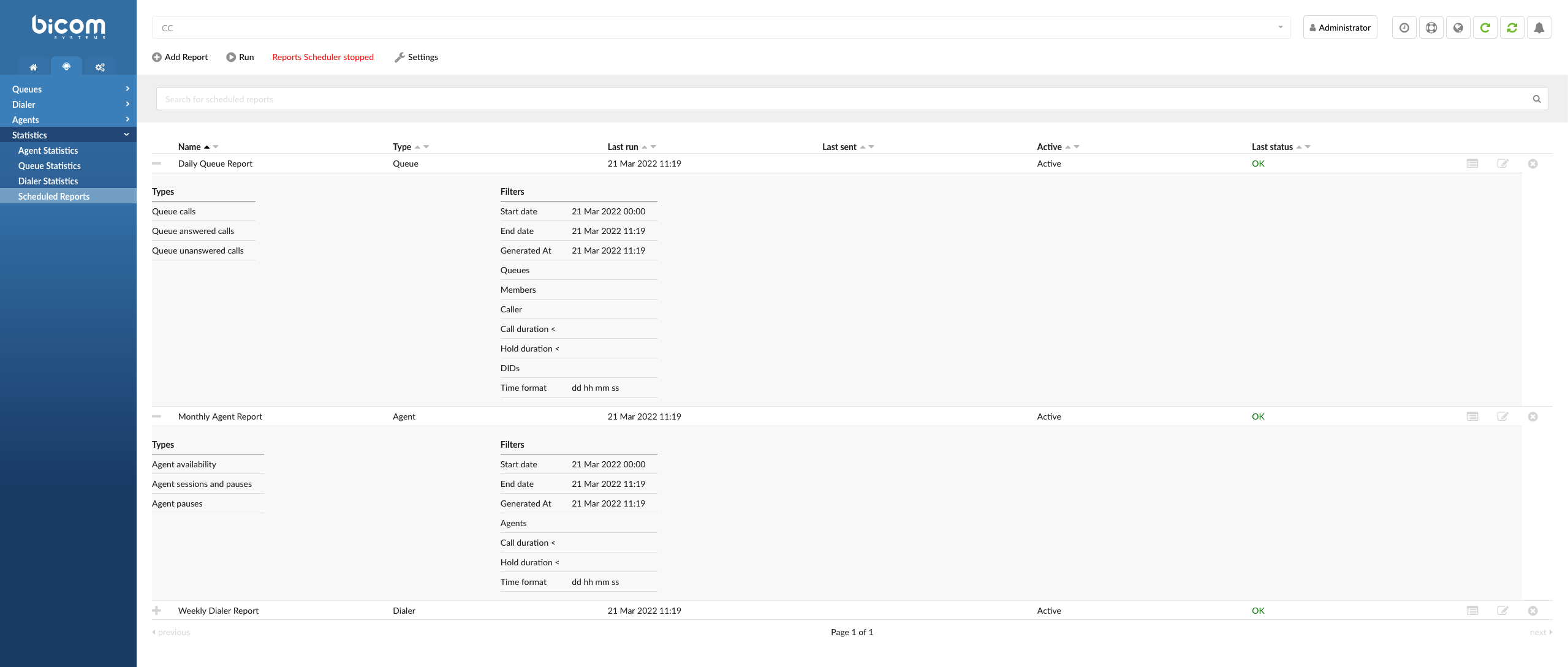
 Press the ‘plus’ sign to view additional data about the particular report. For more information, please refer to the screenshot.
(Button)
- Name
Displays the name of a specific scheduled report.
(E.g., Test)
(Display)
- Type
Displays the type of report that was chosen.
(E.g., Agent)
(Display)
NOTE: Users can select one of the following types of reports: ‘Queue’, ‘Agent’, or ‘Dialer’.
- Last run
Displays the last time that a scheduled report was run.
(E.g., 01 Oct 2020 15:34)
(Display)
- Last sent
The last time a scheduled report was sent to a user’s email is displayed.
(E.g., 1 Sept 2020 16:50)
(Display)
- Active
Displays whether the scheduled report is active.
(E.g., ‘Active’/’Inactive’)
(Display)
- Last status
Displays the success status.
(E.g., ‘OK’/’Pending’/’Generating’)
(Display)
 Click the ‘Show’ button to view additional information about the report. Users will be prompted to the page displaying information based on the type of report chosen.
(E.g., If a user chooses the ‘Agent’ type for a scheduled report and clicks this icon, s(he) will then be prompted to the ‘Agent Statistics’ window.)
(Button)
NOTE:
In certain cases, after editing the existing configuration of a scheduled report that was previously created and clicking the ‘Show’ button, the following error message can appear: “ERR: One of the reports was added to the Scheduled Report. However, the report and its data are missing. To avoid the error message being shown, check whether ‘Scheduled Reports’ is waiting for the defined scheduled time to run, or please click ‘Save & Run’. Exiting…”. For more information, please refer to the screenshot.
Please be aware that when editing a scheduled report’s configuration and clicking the ‘Save’ button, the report and its data may be missing because the ‘Scheduled Report’ is waiting for the defined time to run. Please check the settings in the ‘Repeat’ field, or click ‘Save & Run’ to avoid this error message being shown.
 Click the ‘Edit’ button to edit the scheduled report’s details.
(Button)
 Click the ‘Delete’ button to delete the scheduled report.
(Button)
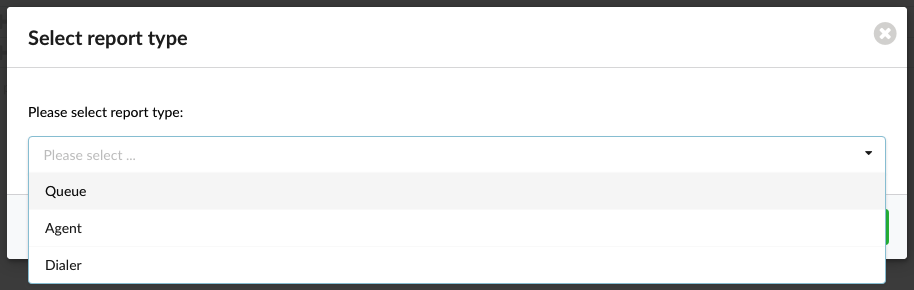
Report Type

Clicking this button will prompt users to a new window where they can select the type of scheduled report.
(Button)
- Please select report type
Select a type of scheduled report from the drop-down list.
(E.g., Agent)
(Select box)
Report Add/Edit
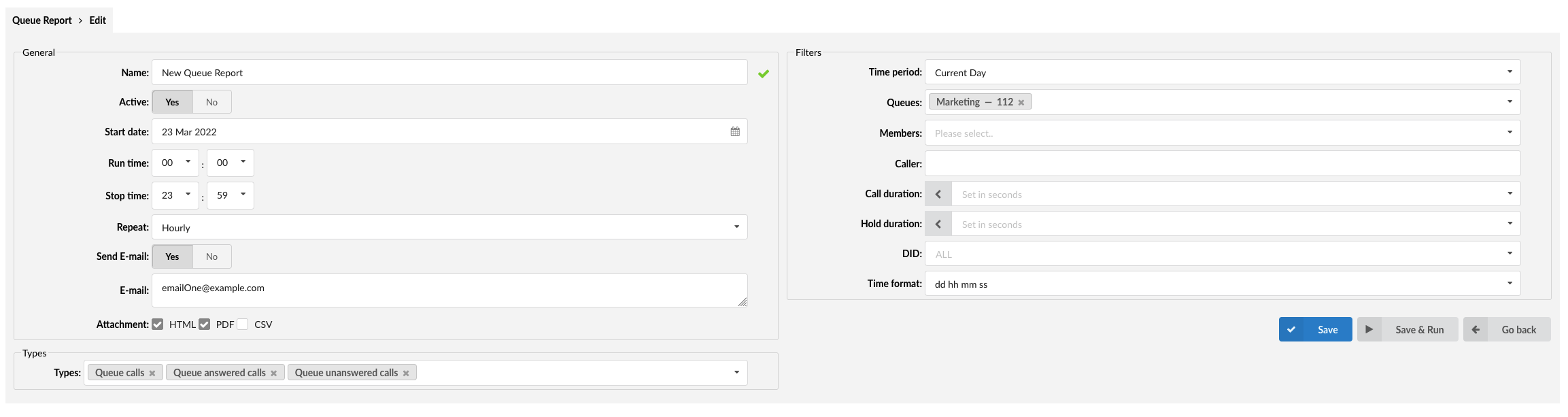
Add/Edit Report
General
- Name
Enter the name of the scheduled report.
(E.g., Test)
([a-z][0-9])
- Active
Select the activity state of this specific scheduled report.
(E.g., Yes/No)
(Options button)
- Start date
Specify the date to start running this scheduled report by choosing the date from the drop-down calendar.
(E.g., 17 May 2021)
(Options button)
- Run time
Set a start time for a scheduled report by using the time picker.
(E.g., 08:00)
(Options button)
- Stop time
Set a stop time for the scheduled report by using the time picker.
(E.g., 23:00)
(Options button)
- Repeat
Select an interval for scheduled reports to be run.
(E.g., Hourly/Daily/Weekly/Monthly/Yearly)
(Select box)
- Send E-mail
Select whether an e-mail will be sent for this scheduled report or not.
(E.g., Yes/No)
(Options button)

Enter single or multiple e-mails to which the reports will be sent.
(E.g., email@example.com)
([a-z][0-9])
NOTE: The correct way to enter multiple e-mails is with “;” as a separator or “,” and space as a separator.
(E.g., emailOne@example.com;emailTwo@example.com)
(E.g., emailOne@example.com, emailTwo@example.com)
- Attachment
Select a type of file to be attached to an e-mail.
(E.g., HTML/PDF/CSV)
(Check box)
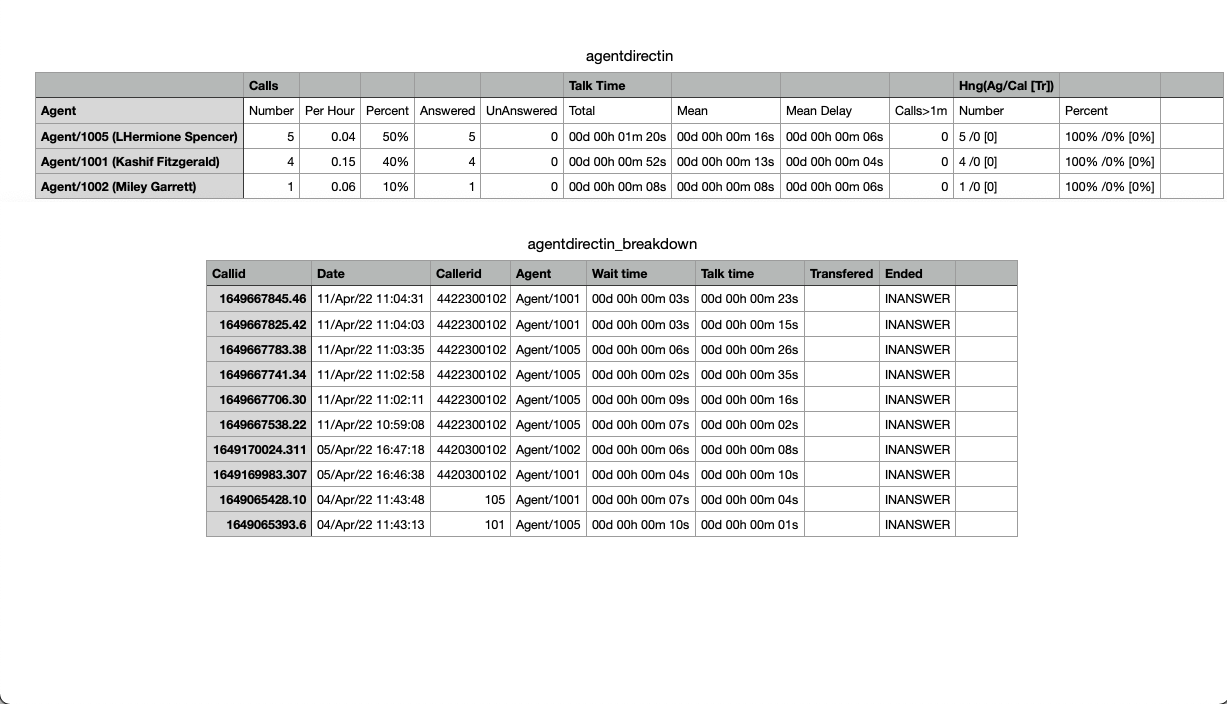
If the user selects a CSV type of file to be attached, another CSV file will be created automatically. These files will be zipped and sent through an email. Type of scheduled report + ‘_breakdown’ will be the name of the new CSV file, and it will contain additional information about the selected report.
(E.g., If the user selects the type ‘Agent direct in calls’ for the report, inside the zipped folder will be two CSV files, agentdirectin.csv, and agentdirectin_breakdown.CSV).
NOTE: Please be aware that some schedule reports share the same type of information, so breakdowns for those reports will be the same.
Types
- Types
Select types of calls to be logged.
(E.g., Choose a type of call to be logged from a drop-down menu.)
(Select box)
Filters
The configuration will change depending on which type of report (Queue/Agent/Dialer) is selected.
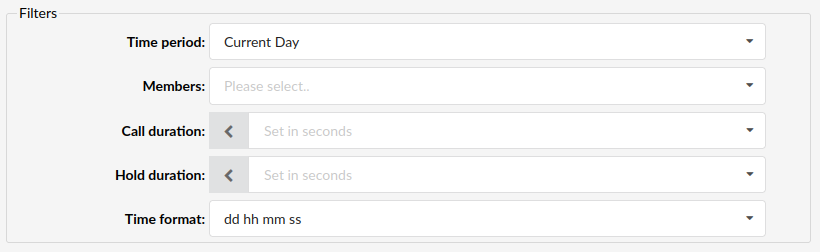
Filters for Agent Reports
- Time period
Select a period for which a report will be filtered.
(E.g., Current Day/Current Week/Current Month/Current Year/Last Day/Last Week/Last Month/Last Year)
(Select box)
- Members
Set Members for which a report will be filtered.
(E.g., Select members from a drop-down menu.)
(Select box)
- Call duration
Filter calls for the scheduled report by call duration (in seconds).
(E.g., 10/20/30/60/120)
(Select box)
- Hold duration
Filter calls for the scheduled report by hold time duration (in seconds).
(E.g., 10/20/30/60/120)
(Select box)
- Time format
Users can set the time format to be applied to filters.
(E.g., dd hh mm ss/dd:hh:mm:ss/Days/Hours/Minutes/Seconds)
(Select box)
Filters for Queue Reports
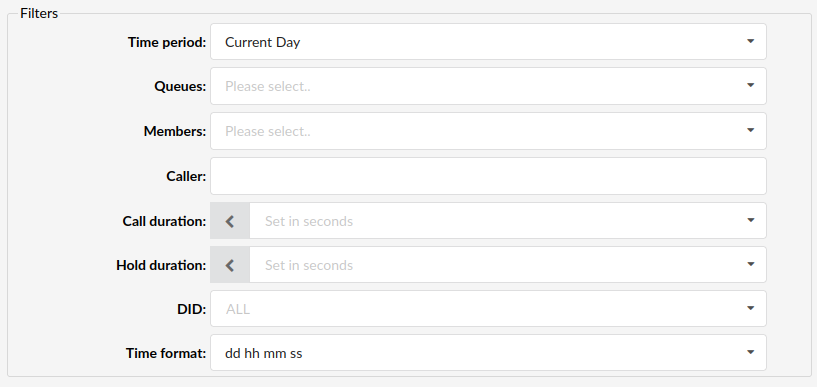
The ‘Filters’ section for Queue Reports contain three additional fields: ‘Queue’, ‘Caller’, and ‘DID’.
- Queues
Set a Queue for which the report will be filtered.
(E.g., Select a Queue from a drop-down menu for which a report will be created.)
(Select box)
- Caller
Filter by Caller.
(E.g., 123456)
([a-z][0-9])
- DID
Filter calls for a scheduled report by selecting DIDs.
(Select box)
NOTE: Calls per DID are all filtered by default.
Filters for Dialer Reports
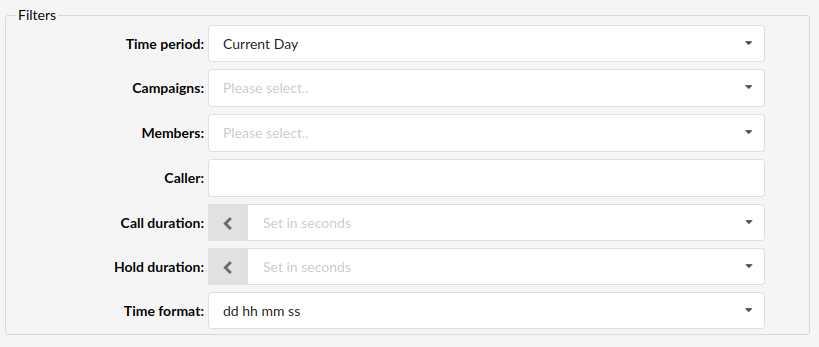
The ‘Filters’ section for Dialer Reports contains one additional field: ‘Campaigns’.
- Campaign
Set a Campaign for which the report will be filtered.
(E.g., 138 – Test)
([a-z][0-9])
 Click the ‘Save’ button to save the changes made on the scheduled report or to keep it as a new scheduled report that is not running yet.
(Button)
 Click this button to save a report and run it instantly.
(Button)
 Click this report to go back to the previous page where the list of already saved scheduled reports can be found.
(Button)
Settings
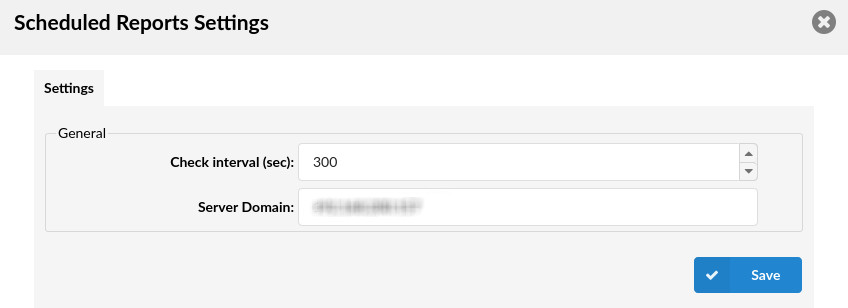
- Check interval (sec)
Define how often to check for Queue statistics that will be included in the report.
(E.g., 300)
([0-9])
- Server Domain
Define the server domain.
(E.g., 192.168.200.***)
NOTE: This field is populated by default.